
<- Go Back
Getting Started
Understanding the RankFrame Dashboard
A guided tour of RankFrame's layout: the sidebar navigation, SEO score widget, main sections, and every action button in the plugin.
Last Updated on
Read Time
4 min read
Plugin layout overview

RankFrame opens as a panel inside Framer. The layout has two main areas: a left sidebar that stays visible at all times, and a main content area on the right that changes based on which section you open.
The top bar shows the RankFrame logo and a close button. You can reopen the plugin at any time from the Framer Plugins panel.
Main navigation sections
The left sidebar has five main navigation items. Each one opens a different set of SEO tools.
Global Settings: Set site-wide meta titles and descriptions. Manage keyword injection, schema markup, and the 404 monitor. Changes here apply across your entire site unless overridden at the page level. Has four tabs: Basic, Keywords, Advanced (Schema), and 404 Monitor.
Pages: Browse every page on your Framer site, organized by folder. See the SEO score for each page. Click Analyze on any page to open its own SEO analyser, which runs the same checks as the site-wide audit against that single page.
Submit Indexing: Push pages directly to Google using the official Google Indexing API. View your Search Console analytics, track keywords, and check the live indexing status of any URL. Has five tabs: Submit URLs, Setup, Analytics, Keyword Tracker, and Indexing History.
SEO Analyzer: Run a site-wide audit across 29 checks. Filter by Green Zone, Red Zone, Warnings, and Speed. Click any check to see a specific suggestion. Download the full report as a PDF. The Speed tab shows Core Web Vitals from Google PageSpeed Insights.
Image SEO: Scan every image on your site (Canvas and CMS collections). See missing alt text counts. Bulk-generate AI alt text for all selected images in one click. Export as CSV. Add a global suffix to all generated alt text site-wide.
The SEO score widget
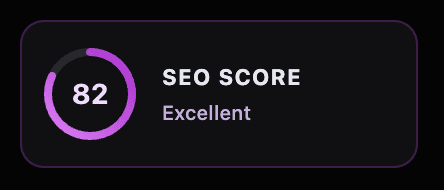
Below the main navigation, the sidebar shows a circular progress ring with a number from 0 to 100. This is your site-wide SEO score.
The score is calculated from the 29-check audit in the SEO Analyzer. It updates each time you run a fresh audit or recrawl your site.
Score range | Label | What it means |
|---|---|---|
90 to 100 | Excellent | Your site passes the vast majority of checks. Continue monitoring. |
80 to 89 | Good | Minor issues present. Target 90+ by fixing Red Zone items. |
60 to 79 | Needs Work | Several important checks are failing. Prioritize Red Zone fixes. |
0 to 59 | Critical | Significant SEO gaps. Run the Analyzer and fix all Red Zone items immediately. |
Click the SEO score widget to jump directly to the SEO Analyzer. This is the fastest way to see exactly what is dragging your score down.
Sidebar actions
Below the SEO score widget, the sidebar shows quick-access links and two action buttons.
Support
A green dot appears next to Support when the RankFrame team is online and available. Click it to open a support conversation. If the dot is grey, the team is offline. You can still send a message and expect a reply within one business day.
Documentation
Opens the RankFrame Help Center in your browser. Use this to find guides for any feature.
View Dashboard
Opens dashboard.rankframe.com in a new tab. The external dashboard shows account-level data and billing details. Most day-to-day SEO work happens inside the Framer plugin panel, not the external dashboard.
See Billing
Opens your billing portal (powered by Polar.sh). From here you can view your current plan, switch between monthly and annual billing, update your payment method, download invoices, and cancel your subscription.
Recrawl Website
Re-runs the full site scan. Use this after adding new pages to your Framer site, uploading new images, or publishing significant content updates. RankFrame uses the most recent scan data for all audits and image inventories.
Trial users get 1 recrawl included. Paid users on both Personal and Agency plans get unlimited recrawls.
Account and plan block
At the bottom of the sidebar, RankFrame shows your account information.
Avatar: your initials in a purple circle
Name and email: the account you are signed in with
Plan badge: your current plan (Free Trial, Personal, or Agency)
Renewal countdown: days until your next billing date (e.g. “Renews in 357 days”)
Click the account block to open Account Settings. From there you can view your profile details and manage your Personalization data.
Profile details like your name and password are read-only inside the plugin. To update them, visit dashboard.rankframe.com.
Frequently asked questions
What does the SEO score in RankFrame mean?
The SEO score is a 0 to 100 rating based on the site-wide audit RankFrame runs across 29 checks. A score of 90 or above is Excellent. 80 to 89 is Good. 60 to 79 is Needs Work. Below 60 is Critical. Improve it by fixing items in the Red Zone of the SEO Analyzer.
Related to