
<- Go Back
Account
Account Settings Overview
Account Settings is a modal that floats over the plugin panel. It contains two tabs, Profile and Personalization, that control different aspects of your RankFrame experience. This article walks through how to open Account Settings, what each tab contains, and how the sidebar account block relates to the modal.
Last Updated on
Read Time
3 min read
How to Open Account Settings
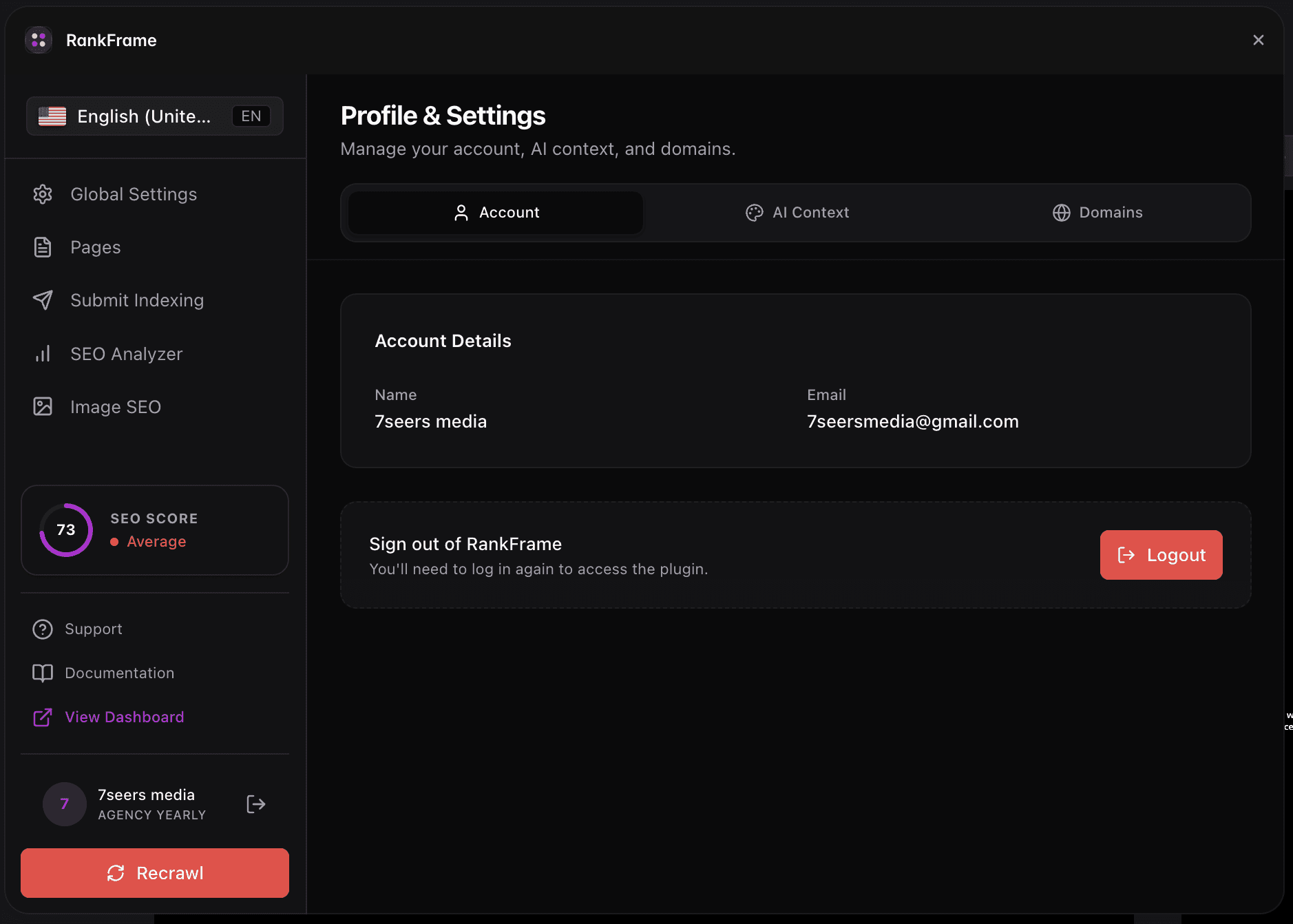
The Account Settings modal is always one click away. You do not need to navigate away from whatever screen you are working in inside RankFrame, the Framer SEO plugin.
1. The Avatar Block (Sidebar Trigger)
Look at the bottom of the left sidebar in the RankFrame plugin panel. You will see a block displaying your avatar circle, name, and email address. Click anywhere on this block to open the Account Settings modal. The modal opens on top of the plugin without navigating away from your current view.
2. The Account Settings Modal
Once open, the modal displays two tabs at the top: Profile and Personalization. Click either tab label to switch between them. Close the modal by clicking outside it or using any dismiss control to return to your plugin view.
The Two Tabs at a Glance
Each tab serves a distinct purpose. Understanding which tab controls what will save you time when you need to find or update something.
3. Profile Tab
The Profile tab shows your account identity and plan status. This includes your avatar, display name, plan badge (Trial, Personal, or Agency), email address, join date, authentication method, and a Sign Out button. All fields here are read-only inside the plugin. To edit your name, email, or password, visit dashboard.rankframe.com.
4. Personalization Tab
The Personalization tab is where you enter the brand, business, and content strategy data that RankFrame uses to power its AI features. This includes your brand voice, target audience, business description, and content guidelines. Unlike Profile, these fields are fully editable inside the plugin. Keep them up to date as your strategy evolves.
The Sidebar Account Block
The sidebar account block sits at the bottom of the left sidebar at all times. It is visible across every screen inside RankFrame and gives you a permanent summary of your account without opening the modal.
5. Always-Visible Account Summary
The sidebar block shows: your avatar circle, your display name, your email address, your current plan tier, a renewal countdown timer, a See Billing button (purple) that opens your billing portal, and a Recrawl Website button (red/coral) that triggers a fresh crawl of your connected site. This information is for reference only from the sidebar.
6. Support Status Indicator
A small dot in the sidebar indicates whether the 7 Seers support team is currently online. When the dot is green, the team is available. You can reach the team at hello@7seersmedia.com regardless of the indicator state.
Editing profile details: The Account Settings modal is a read-only reference for your Profile information. To update your name, email, or password, visit dashboard.rankframe.com. Billing changes are handled through the portal linked from the See Billing button in the sidebar.
Quick Reference: What Each Tab Controls
Tab | What it shows | Editable in plugin? |
|---|---|---|
Profile | Avatar, name, plan badge, email, join date, auth method, Sign Out | No (visit dashboard.rankframe.com to edit) |
Personalization | Brand voice, audience, business description, content strategy | Yes, fully editable inside the plugin |
Frequently asked questions
How do I open Account Settings in RankFrame?
Click the avatar block at the bottom of the left sidebar inside the RankFrame plugin panel. The Account Settings modal opens immediately on top of the plugin without navigating away from your current view.