
<- Go Back
Account
Team Roles: Admin and Member
RankFrame team workspaces have two roles. The Admin owns the subscription, seats and team. Members do the SEO work on the websites assigned to them. Here is what each role sees and can do.
Last Updated on
Read Time
2 min read
Every team workspace has two kinds of people: the Admin, who owns the account, and Members, who do the SEO work. Your role is shown under the workspace name in the switcher, for example "Agency (Admin)" or "Agency (Member)".
1. Admin
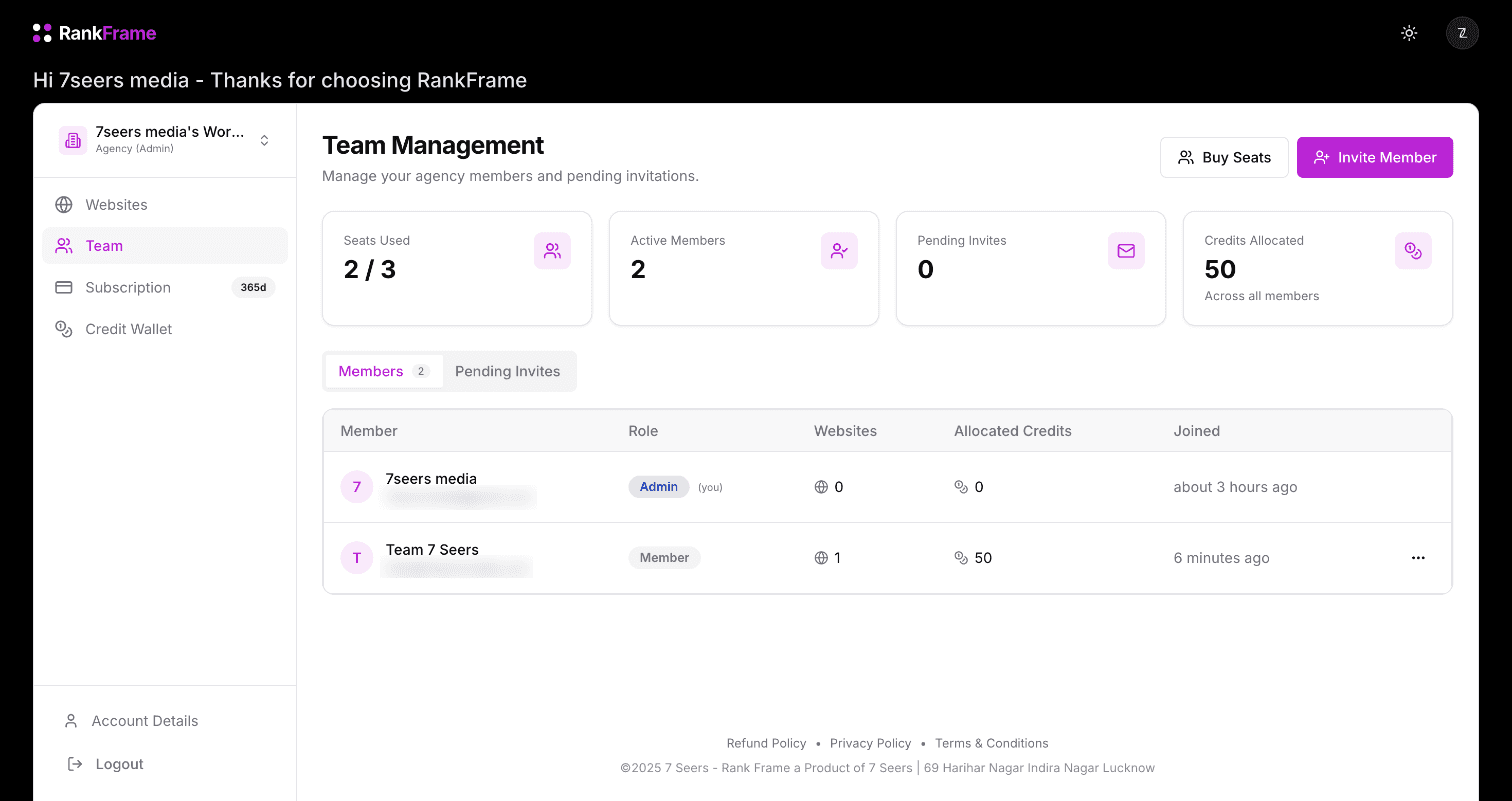
The Admin is the owner of the Agency subscription. Admins can:
Manage the plan, seats and invoices on the Subscription page (buying seats)
Invite people and see pending invitations on the Team page (inviting members)
Give members credits and assign websites (credits and websites)
Rename the workspace from Account Details
Use every RankFrame feature on every website in the workspace
To change a member later, open Team and click the … menu on their row: Edit Website Access picks which sites they can use, Allocate Credits gives them more credits or retrieves credits back to the workspace pool, and Remove Member takes them off the team.
2. Member
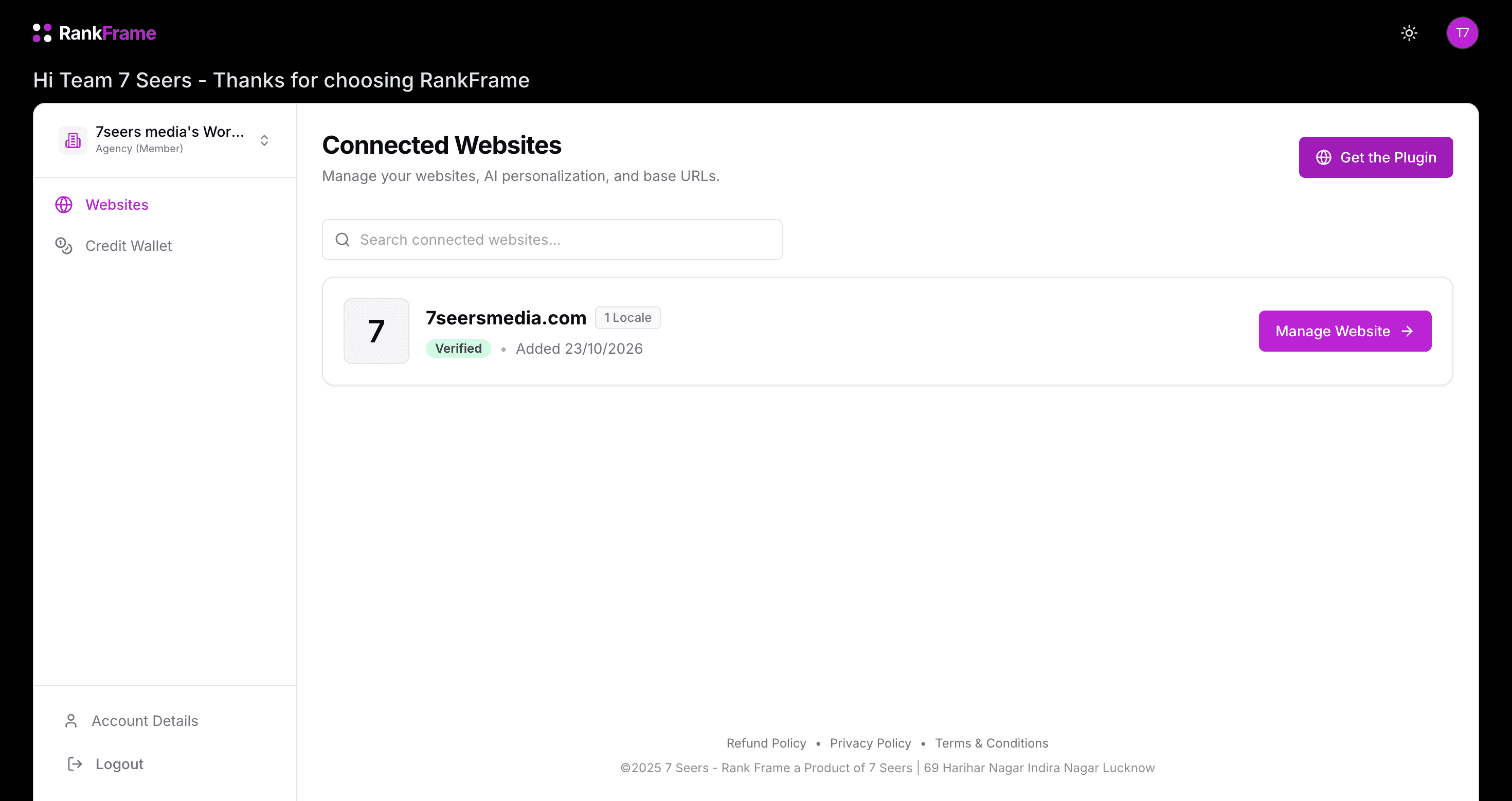
Members join through an invitation and do not pay for a plan. In the dashboard they see:
Websites: the sites in the workspace they work on
Credit Wallet: the credits they have available for AI alt text
Members work inside the RankFrame plugin in Framer on the websites assigned to them. The Team and Subscription pages are only shown to the Admin.
If a member opens the Team page, the dashboard shows Access Denied: This section is available to Admins only. In the plugin, members see an Agency Member badge under their name.
3. Framer access still applies
A RankFrame role does not change who can edit your site in Framer. Anyone who needs to open the plugin on a project also needs edit access to that Framer project.
4. A member's own workspace
Being a member of a team does not stop anyone having their own workspace. A member can activate their personal workspace with its own plan, then switch between the two from the workspace switcher at the top left of the dashboard.
Related features
Teams & Workspaces: A seat for every teammate, with website access and credits per person.
Frequently asked questions
How many roles are there?
Two: Admin and Member.