
<- Go Back
Account
Managing Your RankFrame Account
Most account management for RankFrame happens at dashboard.rankframe.com, not inside the Framer plugin. The plugin shows your account info for reference, but editing your name, email, password, and billing all happen via the external dashboard and billing portal. This article covers where to go for each type of account action.
Last Updated on
Read Time
3 min read
Account Actions and Where to Take Them
Use the numbered blocks below to locate the right place for each type of account task. A quick-reference table at the end of this section summarizes all six actions at a glance.
1. View Account Info in the Plugin Profile Tab
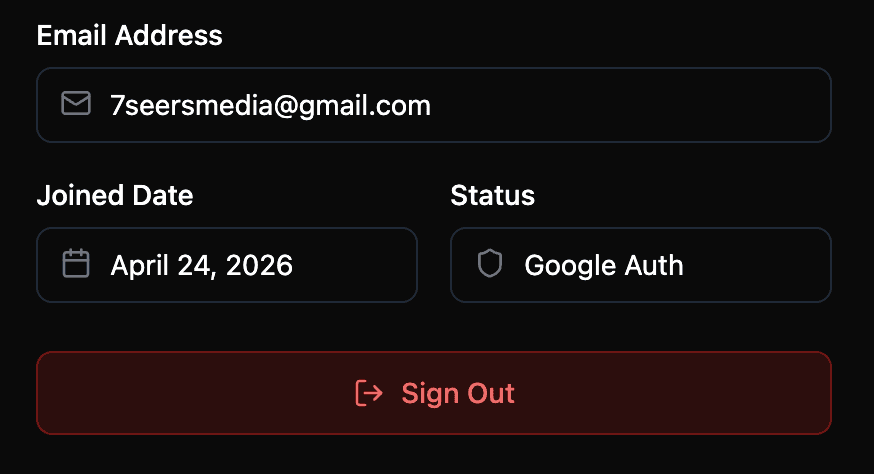
To check your current account details without leaving Framer, click the avatar block at the bottom of the left sidebar to open Account Settings, then select the Profile tab. You will see your avatar, display name, plan badge, email address, join date, and authentication method. All fields here are read-only and shown for reference only.
2. Update Name, Email, or Password
To change your display name, email address, or password, open a browser and go to dashboard.rankframe.com. Sign in with your current credentials and navigate to your profile or account settings. After saving, the updated information will appear in the plugin the next time you open Account Settings. If you signed up with Google Auth, password changes must be handled through your Google account settings, not through the RankFrame dashboard.
3. Change Your Billing Plan
To upgrade, downgrade, or cancel your RankFrame subscription, click the See Billing button in the sidebar account block. This button is purple and always visible at the bottom of the left sidebar. It opens the Polar.sh billing portal in your browser, where you can manage your subscription, view invoices, and update payment details. Changes take effect on your next billing cycle.
4. Change Your Connected Site (Personal Plan)
The Personal plan supports one connected Framer site. If you need to change which site is linked to your account, you cannot do this from inside the plugin or the dashboard self-service portal. Send an email to hello@7seersmedia.com with your account email address and the URL of the new site you want to connect. The support team will update your account and confirm when done.
5. Sign Out of RankFrame
To end your current RankFrame session, open Account Settings by clicking the avatar block in the left sidebar, then go to the Profile tab. Scroll to the bottom of the tab and click the Sign Out button (full-width, dark red). Your session ends immediately and you are returned to the login screen. You will need to sign in again to access your data.
6. Contact Support
For any account issue not covered by the self-service options above, reach the 7 Seers support team at hello@7seersmedia.com. A small status dot in the sidebar indicates whether the team is currently online. When the dot is green, the team is active and response times are typically fast. When it is not green, the team is offline and will reply when they are back.
Quick Reference: Common Account Actions
Use this table to find the right destination for the most common account tasks at a glance.
What to Do | Where to Go |
|---|---|
View account info | Account Settings > Profile tab (inside the plugin) |
Update name, email, or password | dashboard.rankframe.com |
Upgrade, downgrade, or cancel plan | Sidebar > See Billing button > Polar.sh portal |
Change connected site (Personal plan) | Email hello@7seersmedia.com |
Sign out of RankFrame | Account Settings > Profile tab > Sign Out button |
Contact support | hello@7seersmedia.com (or check sidebar status dot) |
Tip: If your account information in the plugin looks out of date after making changes at dashboard.rankframe.com, sign out and sign back in to the plugin. This refreshes your session and pulls the latest account data.
Frequently asked questions
Where do I update my name or email address for RankFrame?
Visit dashboard.rankframe.com, sign in, and edit your profile details there. Changes are reflected in the plugin the next time you open Account Settings.