
<- Go Back
Account
Changing Your Domain in RankFrame
When you move your Framer site to a new domain, RankFrame needs to crawl the new address. This article shows how RankFrame spots a domain change and how to switch your main domain, keep both domains, or remove old ones in Profile and Settings.
Last Updated on
Read Time
3 min read
RankFrame crawls one main domain for your Framer project, using that domain's sitemap. If you move your site to a new domain, for example from a Framer staging address to your own domain, RankFrame needs to know, otherwise crawls and reports keep reading the old address and new pages won't appear in Pages.
How RankFrame Spots a Domain Change
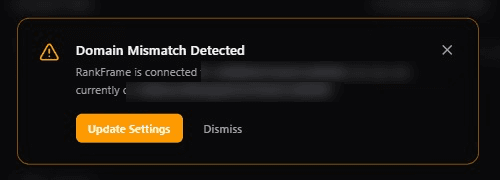
When you publish your Framer project to a different domain than the one RankFrame is set up for, RankFrame shows Domain Mismatch Detected, with the domain it's connected to and the one you're publishing to. This works whether or not the 404 Monitor is turned on.
Click Update Settings to open the Domains tab, or Dismiss to decide later.
The Domains Tab
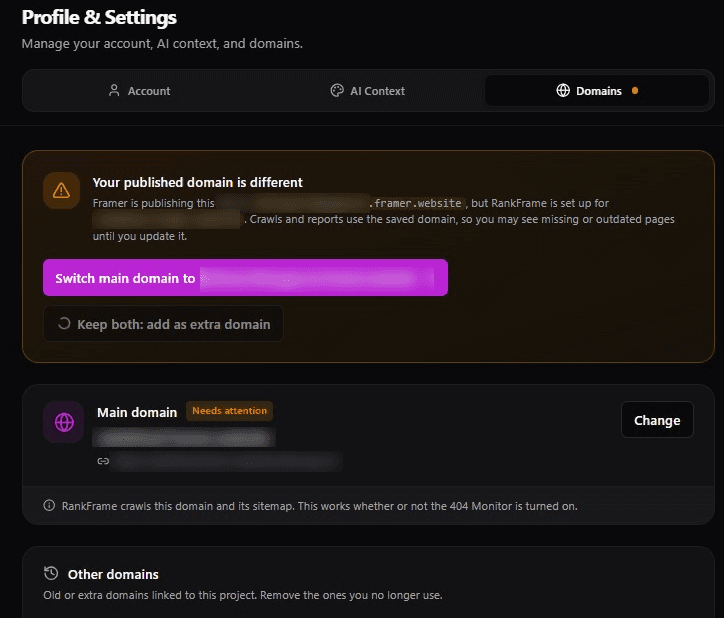
Open the Domains tab from the account row at the bottom of the sidebar, under Profile & Settings. It shows:
Main domain: the domain RankFrame crawls, with its sitemap URL. It shows In sync when it matches where you publish, or Needs attention when it doesn't.
Other domains: old or extra domains linked to the project, which you can remove when you no longer use them.
When the domains don't match, a Your published domain is different card offers two choices:
Switch main domain: makes the new domain your main domain, so crawls and reports use it from now on. Choose this when you've moved your site for good.
Keep both: add as extra domain: keeps your current main domain and adds the new one under Other domains. Choose this if you still publish to both.
Change Your Main Domain
In the Domains tab, click Change next to Main domain, or click Switch main domain.
Enter the domain your site is published to and click Check domain. Nothing changes until you confirm.
Review the checks: whether the new site responds, and whether its sitemap can be read and how many of its URLs are on the new domain. What will change shows the old and new domain and sitemap.
Click Confirm and update. Your pages and SEO scores are kept.
Click Recrawl now so RankFrame picks up any new pages from the new domain.
Add or Remove Extra Domains
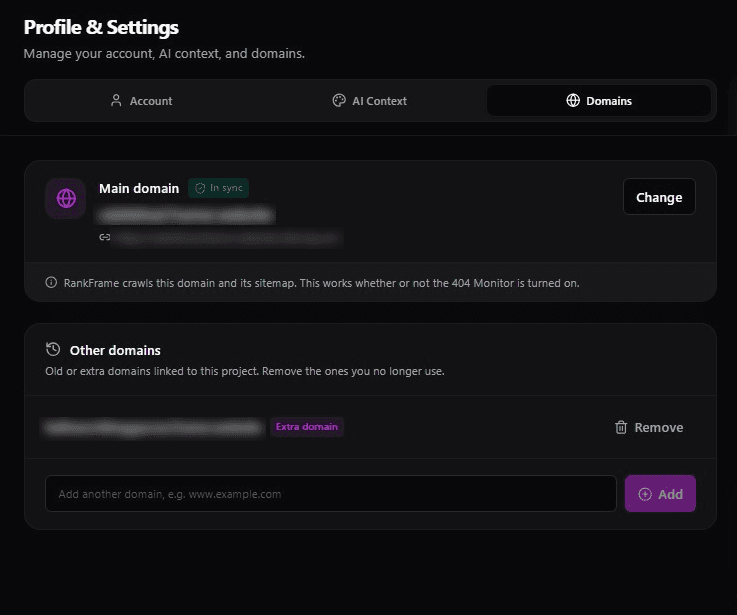
To add a domain, type it in the field under Other domains, for example www.example.com, and click Add.
To remove one, click Remove next to it and confirm. Your main domain is not affected. If RankFrame has saved pages on that domain, you can also choose to delete those pages along with their SEO audits and keywords. This cannot be undone, so only tick it for a domain you no longer use.
Moving From a Staging Domain
If you connected RankFrame while your site was on a Framer staging address, switch the main domain to your live domain as soon as you launch, then recrawl. Your plan stays the same, because RankFrame is linked to your Framer project, not its address. The 404 Monitor only logs hits from the domains listed here, so check your live domain appears in the Domains tab too.
If new pages still don't appear after switching and recrawling, see the Troubleshooting Overview or email us at hello@7seersmedia.com.
Frequently asked questions
Will I lose my data if I change my main domain?
No. Your pages and SEO scores are kept when you switch the main domain. Run a recrawl afterwards so RankFrame picks up any new pages from the new domain.