
<- Go Back
Pages
Pages List View
Browse, search, and triage every page on your Framer site from the RankFrame Pages list. Folders, scores, and last crawled dates at a glance.
Last Updated on
Read Time
3 min read
Opening the Pages list
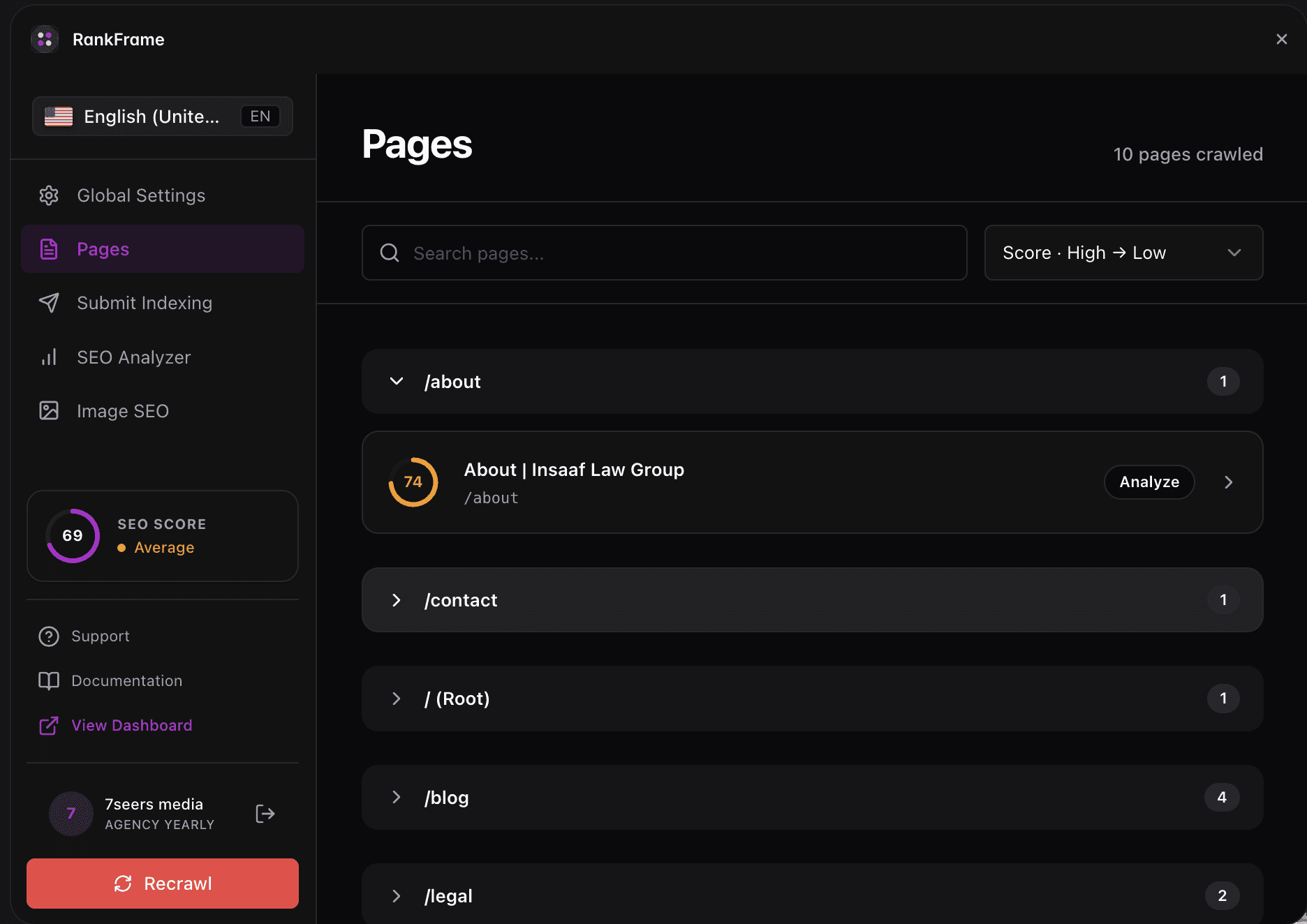
Click the database icon in the RankFrame left sidebar. The Pages section opens with the subtitle Manage your page settings in Framer. Every Static page and CMS entry on your site is listed here, grouped into folders that match your Framer structure.
Anatomy of the list
The list view has five things to know.
1. Refresh button
The Refresh button sits at the top of the Pages section. Use it after publishing in Framer or after adding new pages so RankFrame pulls a fresh page list and re-reads metadata.
2. Search bar
The Search bar filters every page instantly across every folder. Type any part of a title or URL and the list narrows in real time. There is no submit button, results update as you type.
3. Collapsible folders
Folders mirror your Framer site structure, for example Insaaf, Projects, or Thoughts. Each folder header shows a type label of Static or CMS and a page count badge so you can see size at a glance. Click the header to collapse or expand.
4. Page row
Each row shows the full page title, its URL, the current SEO score, and the last crawled date. Click Analyze on the row to open that page’s own SEO analyser and start editing.
5. Score color dots
The colored dot next to each score makes triage fast.
Purple dot: 85 and above. The page is in great shape.
Orange dot: 70 to 84. There are quick wins to capture.
Red dot: below 70. Open this page next.
Suggested workflow
Press Refresh: Make sure the list reflects what is currently published in Framer.
Scan for red dots: Collapse healthy folders and focus on pages scoring below 70 first.
Open a page: Click Analyze on any row to open that page’s analyser and start fixing issues.
Use search for re-checks: After publishing changes, search the page title and confirm the score moved up.
Keep folders collapsed for sections that already score purple. The list stays scannable and your eye goes to the work that matters.
Last crawled dates only update after RankFrame audits a page. If a date looks old, open the page or press Refresh to trigger a fresh read.
Pages and locales
The pages list follows the locale selected in the sidebar. Switch language and run the analyser again to score that version of a page, since a page can pass in one language and fail in another. See Multi-Language SEO in Framer.
Frequently asked questions
How do I open the Pages list?
Click the database icon in the RankFrame left sidebar. The Pages section opens with the subtitle Manage your page settings in Framer.