
<- Go Back
Pages
Per-Page SEO and the Page Analyser
Per-page SEO in RankFrame now runs through the page's own SEO analyser. Here is where the score, the checks and the meta fields live after the rebuild.
Last Updated on
Read Time
3 min read
Per-page SEO has been rebuilt. Earlier versions showed a split view: a live preview of your Framer page on the left and a separate SEO control surface on the right, with its own score header, title and description fields, and five collapsible audit sections. That surface no longer exists.
What replaced it
Every page is now connected to its own SEO analyser. When you open a page from the Pages list, it runs the same checks as the site-wide SEO Analyzer, on that page alone. There is no longer a second, separate set of per-page checks that behaves differently from the main analyser.
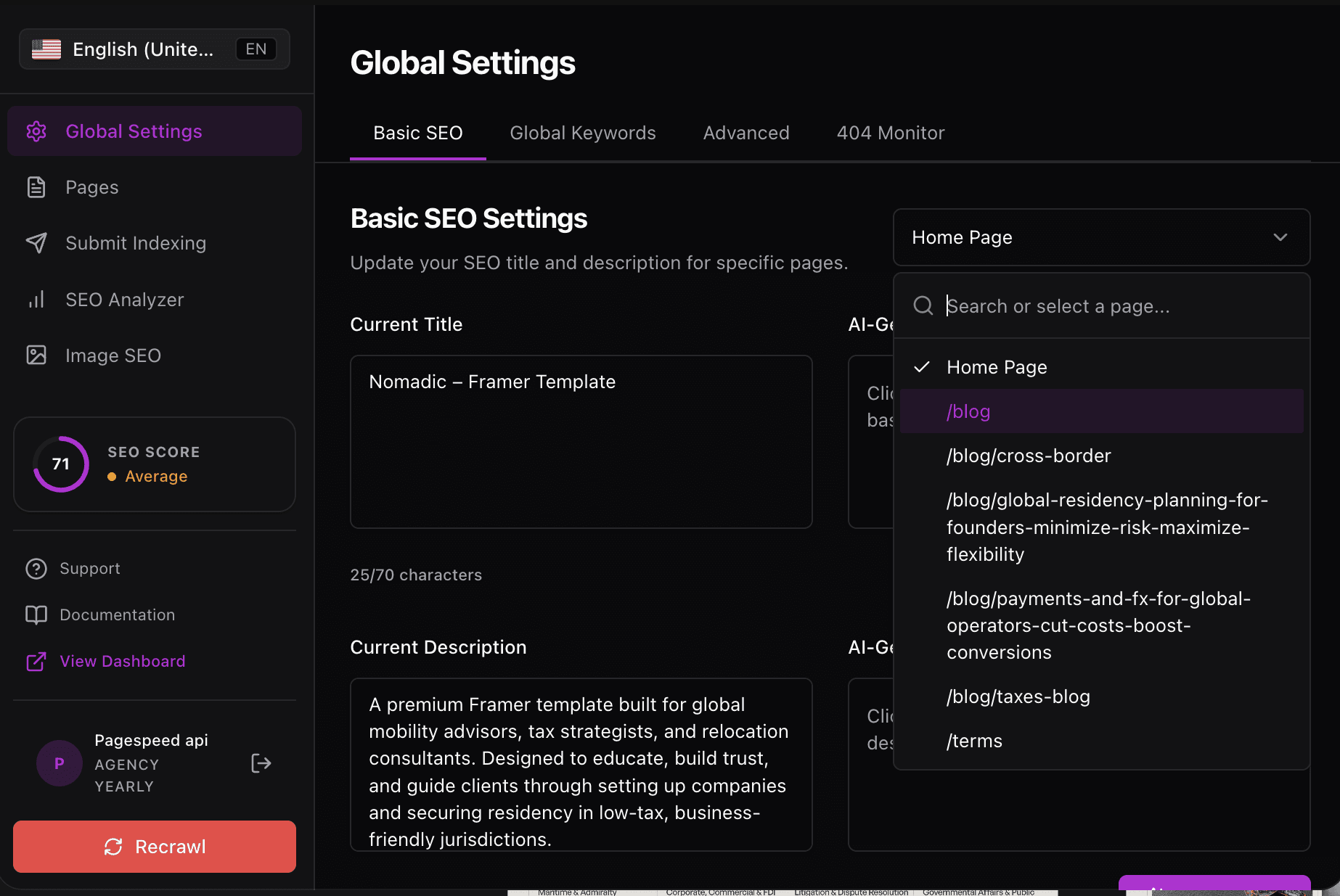
Meta titles and descriptions moved too. They are now edited in Global Settings, using the page dropdown at the top of Basic SEO Settings.
Where things live now
1. The Pages list
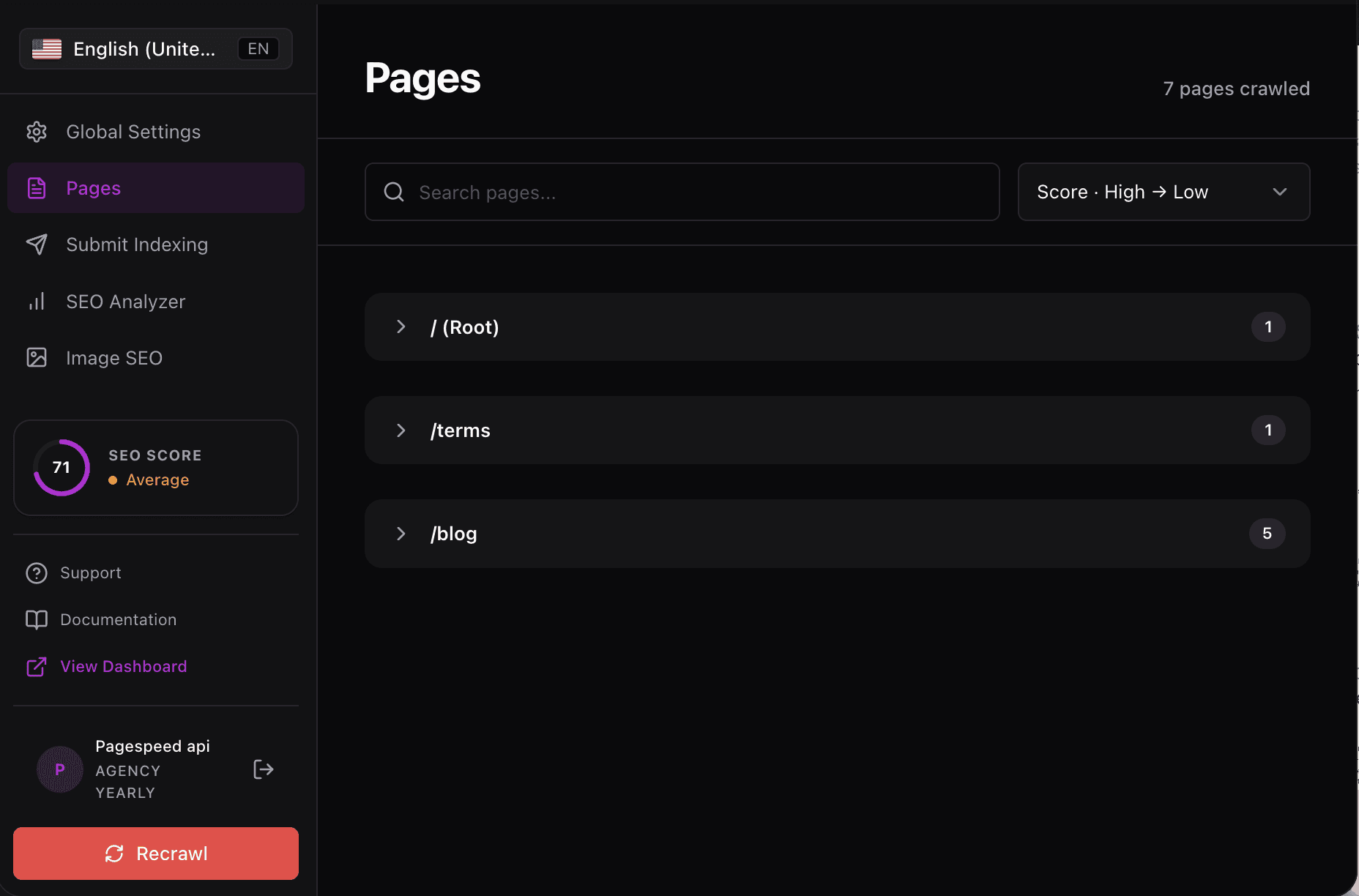
Pages groups your site by folder, with a page count against each one. Expand a folder to see the individual pages, each with its own SEO score and an Analyze button.
2. The per-page analyser
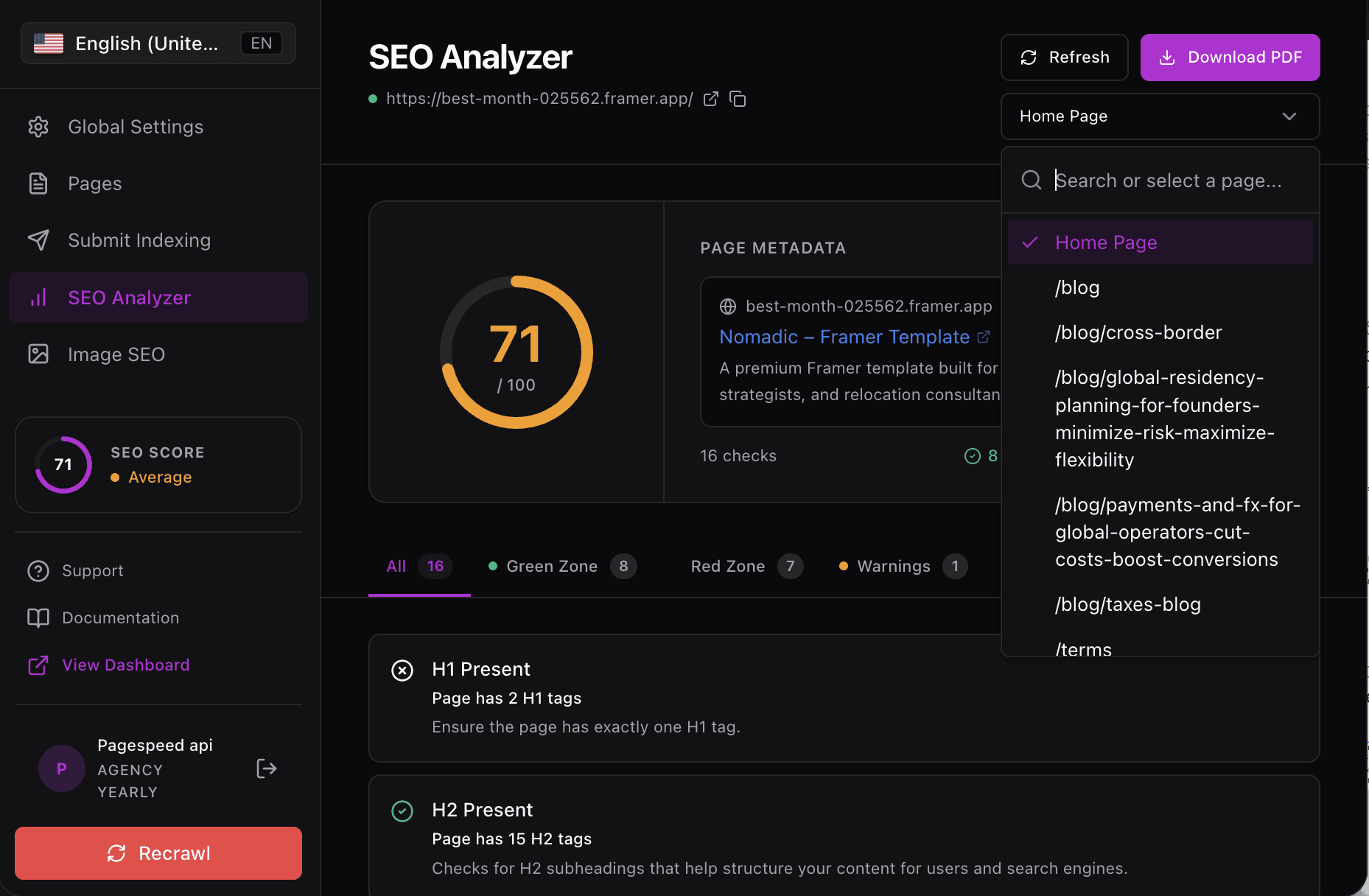
Click Analyze on any page and RankFrame runs the full analyser against that page: a score out of 100, sixteen checks grouped into Green Zone, Red Zone, Warnings and Speed, page metadata, and Core Web Vitals for mobile and desktop. You can also switch pages from the dropdown at the top right without going back to the list.
3. Titles and descriptions in Global Settings
Open Global Settings and use the page dropdown beside Basic SEO Settings to pick a page. You will see that page’s current title and description next to AI-generated alternatives, with live character counters. Generate, review, then copy and paste into Framer.
Why the change
One set of checks. The per-page audit and the site-wide analyser now report the same things the same way, so a page that passes in one passes in the other.
Less duplicated UI. The old split view had its own score header and its own audit sections that drifted from the main analyser over time.
Metadata in one place. Site-wide defaults and per-page overrides now sit together in Global Settings instead of being split across two screens.
Working per page
Open Pages and sort by score, worst first, to find the pages that need work.
Click Analyze on a page to see its score, failing checks and speed data.
Fix what is in the Red Zone first, then re-run the analyser on that page.
Switch to Global Settings to update that page’s title and description from the dropdown.
On a multi-language site, switch locale in the sidebar to analyse that language version of the page.
Frequently asked questions
How do I open the split view?
Click any page row in the Pages list. The split view opens with a live page preview on the left and the SEO control surface on the right.