
<- Go Back
Account
Inviting Team Members
Invite colleagues to your Agency workspace from the Team page. Add their email, give them starting credits from your workspace pool, choose which websites they work on, and RankFrame sends them an invitation that is valid for 7 days.
Last Updated on
Read Time
3 min read
Once you have a free seat in your Agency workspace, you can invite a colleague in under a minute.
1. Send an invitation
Open the dashboard and go to Team.
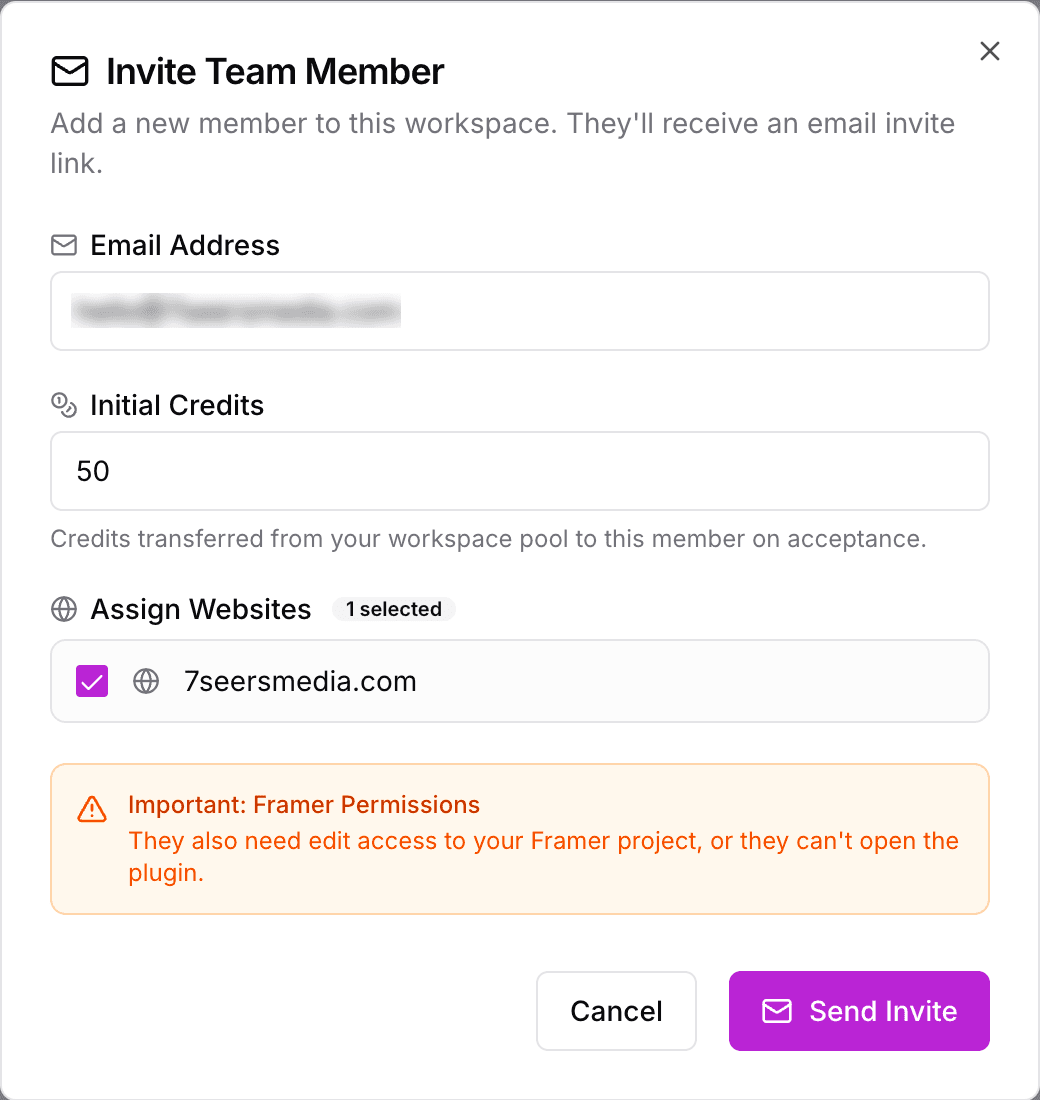
Click Invite Member.
Enter your colleague's email address.
Set Initial Credits, the number of credits they receive from your workspace pool when they accept. Leave it at 0 if they do not need any yet.
Under Assign Websites, choose which of your connected websites they will work on.
Click Send Invite.
A confirmation appears and the invitation shows under the Pending Invites tab until it is accepted.
From the Pending Invites tab you can Resend the email or Revoke the invitation. The table also shows when each invitation was sent and when it expires.
2. Give them access in Framer
The invite window reminds you of this for a reason: your colleague also needs edit access to your Framer project, or they cannot open the plugin. Add them as an editor in Framer before or after you send the invite.
3. What your colleague receives
They get an email from RankFrame titled "Join [workspace name]'s Workspace on RankFrame" with an Accept Invitation button. The link is valid for 7 days. If they do not have a RankFrame account yet, the email asks them to sign up first, which is free and does not need a plan.
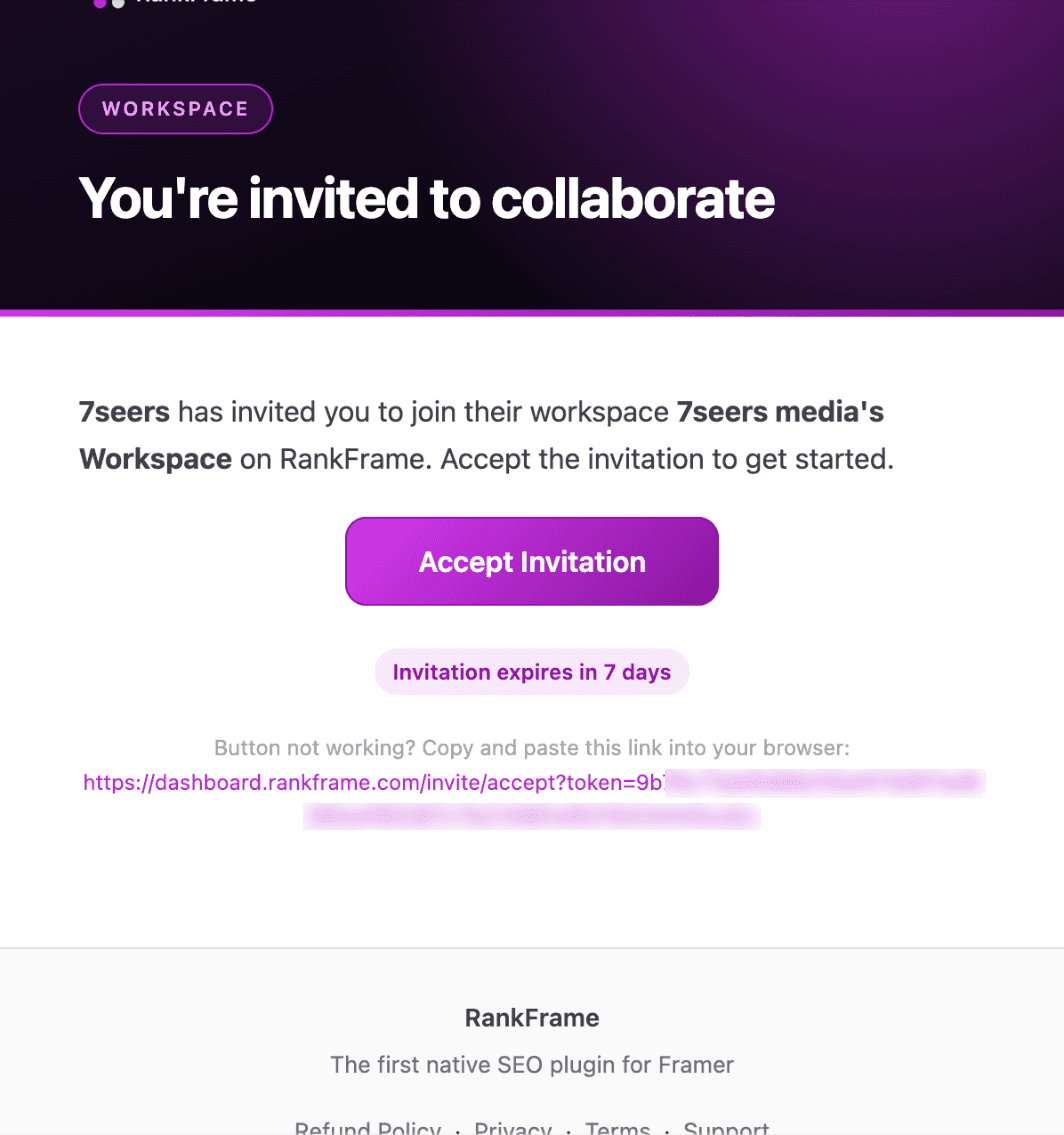
What happens next on their side is covered in Joining a Team Workspace.
4. If you have no free seats
The Invite Member button only appears when a seat is free. If every seat is in use, add one first. See Buying and Managing Team Seats.
Related features
Teams & Workspaces: A seat for every teammate, with website access and credits per person.
Frequently asked questions
How long is an invitation valid?
Invitation links expire after 7 days. If it expires, send a new invitation from the Team page.