
<- Go Back
Account
Joining a Team Workspace
Been invited to an agency's RankFrame workspace? Sign up for a free account, complete the short setup, then accept the invitation from your email or the dashboard. You do not need to buy a plan to work in a team workspace.
Last Updated on
Read Time
3 min read
If an agency or a colleague has invited you to their RankFrame workspace, here is how to get in. You do not need to buy a plan: your access comes from their Agency plan.
1. Open the invitation email
Look for an email from RankFrame with the subject "Join [workspace name]'s Workspace on RankFrame". If you do not have a RankFrame account yet, sign up first at dashboard.rankframe.com. It is free. The invitation link is valid for 7 days.
2. Complete the short setup
New accounts go through a quick setup: your name, then your preferences. While an invitation is waiting, you will see a Team Invitation Active notice telling you that you do not need to purchase a plan, and the last step reads Complete Onboarding instead of asking you to choose a plan.

3. Accept the invitation
You can accept in two places:
Click Accept Invitation in the email, or
In the dashboard, use Accept Invitation on the banner at the top, or open the workspace switcher and click Accept under Pending Invites.
The banner also shows who invited you and how many credits are included. You can Decline from the same places.
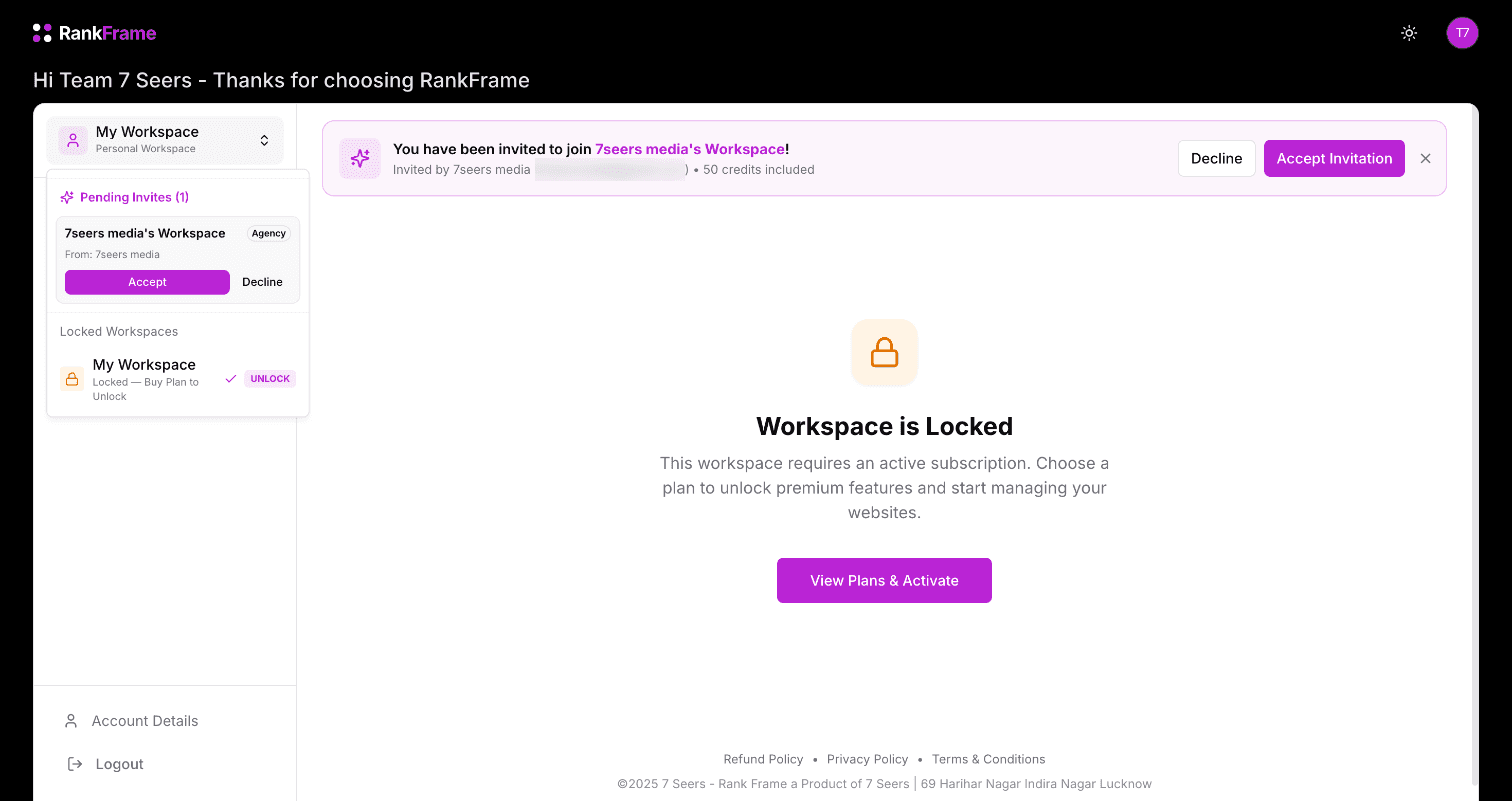
Your own personal workspace may show as Workspace is Locked. That only means your personal workspace has no plan of its own. It does not affect the team workspace.
If you also want RankFrame for your own sites, you can activate that personal workspace with its own plan and switch between the two from the workspace switcher.
4. Start working
Once you accept, you join the workspace as a Member and switch into it automatically. Members see Websites and Credit Wallet in the sidebar. To work on a site, open its project in Framer and launch the RankFrame plugin. See Install RankFrame if you have not added the plugin yet.
If the plugin was already open when you accepted, close it and open it again so it switches to the agency workspace. You will then see an Agency Member badge under your name, and Profile shows the workspace you joined and the credits allocated to you.
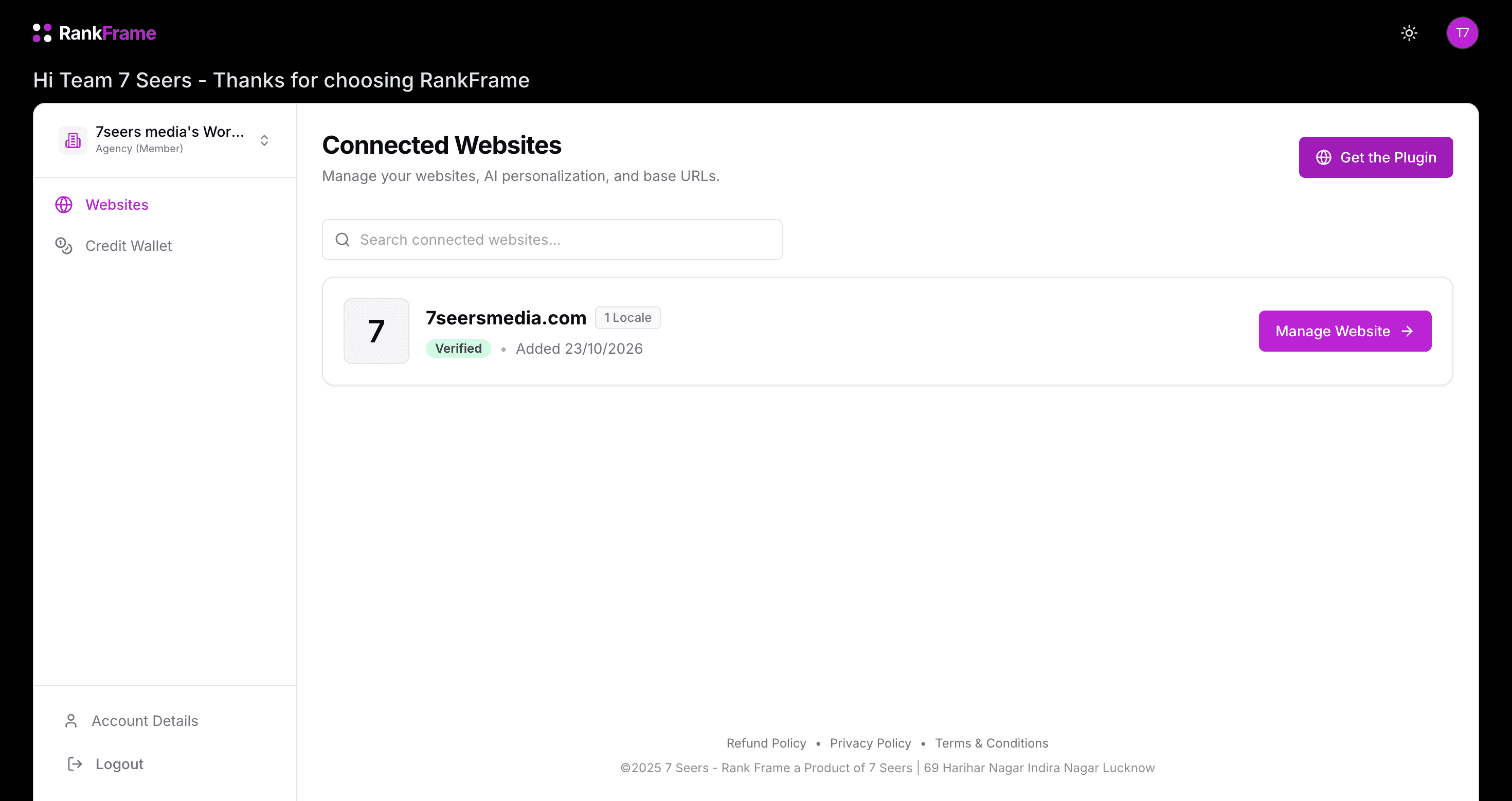
You also need edit access to the Framer project to open the plugin there. If you cannot open it, ask the workspace admin to add you as an editor in Framer. What each role can do is explained in Team Roles: Admin and Member.
Related features
Teams & Workspaces: A seat for every teammate, with website access and credits per person.
Frequently asked questions
Do I need to pay to join a team workspace?
No. Your access comes from the agency's plan. You only need a free RankFrame account.