
<- Go Back
Account
Sharing Credits and Assigning Websites
In an Agency workspace, AI credits come from a shared pool. Give each member starting credits when you invite them, and assign the websites they will work on, so everyone can get on with AI alt text and SEO work straight away.
Last Updated on
Read Time
2 min read
An Agency workspace has one pool of AI credits. You decide how much of it each member gets and which websites they work on.
1. Giving credits to a member
Set Initial Credits in the invite window when you invite someone. The credits are transferred from your workspace pool to that member when they accept. The invitation banner tells them how many credits are included.
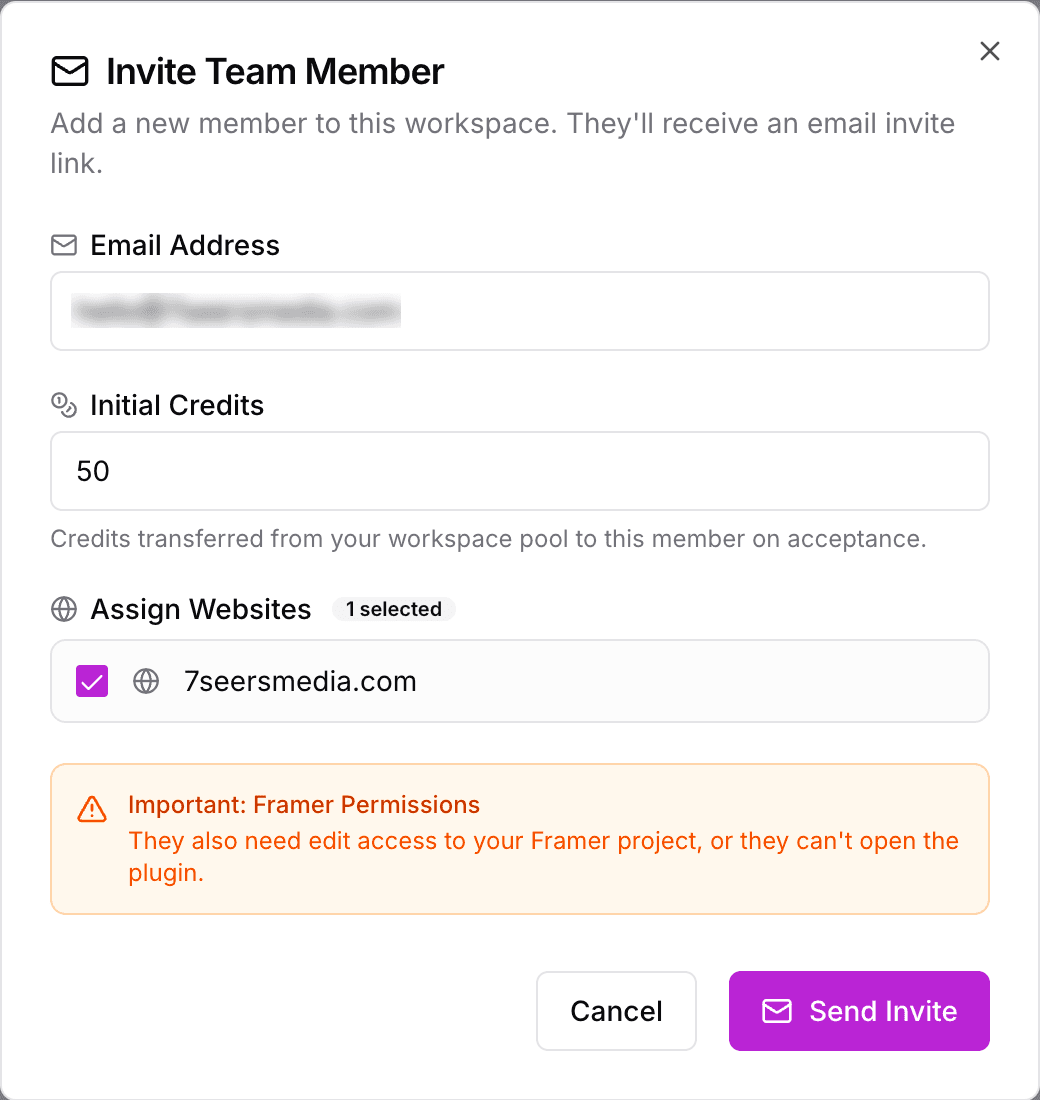
Credits power AI alt text, including bulk alt text. One credit covers one image, in every language. AI titles, descriptions and schema do not use credits. When your pool runs low, top it up as described in Buying Credits.
2. Assigning websites
In the same invite window, use Assign Websites to choose which of your connected websites the member will work on. If you have not connected a website yet, the list says "No websites connected to this workspace yet"; connect one through the RankFrame plugin in Framer first.
3. Seeing who has what
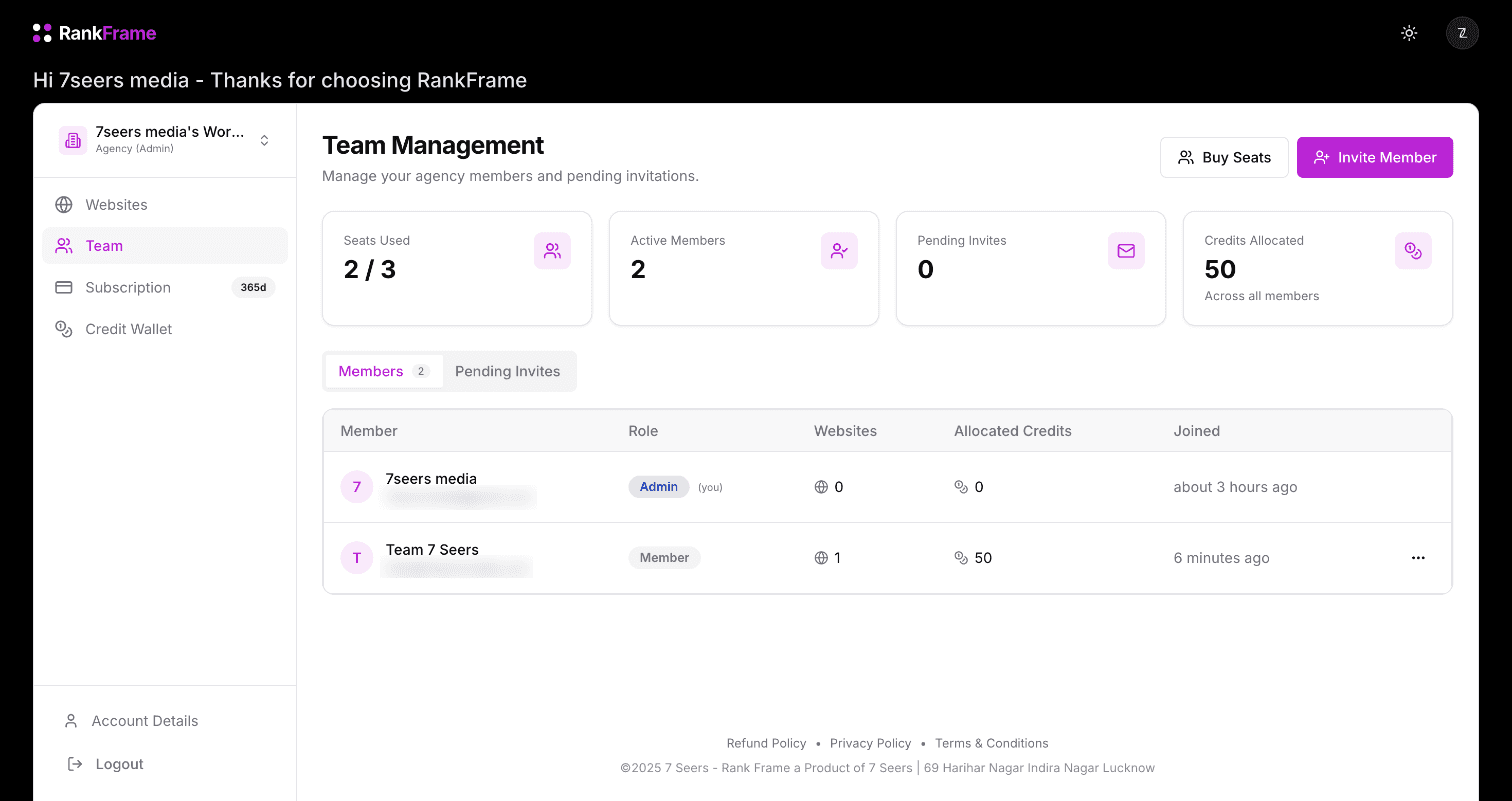
The Credits Allocated card on the Team page shows the total you have shared, across all members.
The Members table shows each person's websites and allocated credits.
Members see their own balance in Credit Wallet.
4. Changing credits and websites later
Open Team, find the member and click the … menu on their row.
Edit Website Access: tick or untick the connected websites they can use, then click Save Access.
Allocate Credits: shows the member's current balance. Choose Allocate to Member to give them more from your pool, or Retrieve to Pool to take credits back, then enter the amount.
Remove Member: takes them off the workspace.
Related features
Teams & Workspaces: A seat for every teammate, with website access and credits per person.
Frequently asked questions
Where do shared credits come from?
From your workspace credit pool. Credits you allocate move to the member when they accept the invitation.