
<- Go Back
Account
Profile Tab
The Profile tab in Account Settings shows your account identity and plan status at a glance. All fields are read-only inside the RankFrame plugin. This article describes every field in the Profile tab and explains where to go to make changes to your account details.
Last Updated on
Read Time
3 min read
Opening the Profile Tab
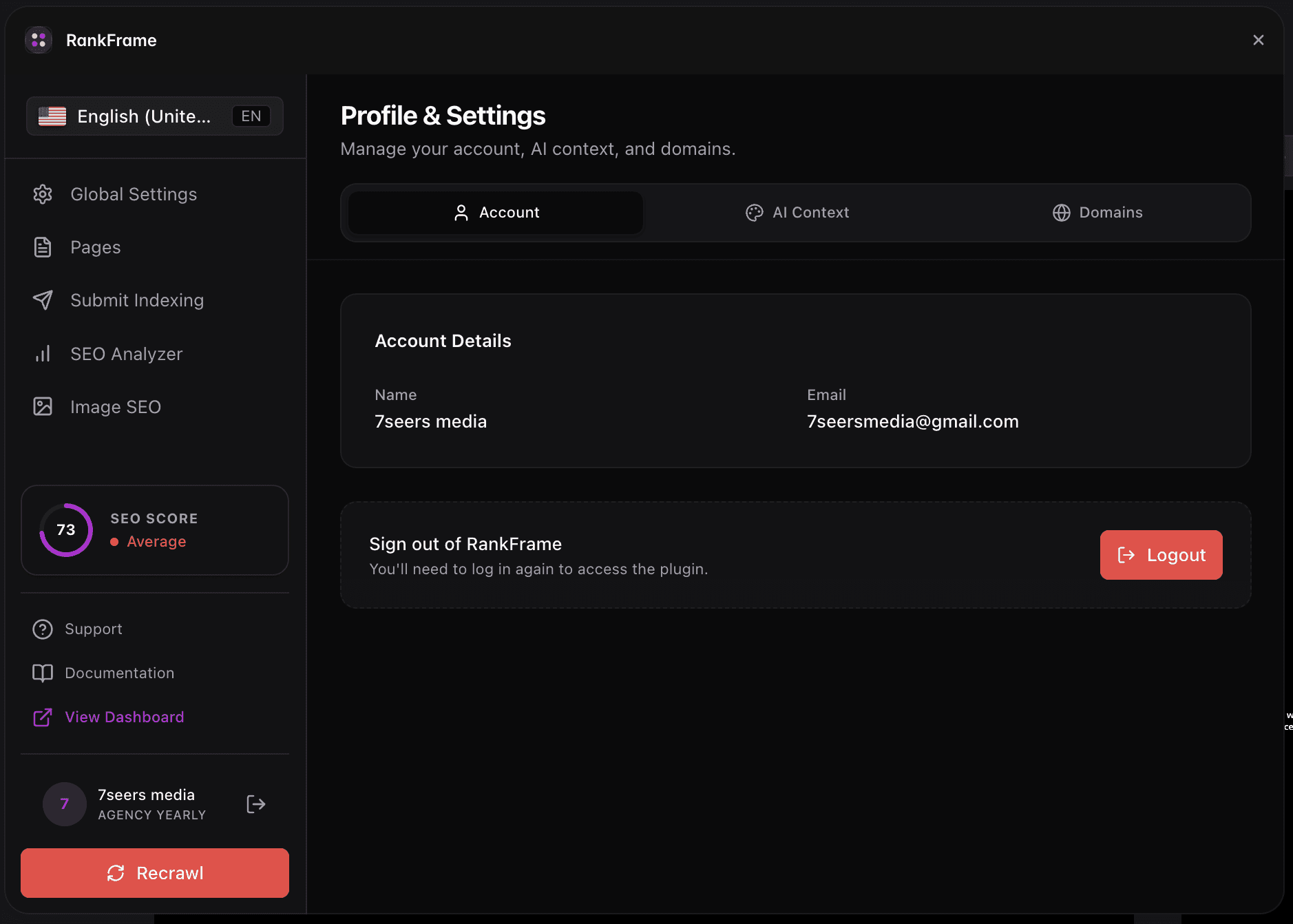
To reach the Profile tab, click the avatar block at the bottom of the left sidebar to open Account Settings, then make sure the Profile tab is selected at the top of the modal. It is the default tab that opens first.
Profile Tab Fields
Every element in the Profile tab is described below. None of these fields can be edited from inside the plugin.
1. Avatar
A large purple circle at the top of the Profile tab displays your initials derived from your account name. In the bottom-right corner of the avatar circle you will see a small shield badge. This badge indicates your authentication method: a Google "G" icon for Google Auth accounts, or a lock icon for Email and Password accounts. The avatar image cannot be changed from inside the plugin.
2. Name
Your display name as registered on your RankFrame account. This field is shown for reference only. To update your display name, visit dashboard.rankframe.com and edit your profile there.
3. Plan Badge
A colored badge below your name shows your current subscription tier. The values are: Trial (the 7-day free trial with full access), Personal (a paid tier for individual site owners), and Agency (a paid tier for teams managing multiple sites). To upgrade or change your plan, use the See Billing button in the sidebar.
4. Read Only View Notice
A notice appears in the Profile tab that reads: "To update your personal details or change your password, please visit your account dashboard." This is a reminder that the plugin does not offer inline editing for profile data. Click through to dashboard.rankframe.com to make any changes.
5. Email Address
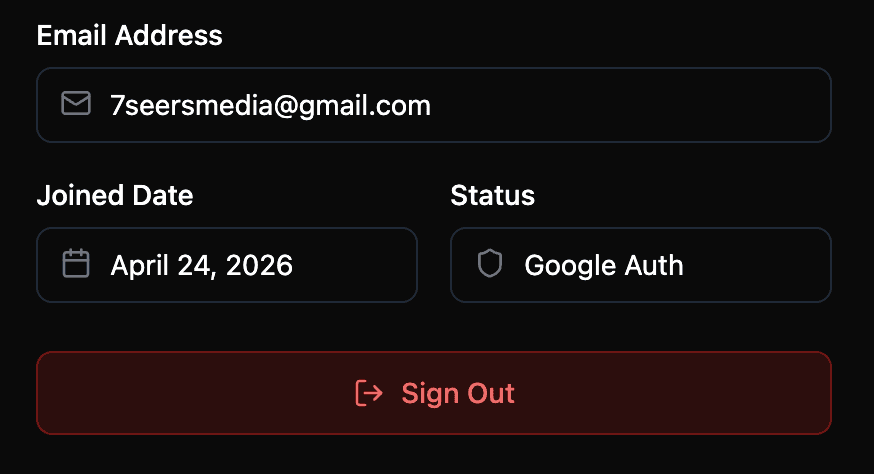
Your registered email address is shown with a mail icon. This is the address associated with your RankFrame account and is used for login and support communications. The field is read-only inside the plugin. To change your email, visit dashboard.rankframe.com.
6. Joined Date
A calendar icon precedes the date on which your RankFrame account was created. This field is purely informational and cannot be changed. It is useful for knowing how long you have been on the platform or for verifying account age when contacting support.
7. Status (Authentication Method)
A shield icon precedes your authentication method. The value will be either Google Auth (you signed up and log in via Google OAuth) or Email + Password (you registered with an email and a password you set manually). This field is informational only. You cannot switch between authentication methods from inside the plugin.
8. Sign Out Button
A full-width dark red button at the bottom of the Profile tab. Clicking it ends your current RankFrame session and returns you to the login screen. Use this when you need to switch accounts or when closing out on a shared device. You will need to sign in again to access your data.
Signing out on a shared device: If you use RankFrame on a computer that other people can access, always use the Sign Out button before closing Framer. This prevents others from accessing your account data and connected sites.
How to Update Your Details
Because all Profile tab fields are read-only inside the plugin, any changes to your account must be made through the external dashboard.
To update your name, email, or password: Open a browser and visit dashboard.rankframe.com. Sign in with your current credentials and navigate to your account or profile settings. Changes you make there will be reflected in the plugin the next time you open Account Settings.
Frequently asked questions
Why are all the Profile tab fields read-only inside the RankFrame plugin?
RankFrame displays your account profile for reference only. All editing of personal details happens at dashboard.rankframe.com so your data is managed securely in one place across all devices and sessions.