
<- Go Back
404 Monitor
404 Monitor Overview
Learn how the RankFrame 404 Monitor works, how to enable the monitoring script, and how to configure allowed domains to track broken links on your Framer site.
Last Updated on
Read Time
5 min read
What the 404 Monitor is
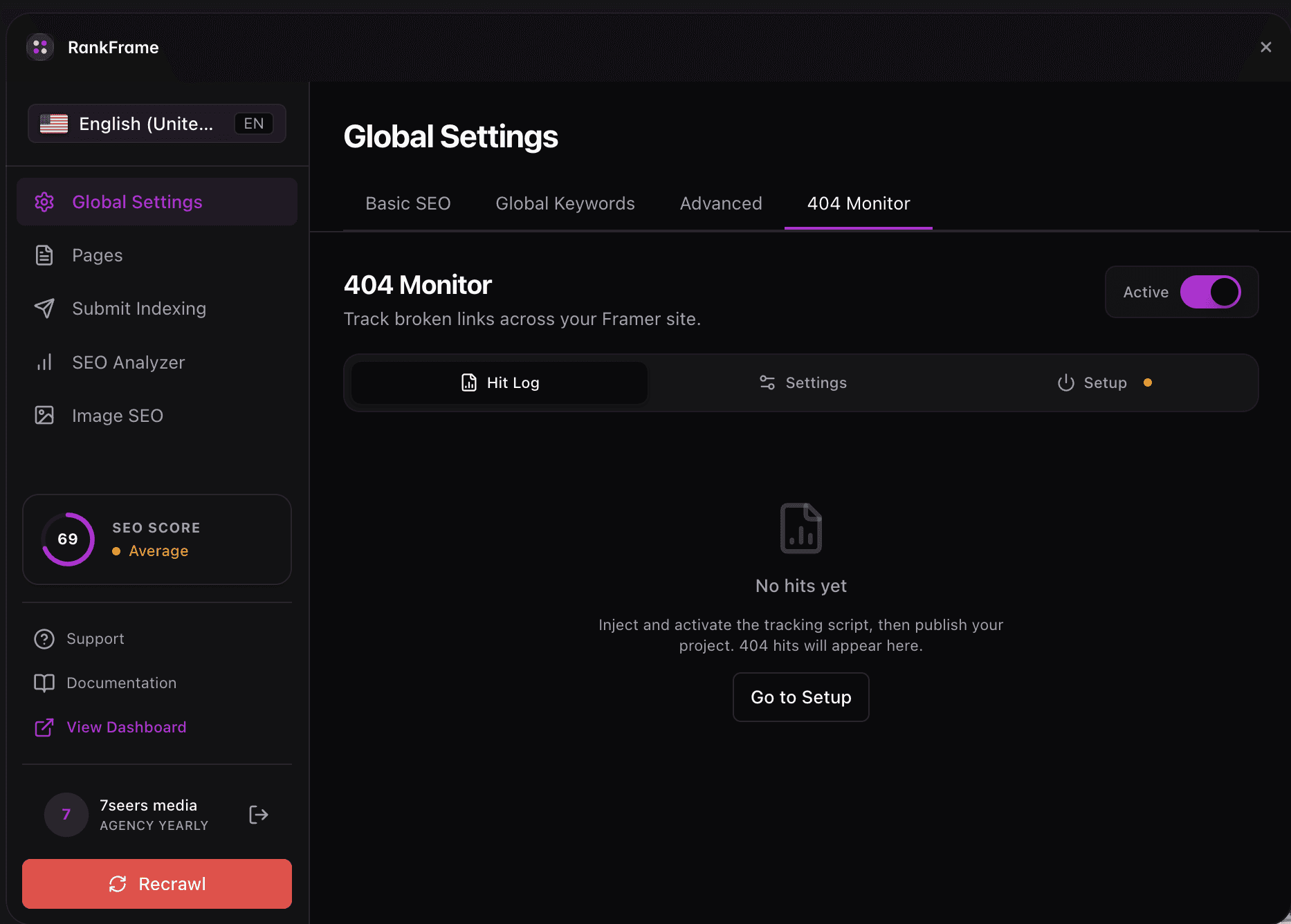
The 404 Monitor is a passive error tracking tool built into RankFrame. Once you enable it, a lightweight script runs on your published Framer site and records every request that returns a 404 status. All captured errors appear in the errors table inside RankFrame so you can review them, prioritize fixes, and add redirects where needed.
Broken links damage SEO in two ways: search engines stop passing link equity through them, and visitors who land on dead pages leave immediately. The 404 Monitor surfaces these problems automatically without any manual checking.
You do not need to be on a paid plan to use the 404 Monitor. Trial users get full access and all errors are tracked from day one.
Where to find it
The 404 Monitor is not a standalone sidebar section. It lives inside Global Settings, under the 404 Monitor tab. To open it:
Open the RankFrame plugin inside Framer.
Click Global Settings in the main navigation.
Select the 404 Monitor tab.
The tab subtitle reads: “Keeps track of all 404 errors on the website.”
How to set it up
Getting the monitor running takes a few steps. Complete them in order so errors start flowing in right after you publish.
Open the 404 Monitor tab: Go to Global Settings inside RankFrame and click the 404 Monitor tab.
Turn on the 404 Monitor Script toggle: Flip the 404 Monitor Script toggle to the on position. This enables the monitoring script on your live site. Without this step, no errors are captured.
Add your domain to Allowed Domains: Type your domain (for example, yourdomain.com) into the Allowed Domains tag input and press Enter to add it. Add every domain you want to monitor. You can remove a domain at any time by clicking its remove button.
Publish your Framer site: Publish or republish your site so the updated script goes live. The 404 Monitor only tracks errors on the published site, not inside the Framer editor preview.
Confirm the status indicator is active: Look for the green status indicator at the bottom of the tab. When monitoring is running you will see: “Monitoring script active, 404 errors are being tracked.”
If you manage multiple domains from one Framer project, add each domain separately in the Allowed Domains list. The script only records errors from domains in that list.
Stats at a glance
At the top of the 404 Monitor tab, two summary figures give you an instant sense of how many broken links exist on your site.
Total 404 Errors: 12
Unique Routes: 7
Total 404 Errors is the cumulative count of all individual 404 hits recorded across every tracked domain.
Unique Routes is the number of distinct URL paths that have triggered at least one 404. A single broken path hit many times still counts as one unique route.
Use these numbers to gauge overall site health at a glance. A high Unique Routes count with many hits per route often signals a structural problem like a renamed page or a broken redirect rather than isolated external link typos.
Status indicator
The bottom of the 404 Monitor tab shows a live status indicator. When the script is active and monitoring is running, you will see a green dot alongside the message: “Monitoring script active, 404 errors are being tracked.”
If the indicator is not showing green, confirm that the 404 Monitor Script toggle is on and that you have republished your site after enabling it.
Trial plan access
There is no restriction on the 404 Monitor during a trial. All 404 errors are tracked from the moment you enable the script, and the full errors table is available without any limits. You do not need to upgrade before you start collecting data.
404 monitoring per language
Switch locale in the plugin and the 404 view switches with it, so you see the errors recorded for that language version only. Exception routes can be managed per locale as well as globally, and changes apply immediately without republishing.
Multi-language sites
The 404 view follows the selected locale, and exception routes can be set globally or for one language only. See Per-Language 404 Exceptions.
Frequently asked questions
Does the 404 Monitor work on Framer preview URLs?
No. The monitoring script only runs on your published live site. Preview URLs inside the Framer editor are not tracked.