
<- Go Back
Submit & Indexing
Indexing History: Review and Verify Your Submitted URLs
The Indexing History tab gives you a complete log of every URL you have submitted to Google. Use it to review past submissions and confirm live indexing status without ever leaving Framer.
Last Updated on
Read Time
5 min read
Overview of the Indexing History tab
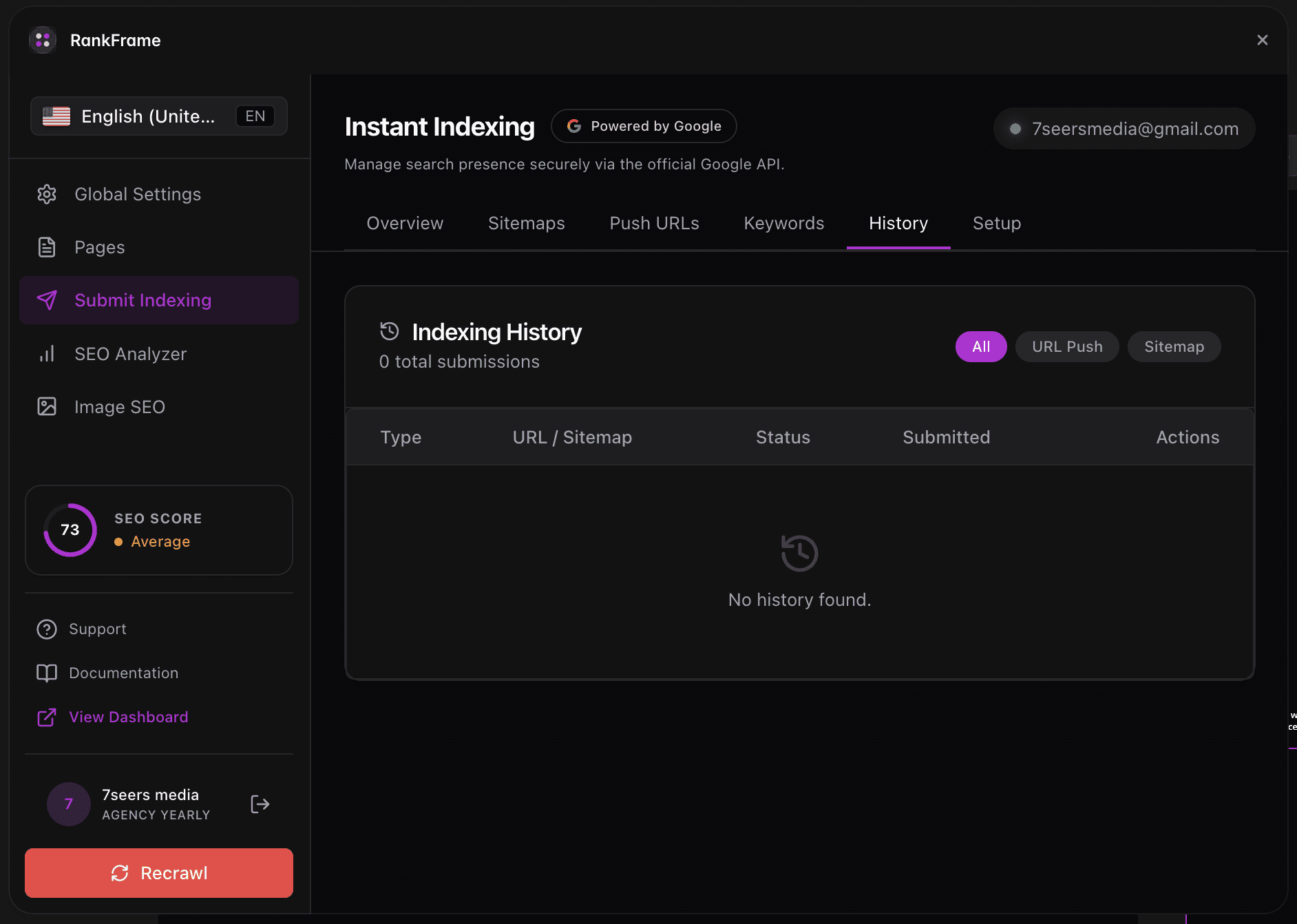
The Indexing History tab is your submission audit log. Every URL you push through RankFrame's Submit URLs tab appears here, along with a timestamp, submission type, and current status. The tab also includes a header that identifies which domain the logs belong to, and a Refresh button to reload the latest entries.
The header reads: Showing logs for: [domain]. Clicking Refresh pulls the most recent submission records into the table.
A green Success badge means RankFrame successfully delivered your URL to the Google Indexing API. It does not guarantee the page has been crawled and indexed yet. Use the Check Live button to query Google directly and confirm actual indexing status.
The info banner
At the top of the Indexing History tab, an info banner reminds you: "Click Check Live next to any URL to ask Google if it has successfully indexed that specific page yet. It may take hours or days for Google to crawl pushed URLs."
Submission success and indexing confirmation are two separate events. The table records the first. Check Live tells you about the second.
Table columns: the five fields
The history table has five columns. Each row represents a single URL submission.
1. Date
The Date column shows the exact timestamp of when you submitted the URL, the moment RankFrame delivered it to the Google Indexing API, not when Google crawled or indexed the page. Use this column to cross-reference your submission history with site changes.
2. Type
The Type column identifies the URL submission type for each entry. All submissions made through the Submit URLs tab appear here with the corresponding type label.
3. URL
The URL column displays the full URL that was submitted. Long URLs are truncated in the table view. Each row corresponds to exactly one URL. If you submitted the same URL multiple times, each submission appears as a separate row with its own timestamp and status.
4. Status
The Status column shows whether RankFrame successfully delivered the URL to the Google Indexing API. A green Success badge means the submission was accepted without errors.
A Success status combined with a Check Live result of "Indexed by Google" is the clearest signal that your page has been fully processed by Google.
5. Check Live
The Action column contains a Check Live button for each row. Clicking it queries Google in real time and returns the current indexing state for that specific URL. The result appears as an inline tooltip showing Indexed by Google with a State of Submitted and indexed.
If you click Check Live shortly after submitting a URL, Google may not have crawled the page yet. Check again after a few hours or the next day.
Using Check Live to verify indexing
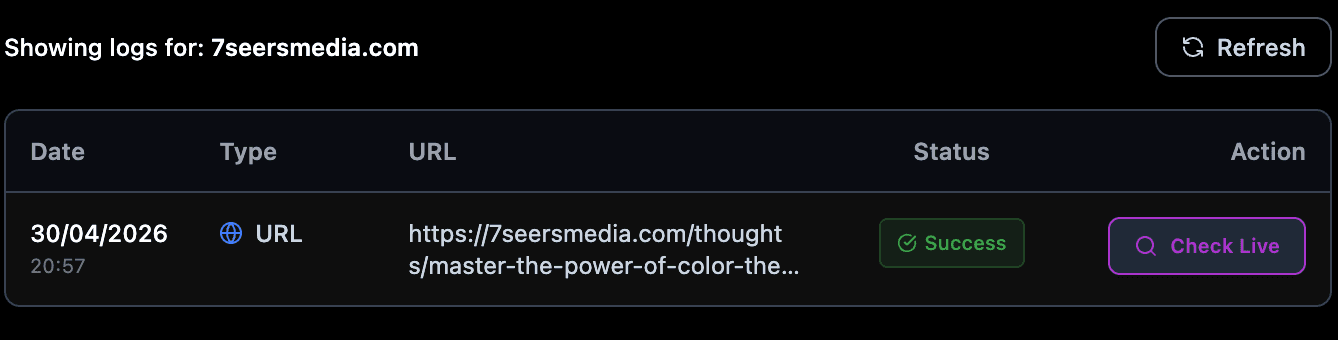
The Check Live feature is what makes the Indexing History tab unique. It is the only tool in the Framer ecosystem that gives you live indexing confirmation from Google directly inside the design tool.
Open the Indexing History tab: Navigate to Submit Indexing in RankFrame and select the Indexing History tab.
Click Refresh if needed: If you recently submitted new URLs and do not see them yet, click Refresh to reload the latest entries.
Locate the URL you want to verify: Find the row for the page using the Date and URL columns.
Click Check Live in the Action column: RankFrame sends a live query to Google.
Read the inline tooltip: If Google has indexed the page, it displays Indexed by Google with a State of Submitted and indexed. If not yet indexed, the tooltip will reflect that current state instead.
What to do after checking live status
Indexed by Google (State: Submitted and indexed)
Your page is in Google's index. No further action is needed for this URL. You can move on to verifying other pages or reviewing your ranking data in the Analytics tab.
Not yet indexed
Google received your submission but has not completed the crawl yet. This is normal for newly published pages. Wait several hours or check back the following day. If the page has been live for more than a few days and still shows no indexing confirmation, consider re-submitting from the Submit URLs tab.
You can re-submit any URL at any time from the Submit URLs tab. Re-submitting sends a fresh signal to Google and may help prompt an earlier crawl.
Frequently asked questions
What does the Check Live button actually do?
Check Live sends a real-time query to Google and returns the current indexing state for that specific URL. If Google has indexed the page, the inline tooltip displays Indexed by Google with a State of Submitted and indexed. The result reflects Google's live data at the moment you click, not a cached snapshot.