
<- Go Back
Submit & Indexing
Keyword Tracker: Monitor Rankings in RankFrame
The Keyword Tracker tab in RankFrame lets you manually add the search terms you care about, then shows impressions, clicks, average position, and a position history sparkline for each one. All data is sourced from Google Search Console through your connected account.
Last Updated on
Read Time
4 min read
Overview
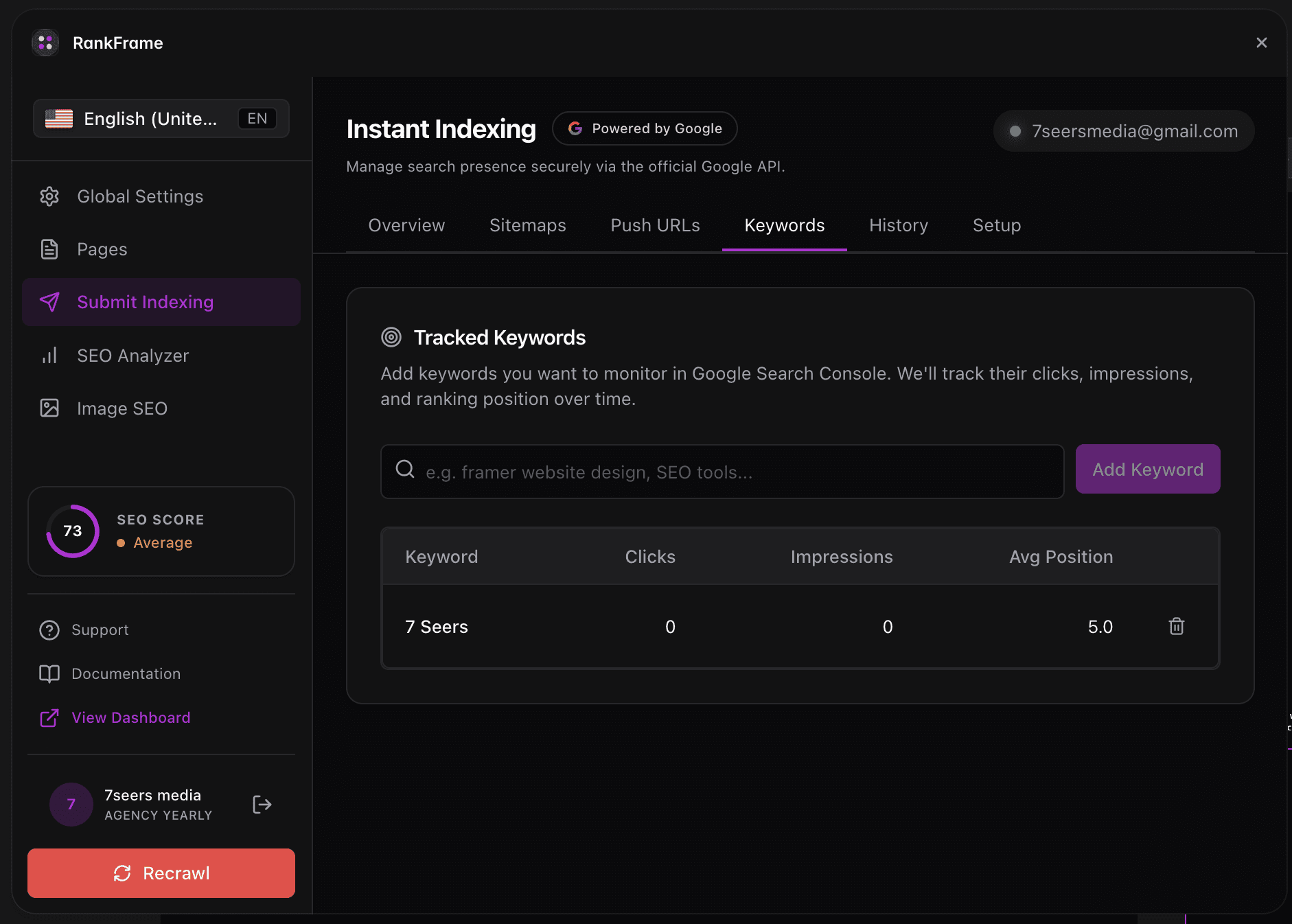
The Keyword Tracker tab is split into two areas. At the top, the Add New Keyword input lets you manually enter the keywords you want to monitor. Below that, the Keyword Manager table lists every saved keyword alongside its performance metrics.
Keywords do not sync automatically from Google Search Console. You decide which terms to track by copying them from GSC and pasting them here. This keeps your tracker focused on the keywords that matter most to your project.
There is no automatic keyword import or discovery. Keywords must be added manually. Go to Google Search Console, find the queries driving traffic to your site, then paste them into the Add New Keyword field.
How to add keywords
Open Google Search Console: Go to search.google.com/search-console and select your Framer site. Navigate to the Search results report and review the top queries.
Copy the keywords you want to track: Select one or more query strings from the GSC table and copy them. You can combine multiple keywords by separating them with commas before pasting.
Paste into the Add New Keyword field: Open RankFrame, go to the Keyword Tracker tab, and paste your keywords into the input. Separate multiple entries with commas.
Click Save: Press the Save button next to the input. RankFrame adds each keyword as a new row in the Keyword Manager table and begins populating its metrics.
Field reference
1. Add New Keyword
The text input at the top of the Keyword Tracker tab. Type or paste your target keywords here. After entering your keywords, click Save to the right of the input.
The helper text below the input reads: "You can add multiple keywords at a time by separating them with commas." Use this to bulk-import a list from GSC in one paste.
2. Keyword Manager search
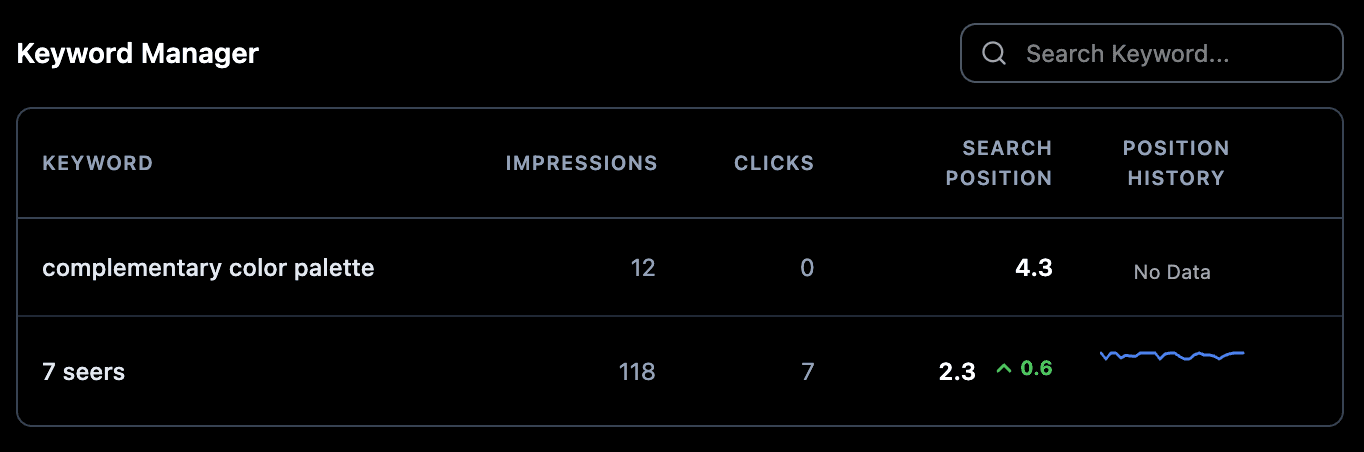
A search field inside the Keyword Manager section. As your tracked keyword list grows, use this to filter the table in real time by typing part of a keyword.
3. KEYWORD column
Displays the exact keyword string you saved. Each row in the Keyword Manager table represents one keyword. Keywords are case-insensitive in search engines, but RankFrame preserves the original casing you entered for display purposes.
4. IMPRESSIONS column
Shows the total number of times this keyword caused any page on your site to appear in Google search results during the tracked period. A high impression count with low clicks suggests your title or meta description may need improvement.
5. CLICKS column
Shows the total number of times users clicked a result from your site after searching for this keyword. Compare this against IMPRESSIONS to evaluate your click-through rate for that term.
6. SEARCH POSITION column
Displays the current average ranking position for this keyword across all pages on your site. Position 1 is the top result. Lower numbers are better. When your ranking improves, RankFrame shows a green up arrow next to the position number along with a delta value. For example, 2.4 ▲ +0.3 means your average position is 2.4 and improved by 0.3 since the last recorded period.
7. POSITION HISTORY column
Displays a sparkline mini chart that visualizes how your average search position for this keyword has changed over time. Because lower position numbers mean higher rankings, a line that trends downward on the chart indicates improving rankings.
Sparklines are most useful after a keyword has been tracked for several periods. Freshly added keywords will show limited history until enough data has accumulated.
Frequently asked questions
Does RankFrame automatically pull keywords from Google Search Console?
No. Keywords must be added manually. Open Google Search Console, find the queries that matter to your site, then copy and paste them into the Add New Keyword field in RankFrame. There is no automatic keyword syncing or discovery.