8 min read
How-To Guide
How to Add a Meta Description in Framer (2026 Guide)
Meta descriptions are the most underused lever on Framer sites. Here's how to write ones that drive clicks, and how to ship them across hundreds of CMS pages.

Team 7 Seers
How to Add a Meta Description in Framer (2026 Guide)
What Is a Meta Description and Why Does It Matter
A meta description is an HTML tag inside the <head> of your page. In Google search results, this content appears as the gray snippet beneath your page title and URL. It is the text that tells a searcher what your page is about before they click. Think of it as a two-sentence ad for your page: it does not change where you rank, but it heavily influences whether people choose your result or scroll past it.
The distinction between ranking and clicking matters. You can rank position 3 for a keyword and still get more traffic than positions 1 and 2 if your meta description is significantly more compelling. Conversely, a weak or missing description hands the advantage to whoever wrote better copy below you.
When you do not write a meta description, Google generates one for you. It picks a sentence or two from your page body that it thinks is relevant to the query. Sometimes this works fine. More often, Google pulls a fragment that makes no sense out of context, cuts off in the middle of a thought, or starts with a navigation label like "Home / Products / Widget" instead of useful content.
Meta descriptions and ranking: the real relationship
Google has confirmed that meta descriptions are not a direct ranking signal. However, click-through rate (CTR) from search results is widely considered to have a secondary influence on rankings through user engagement signals. A page that consistently gets clicked more than expected for its ranking position sends a positive quality signal.
Open Graph and Twitter Card descriptions
The meta description tag controls your Google snippet. But when someone shares your page on LinkedIn, Slack, or Twitter, those platforms use the Open Graph og:description tag to generate the preview card. Framer populates the OG description from the same Description field you set in Page Settings, so one entry covers both search snippets and social previews.
How Framer Handles Meta Descriptions
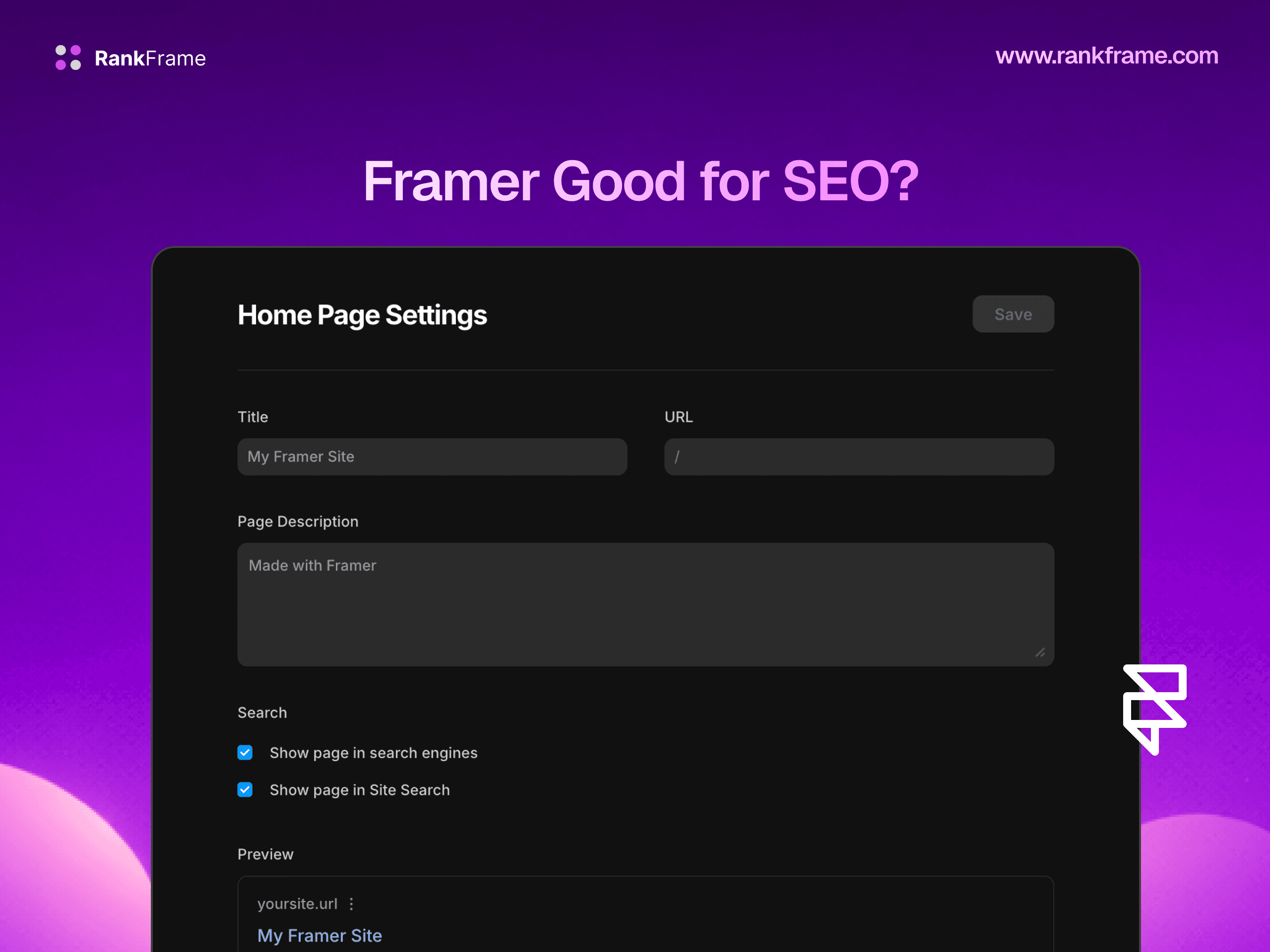
Framer gives you a dedicated Description field for each page in the site. This field lives inside the page-level SEO settings panel, accessible from the Pages panel in the editor. When you publish, Framer outputs your description as a standard <meta name="description"> tag and also as <meta property="og:description"> in the page head.
There is one important limitation: Framer does not pre-fill or suggest content for this field. It ships empty, and it stays empty until you type something. There is no auto-generation from your page content, no length validation warning, and no bulk editing view.
Check your existing pages now
A significant number of Framer sites are live with zero meta descriptions on any page. Open your Framer editor, click through your Pages panel, and check the Description field for each one.
Step-by-Step: Adding Meta Descriptions in Framer
1. Open Page Settings in Framer
In the Framer editor, look at the left panel. You will see your Pages listed there. Hover over the page you want to edit. A gear icon (settings) will appear to the right of the page name. Click it to open that page's settings panel. The Page Settings panel slides out on the right side of the editor. You will see fields for the page title and below that, a Description field. This is the meta description field.
2. Type Your Meta Description in the Description Field
Click into the Description field and type your meta description. Write 140 to 160 characters of clear, specific copy that tells searchers what the page offers and gives them a reason to click. Include your target keyword naturally, ideally toward the beginning of the description.
Framer does not show a live character count in this field, so it helps to write your description in a separate text editor that shows character counts, then paste it in. Aim for the 140 to 155 character range to ensure nothing is cut off in desktop search results.
3. Publish Your Site
Click the blue Publish button in the top-right corner of the Framer editor. Framer will deploy your changes. The meta description you entered will be included in the <head> of your published page immediately.
4. Verify With Browser Dev Tools or RankFrame
After publishing, open your page in a browser and verify the meta description tag is present. You can use View Page Source (Ctrl+U or Cmd+U), Browser DevTools, or RankFrame. If you have RankFrame installed, the Meta Tags section shows you the current title and description for every page on your site in a single view, with visual indicators for missing or too-short descriptions.
5. Use RankFrame's AI Generation for All Pages in Bulk
For sites with more than a handful of pages, doing this one page at a time becomes a significant time investment. RankFrame's AI meta description generator solves this. Install the plugin from the Framer Marketplace, open it in your editor, and navigate to the Meta Tags section. From there you can trigger AI generation for all pages simultaneously.
Adding Meta Descriptions to Framer CMS Pages
CMS pages in Framer work differently from static pages. Each item in a CMS collection is published as its own page with its own URL. You need a unique meta description for each one, but there is no way to enter them individually through Framer's native interface the way you can with static pages.
Option 1: Bind a CMS field to the page description
Open your CMS collection in Framer's CMS panel.
Add a new text field to the collection. Name it "Meta Description" or similar.
Go to your CMS page template.
Open Page Settings for the template page.
Click the "bind" option next to the Description field and select your "Meta Description" CMS field.
Now each CMS item can have its own description, pulled from that CMS field when the page is rendered.
Fill in the Meta Description field for each CMS item in the CMS panel.
Option 2: Use RankFrame for bulk CMS description generation
RankFrame's AI generation works across CMS collections, not just static pages. It reads each collection item's content, generates an optimized description, and populates the meta description for each item. You review the batch, make any edits, and apply.
How to Write Meta Descriptions That Get Clicks
Lead with the value, not the topic label
Weak: "This is the RankFrame blog. We write about Framer SEO topics including meta tags and schema."
Strong: "Add meta descriptions, schema markup, and canonical tags to your Framer site in minutes. No code. Full SEO control built into the Framer editor."
Include the target keyword naturally
Google bolds query keywords in search snippets when they match the user's search. A description containing your target keyword will have those terms bolded when a user searches that phrase, which makes your snippet visually stand out.
Write a soft call to action
End with an action-oriented phrase: "Learn the full process below," "See the step-by-step guide," "Get started free," "Compare the options here."
Be specific, not vague
Vague: "Improve your Framer site's SEO with our tips and best practices."
Specific: "5 common Framer SEO mistakes that cause pages to rank on page 3, with exact fixes for each."
Match search intent
For how-to queries: emphasize the process and the outcome. For comparison queries: emphasize the comparison format and the decision it helps make. For informational queries: emphasize the completeness and depth of the answer.
Length, Format, and Best Practices
Parameter | Recommendation | Why |
|---|---|---|
Character length | 140 to 155 characters | Fits desktop display without truncation |
Keyword placement | First 60 characters | Google bolds matched query terms; earlier placement increases visual impact |
Tone | Direct and active voice | Passive, formal descriptions read as corporate and get ignored |
Uniqueness | Every indexed page needs a unique description | Duplicate descriptions lose differentiation |
Special characters | Avoid quotation marks, pipes, and HTML entities | Can cause rendering issues in some implementations |
CTA placement | End of description | Lead with the value proposition, close with the action prompt |
Minimum length | At least 100 characters | Very short descriptions give Google a reason to override them |
Google does not always use your description
Even if you write a perfect meta description, Google reserves the right to replace it with a snippet it generates from your page content. Studies suggest Google overrides written meta descriptions roughly 30 to 60 percent of the time. Write descriptions as if they will always be used.
Bulk AI Generation With RankFrame
The hardest part of meta description management for any reasonably sized Framer site is not writing one good description. It is writing 40, 60, or 300 unique, well-optimized descriptions across every static page and CMS collection item.
How RankFrame generates meta descriptions
Install RankFrame from the Framer Marketplace. Open it from the Plugins panel inside your Framer editor.
Navigate to Meta Tags. RankFrame displays a list of all your pages with their current title and description status.
Select pages for generation. You can select individual pages or run generation across all pages at once.
Review generated descriptions. RankFrame presents the AI-generated description for each page. You can edit the text inline, regenerate individual descriptions, or accept as-is.
Apply and publish. Once you approve descriptions, RankFrame writes them to the corresponding page fields. You then publish your Framer site to make the changes live.
When to use AI generation vs. manual writing
For your homepage, main service pages, and top 10 most important landing pages: write descriptions manually. For blog posts, CMS collection items, supporting pages, and any page where you currently have no description at all: AI generation is far better than nothing.
Verifying Your Meta Descriptions After Publishing
View Page Source
The fastest manual check: open your published page URL in any browser, right-click anywhere on the page, and select "View Page Source." Use Ctrl+F or Cmd+F to search for meta name="description".
Google's Rich Results Test
Go to Google's Rich Results Test and enter your page URL. While this tool is primarily for structured data, it will render and parse the full page head, allowing you to see what Google reads from your meta tags.
RankFrame Site Audit
RankFrame's site audit crawls your published Framer site and surfaces every page's current meta description, its length, and whether it passes quality thresholds. You can see every page in a single table, sorted by status, and click through to fix issues directly from the audit view.
Google Search Console
Once your site is indexed, Google Search Console's Coverage and Performance reports give you indirect signals about your descriptions. High impression counts with low CTR on specific pages often indicate that Google is overriding your description with a worse auto-generated one, or that your description is not compelling enough.
Common Mistakes and How to Fix Them
Mistake 1: Leaving description fields blank on CMS template pages
If you set up a CMS collection without binding a description field, every item in that collection publishes without a meta description. Fix: either add a Meta Description field to your CMS collection and bind it to the page Description setting, or use RankFrame to populate descriptions for all existing items.
Mistake 2: Using the same description on multiple pages
Copying your homepage description across all pages is worse than having custom descriptions. Fix: use RankFrame's audit view to identify pages sharing descriptions, then regenerate or rewrite them.
Mistake 3: Writing descriptions that are too short
A 60-character description like "Framer SEO tips for better rankings" tells the searcher almost nothing. Fix: aim for 140 to 155 characters using the formula: what the page covers + who benefits or what they get + one-phrase call to action.
Mistake 4: Writing descriptions that don't match the page
If your meta description promises one thing but the page delivers another, the mismatch causes users to immediately leave. Write descriptions that accurately represent what the page delivers.
Mistake 5: Forgetting to verify after publishing
Always verify using View Page Source or RankFrame's audit within 24 hours of publishing a new page or updating its SEO settings.
How long until Google shows your new description?
After you publish a new or updated meta description in Framer, Google needs to recrawl your page before it will show the new description in search results. For established pages that Google crawls frequently, this can take anywhere from a few hours to a few days. You can request a priority recrawl through Google Search Console's URL Inspection tool to accelerate this.
Frequently asked questions
What is a meta description?
A meta description is an HTML tag inside the head of your page that provides a short summary of the page's content. It appears as the gray snippet below your page title in Google search results.