8 min read
SEO Checklist
Framer SEO Checklist 2026: 27 Steps to Rank Your Framer Site
Most Framer sites miss easy SEO wins because there's no built-in checklist. Twenty-seven steps, ordered foundation to advanced, covering every gap.

Team 7 Seers
Framer SEO Checklist 2026: 27 Steps to Rank Your Framer Site
This checklist covers the full breadth of Framer SEO: from the very first settings you should configure on a new site, through page-level optimization, schema markup, image SEO, Core Web Vitals, and the ongoing indexing and monitoring workflow that separates sites that rank from sites that stagnate.
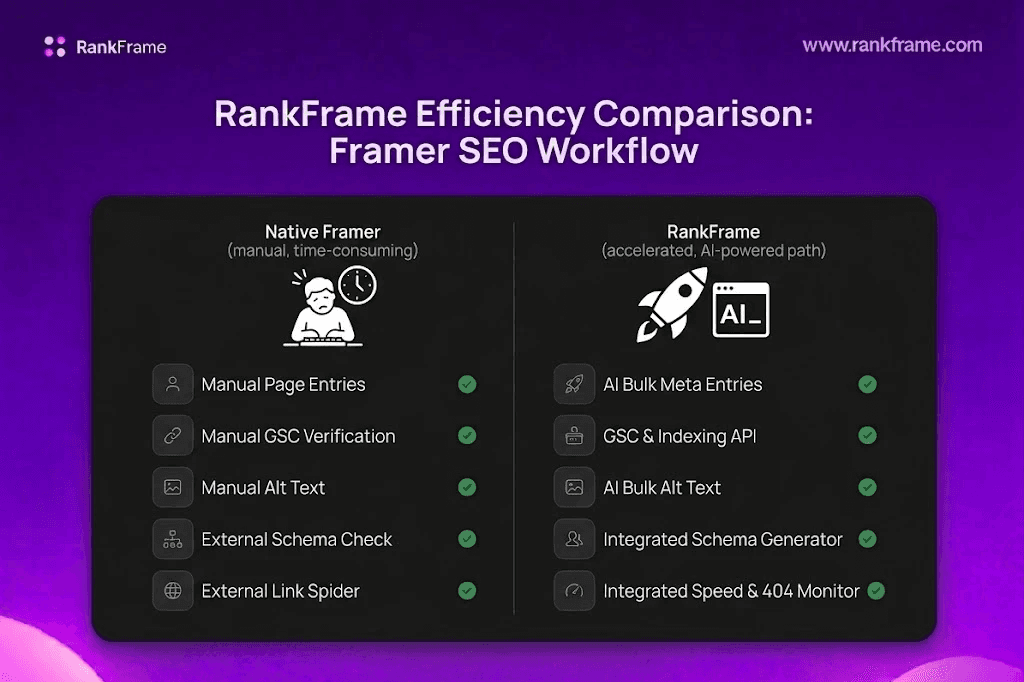
Where relevant, we note whether a task is handled natively by Framer, requires manual work, or is significantly faster with RankFrame installed. We have been direct about this throughout, no task is inflated to sell the plugin.
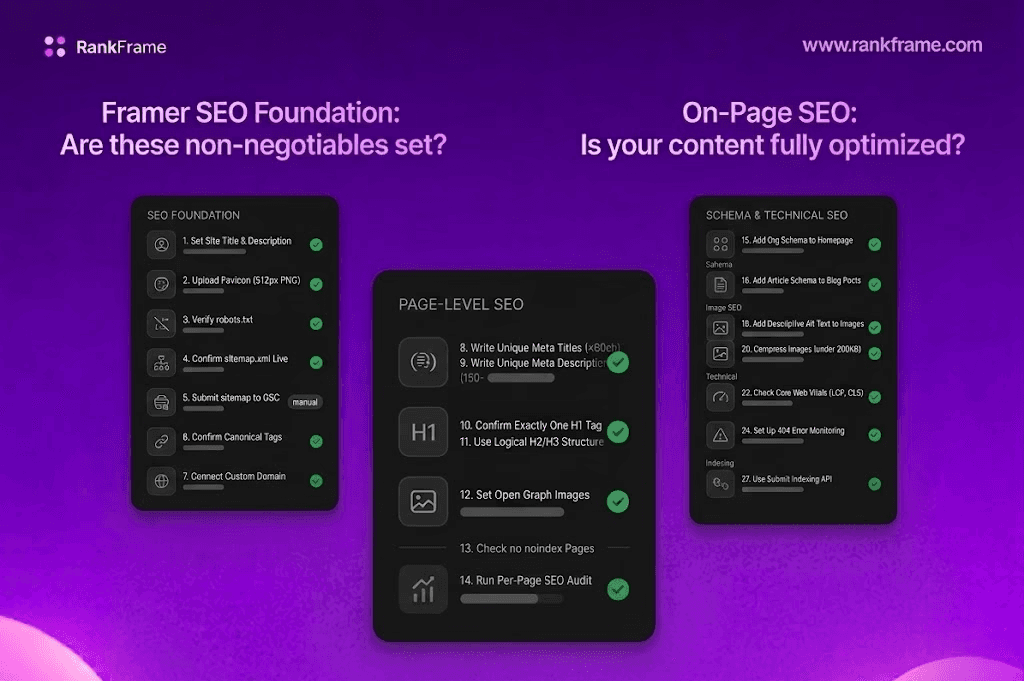
Section 1: Foundation (Items 1-7)
These seven items are the non-negotiables, the structural and technical layer that everything else builds on. Complete these before anything else.
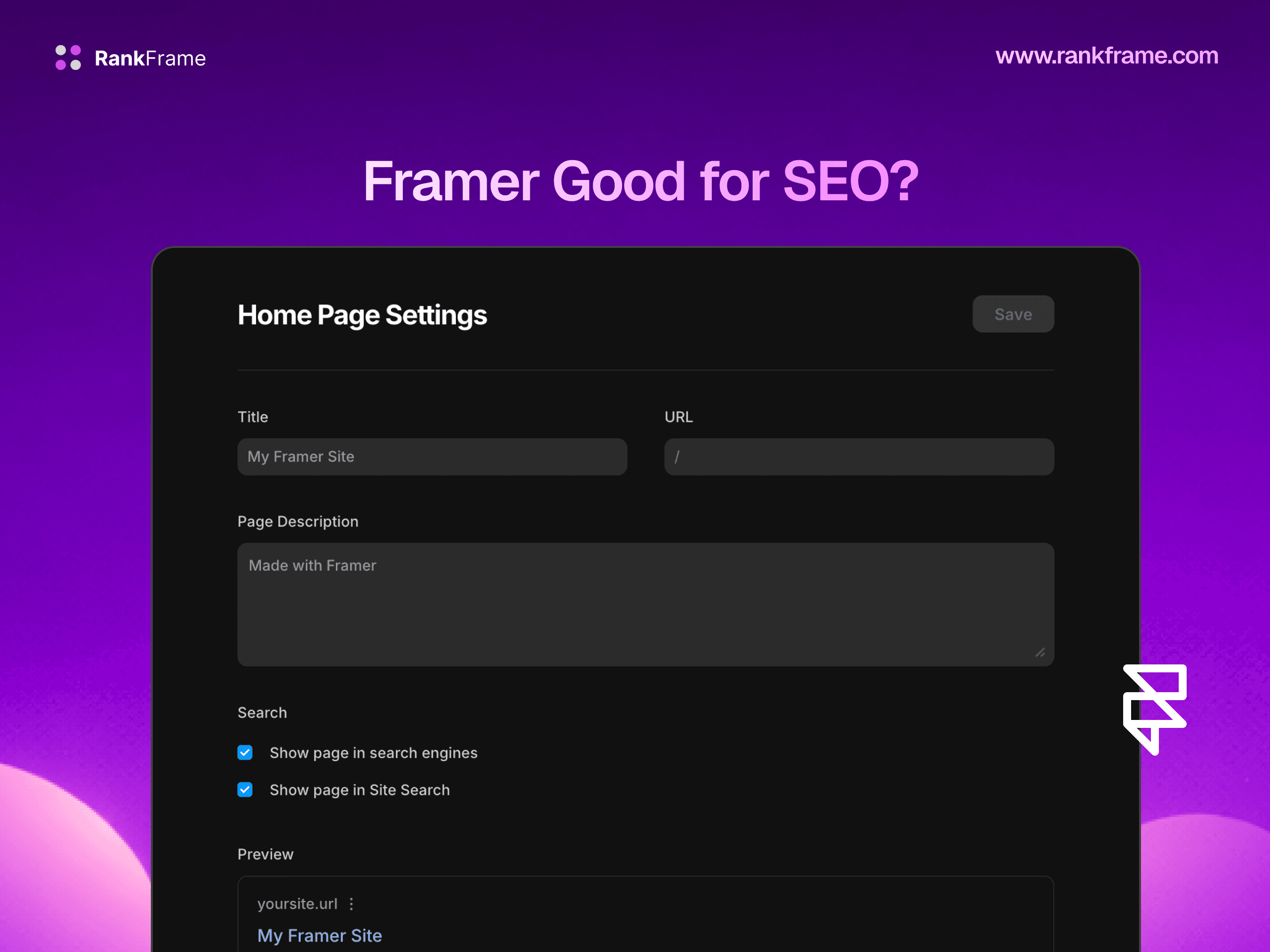
#1 Set your site title and description: In Framer's Site Settings, set a global site title and description. Keep the site title under 60 characters. Easy, Framer native.
#2 Upload a favicon: Upload a high-resolution favicon in Framer's Site Settings. Use a square image at minimum 512x512px in PNG format. Easy, Framer native.
#3 Verify robots.txt is serving correctly: Visit
yourdomain.com/robots.txtand confirm the file loads without a 404 error. Easy, Framer native.#4 Confirm sitemap.xml is live and complete: Visit
yourdomain.com/sitemap.xmland verify that all pages you want indexed are listed. Easy, Framer native.#5 Submit sitemap to Google Search Console: Verify your site in Google Search Console using the HTML meta tag verification method, then submit your sitemap URL. Medium, requires GSC setup.
#6 Confirm canonical tags are in place: Use a browser inspector to check that each page includes a self-referencing canonical tag in the head section. Easy, Framer native.
#7 Connect a custom domain: Ensure your site is published on a custom domain rather than a Framer subdomain. Easy, Framer native (requires paid plan).
Section 2: Page-Level SEO (Items 8-14)
On-page SEO is where most Framer sites are underoptimized. These seven items cover the per-page settings that Google reads first when evaluating your content.
#8 Write unique meta titles for every page (under 60 characters): Open each page's settings in Framer and write a unique, keyword-targeted meta title. Prioritize your primary keyword near the front. Faster with RankFrame AI.
#9 Write unique meta descriptions for every page (150-160 characters): Write a meta description for every page between 150 and 160 characters. Include your primary keyword naturally and a clear value proposition. Faster with RankFrame AI.
#10 Confirm exactly one H1 on every page: Every page should have exactly one H1 heading. Use the browser inspector to verify. Easy, Framer native.
#11 Use a logical H2/H3 heading structure: Structure your page content with H2 and H3 headings in a logical, hierarchical order. Avoid skipping heading levels. Easy, Framer native.
#12 Set an Open Graph image for every page (1200x630px): Upload a custom OG image for each page or set a site-wide default. Easy, Framer native.
#13 Check no important pages are accidentally set to noindex: In Framer's page settings, confirm that all pages you want indexed have indexing enabled. Easy, Framer native.
#14 Run a per-page SEO audit score: Use RankFrame's per-page SEO audit to get a 0-100 score for each page and a list of specific issues to fix. Requires RankFrame.
Section 3: Schema Markup (Items 15-18)
Schema markup is the most commonly skipped SEO task on Framer sites, and the one with the highest potential upside. Rich results, FAQ dropdowns, article bylines, star ratings, breadcrumb trails, are only available to pages with correct schema.
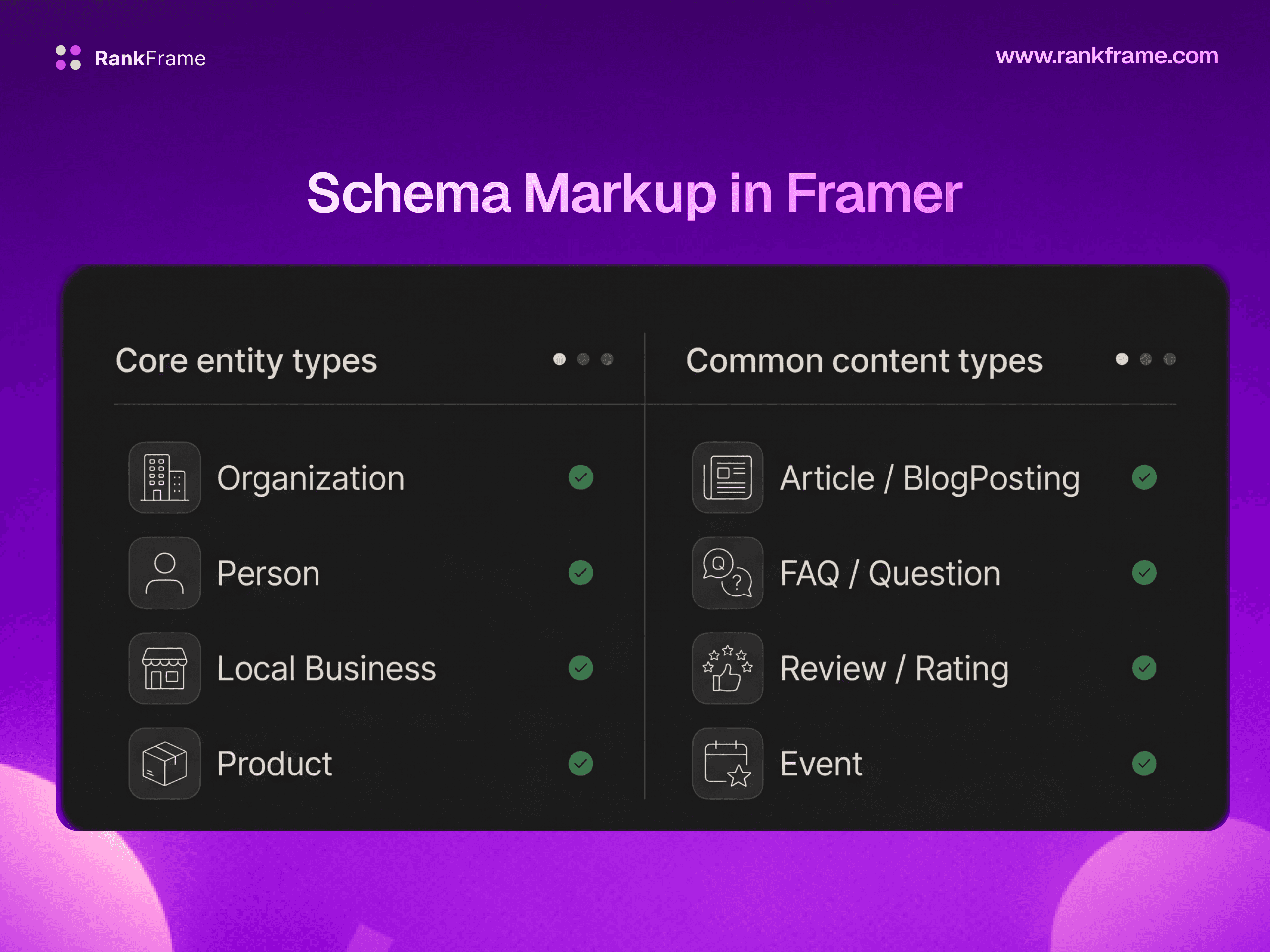
#15 Add Organization schema to your homepage: Organization schema tells Google your business name, URL, logo, social profiles, and contact information. Use RankFrame's Schema Generation UI to fill in a form and inject this automatically, or write it manually as JSON-LD. Much faster with RankFrame.
#16 Add Article or BlogPosting schema to every blog post: Every blog post should include Article or BlogPosting schema. This tells Google the article's headline, author, date published, date modified, and publisher. Use RankFrame's AI Auto-Generate Schema to apply this across your entire blog in one batch operation. Much faster with RankFrame.
#17 Validate every schema with Google Rich Results Test: After adding schema to any page, test it at search.google.com/test/rich-results. Fix all errors before publishing. Medium, external tool.
#18 Explore additional schema types relevant to your content: Beyond Organization and Article, consider Service schema for service businesses, Person schema for personal brands, Restaurant schema for hospitality sites, Book schema for authors. Available in RankFrame.
Section 4: Image SEO (Items 19-21)
Image SEO is undervalued on Framer sites, where visual design is central and images are everywhere. Missing alt text is the single most common SEO issue found in Framer site audits.
#19 Add descriptive alt text to every image on your site: In Framer, set alt text for each image in the properties panel. Use RankFrame's Image SEO tab to get a site-wide view of which images are missing alt text and use AI generation to fill them in bulk (1 credit per image). Much faster with RankFrame.
#20 Compress images, hero images under 200KB: Large images are one of the most common causes of slow LCP scores. Use Squoosh, ImageOptim, or TinyPNG. Export images as WebP format where possible. Medium, external compression step.
#21 Use descriptive, hyphenated filenames before uploading: Rename image files before uploading to Framer. Use descriptive, lowercase, hyphen-separated names. Easy, pre-upload step.
Section 5: Technical SEO (Items 22-24)
#22 Check Core Web Vitals: LCP under 2.5s, CLS under 0.1: Run a Lighthouse audit on your most important pages using RankFrame's Page Speed tab or Google PageSpeed Insights. Focus on LCP (target: under 2.5 seconds), CLS (target: under 0.1), and INP (target: under 200ms). Faster with RankFrame Page Speed.
#23 Find and fix broken internal links: Broken internal links waste Google's crawl budget and create poor user experiences. Use Screaming Frog SEO Spider or RankFrame's 404 Monitor. Monitor with RankFrame 404 Monitor.
#24 Set up 404 error monitoring: RankFrame's 404 Monitor tracks every broken URL hitting your site with hit counts and user agent breakdown. Review monthly and fix or redirect high-hit broken URLs. Requires RankFrame.
Section 6: Indexing and Analytics (Items 25-27)
#25 Connect Google Search Console and monitor search performance: Connect GSC to your Framer site (HTML meta tag verification method), submit your sitemap, and then connect RankFrame's Submit Indexing feature to pull GSC data into the Framer plugin panel. GSC data accessible in RankFrame.
#26 Set up keyword tracking for your target keywords: Add your primary target keywords to RankFrame's Keyword Tracker. Position data is pulled from Google Search Console and displayed with sparkline history charts. Review keyword positions weekly. Requires RankFrame.
#27 Use Submit Indexing after every major content update: Every time you publish a new page, update an existing page significantly, or push a batch of new CMS content, use RankFrame's Submit Indexing feature to push those URLs to Google via the Indexing API. Requires RankFrame.
Full Checklist Summary
# | Item | Section | Tool |
|---|---|---|---|
Set site title and description | Foundation | Framer | |
Upload favicon | Foundation | Framer | |
Verify robots.txt | Foundation | Framer | |
Confirm sitemap.xml is complete | Foundation | Framer | |
Submit sitemap to Google Search Console | Foundation | Framer + GSC | |
Confirm canonical tags | Foundation | Framer | |
Connect custom domain | Foundation | Framer | |
Write per-page meta titles (under 60 chars) | Page SEO | Framer / RankFrame AI | |
Write per-page meta descriptions (150-160 chars) | Page SEO | Framer / RankFrame AI | |
10 | Confirm one H1 per page | Page SEO | Framer |
11 | Use logical H2/H3 structure | Page SEO | Framer |
12 | Set OG image (1200x630px) | Page SEO | Framer |
13 | Check no important pages are noindex | Page SEO | Framer |
14 | Run per-page SEO audit score | Page SEO | RankFrame |
15 | Add Organization schema to homepage | Schema | RankFrame / Custom code |
16 | Add Article schema to blog posts | Schema | RankFrame / Custom code |
17 | Validate schema with Rich Results Test | Schema | Google Rich Results Test |
18 | Explore additional schema types | Schema | RankFrame |
19 | Add alt text to all images | Image SEO | Framer / RankFrame AI |
20 | Compress hero images under 200KB | Image SEO | Squoosh / ImageOptim |
21 | Use descriptive image filenames | Image SEO | Manual pre-upload |
22 | Check Core Web Vitals (LCP, CLS) | Technical | RankFrame / PageSpeed |
23 | Fix broken internal links | Technical | RankFrame / Screaming Frog |
24 | Set up 404 monitoring | Technical | RankFrame |
25 | Connect GSC and monitor search performance | Indexing | GSC + RankFrame |
26 | Track target keywords | Indexing | RankFrame |
27 | Submit indexing after major updates | Indexing | RankFrame |
Frequently asked questions
How do I set up SEO on Framer?
Start in Framer's Site Settings to set a global site title and description. Then go to each page's settings panel to set individual meta titles and descriptions. Connect a custom domain, submit your sitemap to Google Search Console, and verify GSC ownership using the HTML meta tag in Framer's custom code head. For schema, image alt text, and keyword tracking, install RankFrame from the Framer Plugin Marketplace.