
<- Go Back
Schema Markup
Auto-Generate Schema with AI
RankFrame's Auto-Generate feature scans your entire Framer sitemap and uses AI to pre-fill schema forms for every page. Instead of creating each schema one at a time, you review and confirm AI-generated content for each page, then inject everything in one click.
Last Updated on
Read Time
4 min read
How Auto-Generate works
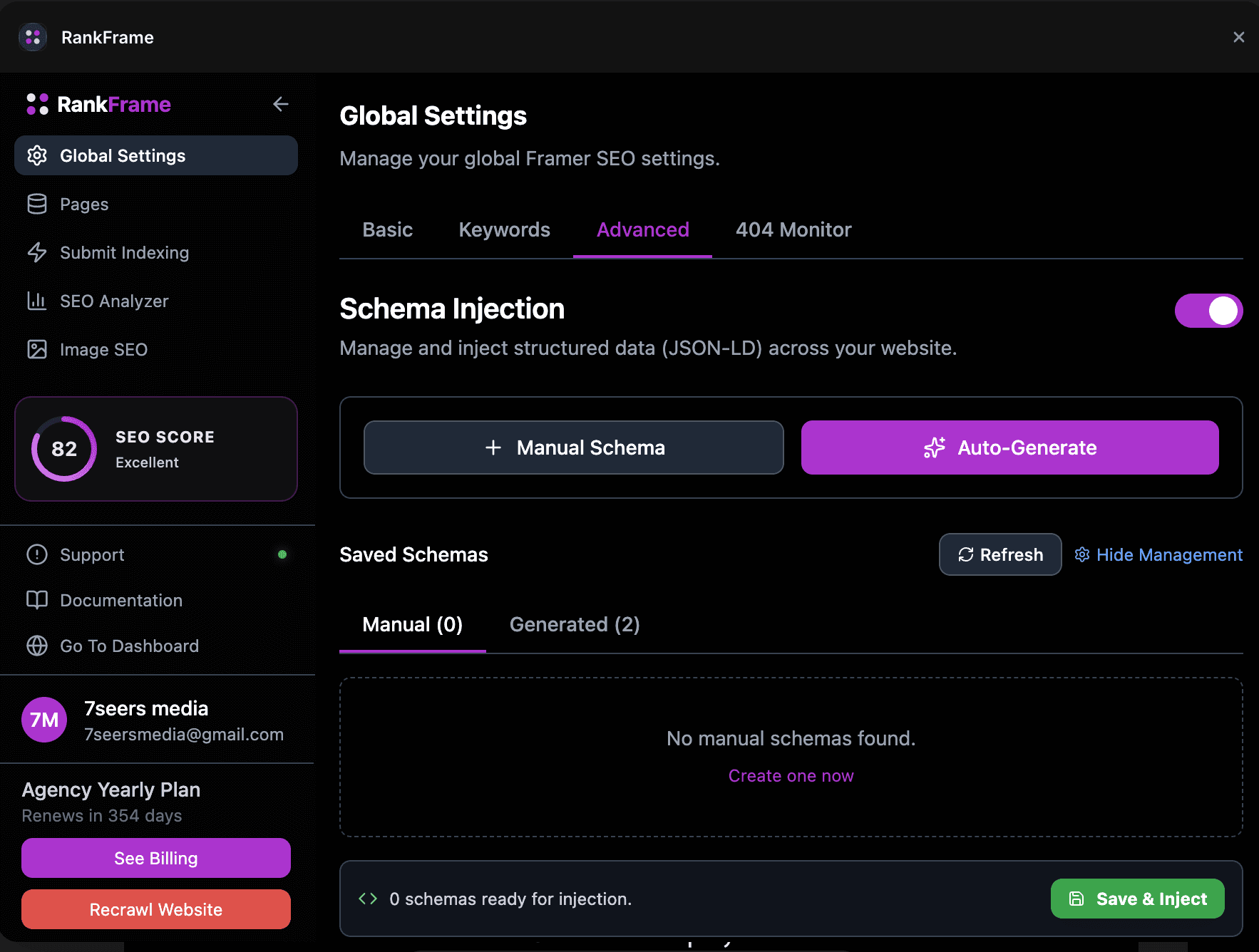
Auto-Generate is the AI-powered path for adding schema to your Framer site. Click the Auto-Generate button (the purple button in the Advanced tab under Global Settings) to start.
RankFrame reads your sitemap and shows you every URL it finds. For each page without an existing schema, you can trigger AI generation with one click. The AI pre-fills the schema form fields for that page so you only need to review and confirm, not type everything from scratch.
“This view displays raw AI-generated schemas. Any schemas you edit and save will appear in the Saved Schemas section.”
How the AI generates schema content
Currently, Auto-Generate uses the same schema type form fields as the Manual Schema path to structure and populate the output. The AI fills each field based on context it reads from your site, including page content, URLs, and your brand personalization settings from the Onboarding/Personalization screen.
This means the quality of AI output improves when your Personalization data is complete. If you have filled in your Brand Name, Brand About, Industry, Audience, and Main Goals in Personalization, the AI produces more specific and accurate schema content.
In a future update, the Auto-Generate AI engine will move to a fully independent generation model: the AI will analyze your live pages directly and produce schema entirely from that content, without using the manual schema form fields as a template. This will make generated schemas more detailed and page-specific. The current version provides a solid starting point that covers the essential schema fields for every page.
The Pages Found screen
After clicking Auto-Generate, the Pages Found screen appears. It lists every URL RankFrame found in your sitemap with the total count shown at the top.
Each row in the list shows the page URL and its current schema state:
Page with existing schema: a green dot, a schema type badge (e.g. ARTICLE, ORGANIZATION), a view JSON button, and a regenerate button
Page without schema: a “No Schema” label and a Generate button
For pages that already have schema, click the view JSON button to see the raw JSON-LD. Click the regenerate button to create a fresh AI draft for that page, replacing the existing one.
Generating a schema for a page
Click the Generate button on any page that shows “No Schema”. RankFrame opens the schema form for that page with fields pre-filled by the AI. The form has the same structure as Manual Schema: the Edit tab shows the pre-filled fields, Preview JSON shows the JSON-LD output, and Validator (Ext) opens Google Rich Results Test.
The AI typically pre-fills:
The schema type based on the page content (Article for blog posts, Service for service pages, etc.)
The headline or name field based on the page title
The URL bound to that specific page
A description based on the page content
Image URL if a featured image is detected
Reviewing and editing the AI output
Always review AI-generated content before saving. The AI produces a solid first draft but you should verify accuracy on every field.
Check the Edit tab fields: Read through every pre-filled field. Correct anything that is inaccurate, incomplete, or that uses generic filler language.
Validate with Google (optional): Click Validator (Ext) to open Google Rich Results Test in a new tab.
Save the schema: Click Save Schema. This moves the schema into the Generated sub-tab inside Saved Schemas. It does not inject live yet.
Use Copy JSON at the bottom of the form to copy the raw JSON-LD to your clipboard at any point.
Saving and injecting
After you have reviewed and saved schemas for the pages you want, go back to the Advanced tab in Global Settings. The Generated sub-tab in Saved Schemas will show all the schemas you saved from Auto-Generate.
Enable the Schema Injection toggle at the top of the Advanced tab if it is not already on
Toggle on each schema in the Generated sub-tab that you want to push live
Check the count in the bottom bar: “N schemas ready for injection”
Click Save and Inject to push all toggled-on schemas to your live Framer site
You can inject Manual and Generated schemas together. Both sub-tabs feed the same injection pipeline and the Save and Inject button pushes everything that is toggled on regardless of which tab it came from.
Auto-Generate vs Manual Schema
Both paths create the same output format: JSON-LD schemas saved in Saved Schemas and injected via Save and Inject. The difference is in how you fill the form fields.
Manual Schema: you fill every field yourself. One page at a time. Best for high-priority pages where you want complete control over the content.
Auto-Generate: AI pre-fills the fields based on your page content. Faster for covering many pages quickly. Requires review before saving.
A common workflow is to use Auto-Generate for bulk coverage across your sitemap, then use Manual Schema to fine-tune or supplement specific pages that need more precision.
Schema and multi-language sites
Schema is currently generated per page rather than per locale, so one set of structured data applies across your site. Per-locale schema is part of the updated schema flow planned for Q3 2026.
Frequently asked questions
How does Auto-Generate schema work?
Click Auto-Generate in the Advanced tab. A Pages Found screen lists every URL in your sitemap. For pages without schema, click Generate to open a pre-filled schema form for that page. Review the AI output, edit if needed, save, toggle on, and click Save and Inject.