
<- Go Back
Schema Markup
Person and Organization Schema
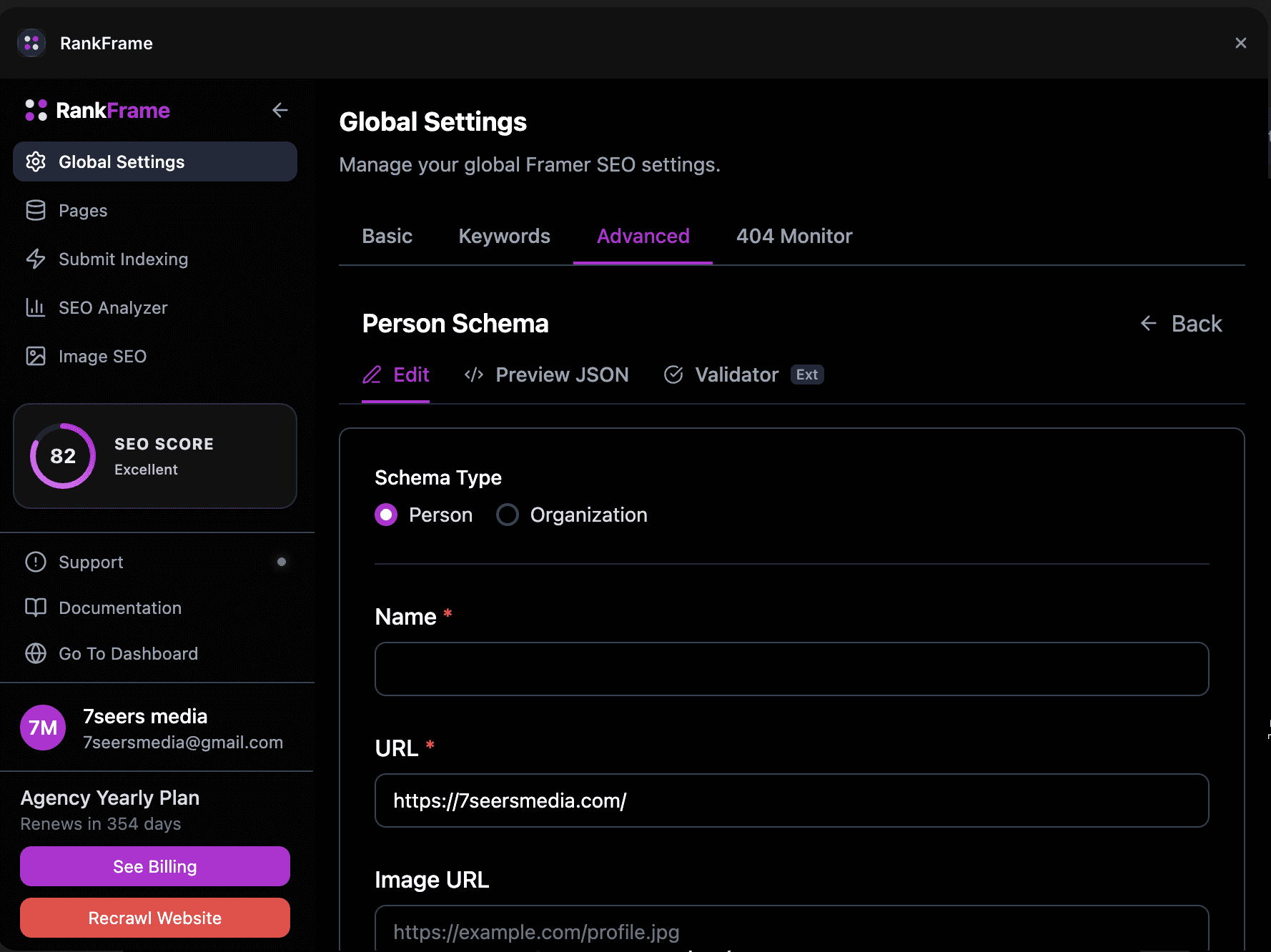
RankFrame combines Person and Organization schema into one unified form. Use the radio toggle at the top to choose which type to generate. Both types share the same fields, making it easy to switch or maintain either.
Last Updated on
Read Time
4 min read
What this schema type does
Person and Organization schema tells Google who is behind a website or web page. It establishes entity identity, which helps Google connect your Framer site to authoritative knowledge graph entries. This is especially valuable for founder pages, about pages, agency homepages, and professional profile pages.
Google uses this data to display rich results, knowledge panels, and authorship attribution in search. The more complete your schema, the stronger the entity signal.
Choosing Person or Organization

At the top of the form, a radio toggle lets you choose between Person and Organization. The fields are nearly identical between the two types. The choice determines the @type value in the JSON-LD output.
Choose Person for an individual: a founder, author, consultant, or freelancer
Choose Organization for a company, agency, studio, or brand
For a personal portfolio or founder page, use Person. For a company homepage or agency site, use Organization. If both apply, create two separate schema entries and bind each to the relevant page.
Person and Organization Schema Setup & Available Options
Now let’s have a closer look at each of the available options in detail. The form contains six fields. Fill as many as are accurate and applicable to your subject.
1. Name

Enter the full name of the person or organization in this field. For a person, use their real name as it appears publicly (for example, “Jane Smith”). For an organization, use the official brand name as it appears on your branding and legal documents (for example, “7 Seers“). This value populates the name property in the JSON-LD output and is the primary identifier for the entity.
2. URL

Enter the canonical URL that best represents this person or organization. Usually this is your homepage (for example, https://yourdomain.com) or a dedicated about page. The URL should resolve to a page that clearly identifies the entity. This value populates the url property and acts as the canonical web identity for the subject.
3. Image URL

Add a direct link to a profile photo (for Person) or a logo image (for Organization). Use a full absolute URL, not a relative path. Square or near-square images work best with Google’s rich result requirements. For organizations, use a clean logo on a white or transparent background. This value populates the image property in the JSON-LD output.
4. Job Title

Enter the person’s professional title or role in this field (for example, “Founder”, “Creative Director”, “SEO Specialist”). This field is most relevant when you have selected the Person type at the top of the form. Use the title as it appears on the person’s bio, resume, or LinkedIn profile so Google can match the entity across the web. This value populates the jobTitle property.
5. Company

Enter the name of the organization this person is affiliated with or works for. This is most relevant when you have selected Person at the top of the form, as it links the individual to their employer or affiliated entity in Google’s knowledge graph. Use the official organization name. This value populates the worksFor property in the JSON-LD output.
6. Social Profiles
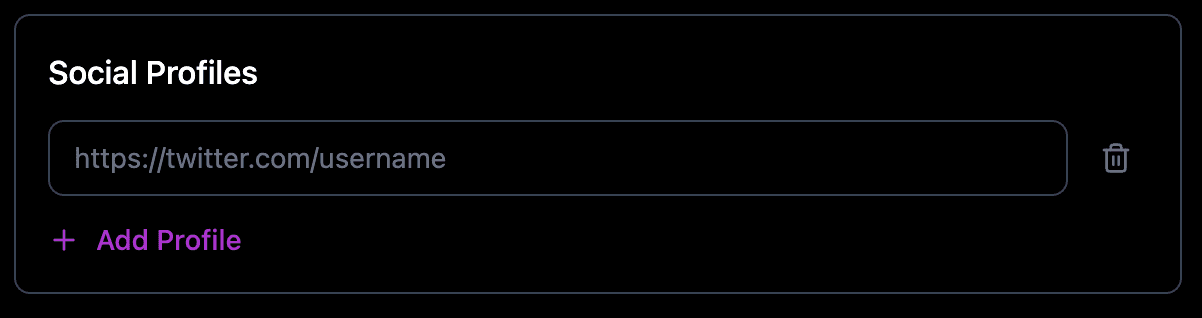
Add one or more URLs to social media profiles or authoritative external profiles for this person or organization. Common entries include LinkedIn, X (Twitter), Instagram, Facebook, YouTube, GitHub, and Wikipedia pages. Add as many as apply. Each URL you add becomes a separate entry inside the sameAs array in the JSON-LD output. This is one of the most powerful fields for entity recognition, since it tells Google that all of these online presences belong to the same entity.
The more social profiles you add, the stronger the entity signal. List your LinkedIn, X profile, Instagram, YouTube channel, and any authoritative third-party pages (Wikipedia, Crunchbase, Behance) so Google can confidently connect the dots.
Saving and injecting
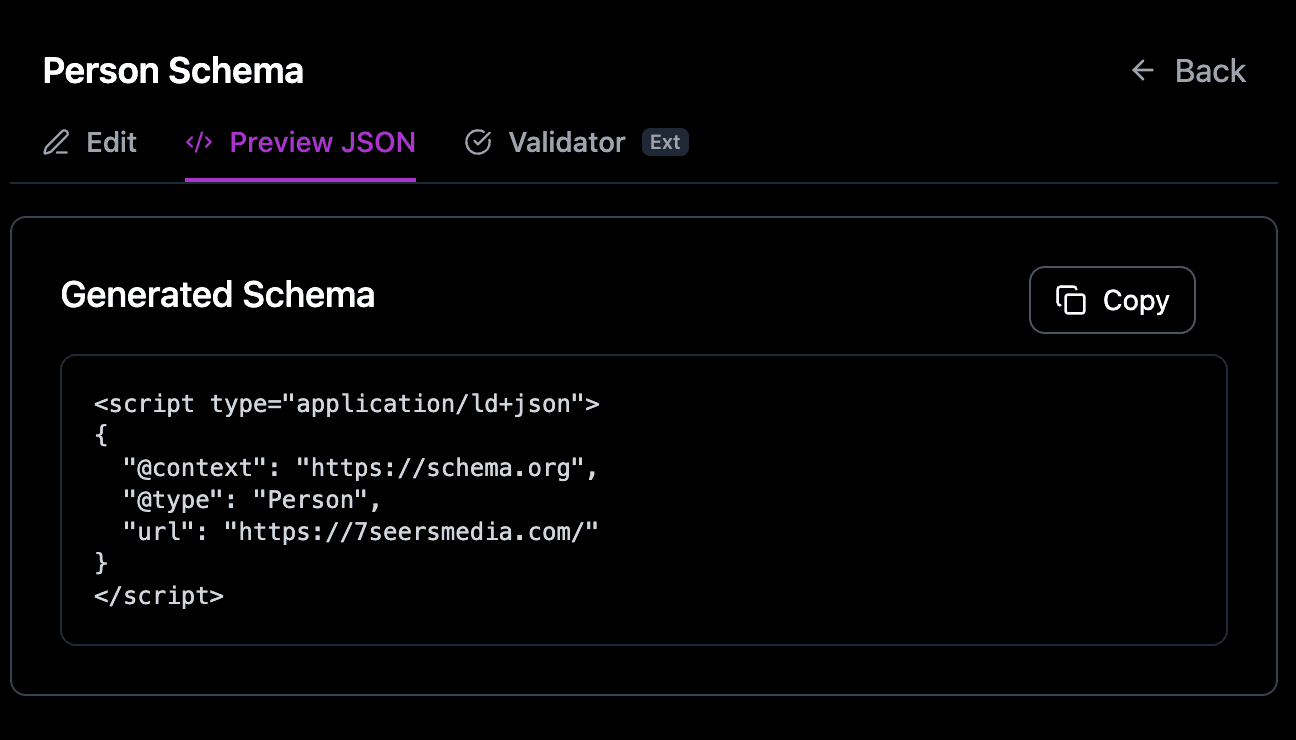
After filling out the form:
Click the Preview JSON tab to review the raw JSON-LD output. Verify all fields look correct.
Optionally click Validator (Ext) to open Google Rich Results Test in a new tab and confirm the schema is valid.
Click Copy JSON if you want a copy of the raw JSON-LD for your records.
Click Save Schema to save it to the Manual sub-tab in Saved Schemas.
Return to the Advanced tab, toggle the schema on in Saved Schemas, then click Save and Inject.
Schema and multi-language sites
Schema is currently generated per page rather than per locale, so one set of structured data applies across your site. Per-locale schema is part of the updated schema flow planned for Q3 2026.
Frequently asked questions
What is the difference between Person and Organization schema?
Person represents an individual. Organization represents a company or brand. RankFrame combines both into one form with a radio toggle. The fields are essentially the same and the toggle just changes the @type value in the JSON-LD output.