
<- Go Back
Schema Markup
Article Schema
RankFrame supports four article schema subtypes: Article, BlogPosting, TechArticle, and NewsArticle. This guide covers every field across the form sections: Article Type, Headline, URL, Description, Image Details, Author Details, Publisher Details, and Dates.
Last Updated on
Read Time
6 min read
What article schema does
Article schema tells Google that a page contains editorial content written by a specific author and published by a specific organization. When present and valid, it enables rich results including article carousels, author attribution, and top stories eligibility in Google Search.
This schema type is particularly valuable for Framer blogs, case study pages, and editorial sections. Adding complete article schema with author and publisher data strengthens Google’s understanding of content origin and credibility.
The four article subtypes
At the top of the Article schema form is an Article Type selector. Choose the subtype that best describes your content:
Article: general editorial content. Use this when none of the other subtypes apply precisely.
BlogPosting: a blog entry or written post. Use this for individual posts on a Framer blog or journal section.
TechArticle: technical documentation, tutorials, developer guides, or how-to content aimed at a technical audience.
NewsArticle: a news story, press release, or announcement intended to report on recent events.
For most Framer blog pages, BlogPosting is the right choice. For product documentation or help articles, use TechArticle.
Article Schema Setup & Available Options
Now let’s have a closer look at each of the available options in detail. The form is organized into five groups: basic info, image details, author details, publisher details, and dates.
Basic Info
1. Article Type

Select the article subtype that best describes your content. RankFrame supports four options: Article for general editorial content, BlogPosting for individual blog entries or posts, TechArticle for technical documentation and developer guides, and NewsArticle for news stories and press releases. This selection sets the @type property in the JSON-LD output. When in doubt, use BlogPosting for blog pages and TechArticle for help or documentation pages.
2. Headline

Enter the title of the article as it should appear in structured data. Keep it under 110 characters and match it closely to the visible heading on the page. Avoid clickbait or keyword-stuffed titles. This value populates the headline property in the JSON-LD output.
3. URL

Enter the canonical URL of this specific article page (for example, https://yourdomain.com/blog/my-post). This should be the permanent, preferred URL for this content. This value becomes the mainEntityOfPage identifier in the JSON-LD output.
4. Description

Write a brief summary of the article in 1 to 2 sentences. This value populates the description property in the JSON-LD output.
Image Details
Google requires at least one image in article schema for rich result eligibility. All three image fields should be filled for best results.
5. Image URL
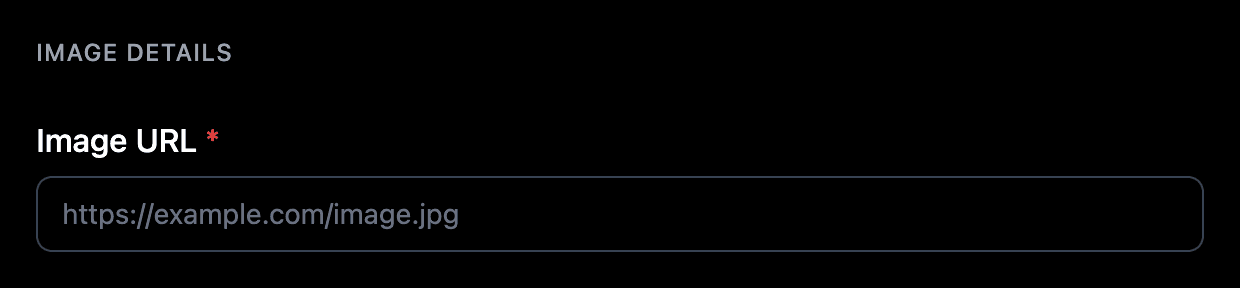
Enter a direct URL to the article’s featured or hero image. Use a full absolute URL. Google will use this image in rich results and article carousels. This value populates the image.url property.
6. Image Width

Enter the pixel width of the image as a number (for example, 1200). Google recommends images at least 1200 pixels wide for standard rich results. This value populates the image.width property.
7. Image Height
Enter the pixel height of the image as a number (for example, 630). A 1.91:1 aspect ratio (1200 x 630 pixels) is the standard Google recommends. This value populates the image.height property.
Author Details
Author details identify who wrote the article. Google uses this for authorship attribution and E-E-A-T signals.
8. Author Name

Enter the full name of the individual who wrote the article. If the author is an organization rather than a person, enter the organization name. This value populates the author.name property.
9. Author URL
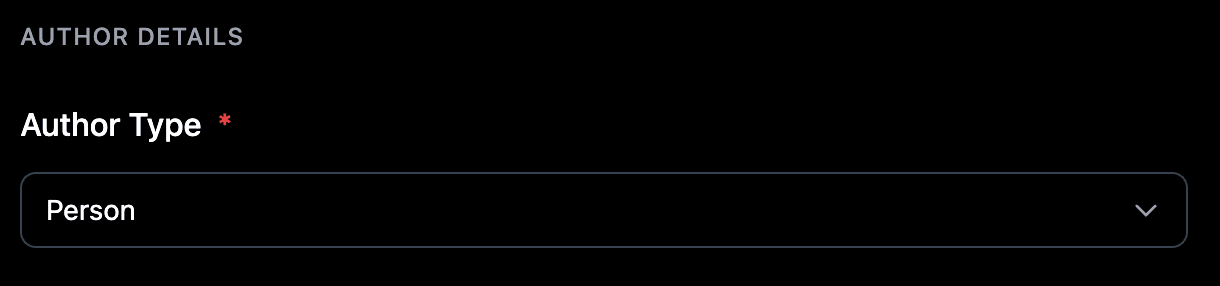
Enter a URL for the author’s profile, bio page, or personal website. This helps Google connect the author name to a verifiable online identity and strengthens E-E-A-T signals. This value populates the author.url property.
Publisher Details
Publisher details identify the organization that published the article. This is usually your brand, studio, or company.
10. Publisher Name

Enter the official name of the publishing organization. This value populates the publisher.name property.
11. Publisher Logo URL

Enter a direct URL to the publisher’s logo image. Google prefers a rectangular logo, ideally 600 x 60 pixels. This value populates the publisher.logo.url property.
Dates
Both date fields are important for Google’s freshness signals and for display in rich results.
12. Date Published

Enter the date this article was first published. Use ISO 8601 format: YYYY-MM-DD (for example, 2026-05-02). This value populates the datePublished property.
13. Date Modified

Enter the date this article was last updated. Use ISO 8601 format: YYYY-MM-DD. Update this field every time you make meaningful edits to the article content. This value populates the dateModified property.
Saving and injecting
Click the Preview JSON tab to review the complete JSON-LD output before saving.
Click Validator (Ext) to open Google Rich Results Test and confirm the schema is valid.
Click Copy JSON if you want a local copy of the raw JSON-LD.
Click Save Schema to save to the Manual sub-tab in Saved Schemas.
Toggle the schema on in Saved Schemas, then click Save and Inject.
Schema and multi-language sites
Schema is currently generated per page rather than per locale, so one set of structured data applies across your site. Per-locale schema is part of the updated schema flow planned for Q3 2026.
Frequently asked questions
Which article subtype should I choose?
Use Article for general editorial content. Use BlogPosting for individual blog entries. Use TechArticle for technical documentation or tutorials. Use NewsArticle for news stories or press releases.