8 min read
How-To Guide
How to Add Alt Text to Framer Images at Scale
Framer's native alt text editor doesn't scale past a few dozen images. Learn how to audit and bulk-generate alt text across your entire site, CMS included.

Team 7 Seers
How to Add Alt Text to Framer Images at Scale
Alt text is one of the most overlooked ranking signals on Framer sites. Framer is a design-first platform. Its users build visually rich websites packed with hero images, screenshots, portfolio photography, icons, and infographics. Those images often carry more meaning than the surrounding copy. Yet every image that ships without descriptive alt text is invisible to search engines and inaccessible to screen reader users.
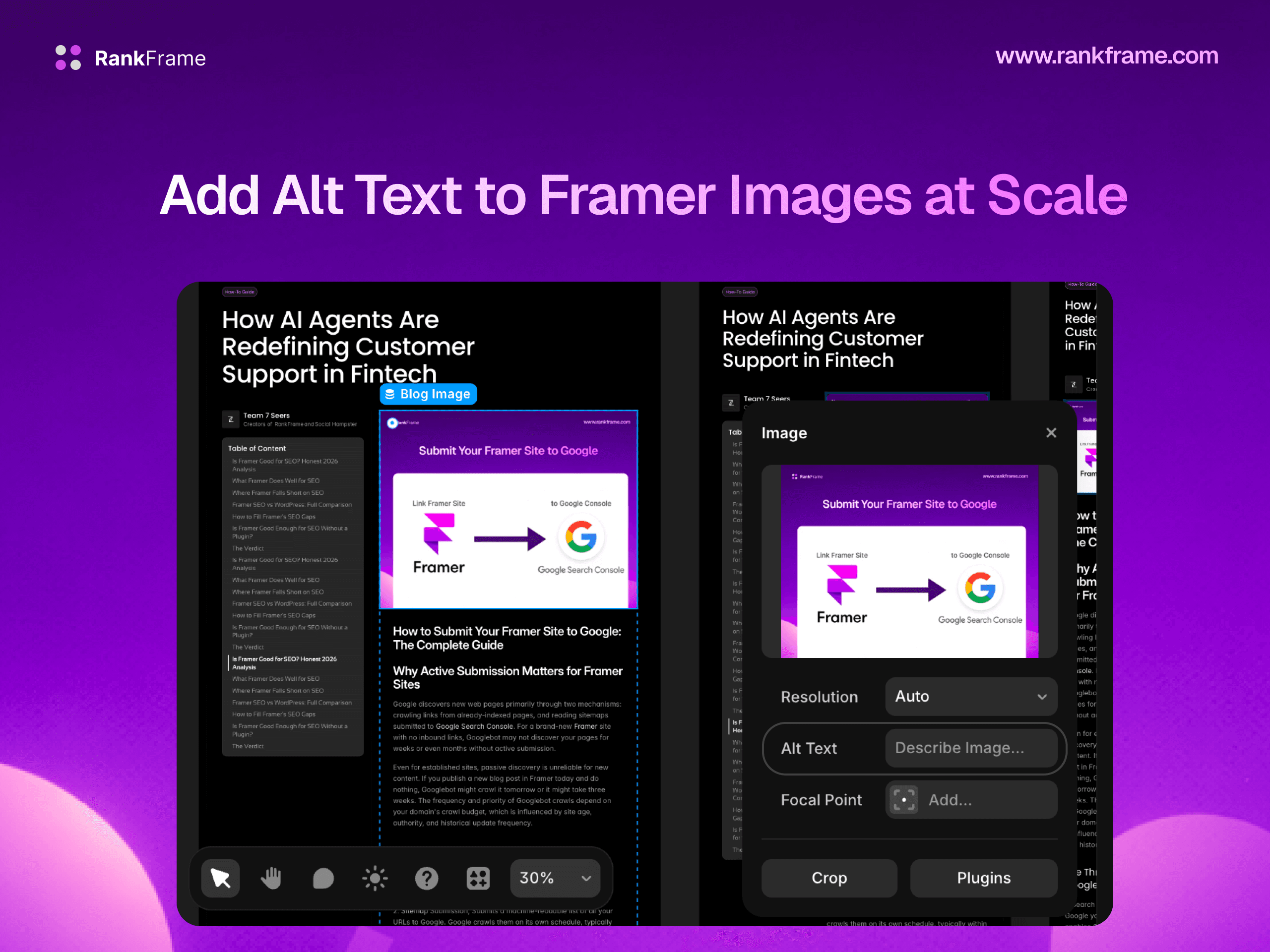
The problem is compounded by how Framer handles alt text natively: one image at a time, in the canvas editor properties panel. There is no audit view to see which images are missing alt text, no bulk editing workflow, and no AI assistance. For a site with 80 or 100 images, adding alt text manually to each one is hours of repetitive work that most Framer designers skip entirely.
What Is Alt Text and Why It Matters
Alt text (alternative text) is an HTML attribute added to image elements that provides a text description of the image content. Here is what it looks like in the rendered HTML of a Framer page:
<img src="hero-dashboard.jpg" alt="RankFrame SEO audit dashboard showing a site score of 87 out of 100" />
That single attribute serves three distinct purposes that all have measurable impact on your site’s performance.
1. Search Engine Understanding
Search engines cannot see images. They read alt text to understand what an image depicts, which informs how they index the page and whether the image appears in Google Image Search results. Images are a significant discovery channel: Google Images generates billions of searches per month, and a well-optimized image can drive traffic that text-only content never would. For Framer sites where a hero image or product screenshot is the primary visual statement on a page, alt text is the only way that image contributes to keyword relevance.
2. Accessibility Compliance
Screen readers used by blind and low-vision users read alt text aloud when they encounter an image. Without alt text, users relying on assistive technology hear “image” or the raw filename, such as “IMG_4821.jpg.” WCAG 2.1 Success Criterion 1.1.1 (Non-text Content) requires that all meaningful images have a text alternative. Many jurisdictions hold websites to accessibility standards. An alt text audit is therefore both an SEO practice and a compliance exercise.
3. Fallback Content
When images fail to load, browsers display the alt text in place of the image. This matters in low-bandwidth environments and for users on slow connections. Displaying a meaningful description rather than a broken image icon keeps the page functional and informative.
How Framer Handles Image Alt Text Natively
Per-Image in the Canvas Editor
The primary method is selecting an image element in the Framer canvas and typing alt text directly into the Alt Text field in the right-side properties panel. This is intuitive for adding alt text to a single hero image or logo, but it requires you to click on every image in your project individually, remember to do it for every page, and repeat the process when new images are added.
Asset Manager (Cmd+K)
The Framer Asset Manager, opened with Cmd+K (Mac) or via the Assets panel, lists all images in your project in one place. You can click on an image in the Asset Manager and edit its alt text without having to find the element in the canvas. However, the Asset Manager does not show you which images are missing alt text, does not flag gaps, and does not provide any automation or AI assistance. It is a viewing tool, not an audit or generation tool.
CMS Image Alt Text via Field Variables
For sites using Framer CMS, images inside CMS collection items can have alt text bound to a CMS text field. You add a text field to your collection, type the alt text for each collection item, and then bind the image component’s alt attribute to that field variable. This works correctly, but it requires manually writing alt text for every CMS item and setting up the binding correctly in the collection template.
The Core Limitation
Framer’s native alt text tooling has no audit view to show missing alt text across the site, no AI generation, no bulk operation beyond what the Asset Manager provides one-by-one, and no CSV export for review or client sign-off. For any site with more than a handful of images, this means alt text is almost always incomplete.
Why Missing Alt Text Hurts Framer Sites
72+ Missing Alt Texts Is Common on Design-Heavy Portfolios
A typical Framer portfolio or SaaS landing page built by a designer prioritizes visual impact. It is common to find portfolios with 50 project images, 20 UI screenshots, 10 icon images, and a scattering of logos and texture photos. Running an image SEO audit on such a site routinely surfaces 70 to 100 images without alt text.
Each missing alt text is a missed opportunity for Google to understand the page’s visual content. On a portfolio page for a “brand identity design agency in New York,” a project image without alt text is invisible. With alt text reading “Brand identity design for Brooklyn coffee roaster including logo, packaging, and signage,” that image contributes to the page’s relevance for related searches.
Accessibility Compliance (WCAG)
WCAG 2.1 Level A requires that all non-decorative images have meaningful alt text. This is not optional for any site aspiring to professional quality.
Image Search Ranking
Google Image Search is a meaningful traffic source for visual industries. Photographers, architects, interior designers, UI designers, and product companies all benefit from image search traffic. Google explicitly states that alt text is a primary signal it uses to understand image content and determine relevance for image search queries.
Crawl Context for Text-Light Pages
Many Framer landing pages are intentionally copy-light. When images carry most of the page’s communication, their alt text becomes critical context for Google’s understanding of the page’s topic. A page with two sentences of body text and 10 images, all missing alt text, gives Google almost nothing to work with for keyword relevance assessment.
How RankFrame’s Image SEO Works
RankFrame’s Image SEO feature is built specifically to close the gap between what Framer provides natively and what a serious image SEO workflow requires. It covers every image on your site, generates alt text using AI, lets you manage everything in one panel, and exports an audit trail. You access it directly inside the Framer editor.
Canvas and CMS Image Coverage
RankFrame scans both canvas images (images placed directly in your Framer project) and CMS images (images stored in Framer CMS collection items). A tool that only covers canvas images leaves CMS image alt text unmanaged.
Red Dot Indicator for Missing Alt
In the RankFrame Image SEO panel, every image that is missing alt text displays a red dot indicator. This gives you an instant visual audit of your image SEO gap without needing to click through each image individually.
Single Wand: Generate for One Image
Each image in the panel has a wand icon. Clicking it generates AI alt text for that specific image. One credit is consumed per generation.
Bulk Generation: Select All and Generate
For a full-site alt text pass, click Select All in the Image SEO panel, then click the Generate Alt Text button. RankFrame will process every selected image sequentially, generating a descriptive alt text for each one.
Credit Cost: 1 Credit Per Image
AI alt text generation uses one credit per image. Credits are consumed when you use the single wand or bulk generation. You can purchase additional credits inside the plugin.
CSV Export for Audit Trail
After generating alt text, you can export a CSV that lists every image on your site with its current alt text. This is valuable for client review and sign-off, for maintaining a changelog of alt text updates, and for identifying any images where the AI-generated description may need manual refinement.
Global Suffix Option
The Global Settings panel in RankFrame includes a suffix field for alt text. Any text you enter here is automatically appended to every generated alt text. For example, a design studio might set the suffix to “by Studio Meridian” so that generated alt texts read “Brand identity logo design for a fintech startup by Studio Meridian.”
Writing Good Alt Text: Guidelines and Examples
Be Specific and Descriptive
Alt text should describe what is actually in the image with enough specificity to convey meaning. Vague descriptions like “photo of a person” or “screenshot of a tool” communicate nothing useful to search engines or screen readers.
Keep It Under 125 Characters
Screen readers typically truncate alt text at around 125 characters. Aim to communicate the most important information within that limit.
Include Keywords Naturally, Not Forcefully
Good alt text describes the image. If your target keyword naturally fits the description, include it. Keyword stuffing in alt text can result in a manual penalty from Google.
Do Not Start with “Image of” or “Photo of”
Screen readers already announce that the element is an image. Go straight to describing the content: not “Image of a woman using a laptop” but “Designer reviewing color palette options in Framer on a MacBook.”
Use Empty Alt for Decorative Images
Images that are purely decorative, such as background textures, abstract shapes, gradient overlays, or decorative dividers, should have an empty alt attribute: alt=””. This tells screen readers to skip the image entirely.
Scenario | Poor Alt Text | Good Alt Text |
|---|---|---|
Hero image for a UX agency | hero image | UX designers collaborating on a wireframe for a mobile banking application |
Product screenshot for a SaaS tool | screenshot | RankFrame keyword tracker dashboard displaying position history sparklines for five keywords |
Testimonial author photo | customer | Portrait of Sarah Chen, Head of Growth at Vercel |
Blog article diagram | diagram | Flowchart showing the RankFrame keyword research to ranking monitoring workflow in five steps |
Portfolio project image | project | Full-page redesign of a fintech mobile app with dark mode UI and biometric login screen |
Alt Text Strategy for Different Framer Site Types
Portfolio and Design Studio Sites
For a design portfolio, images are the primary content. The alt text should describe the work shown: the type of project, the brand or client if publicly attributable, the design elements visible, and the deliverable type.
SaaS Landing Pages
SaaS Framer sites rely heavily on product screenshots, interface mockups, and feature illustration graphics. Alt text for these images should describe the UI functionally: what the screen shows, what action is being taken, what the feature illustrates.
Blog and Content Sites
Framer blogs typically include featured images, inline diagrams, chart screenshots, and author photos. For diagrams and charts, the alt text should communicate the main conclusion or data point the visualization shows.
E-Commerce and Product Sites
Product images require alt text that identifies the product specifically: model name, color, key differentiating feature, and any relevant context.
Agency and Freelancer Sites
Agency sites typically mix portrait photos (team, clients), office photos, project work images, and decorative brand elements. Team portrait alt text should follow a consistent format: “First Name Last Name, Role at Company Name.” Decorative texture or background images should use empty alt text.
Image SEO on multi-language sites
Alt text is generated in English first, then translated into every locale you have added to your Framer site. Switch locale in the plugin, then use the copy button on the image card to paste the translated alt text into Framer for that language version.
Frequently asked questions
How do I add alt text to an image in Framer?
Select the image on the Framer canvas, then find the Alt Text field in the properties panel on the right side. Type your descriptive text there. You must do this individually for every image, as Framer has no native bulk alt text tool.