
<- Go Back
Image SEO
Image SEO Overview
Manage and auto-generate alt text for your website images to boost accessibility and SEO.
Last Updated on
Read Time
5 min read
What is Image SEO in RankFrame?
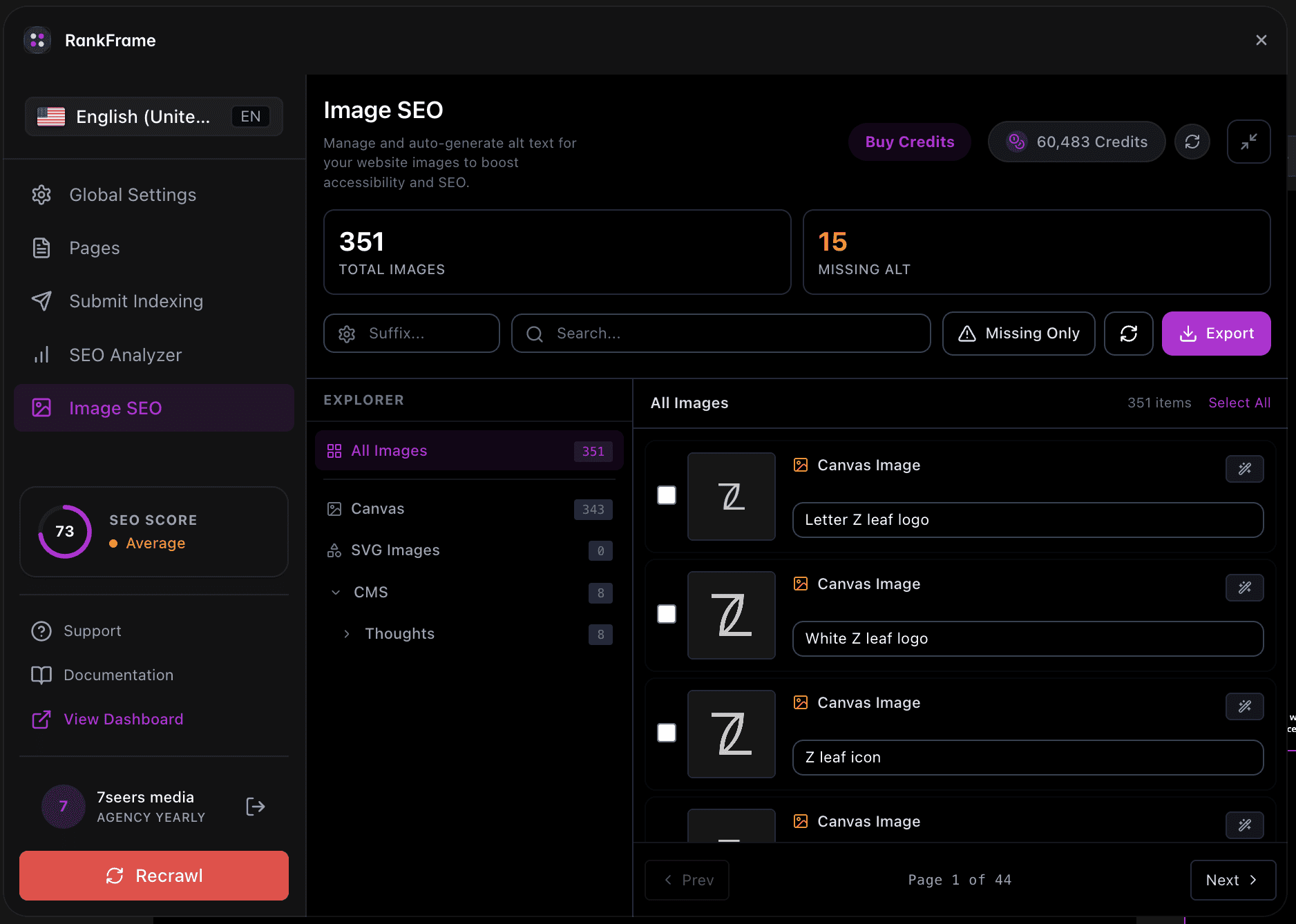
The Image SEO section gives you a full audit of every image on your Framer site. You can see which images are missing alt text, write descriptions manually, or let the AI generate them for you in one click.
Alt text matters for two reasons. Screen readers rely on it to describe images to visually impaired visitors. Search engines use it as a relevance signal when indexing your pages. Missing alt text hurts both accessibility and rankings.
Audit: See total image count and how many are missing alt text at a glance with the stat cards.
Explore: Browse images by Canvas pages or CMS collections using the left-panel Explorer tree.
Generate: Auto-generate accurate, descriptive alt text with AI using the wand icon on any image card.
Export: Download your alt text data with the purple Export button for record-keeping or handoff.
Opening the Image SEO section
Open RankFrame inside Framer. Click the image icon in the left sidebar. The panel title reads Image SEO.
If you do not see the image icon, make sure you are on a published or preview version of your site so RankFrame can detect all assets.
Header controls
The top of the Image SEO panel has three controls.
Buy Credits button (purple, solid) opens the credits purchase flow.
Credits balance badge shows your remaining credit count. The badge is a dark red/coral pill with a coin icon, the credit number, and a refresh icon. For example: “0 Credits” or “60,498 Credits”. Click the refresh icon to sync the latest balance from the server.
Expand/Collapse arrows icon at the far right toggles Minimized Mode, which hides the plugin navigation so the Image SEO panel fills the full width.
Stat cards
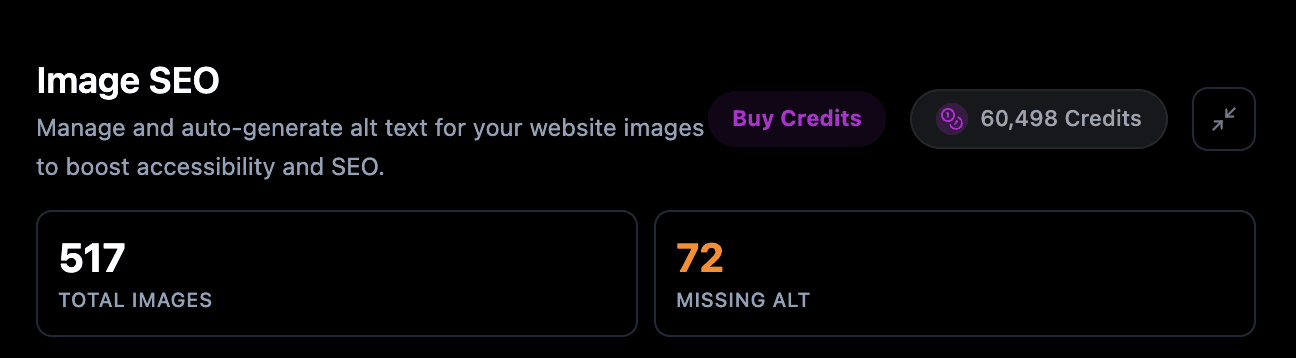
Two cards appear below the header.
TOTAL IMAGES shows the total number of images RankFrame found across your site, displayed in white. For example: 517.
MISSING ALT shows how many of those images have no alt text, displayed in orange. For example: 72. This is the number to drive down to zero.
The counts update after you click Refresh in the controls row. If you have just published changes, refresh to get accurate numbers.
Explorer tree
The left panel contains a folder tree called the Explorer. It organizes your images into three top-level nodes.
All Images shows every image across the entire site in one flat view.
Canvas contains static images placed directly on your Framer pages, grouped by page.
CMS contains images from Framer CMS collections, organized in sub-folders by collection name.
Click any folder or node to filter the image grid on the right to that subset.
Image grid
The right panel is the image grid. Each image appears as a card containing:
A thumbnail preview of the image.
A label showing the image file name or CMS field name.
A wand icon that triggers single-image AI alt text generation (costs 1 credit).
An alt text input field where you can read or edit the current alt text.
A red dot indicator on cards where alt text is missing, so you can spot gaps instantly.
The controls row above the grid includes a gear icon plus a site selector showing your site name (for example, “7 Seers“), a Search field to filter images by name, a Refresh button to reload image data, and an Export button (purple) to download your alt text as a file.
Writing and generating alt text
Write alt text manually
Find the image card: Use the Explorer tree or the Search field to locate the image you want to update.
Click the alt text input field: The input field sits below the image thumbnail on each card. Click it to start typing.
Type your alt text: Write a concise, descriptive sentence. Focus on what the image shows rather than decorative details.
Save: Your entry saves automatically. The red dot disappears once alt text is present.
Generate alt text with AI
Locate the image card: Browse or search for the image in the grid.
Click the wand icon: The wand icon appears on the image card. Clicking it sends the image to the AI and deducts 1 credit from your balance.
Review the result: The generated alt text appears in the input field. Edit it if needed before moving on.
Always review AI-generated alt text. The AI describes what it sees, but you know the context of each image on your site best.
Bulk generation
When you have many images with missing alt text, bulk generation saves time.
Click Select All: The Select All option appears above the image grid. Clicking it selects every image currently visible in the grid.
Click Generate Alt Text: The Generate Alt Text button shows the number of selected images in parentheses. For example: “Generate Alt Text (72)”. Click it to start the bulk job.
Monitor credit usage: Each image in the selection costs 1 credit. Check the credits badge before running large bulk jobs to make sure you have enough credits.
Review results: Once the job completes, review the generated alt text in each card. Edit any descriptions that need adjustment.
Filter the Explorer tree to a specific folder first to limit Select All to a subset of images. This gives you more control over which images are included in a bulk job.
Minimized Mode
The Expand/Collapse arrows icon in the top-right corner of the Image SEO header toggles Minimized Mode. When active, the plugin navigation sidebar collapses and the Image SEO panel expands to fill the full available width. This gives you more room to work with the image grid and Explorer tree side by side.
Click the icon again to restore the standard layout with the plugin navigation visible.
Credits
AI alt text generation in RankFrame uses a credit system. Each generation of alt text for one image costs exactly 1 credit. Credits apply to both single-image generation (via the wand icon) and bulk generation.
Your current balance appears in the credits balance badge at the top of the panel.
Click the refresh icon inside the badge to sync your balance after a purchase.
Click Buy Credits (purple button) to top up your account.
Need more credits? Purchase credits directly inside RankFrame. There is no subscription required for image alt text generation.
Image SEO on multi-language sites
Alt text is generated in English first, then translated into every locale you have added to your Framer site. Switch locale in the plugin, then use the copy button on the image card to paste the translated alt text into Framer for that language version.
Multi-language sites
Alt text is written in English and then translated into each locale you have. See Translated Alt Text for how to copy the right version into each language.
Frequently asked questions
What does the Image SEO section do in RankFrame?
The Image SEO section lets you audit all images on your Framer site, see which ones are missing alt text, write or auto-generate alt text using AI, and export your work. It covers both Canvas images and CMS images organized in a folder tree.
Related to