8 min read
How-To Guide
How to Add Open Graph Tags in Framer (Social Sharing SEO Guide)
When someone shares your Framer site on social, Open Graph tags decide what shows up. Here's how to set them per page, per CMS item, and test before you ship.

Team 7 Seers
How to Add Open Graph Tags in Framer (Social Sharing SEO Guide)
What Are Open Graph Tags?
Open Graph is a protocol originally developed by Facebook in 2010 that defines a set of HTML meta tags which describe a web page's content for social platforms and messaging apps. When a platform receives a URL to preview, it fetches the page HTML and reads the Open Graph meta tags in the head section to construct the preview card.
Open Graph tags are placed in the <head> section of your HTML document and use the property attribute rather than the name attribute used by standard meta tags. They are identified by the og: prefix:
These four tags are the minimum required for a correct social preview. Without them, platforms either refuse to show a card or use their own best guess, which is typically the page title from the HTML title element, a random excerpt from the page text, and no image.
Which Platforms Use Open Graph Tags?
Open Graph is now the universal standard for social sharing previews. Every major social platform and messaging app reads OG tags:
Created the OG protocol. Reads all standard og: tags. Uses the Facebook Sharing Debugger for testing.
Reads og:title, og:description, og:image. Has its own Post Inspector tool. Caches aggressively.
X (Twitter)
Reads Twitter Card tags preferentially. Falls back to OG tags. Requires twitter:card to activate cards.
Slack
Reads og:title, og:description, og:image to generate link unfurls in channels and DMs.
Reads og:title, og:description, og:image for link preview cards. Square-crops the image for display.
iMessage
Uses og:title, og:description, og:image for rich link previews on iOS and macOS.
Discord, Telegram, and most other messaging platforms also read Open Graph tags for link preview generation. Setting OG tags correctly in Framer improves the appearance of your site every time anyone shares a link anywhere.
The 4 Essential OG Tags
Tag | What It Controls | Recommended Value |
|---|---|---|
| The bold headline shown in the share card. Should match or be close to your page's H1 or title tag. | Under 60 characters to avoid truncation on most platforms. |
| The descriptive text shown below the title in the share card. | 100 to 200 characters. Write it as a compelling one-sentence summary that makes people want to click. |
| The preview image shown in the share card. This is the most impactful tag for click-through rate. | 1200x630px, JPEG or PNG, under 5MB. Use an absolute URL including the https:// prefix. |
| The canonical URL of the page. Used by platforms to deduplicate shares and count social engagement correctly. | The full canonical URL of the page, matching your canonical link tag. |
Beyond the four essential tags, there are useful supplementary OG tags. og:type defaults to "website" but should be set to "article" for blog posts and news content. og:site_name displays your brand name separately from the page title in the share card preview on some platforms.
Twitter Card Tags
X (Twitter) introduced its own meta tag format called Twitter Cards before OG became fully universal. While X now falls back to reading OG tags, Twitter Card tags take precedence when both are present. Setting explicit Twitter Card tags gives you control over how your Framer site appears specifically on X.
Tag | Purpose | Recommended Value |
|---|---|---|
| Defines the card type. Required for X to show any card at all. |
|
| The headline shown in the X card. Can differ from og:title for X-specific copywriting. | Under 70 characters to avoid truncation in X's feed layout. |
| The description text in the X card. | Under 200 characters. X may truncate longer descriptions. |
| The image displayed in the X card. Can be different from og:image. | Same 1200x630px specification as og:image. Must be an absolute URL. |
| Your X account handle, displayed in the card as attribution. |
|
summary vs summary_large_image The summary card type shows a small square thumbnail on the left with text on the right. The summary_large_image card shows a full-width image above the title and description. For most Framer marketing sites and blog posts, summary_large_image is the right choice as it is significantly more eye-catching in the X feed.
Full OG and Twitter Card Code Example
The complete set of Open Graph and Twitter Card tags for a Framer blog post or landing page:
Notice that og:image:width, og:image:height, and og:image:alt are included alongside the main og:image tag. The width and height hints help some platforms render the preview faster without fetching the image first. The alt text supports accessibility and is used by screen readers when OG cards are displayed in accessible contexts.
OG Image Requirements
The OG image is the most visible element in a social share card. Getting the specifications right ensures your image renders correctly across all platforms and is not cropped, distorted, or refused.
Size and dimensions
Recommended size: 1200x630 pixels (1.91:1 aspect ratio). This is the optimal size for Facebook, LinkedIn, and most other platforms.
Minimum size: 600x315 pixels. Below this, Facebook may not display the image as a large card.
Square (1:1) images: 1200x1200px if you need a single image that works for both OG cards and WhatsApp/iMessage which often crop to square. Not recommended for pages where a landscape image is important.
Format and file size
Format: JPEG or PNG. Facebook and LinkedIn explicitly support these. Avoid WebP for OG images as some older crawlers and platform image renderers do not support WebP.
File size: Under 5MB is the Facebook maximum. Under 1MB is strongly recommended for fast preview loading. A 1200x630 JPEG at 80% quality is typically 80 to 150KB.
Content and safe zones
Keep all important content (logos, headlines, faces) within the central 800x420px safe zone. Platforms that display square or tall crops (WhatsApp, iMessage) will show only the center of your image.
Ensure text in the OG image is large enough to read at the dimensions shown in social feeds, where the card may display at 500px wide or less on mobile.
Include your brand logo or domain name somewhere visible in the OG image so shares are clearly attributable to your site even when the URL is not prominent.
How to Set a Global OG Image in Framer
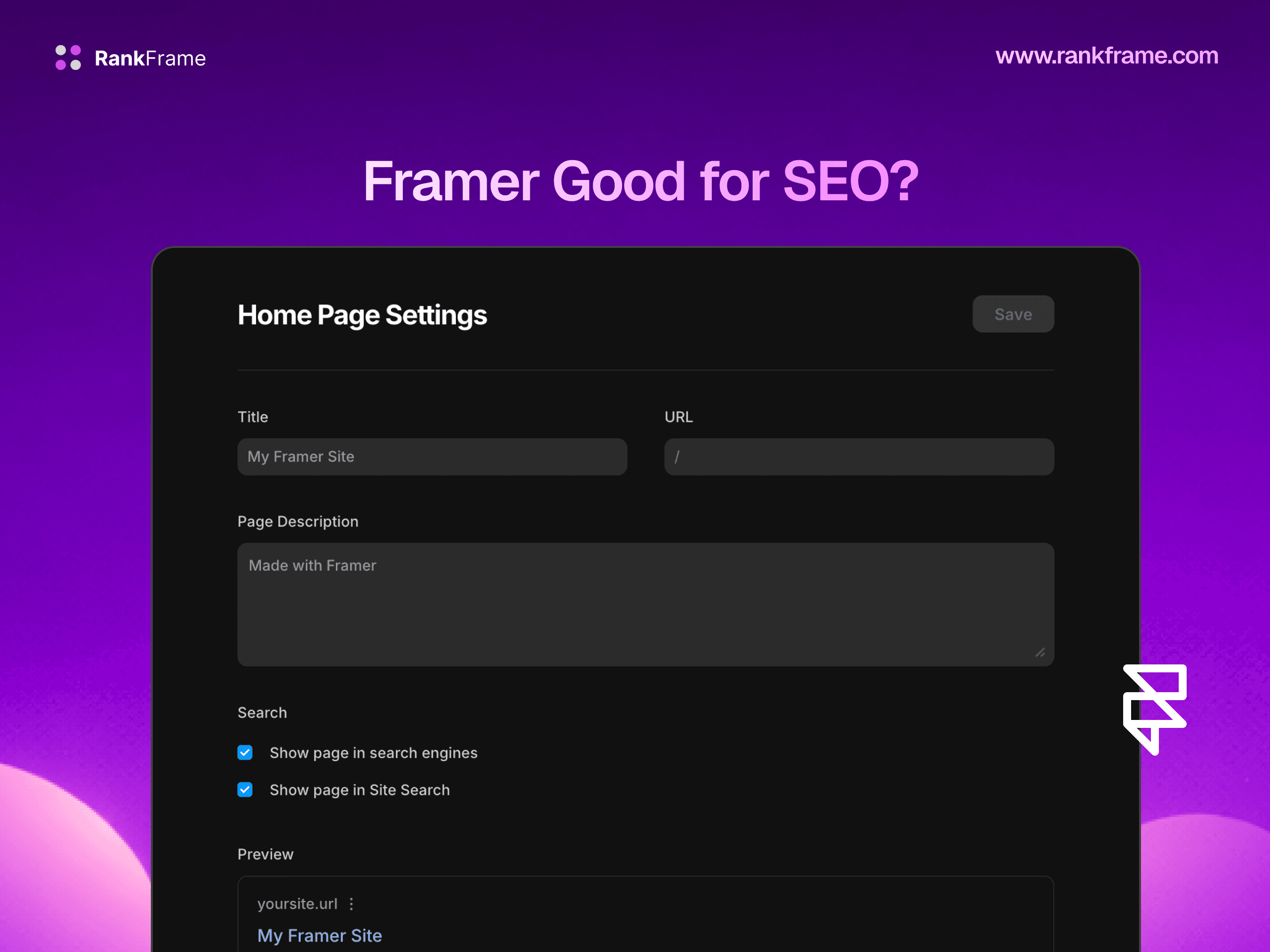
Framer lets you set a site-wide default OG image, title pattern, and description from Site Settings. This global setting applies to every page on your site that does not have a page-specific override.
Open Framer Site Settings
In the Framer editor, click the site name in the top-left corner or navigate to the settings icon. This opens the Site Settings panel. You can also reach it via the Framer logo menu at the top of the editor.
Navigate to the SEO Tab
Inside Site Settings, click the SEO tab. This section contains fields for your site's global meta title template, meta description, and social sharing settings.
The SEO tab also contains your sitemap settings and robots.txt controls, which are separate from OG tags but worth reviewing while you are here.
Upload Your Social Image
Scroll down within the SEO tab to find the Social Image section. Click the upload area to choose your prepared 1200x630px OG image. Framer hosts this image on its CDN and generates the absolute URL automatically.
Once uploaded, Framer outputs this image as the og:image value for all pages. It also outputs the same URL as twitter:image for Twitter Card previews.
Framer auto-handles the og:url tag Framer automatically sets the og:url meta tag to the current page's canonical URL. You do not need to manually configure this for each page.
How to Override OG Tags Per Page in Framer
The global OG image works as a fallback. For important pages where the content differs significantly (product pages, a pricing page, a key blog post), you should set a custom OG image that reflects the specific page content. A custom image increases click-through rates on social shares by making the preview more relevant and specific.
Select the Page in the Layers Panel
In the Framer editor canvas, use the layers panel on the left to select the page you want to configure. Clicking the page name at the top level of the layers panel selects the page itself rather than any element on it.
Open Page Settings
With the page selected, the right panel switches to Page Settings. Scroll down within this panel to find the SEO section. If you do not see an SEO section, ensure the page itself is selected (not a frame or component on the page).
Enable the Social Image Override
In the SEO section of Page Settings, toggle on the social image override (labeled something like "Custom Social Image" depending on your Framer version). Once enabled, you will see an image upload field and text fields for a custom OG title and OG description.
Upload your page-specific OG image and fill in the title and description. These values override the global settings only for this page. All other pages continue to use the site-level defaults.
How to Set OG Tags for Framer CMS Collection Pages
CMS collection pages present a unique challenge: each item in the collection (each blog post, each case study, each product) should have its own unique OG title, description, and image. Manually overriding each item is impractical for collections with more than a handful of items.
Framer handles this by letting you bind the OG fields for a CMS collection template to dynamic CMS variables. Here is how to set it up:
Step 1: Add OG fields to your CMS collection
In the Framer CMS collection editor, add the following fields if they do not already exist:
A text field named "OG Title" or "Social Title" (can default to the same value as your main title field).
A text field named "OG Description" or "Meta Description" (a short summary for use in both meta description and og:description).
An image field named "OG Image" or "Social Image" (separate from your article's featured image if you want different cropping).
Step 2: Bind the collection template SEO fields
Open the CMS collection template page in the Framer editor (the template that defines how individual collection items render). Select the page/template at the top of the layers panel. In Page Settings on the right, scroll to the SEO section.
In the social image field, click the variable binding icon (a small database or chain link icon next to the input). Select the OG Image field from your CMS collection. Repeat this for the OG title and description fields, binding them to the appropriate CMS text fields.
Step 3: Publish and populate your CMS items
With the bindings set, any CMS item that has an OG Image uploaded will use that specific image in its social preview. Items without an OG Image uploaded will fall back to the global site OG image from Site Settings. Fill in OG image, title, and description for your most important CMS items, particularly the blog posts and case studies you actively promote on social media.
CMS OG images and Framer bandwidth
OG images are loaded by social platform crawlers when someone shares a link, not by regular page visitors. They contribute to bandwidth consumption but typically at much lower volume than page asset delivery. Keep OG images under 1MB as a best practice.
Advanced: Adding OG Tags via Framer Custom Code
Framer's native SEO settings handle the most common OG scenarios. However, there are situations where you need more control than the UI provides. The Framer Custom Code head section lets you add any OG meta tag directly as HTML.
Use cases for the custom code approach:
Setting
twitter:siteortwitter:creatorglobally (your X account handle, not supported in Framer's native SEO UI).Adding
og:typeas "article" witharticle:published_timeandarticle:authorfor blog post pages.Adding
og:localefor multi-language sites.Setting an
og:image:secure_urlalongsideog:imagefor platforms that require explicit HTTPS image URLs.
To add custom OG tags in Framer:
Open Site Settings (for site-wide tags) or Page Settings (for page-specific tags).
Navigate to the Custom Code section.
In the Head section, paste your additional meta tags.
Publish the site for the changes to take effect.
Custom code overrides and duplicates If Framer's native SEO settings already output an og:title tag and you also add one in Custom Code, the page will have two og:title tags. Most platforms read the first occurrence. If you are using Custom Code to override a tag that Framer outputs natively, be aware of the ordering: Framer's generated tags appear in the head before Custom Code head content in most Framer versions. Test with the Facebook Debugger to confirm which value is being read.
How to Test Your Framer OG Tags
Always test OG tags using your live published Framer URL. Social platform crawlers cannot access Framer's preview environment or password-protected staging sites. The page must be publicly accessible.
Facebook Sharing Debugger
The Facebook Sharing Debugger at developers.facebook.com/tools/debug is the most comprehensive OG testing tool available. Enter your URL and it shows exactly which OG tags Facebook read from your page, any warnings or errors, and a preview of how the share card will appear. It also has a "Scrape Again" button that forces Facebook to clear its cache and re-fetch your OG tags. Use this whenever you update OG tags on a page that was previously shared, as Facebook caches OG data aggressively.
LinkedIn Post Inspector
Visit linkedin.com/post-inspector and enter your URL to preview exactly how LinkedIn will display your page when shared as a post. LinkedIn has its own OG cache, so changes to OG tags may not appear immediately without using the Inspector to force a re-fetch.
Twitter Card Validator
X no longer maintains a public card validator tool as an open interface, but you can test Twitter Card rendering by posting a URL in a tweet preview within the X app or web interface. The card should render inline. For debugging, the opengraph.xyz tool provides Twitter Card previews alongside OG previews for multiple platforms simultaneously.
opengraph.xyz
opengraph.xyz is a free multi-platform OG preview tool. Enter your URL and it shows how your link will appear on Facebook, Twitter, LinkedIn, Slack, and WhatsApp in a single view. It is the fastest way to spot problems across all platforms at once without using each platform's individual debugging tool.
Common OG Mistakes on Framer Sites
These are the most frequently seen OG configuration errors on Framer sites:
1. Using a relative URL for og:image
The og:image value must be an absolute URL including the protocol. /assets/og-image.jpg will not work. The correct format is https://yourdomain.com/assets/og-image.jpg. Framer's native OG image upload generates absolute URLs automatically, but if you add OG tags manually via Custom Code, ensure you use full absolute URLs.
2. Not updating the cache after changing OG tags
Facebook, LinkedIn, and other platforms cache OG data. If you update your OG image or title in Framer and republish, the old preview still appears when someone shares the link because platforms serve their cached version. Use the Facebook Sharing Debugger's "Scrape Again" feature and LinkedIn's Post Inspector to force a cache refresh for specific URLs.
3. Using an OG image that is too small
Images smaller than 600x315 pixels may not display as the primary share image on Facebook. Images smaller than 300x157 pixels will typically be ignored entirely. Create OG images at 1200x630px and upload them at full resolution.
4. Setting the same OG image for every page
Using a generic branded OG image for every page on your site is better than no image, but it is a missed opportunity. Shares of specific blog posts, product pages, or case studies are far more compelling when the preview image reflects the specific content being shared. Invest in page-specific OG images for your highest-value pages.
5. Including text in the OG image that is too small to read
OG images often display at 500px wide or less in social feeds on mobile. Text that appears readable when designing at 1200px may be completely illegible at display size. Use large, bold typography (minimum 40px equivalent at the 1200px canvas size) for any text included in OG images.
6. Not setting og:image for CMS collection items
Framer CMS blog posts and collection items without a bound OG image field fall back to the global site OG image. This means shares of individual blog posts show your generic site image rather than the post's featured image. Set up CMS OG image binding as described above and populate images for your most important posts.
7. Missing og:type on article pages
The default og:type value is "website," which is correct for the homepage and product pages. Blog posts and news articles should use "article" as the type, which unlocks additional properties like article:published_time and article:author that platforms use to display publication dates and author attribution in rich shares.
Frequently asked questions
Does Framer support Open Graph tags?
Yes. Framer natively supports Open Graph tags through Site Settings and individual page settings. You can set a global og:image, og:title, and og:description in Site Settings under the SEO tab, and override these on a per-page basis in each page's settings panel. For CMS collection pages, Framer supports binding OG fields to dynamic CMS variables so each collection item generates its own unique social preview data automatically.