8 min read
How-To Guide
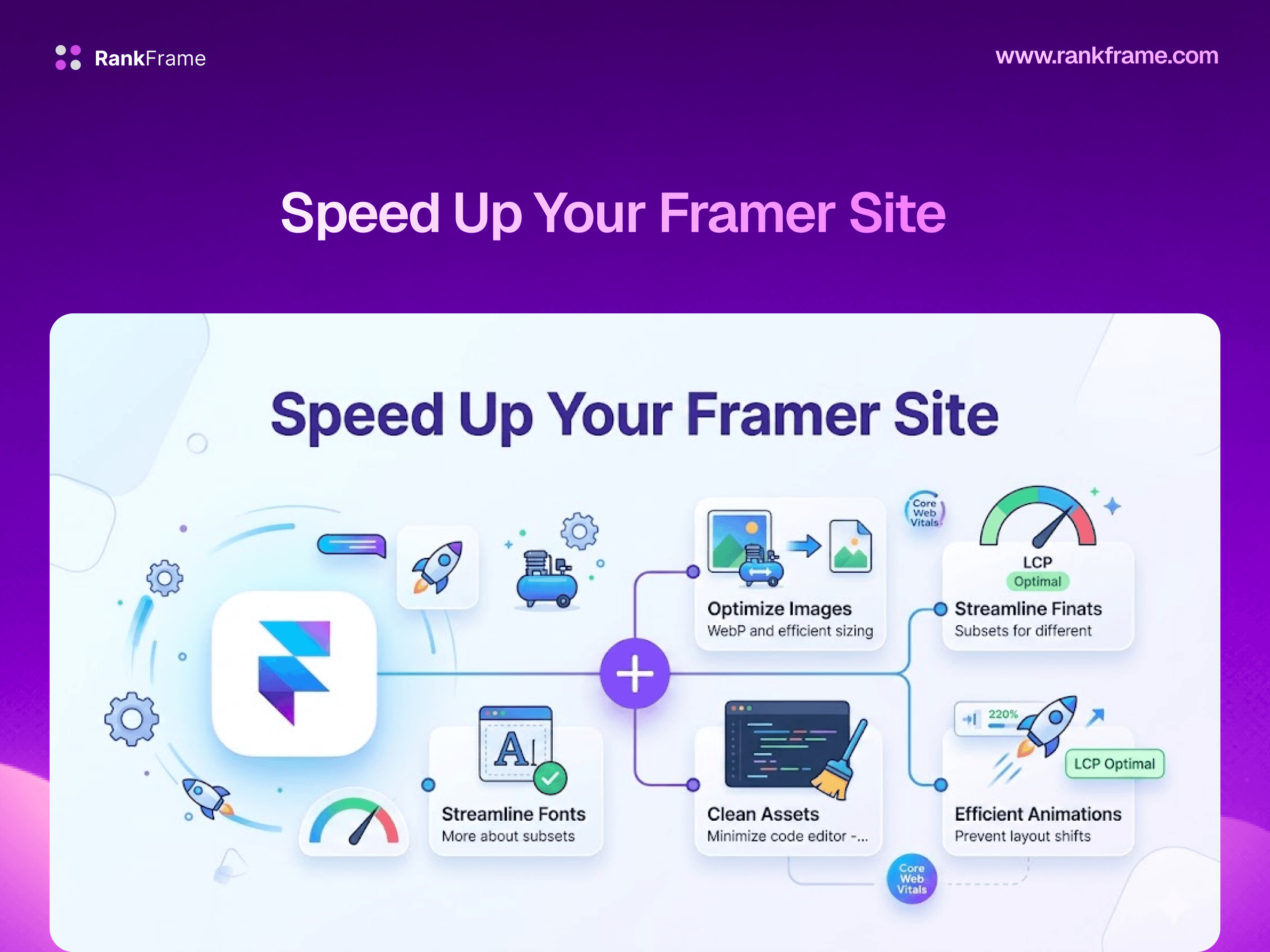
How to Speed Up Your Framer Site: 12 Proven Techniques (2026)
Framer ships fast, then heavy images, animations, and embedded scripts wreck the score. 12 techniques to recover speed and stay under your bandwidth limit.

Team 7 Seers
How to Speed Up Your Framer Site: 12 Proven Techniques (2026)
Why Framer Site Speed Matters for SEO
Google officially uses Core Web Vitals as a ranking signal. Since the Page Experience update rolled out, sites with poor LCP, high CLS, and slow FCP face a measurable disadvantage in search rankings compared to equivalent content on faster pages. The signal is not a massive ranking multiplier, but in competitive niches where content quality is similar across competing pages, performance can be the tiebreaker.
Beyond rankings, speed directly affects user behavior. Studies consistently show that a one-second delay in page load time reduces conversions by 7 percent or more. Bounce rates increase sharply when pages take longer than three seconds to display usable content. For Framer sites used as product landing pages, portfolios, or agency websites, slow performance translates directly to lost leads and clients.
There is a third layer that Framer-specific site owners often overlook: bandwidth consumption. Every visitor who loads your site transfers data from Framer's servers. If your pages are heavy, you exhaust your plan's bandwidth allocation faster, which can result in additional charges or site throttling. Speed and cost are linked.
How Fast Should a Framer Site Be?
Google publishes clear passing thresholds for Core Web Vitals. If you hit all three, your site receives a "Good" rating and the ranking benefit:
< 2.5s
LCP
Largest Contentful Paint. Time until the main content element is visible.
< 0.1
CLS
Cumulative Layout Shift. How much the page moves during load.
< 1.8s
FCP
First Contentful Paint. Time until any content appears on screen.
For Lighthouse scores, target 90 or above on desktop and 70 or above on mobile for a well-optimized Framer site. SaaS landing pages with minimal imagery and few animations routinely achieve 90+ on mobile. Image-heavy portfolio sites or agency sites with video backgrounds are harder to optimize and often land in the 55 to 75 range on mobile even after effort.
Mobile versus desktop
Google uses mobile-first indexing. The Core Web Vitals signal that affects your rankings is based on real-world mobile user data. Always prioritize improving mobile scores over desktop scores.
What Framer Does Automatically
Framer ships several performance optimizations that work without any configuration. Understanding these helps you focus effort on the things Framer cannot do for you.
Static site generation (SSG): Framer publishes your site as pre-rendered HTML files, not server-rendered pages. The HTML is ready to send immediately without database queries or server processing time. This directly improves Time to First Byte (TTFB) and FCP.
Global CDN delivery: Framer serves all pages and assets from edge locations worldwide. A visitor in Sydney gets your site from a nearby server rather than one in North America, reducing network latency significantly.
Automatic WebP conversion: When you upload an image to Framer, it converts the image to WebP format for delivery to browsers that support it (which is essentially all modern browsers). WebP files are 25 to 35 percent smaller than equivalent JPEG files at the same visual quality.
Lazy loading: Images and components below the fold are loaded on demand as the user scrolls, rather than all at once on page load. This reduces initial page weight and improves LCP for above-the-fold content.
Code splitting via Rolldown: Framer splits JavaScript into chunks and loads only the code needed for the current page. This prevents the full site bundle from blocking the page render.
These are excellent foundations. The problem is that the content and components you add to your Framer site can easily overwhelm these built-in optimizations.
Understanding Framer's Bandwidth Limits
Every Framer paid plan comes with a monthly bandwidth cap. When visitors load your pages and assets, that data counts against your limit. If you exceed your cap, Framer charges overage fees or throttles delivery depending on your plan terms.
Framer Plan | Monthly Bandwidth | Impact of Heavy Media |
|---|---|---|
Mini | 100 GB | A single uncompressed hero video (50MB) at 2,000 monthly visitors exhausts 100 GB. |
Basic | 200 GB | More headroom, but still easily exhausted by video-heavy pages with meaningful traffic. |
Pro | 400 GB | Adequate for most sites, but large-scale media use still demands optimization. |
The math is straightforward. If your homepage has a 20MB background video and you receive 5,000 visitors per month, you transfer 100 GB of video data alone from that one asset. On a Mini plan, that single video exhausts your entire monthly bandwidth before any other pages or assets are counted.
This is why media optimization is not just a speed concern. It directly affects what you pay to run your Framer site. Compressing images and videos, or offloading them to an external CDN, saves both load time and bandwidth costs simultaneously.
Bandwidth and the Offload plugin
Video files hosted inside Framer count toward your bandwidth quota. Videos served through the Offload plugin are hosted externally and do not count against Framer's limits. For video-heavy sites, Offload is both a speed and cost optimization.
Compress Images Before Uploading
Framer converts images to WebP at delivery time, but it serves them at whatever resolution and base quality you upload. A 4MB PNG uploaded to your hero section still transfers a large payload even as WebP. Compression before upload reduces the source file that Framer works from.
The recommended free tool for this is bulkresizephotos.com. It is entirely browser-based, meaning your images are processed locally in your browser and never uploaded to an external server. This matters for client work where image confidentiality is a concern.
BulkResizePhotos supports bulk processing of multiple images at once, outputs to WebP or optimized JPEG, and lets you set quality levels and maximum dimensions. For typical Framer site use:
Hero images: Resize to 1920px wide maximum, export as WebP at 80 to 85% quality. Target under 200KB.
Gallery and portfolio images: Resize to 1200px wide maximum, WebP at 80% quality. Target under 100KB each.
Thumbnail images in CMS grids: Resize to 600px wide, WebP at 75% quality. Target under 40KB each.
Background textures and patterns: Resize to the actual displayed size plus 2x for retina, WebP at 70 to 75% quality.
Framer still converts to WebP at delivery
Even if you upload a JPEG, Framer converts it to WebP for supporting browsers. However, starting from a smaller source file means Framer has less data to work with and will produce a smaller output. Pre-compressing before upload and letting Framer convert is consistently better than relying on Framer's conversion alone.
Compress or Avoid Autoplay Videos
Videos are the single most common reason Framer sites load slowly. An uncompressed background video exported directly from After Effects or Final Cut Pro can easily be 80 to 200MB. Even on fast connections, loading a 100MB video before the page becomes interactive destroys LCP and Total Blocking Time scores.
The recommended free tool for video compression is veed.io's Video Compressor. It is browser-based, requires no software installation, and reduces video file sizes significantly while maintaining acceptable visual quality for web use.
Target specifications for Framer background videos:
File size: Under 5MB for background/decorative videos. Under 15MB for hero showcase videos with audio.
Resolution: 1280x720 (720p) is sufficient for background use. 1920x1080 only if the video contains text or detail that would be unreadable at 720p.
Format: MP4 with H.264 codec for maximum browser compatibility. The veed.io compressor handles this automatically.
Duration: Keep looping background videos under 15 seconds. Shorter loops mean smaller files and less bandwidth per loop cycle.
Beyond compression, reconsider whether autoplay video is necessary at all. A high-quality static image in the hero section often performs as well or better for conversions, is significantly faster, and uses a fraction of the bandwidth. If you keep the video, disable autoplay on mobile using Framer's breakpoint-specific visibility settings or a custom code override.
Use the Framer Offload Plugin for Video-Heavy Sites
Even after compression, video files are large relative to other web assets. If your site relies on video content as a core design element, the Framer Offload plugin is the recommended solution.
Offload works by hosting your video and heavy media files on an external CDN rather than within Framer's asset storage. When a visitor loads your page, videos are delivered from the external CDN instead of Framer's servers. This has two major benefits:
Bandwidth: Video served through Offload does not count against your Framer plan's monthly bandwidth quota. This alone can save significant cost for video-heavy sites with meaningful traffic.
Performance: External CDNs designed specifically for video delivery use adaptive bitrate streaming and geographic edge caching optimized for large media files. This can improve video load times compared to serving through Framer's general-purpose CDN.
The Offload plugin is the recommended approach for any Framer site where video is a primary design element, whether that is a background loop, a product demo, a showreel, or a video testimonial grid.
Offload is a Framer Marketplace plugin
Install it directly from inside the Framer editor. Search "Offload" in the Plugins panel or find it at the Framer Marketplace link above.
Avoid Heavy Third-Party Scripts
Every third-party script tag you add to your Framer site's Custom Code section loads an external JavaScript file that the browser must download, parse, and execute. Scripts loaded synchronously in the head block all page rendering until they complete. Even deferred scripts add to Total Blocking Time (TBT) when they execute on the main thread after load.
Common scripts that hurt Framer page speed:
Live chat widgets (Intercom, Crisp, Drift): These can add 200 to 500KB of JavaScript to your page load and generate dozens of network requests on initialization.
A/B testing tools (Optimizely, VWO): Synchronous A/B testing scripts intentionally block rendering until they determine which variant to show, causing deliberate FCP delays.
Marketing automation pixels: Multiple analytics and tracking pixels add up. Each one is a network request with its own JavaScript evaluation overhead.
Hotjar, FullStory, or session recording tools: These capture detailed user interactions and can be bandwidth-intensive on their own.
Audit every Custom Code entry in your Framer site settings. For each script, ask: Is this actively used? Can it be loaded conditionally? Can it be replaced by a lighter alternative? Tag Manager implementations that consolidate multiple tracking pixels into one loader script are generally preferable to individual script tags.
Minimize Custom Font Variants
Custom fonts on Framer sites are loaded from Google Fonts or uploaded as custom files. Every unique font variant (weight and style combination) is a separate network request and a separate file download. A design that uses Regular 400, Medium 500, SemiBold 600, Bold 700, and Italic 400 is making five font requests before the page can render correctly.
Font loading also causes Cumulative Layout Shift when the fallback system font renders first and then reflows when the web font loads. This is called Flash of Unstyled Text (FOUT) and it contributes directly to your CLS score.
Practical steps to reduce font impact:
Limit each typeface to a maximum of two or three weight variants (typically Regular, Bold, and optionally SemiBold or Medium).
Remove italic variants unless your content actually uses italics in quantity.
Avoid using more than two different typefaces on a single page.
If using Framer's built-in font picker, check whether a variable font option exists for your chosen typeface. Variable fonts cover multiple weights in a single file.
Consider system font stacks (system-ui, -apple-system, etc.) for body text where brand consistency is less critical, reserving custom fonts for headings only.
Use Responsive Image Sizes in Framer
Framer generates responsive image srcset attributes based on the dimensions you assign to image components in the canvas. When you give an image a fixed width and height in Framer's layout panel, Framer can generate multiple size variants and let the browser load the appropriately sized version for the viewport.
If images are left with Auto sizing or unconstrained dimensions, Framer may serve the full-resolution source to all devices, including mobile phones that display the image at 375px wide but receive a 1920px-wide file. This wastes bandwidth and increases load time on mobile.
To use responsive sizing correctly in Framer:
Set explicit pixel widths on all image components wherever possible, rather than leaving them at 100% or Fill.
For full-width section backgrounds, set a maximum width constraint in addition to the 100% fill setting.
Check the mobile breakpoint view and confirm that images in the mobile layout have reasonable display sizes. An image that is 800px wide on mobile is unnecessarily large for a 390px screen.
Defer Non-Critical JavaScript
Framer's Custom Code settings provide both a head section and a body/footer section. Scripts placed in the head section load synchronously during HTML parsing, blocking render. Scripts placed in the body section load after the main HTML is parsed, reducing render-blocking impact.
As a general rule:
Head section (necessary): Google Tag Manager snippet (it must be in the head to fire reliably), consent management platforms, and any script that must execute before first render.
Body/footer section (everything else): Analytics, chat widgets, heatmap tools, A/B test scripts that do not need synchronous execution, and enhancement scripts.
For scripts that absolutely must be in the head, add the defer attribute where the script provider's documentation permits it. A deferred script is downloaded in parallel but executed only after HTML parsing completes, which does not block FCP.
Reduce Animation Complexity
Framer's animation system is built on Framer Motion, a JavaScript animation library. Most Framer animations run on the main browser thread, which means they compete with HTML parsing, JavaScript evaluation, and layout calculation. On mobile devices with slower CPUs, complex animations are the primary cause of poor TBT (Total Blocking Time) and delayed LCP.
The safest animations for performance are those that run on the GPU compositor thread rather than the main thread. These are limited to two CSS properties: transform and opacity. Any animation that changes these two properties can be offloaded to the GPU and does not block the main thread.
Animations that hurt performance:
Animating
width,height,padding,margin,top,left: These trigger layout recalculation on every frame.Scroll-driven animations that fire on every scroll event and recalculate many element positions simultaneously.
Stagger animations that animate many elements in sequence on page load, keeping the main thread busy during the critical render window.
Particle effects, canvas animations, and SVG path animations: These can be extremely CPU-intensive on mobile.
For most Framer site use cases, simple fade-in and slide-up entrance animations using opacity and translateY provide adequate visual polish without meaningful performance cost. The dramatic scroll-triggered multi-element choreography common in agency portfolio sites is often the largest single contributor to poor mobile performance.
Audit with RankFrame Page Speed
All the techniques above are generic best practices. To know which ones actually matter for your specific Framer site, you need data. RankFrame's Page Speed tab provides Google Lighthouse audit results directly inside the Framer editor, without switching to a separate tool or copying URLs.
RankFrame's Page Speed tab shows:
Google Lighthouse Performance Score for both mobile and desktop.
Core Web Vitals breakdown: LCP (Largest Contentful Paint), CLS (Cumulative Layout Shift), FCP (First Contentful Paint), TBT (Total Blocking Time), and Speed Index for each device type.
Page size data: Total page weight in KB/MB so you can identify pages carrying excessive asset payloads.
Object count: The number of network requests the page makes, which correlates with both load time and server bandwidth consumption.
Specific optimization suggestions: Lighthouse-sourced recommendations for the current page, ordered by estimated impact.
The workflow is: publish your Framer page, open RankFrame, navigate to Page Speed, run the audit, read the LCP element identification and top suggestions, make changes in Framer, re-publish, and click Re-analyze to see the new score. This loop is significantly faster than switching between the Framer editor and a separate speed testing tool.
10
Check Mobile and Desktop Scores Separately
Lighthouse scores for mobile and desktop can differ by 20 to 40 points for the same page. This is not a bug. Google Lighthouse simulates a mid-tier mobile device with a throttled CPU (4x slowdown) and a slower network connection (Slow 4G) for mobile audits. Desktop audits run with far less throttling.
A Framer site that scores 95 on desktop and 55 on mobile is a common pattern. The desktop score looks excellent but the mobile score is below Google's "Good" threshold. Because Google uses mobile-first indexing, the 55 mobile score is the one that matters for search rankings.
RankFrame shows both scores side by side in the Page Speed tab. When you see a large gap between mobile and desktop, it typically points to one of these causes:
JavaScript-heavy animations that overwhelm mobile CPUs but run smoothly on desktop.
Large images that load quickly on desktop broadband but are too heavy for mobile 4G speeds.
Third-party scripts that execute quickly on fast desktop hardware but cause significant TBT on mobile CPUs.
Fixing the mobile score is the priority. Improvements that reduce JS execution time, reduce image weight, and eliminate render-blocking resources will close the gap between mobile and desktop.
11
Reduce CMS Collection Page Weight
Framer CMS collection pages that display grids or lists of items are a frequent source of page weight problems. A blog index showing 24 posts with full-resolution featured images loads all those images on the initial page render, creating a very heavy first load even with lazy loading in place (since visible-area images load immediately).
Optimization strategies for CMS collection pages:
Use thumbnail-specific image fields: Add a separate thumbnail image field to your CMS collection that stores a small, pre-compressed version of the featured image. Use the thumbnail in collection grids rather than the full-size featured image.
Paginate large collections: Display 8 to 12 items per page rather than loading all items at once. The Framer CMS pagination component handles this natively.
Reduce items shown per page: Even without full pagination, reducing from 24 to 12 visible items halves the image load on the collection index.
Use text-only or minimal-image card designs: Collection cards do not need to be image-heavy. A clean text card design with a small category icon can be as effective for navigation and significantly lighter.
After making changes to CMS page structure, use RankFrame's Page Speed tab to audit the collection index page specifically. CMS pages often have different performance characteristics from the homepage or feature pages that designers typically test.
12
Act on RankFrame's Speed Suggestions
After running a Page Speed audit in RankFrame, the suggestions panel shows specific, actionable items for your page ordered by estimated impact on the Lighthouse score. These are sourced from Google Lighthouse's opportunity and diagnostic categories and applied to your actual page content.
Common suggestions you will see and what to do about them:
"Reduce unused JavaScript": Often caused by third-party scripts loading large libraries of which only a small portion is used. Identify which script is generating this and evaluate whether it can be removed or replaced.
"Properly size images": Indicates an image is being displayed at a smaller size than its source resolution. Pre-compress the image before re-uploading, or constrain its dimensions in Framer.
"Eliminate render-blocking resources": A script or stylesheet in the head is blocking FCP. Move the script to the footer or add defer/async attributes.
"Reduce server response times": High TTFB usually means a geographic CDN issue or Framer origin latency. For most cases this resolves without action as Framer's edge network handles it, but if it persists, check whether any custom server-side code is involved.
"Avoid large layout shifts": A specific element is causing CLS. Look for images without defined dimensions, embedded content loading asynchronously, or fonts causing text reflow.
Focus on the top two or three suggestions first. Each one you resolve will move your score, and RankFrame's Re-analyze button lets you confirm the improvement immediately after republishing.
How to Measure Your Progress
Use three tools in combination to track performance improvements over time:
1. RankFrame Page Speed Tab
The fastest way to check scores while actively making changes in Framer. Run an audit, make a change, republish, re-analyze. The mobile and desktop scores update to reflect your current published state. This is the primary tool for the improvement loop.
2. Google PageSpeed Insights
Visit pagespeed.web.dev and enter your published Framer URL. PageSpeed Insights shows both lab data (Lighthouse) and field data (real-world Core Web Vitals from Chrome users) when field data is available. Field data from the Chrome User Experience Report (CrUX) is what Google actually uses for ranking decisions. A good Lighthouse lab score is the goal, but the field data tells you what real visitors are experiencing.
3. Google Search Console Core Web Vitals Report
In Google Search Console, navigate to Experience and then Core Web Vitals. This report shows which URLs on your site Google has classified as "Good," "Needs Improvement," or "Poor" based on real-world CrUX data. It groups URLs by issue type (e.g., "LCP issue: longer than 4s") and shows the number of URLs affected by each issue. This is the most direct view of how Google sees your Framer site's performance across all pages.
Expect a lag in Search Console data
Google Search Console CWV data is collected over a 28-day rolling window. Changes you make today will not be fully reflected in the Search Console report for several weeks. Lighthouse lab data in RankFrame and PageSpeed Insights reflects your changes immediately after republishing.
Frequently asked questions
What is a good page speed score for a Framer site?
A Lighthouse performance score of 90 or above on desktop is achievable for most Framer sites with basic optimization. On mobile, scores of 70 to 85 are realistic for well-optimized SaaS landing pages and portfolios. Sites with heavy hero images or background videos often score 50 to 65 on mobile without image and video compression. The Google passing thresholds for Core Web Vitals are LCP under 2.5 seconds, CLS under 0.1, and FCP under 1.8 seconds. For rankings, the mobile field data score is what matters most.