8 min read
How-To Guide
How to Add JSON-LD Schema to a Framer Site (2026 Guide)
Framer doesn't add JSON-LD schema for you. You can paste it manually or let RankFrame inject it automatically. Here's both methods, with a working example.

Team 7 Seers
How to Add JSON-LD Schema to a Framer Site (2026 Guide)
What Is JSON-LD and Why Do Framer Sites Need It?
JSON-LD stands for JavaScript Object Notation for Linked Data. It is the format Google recommends for adding structured data to web pages. A JSON-LD block is a script tag placed in the page head that describes the content of the page in a machine-readable format, using vocabulary defined at schema.org.
Here is why this matters for a Framer site specifically. When Google crawls your pages, it reads the HTML and attempts to understand what the page is about. Without structured data, it is making inferences from your text, headings, and links. With JSON-LD schema, you are explicitly telling Google: this page is an Article, the author is this person, the publication date is this date, and the topic is this subject. That explicitness is what makes pages eligible for rich results in Google Search.
What are rich results?
Rich results are the enhanced search listings Google displays when it has enough structured data to do so. Common examples include:
FAQ dropdowns that expand directly in the search results page
Article metadata showing author name, publication date, and article image
Breadcrumb trails beneath the page URL in search results
Star ratings and review snippets for products and local businesses
HowTo step displays for instructional content
Rich results do not guarantee a ranking boost, but they consistently improve click-through rates. A search listing with a FAQ accordion or breadcrumb trail stands out visually from plain blue links, and users click them at higher rates. For a Framer site competing in any established niche, rich result eligibility is a meaningful advantage.
Framer does not add schema automatically
Unlike some WordPress SEO plugins that generate basic schema by default, Framer adds no structured data to your pages at all. The meta title and description fields in Framer’s SEO settings control open graph and title tags, not schema. Every JSON-LD block on a Framer site has to come from somewhere intentional, either manual Custom Code injection or a plugin.
Google’s format preference
Google supports three formats for structured data: JSON-LD, Microdata, and RDFa. Google officially recommends JSON-LD because it is the easiest to implement and maintain. It lives in its own script tag, separate from your HTML, which means you can add or update it without touching your design. All examples and tools in this guide use JSON-LD.
Schema Types That Matter for Framer Sites
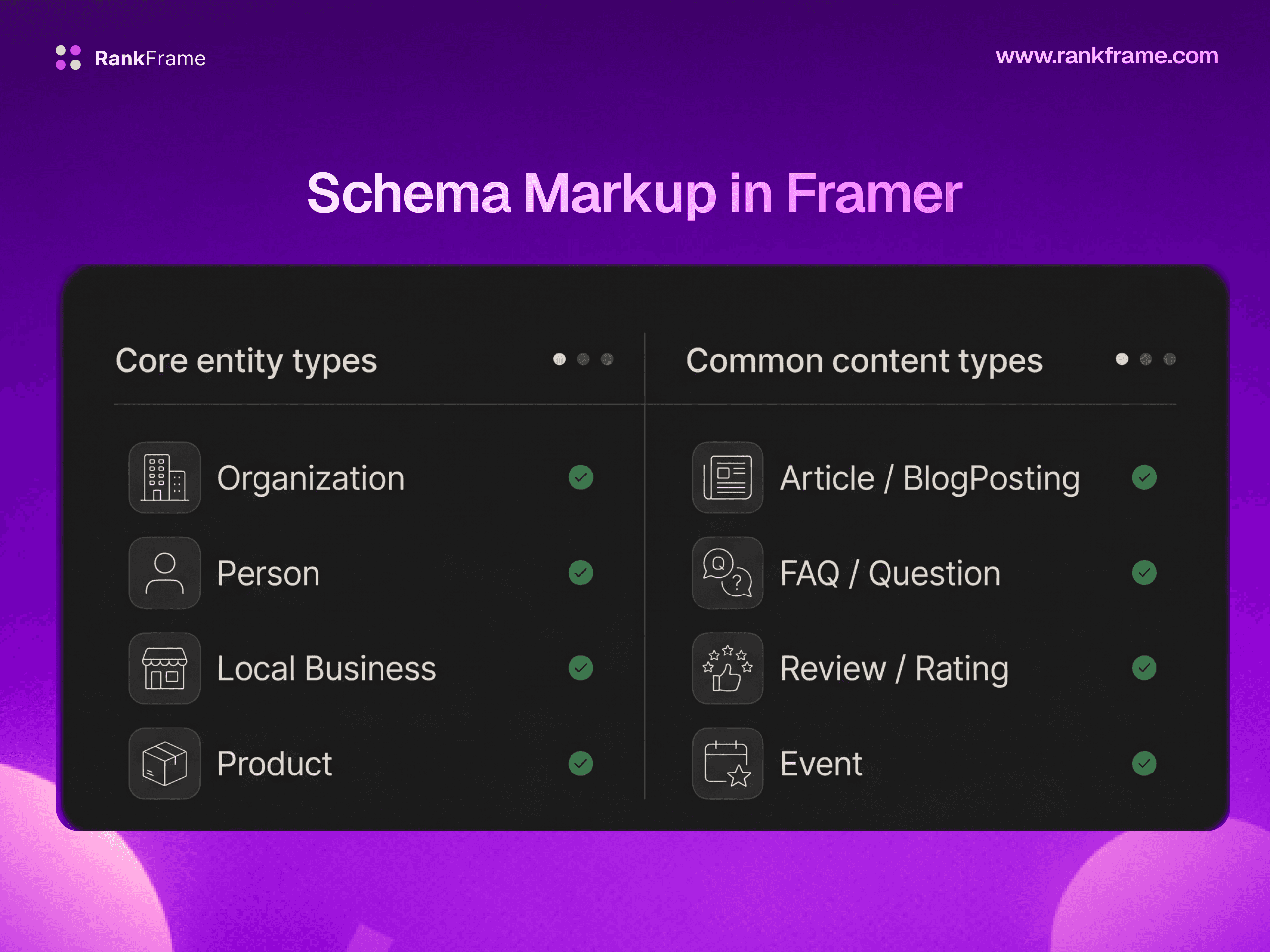
Not every schema type from the schema.org vocabulary is relevant to a typical Framer site. The following types cover the vast majority of Framer use cases, from portfolios and agencies to blogs and local businesses.
Organization
Organization schema goes on your homepage and describes your business or brand. It includes your name, URL, logo, contact email, and social profile links. This is the single highest-priority schema type for any Framer site because it establishes brand identity in Google’s Knowledge Graph. If you only add schema to one page on your Framer site, make it Organization schema on the homepage.
Article and BlogPosting
Article schema (and its subtype BlogPosting) goes on individual blog post pages. It describes the headline, author, publication date, modification date, and the article’s main image. Google uses this to populate the article carousel in search results and to enable article rich results. Any Framer site with a blog should have Article or BlogPosting schema on every post.
BreadcrumbList
BreadcrumbList schema tells Google the hierarchical position of a page within your site structure. It enables the breadcrumb trail that appears below your URL in search results (e.g., Home > Blog > Post Title). This schema is valuable on nearly every page because breadcrumb rich results are commonly displayed and improve click-through rates.
FAQPage
FAQPage schema marks up question-and-answer content on a page. When Google detects valid FAQPage schema, it may display the questions as expandable dropdowns directly in the search results, increasing the amount of screen space your listing occupies. Any Framer page with a FAQ section should have FAQPage schema.
HowTo
HowTo schema describes step-by-step instructional content. Pages with numbered process guides, tutorials, or walkthroughs should use HowTo schema. Google may display individual steps in the search results for matching queries, which is particularly valuable for instructional content targeting “how to” keywords.
LocalBusiness
LocalBusiness schema (and its subtypes like Restaurant, MedicalBusiness, LegalService) is essential for any Framer site representing a physical location or service-area business. It includes business name, address, phone number, hours, and geographic coordinates. This schema directly influences local pack rankings and Knowledge Panel eligibility.
Service
Service schema describes a specific service offering, including its name, description, provider, and area served. Agencies and consultants using Framer for their service pages should add Service schema to make those offerings machine-readable to Google.
Schema Type | Best For | Rich Result Type |
|---|---|---|
Organization | Homepage, brand pages | Knowledge Panel |
Article / BlogPosting | Blog posts, news | Article rich results, Top Stories |
BreadcrumbList | All pages | Breadcrumb trail in SERPs |
FAQPage | Pages with FAQ sections | FAQ accordion dropdowns |
HowTo | Tutorial pages, step guides | HowTo step display |
LocalBusiness | Local and physical businesses | Local pack, Knowledge Panel |
Service | Agency and consulting pages | None currently, but improves entity understanding |
Method 1: Adding JSON-LD Manually via Custom Code
Framer gives you access to the page head via the Custom Code field in Page Settings. This is where you paste JSON-LD script blocks. The process is straightforward for static pages, but it comes with meaningful limitations for sites with many pages or CMS collections (covered in the pitfalls section).
1 Open Page Settings in the Framer editor
Click on the page you want to add schema to in the Pages panel on the left side of the Framer editor. Then open the right-side panel and navigate to the Settings tab. You will see sections for SEO, Social, and Custom Code.
For schema that should appear site-wide (like Organization schema on every page), use Site Settings instead of Page Settings. Go to the Framer canvas, click the site name at the top, and open Site Settings. The Custom Code field there injects code into every page on the site.
2 Write your JSON-LD schema block
A JSON-LD script block is a script tag with the attribute type=”application/ld+json” containing a JSON object that describes the page. Here is a complete Article schema example for a Framer blog post.
3 Paste the script into the Custom Code (Head) field
In the Framer Page Settings panel, locate the “Custom Code” section and click on the “Head” tab or input. Paste your complete JSON-LD script block, including the opening and closing script tags, into this field. Click Save or confirm the edit.
Do not paste JSON-LD into the “Body Start” or “Body End” fields. While Google can technically parse JSON-LD in the body, the head is the correct and recommended location. Placing schema in the body can cause validation warnings.
4 Publish and verify
Custom Code changes in Framer only take effect after you publish. Click the Publish button in the top-right corner of the Framer editor. Once published, open your page in a browser, right-click, and select “View Page Source.” Search for “application/ld+json” to confirm your schema block is present in the head.
If you do not see the script in the page source, check that you saved the Custom Code field correctly and that you published after saving. Changes that are saved but not published will not appear on the live site.
Method 2: Automatic Injection with RankFrame
RankFrame is an SEO plugin for Framer that, among other things, handles JSON-LD schema generation and injection automatically. For sites with multiple pages, a blog, or CMS collections, it is significantly more practical than the manual approach.
How RankFrame injects schema
When you add schema through RankFrame, the plugin writes the JSON-LD directly into the Framer page head using Framer’s native plugin API. The schema is stored in RankFrame’s data layer and re-injected automatically whenever you publish the site. This means your schema stays in sync with your content without any manual intervention.
RankFrame uses Framer’s official plugin injection mechanism, which means it does not write to the Custom Code field in your Page Settings. The schema is managed entirely through RankFrame’s own data layer. This is important because it prevents conflicts: RankFrame schema and manually pasted Custom Code schema coexist independently.
Visual schema builder
Instead of writing JSON by hand, RankFrame provides a form-based interface for each schema type. Select “Article” from the schema type dropdown and RankFrame presents labeled input fields for headline, author, datePublished, image URL, and all other relevant properties. No JSON knowledge required. The plugin validates field values in real time and flags missing required properties before you inject.
AI auto-generate for the full site
For sites with large numbers of pages, RankFrame’s AI auto-generate feature reads your sitemap, visits each page, analyzes the content, and generates appropriate schema for every page in one action. It assigns schema types based on the page content (Article for blog posts, Organization for the homepage, Service for service pages) and fills in field values from the page content automatically.
This is particularly valuable for Framer CMS blogs. Instead of manually writing Article schema for every post, the AI generates it for the entire collection at once and injects it into each item page individually.
No duplicate injection
One of the most important aspects of how RankFrame injects schema is that it uses a keyed injection system. Each schema type has a unique key, and RankFrame checks for an existing injection with that key before writing a new one. If you run the schema generator twice or update your schema, RankFrame replaces the existing injection rather than adding a second one. This prevents the duplicate schema problem that plagues manual injection workflows.
Schema updates on republish
When you update page content and republish your Framer site, RankFrame re-injects the schema as part of the publish pipeline. If you use the AI-generated schema, it re-reads the page content at publish time and refreshes the schema values. This keeps your schema accurate without requiring you to manually update it every time you edit a page.
When to use RankFrame vs. manual injection
Use manual Custom Code injection if you have one or two static pages and you are comfortable writing JSON-LD. Use RankFrame if you have a blog, CMS collections, multiple service pages, or if you want schema that stays accurate over time without manual maintenance.
Manual vs. Automatic: Which Should You Use?
Factor | Manual (Custom Code) | RankFrame (Automatic) |
|---|---|---|
Setup time | Fast for 1-2 pages | Fast for any number of pages |
Maintenance | Manual update required on every content change | Auto-updates on republish |
CMS pages | Cannot individualize per CMS item | Per-item schema for every CMS record |
Duplicate risk | High if not tracked carefully | None (keyed injection system) |
Schema types supported | Any (you write the JSON) | All major types via visual form |
JSON knowledge needed | Yes | No |
Validation built in | No (use external tools) | Yes (real-time field validation) |
Cost | Free | Paid plugin (7-day free trial) |
JSON-LD on Framer CMS Pages
Adding JSON-LD to Framer CMS pages is where the manual approach breaks down. Here is the core problem: when you add Custom Code to a CMS collection template in Framer, that code is the same for every item in the collection. You cannot write different JSON-LD for each blog post using static Custom Code.
The static template limitation
Imagine you have a blog with 50 posts in a Framer CMS collection. If you add an Article schema block to the blog post template using Custom Code, every single post will have the exact same schema, including the same headline, date, and description values. Google will see 50 pages all claiming to be the same article. That is worse than having no schema at all.
Some workarounds exist using Framer’s CMS variable bindings in the Custom Code field, but these are limited and technically complex. They also require the schema values to exist as explicit CMS fields (which they should, but often do not).
How RankFrame handles CMS schema
RankFrame reads the actual content of each CMS item page and generates schema values specific to that page. The headline field is populated from the page’s H1 or title, the description from the page’s meta description or first paragraph, and the datePublished from the CMS date field. The result is genuinely unique Article schema for every post, injected individually at publish time.
For agencies or creators building Framer sites for clients with active blogs, this capability alone justifies using the plugin over manual schema injection.
The CMS template trap
If you add a JSON-LD script with static values to a Framer CMS collection template, Google will see hundreds of pages with identical schema. This can trigger a “Duplicate field value” error in Google Search Console‘s rich results report and may prevent any of your blog posts from earning rich results. Always use dynamic, per-item schema for CMS collections.
Pitfalls of Manual JSON-LD Injection in Framer
Manual JSON-LD injection in Framer is viable for simple sites, but there are several pitfalls that cause problems for real-world implementations. Knowing these in advance saves significant debugging time.
Pitfall 1: Duplicate schema after republishing
This is the most common issue. If you paste a JSON-LD block into the Custom Code field, then later update the schema by pasting a new version, you may end up with two versions of the same schema type in the page head if you forgot to remove the old one. Google may process one, ignore one, or flag both as conflicting. Always view source after publishing to count your schema blocks.
Pitfall 2: Schema not updating when content changes
Static JSON-LD you paste into Custom Code does not update when you change the page’s content. If you change the headline of a blog post, update the article date, or switch authors, the schema still reflects the old values until you manually edit the Custom Code field. Over time, stale schema values create discrepancies between what Google sees in structured data and what users see on the page, which can reduce the quality score of your structured data.
Pitfall 3: Invalid JSON syntax
JSON has strict syntax requirements: every string must be in double quotes, trailing commas are not allowed, and the structure must be perfectly nested. A single syntax error in a JSON-LD block causes the entire schema block to fail silently. Googlebot will not report this as an error in the crawl report. You only discover it when you run the URL through the Rich Results Test and see nothing detected.
Before pasting JSON-LD into Framer, validate it at jsonlint.com to catch syntax errors. This takes 30 seconds and prevents hours of debugging.
Pitfall 4: Site Settings vs. Page Settings confusion
Framer has two Custom Code fields: one in Site Settings (applies to every page) and one in Page Settings (applies to a single page). Organization schema belongs in Site Settings, since it describes the overall brand. Article schema for a specific post belongs in that post’s Page Settings. Mixing these up results in Organization schema appearing on every page (harmless but redundant) or Article schema from one post appearing on all pages (actively harmful).
Pitfall 5: Forgetting to publish after saving Custom Code
This sounds obvious, but it trips up many Framer users. Changes to Custom Code are saved in the Framer editor but do not go live until you publish. If you add schema to a page and immediately test it with the Rich Results Test using the live URL, the schema will not be detected because the publish step has not happened yet. Always publish before testing.
Pitfall 6: Wrong content type for Custom Code
Framer’s Custom Code field accepts raw HTML, including script tags. The JSON-LD must be wrapped in a script tag with type=”application/ld+json”. Pasting just the JSON object without the script tag wrapper will not produce a valid schema block. Framer will not warn you about this. The JSON will appear as raw text in the page source rather than a recognized schema block.
How to Validate Your Schema
Adding schema is only half the job. Validating it confirms the schema is correctly structured, Google can parse it, and the right rich result types are eligible. Here are the tools to use and when to use each.
Google’s Rich Results Test
The Rich Results Test at search.google.com/test/rich-results is the primary validation tool for schema markup. Enter your published page URL and click Test URL. Google fetches the page and reports which schema types were detected, whether rich results are eligible, any errors, and any warnings.
Errors prevent rich results. Warnings do not, but they indicate schema that could be improved. Address all errors and as many warnings as practical before considering validation complete.
Schema.org Validator
The Schema.org Validator at validator.schema.org provides a more detailed analysis than the Rich Results Test. It checks schema against the full schema.org vocabulary, not just Google’s supported rich result types. Use this tool when you want to verify that properties like publisher, image, and nested objects are correctly structured according to the full schema specification.
You can test by URL (for published pages) or by pasting raw code (for testing before publishing). The code input mode is useful for validating schema while you are still writing it, before it goes live.
Google Search Console Rich Results report
After your site has been crawled, Google Search Console shows a Rich Results section under the Enhancements menu. This report aggregates schema errors and warnings across your entire site, grouped by schema type and error category. It is the best way to identify systematic schema problems, such as Article schema missing the required image field across all your blog posts.
The Rich Results report lags behind real-time validation by several days, since it reflects Googlebot’s actual crawl data. Use it for ongoing monitoring rather than immediate post-publish verification.
Schema and multi-language sites
Schema is currently generated per page rather than per locale, so one set of structured data applies across your site. Per-locale schema is part of the updated schema flow planned for Q3 2026.
Frequently asked questions
Does Framer support JSON-LD schema markup?
Framer does not have a native JSON-LD schema builder, but it does support Custom Code injection in the page head, which is where JSON-LD scripts live. You can paste JSON-LD scripts manually via Custom Code in Page Settings or Site Settings. Alternatively, the RankFrame plugin generates and injects schema automatically without requiring you to write any JSON.