8 min read
How-To Guide
How to Run Framer SEO as a Team with RankFrame
RankFrame Agency plans now include team workspaces. Invite colleagues, share AI credits, assign client websites and add seats when you grow. Here is how to set up an SEO team for your Framer sites.

Team 7 Seers

How to Run Framer SEO as a Team with RankFrame
Most Framer studios do not have one person who does all the SEO. A designer ships the page, someone else writes the meta descriptions, and another person checks that client sites are indexed and free of broken links. Until now, a RankFrame account was one login, so that work either sat with one person or meant sharing a password.
RankFrame Agency plans now include Teams & Workspaces. This guide walks through setting up an SEO team for your Framer sites, step by step.
Why Framer SEO works better as a team
SEO on an agency site is a set of small, repeatable jobs spread across many pages and many clients:
Writing titles and descriptions for every new page (meta descriptions in Framer)
Adding alt text to images as clients upload them (alt text at scale)
Running audits and fixing what fails (a Framer SEO audit)
Watching for broken links after redesigns (404 errors)
When those jobs sit with one person, they wait. When everyone who touches a client site can do their part in the same tool, SEO keeps pace with design.
Step 1: Start with an Agency workspace
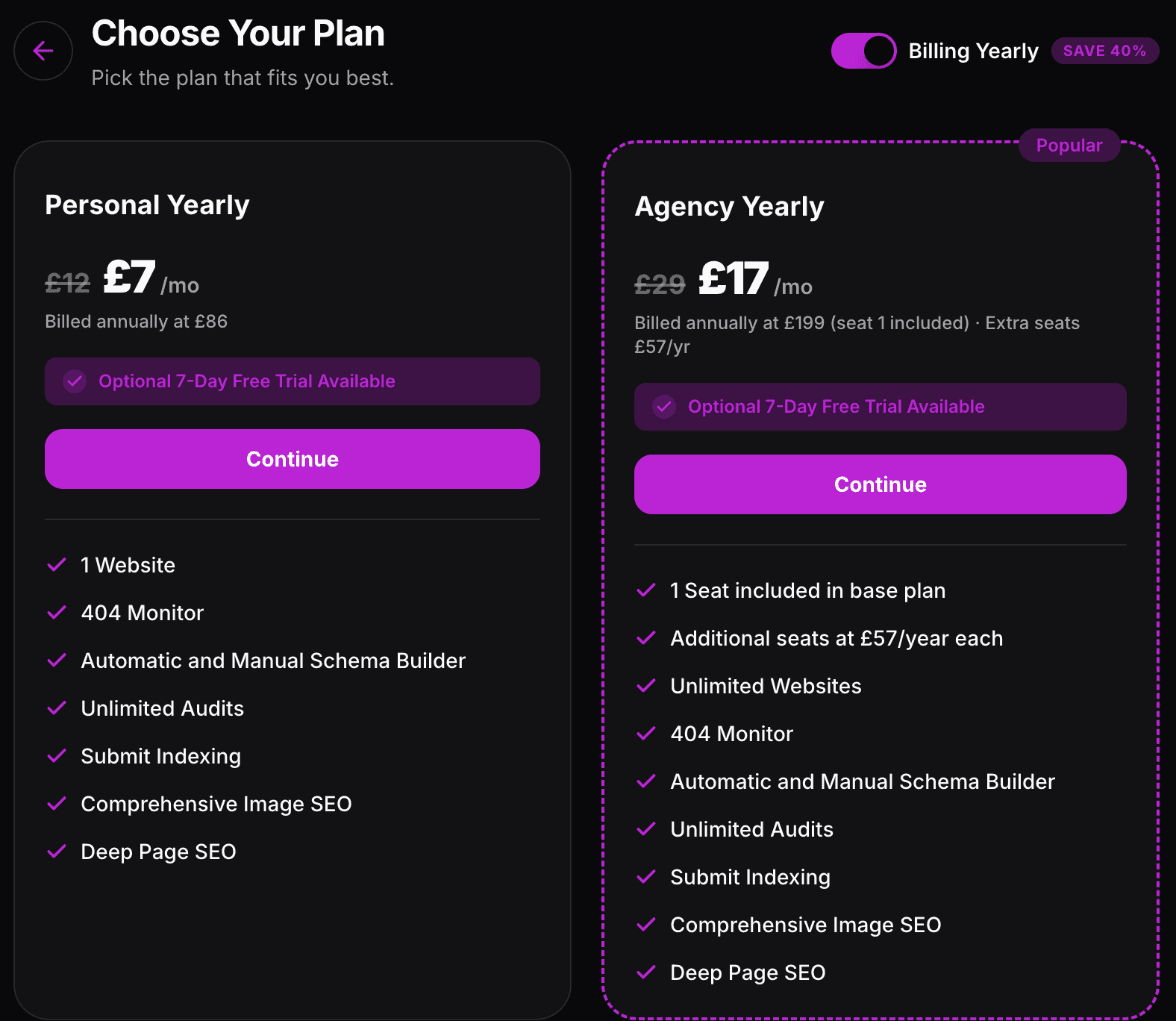
Team features come with the Agency plan, which already covers unlimited Framer sites. Your subscription becomes an Agency workspace and you become its Admin. The plan includes one seat, which is yours.
Your workspace starts out named after you. Rename it to your studio's name from Account Details, under Workspace Settings, so your team knows where they are.

Step 2: Add seats for your team
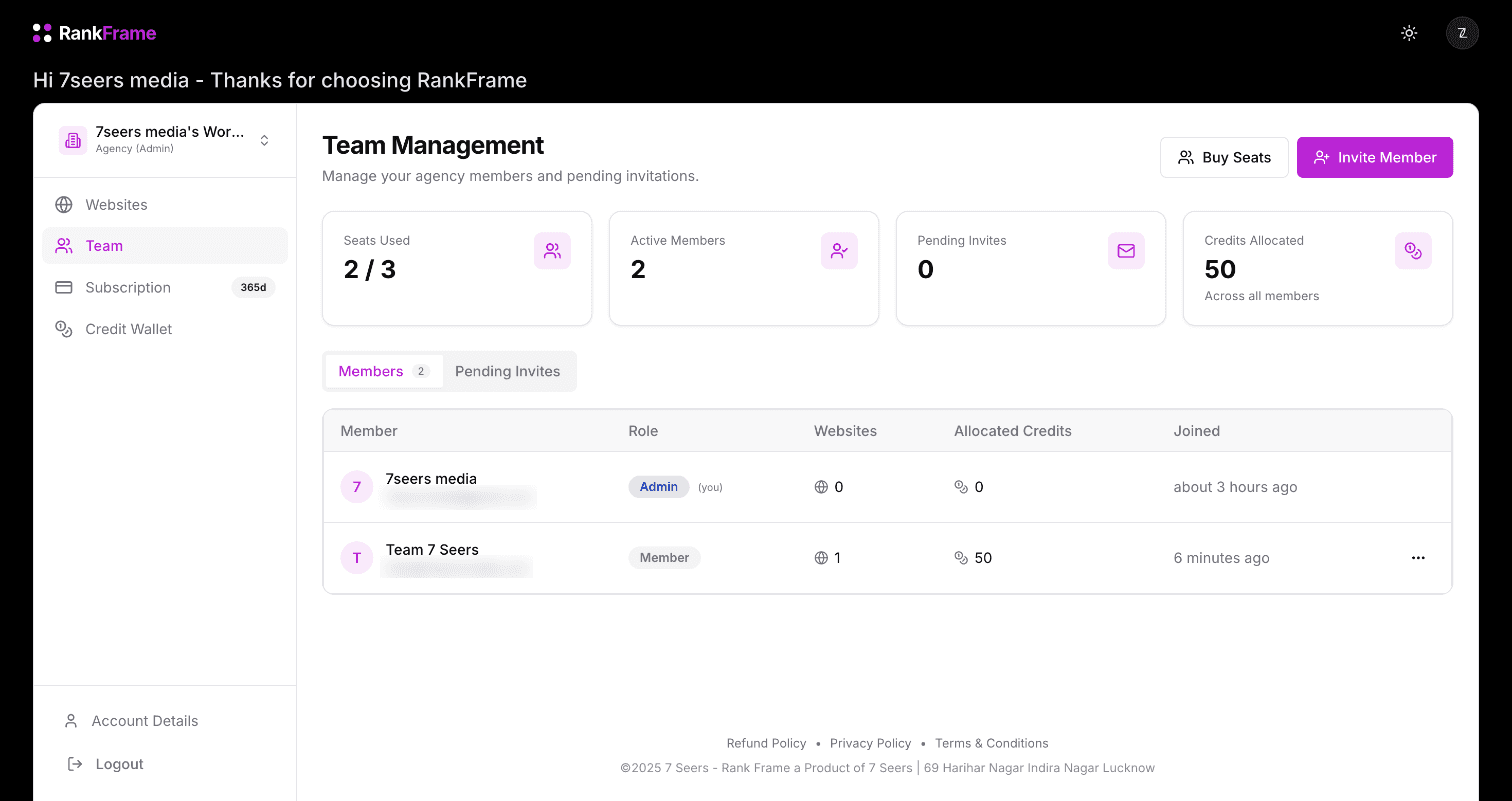
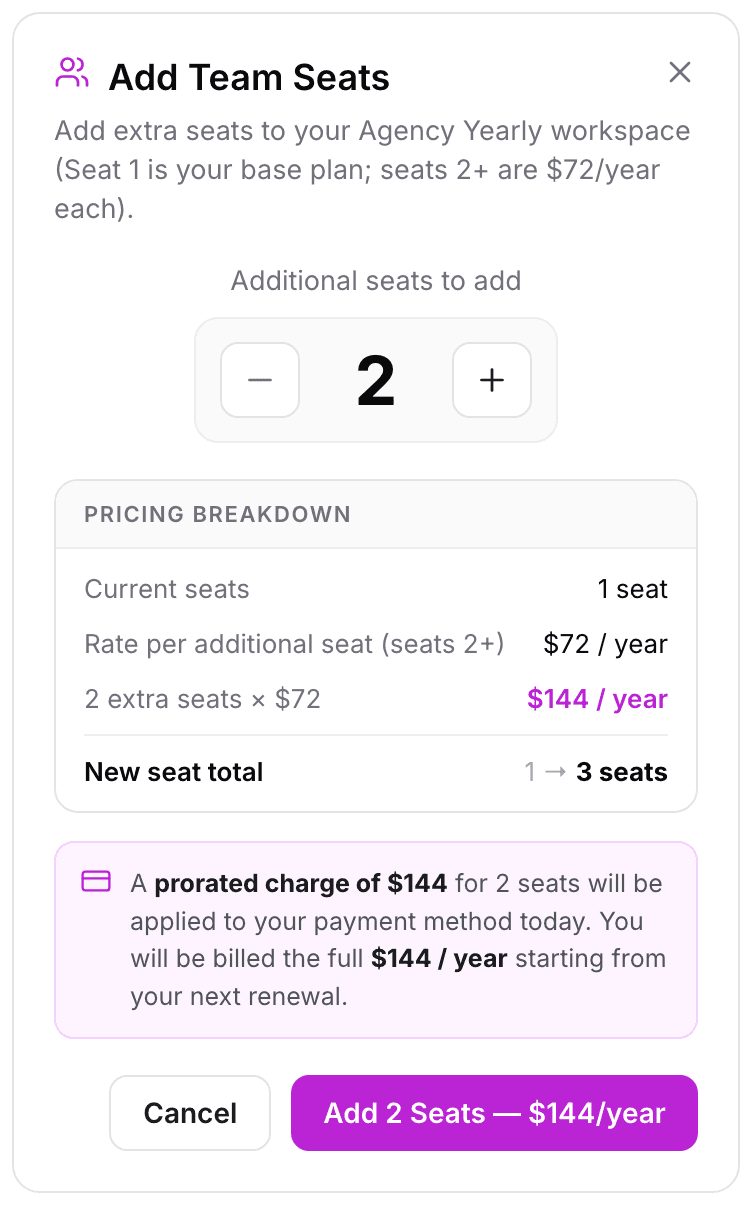
Each extra person needs a seat. From the Team page, click Buy Seats, choose how many you need and check the breakdown. Extra seats are USD 72 a year on yearly billing or USD 10 a month on monthly billing, and if you add them mid-cycle, Polar works out the prorated charge automatically, so you only pay for the time left. The details are in Buying and Managing Team Seats.
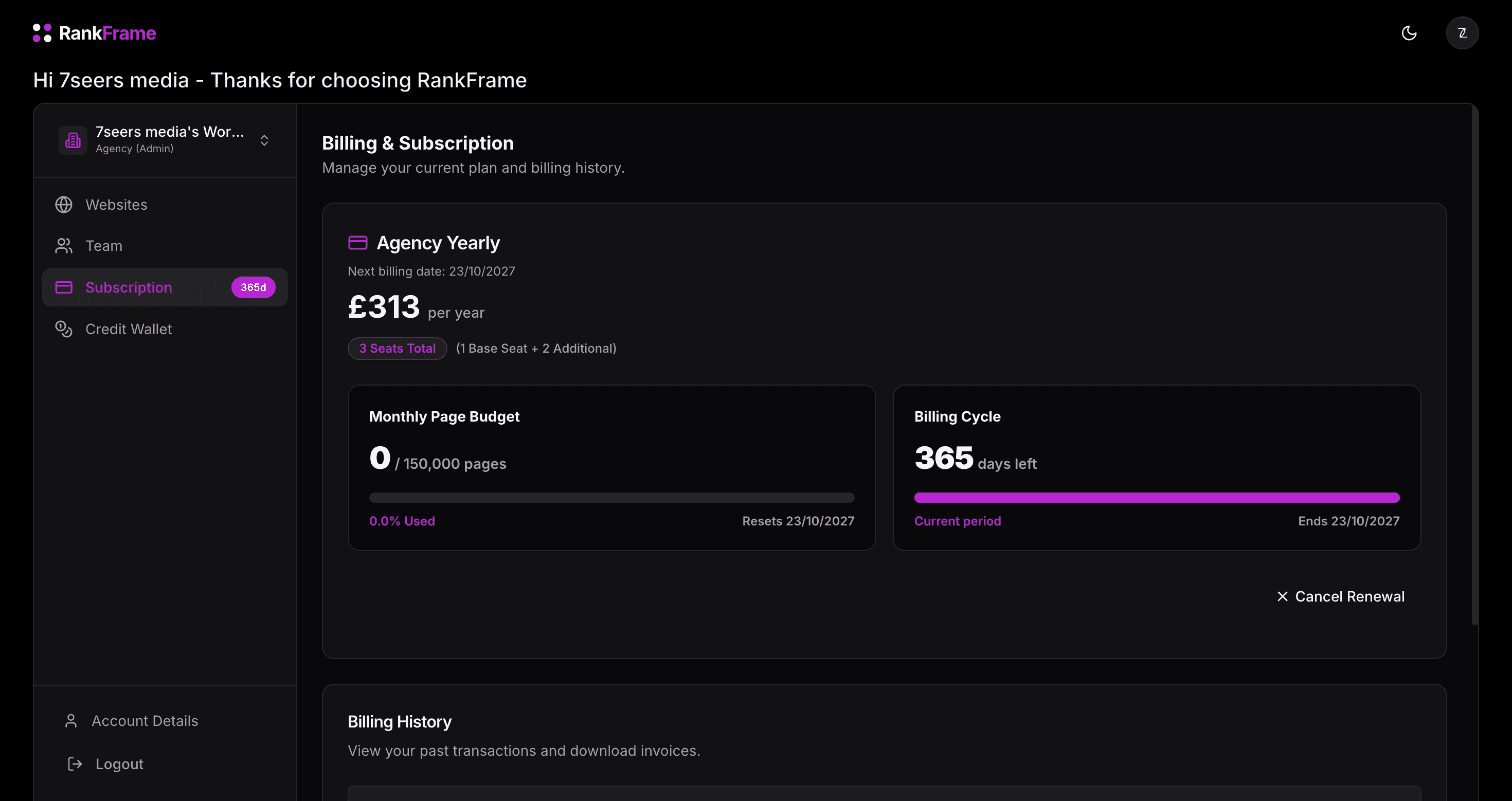
Your seats then show on the Subscription page, for example "4 Seats Total (1 Base Seat + 3 Additional)", and each seat purchase gets its own invoice.
Step 3: Invite your colleagues
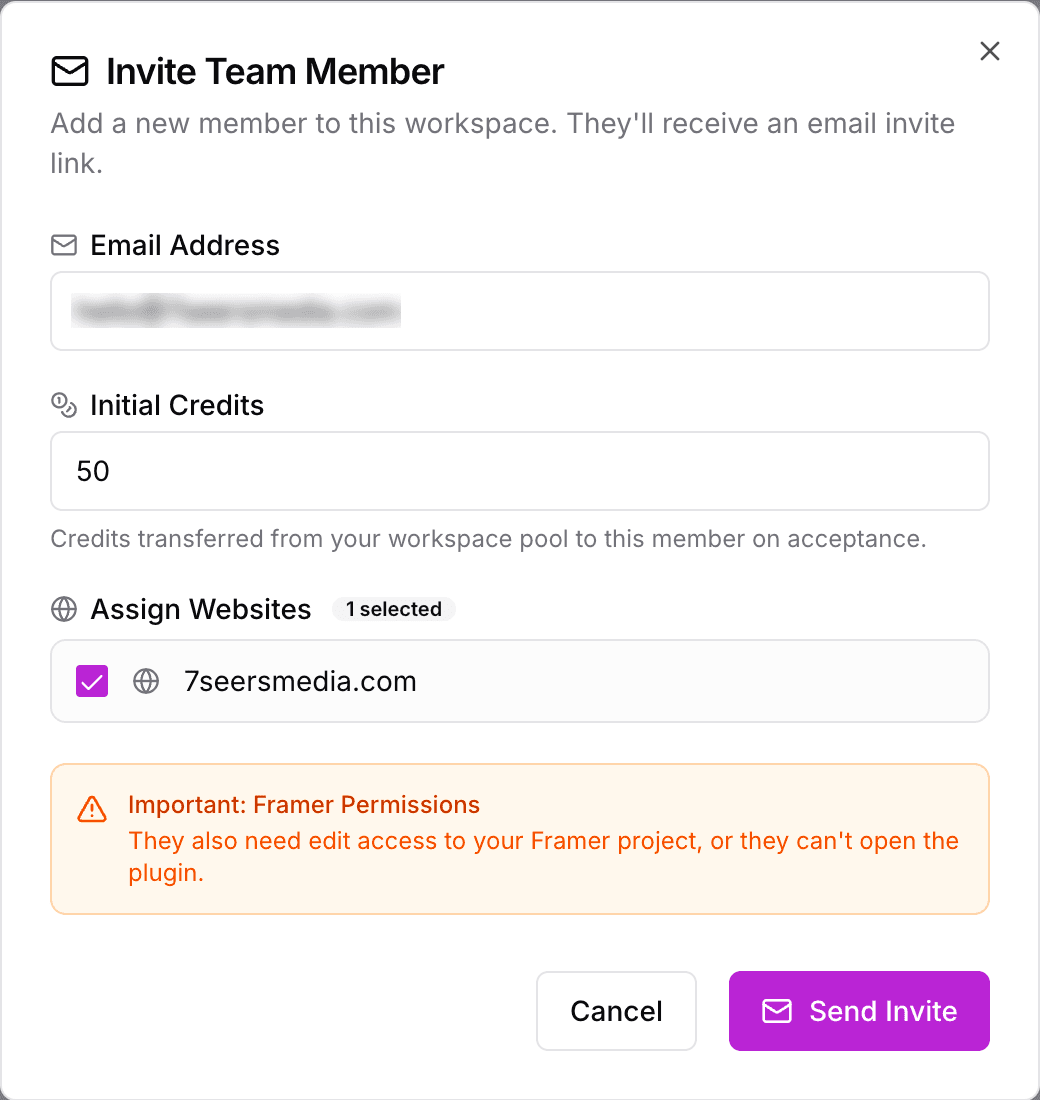
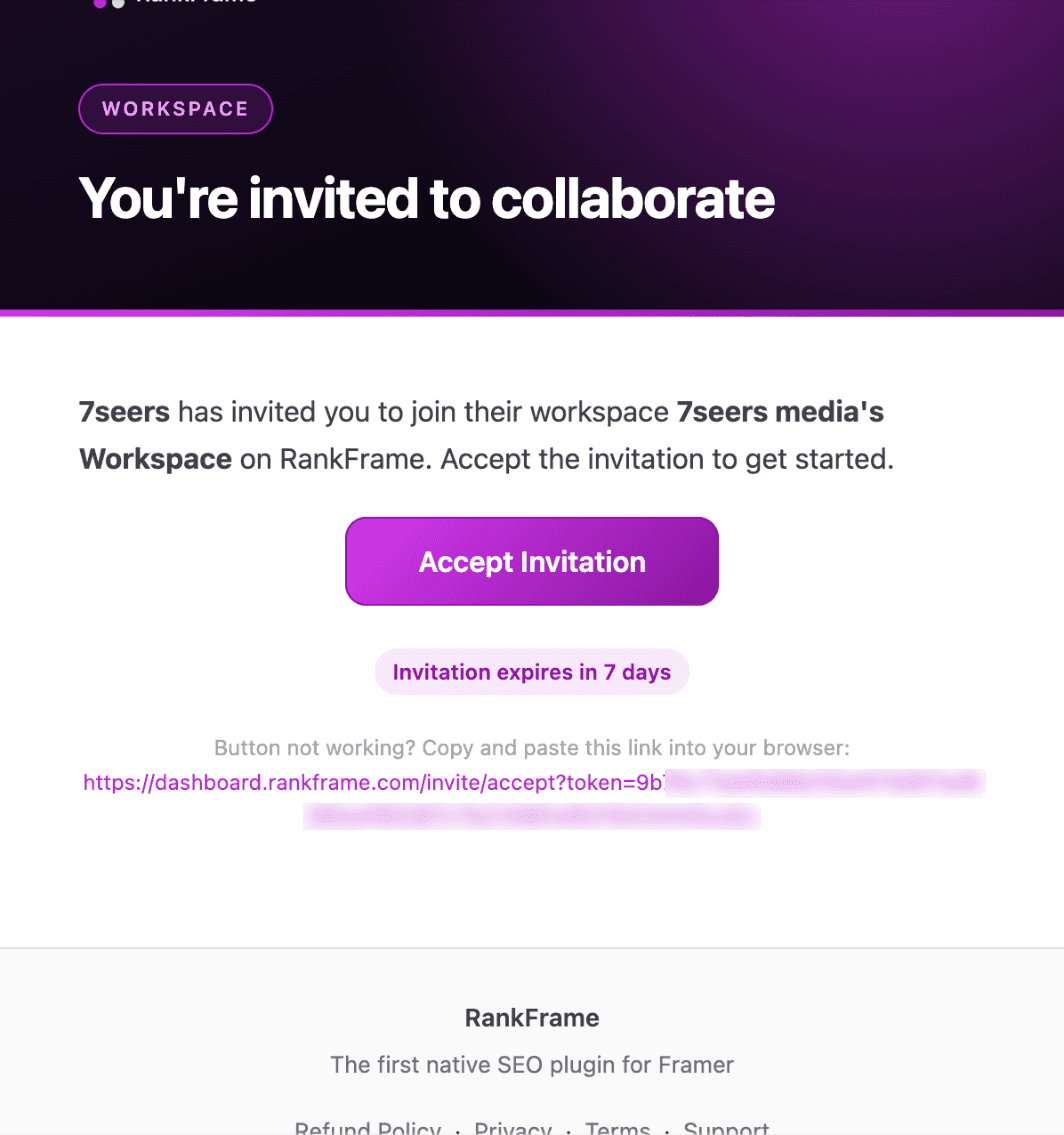
Click Invite Member, enter a colleague's email, give them some starting credits and choose the client websites they will work on. They receive an invitation email that is valid for 7 days, and they only need a free RankFrame account to accept. Full steps: Inviting Team Members.
One thing catches teams out: RankFrame runs inside Framer, so each person also needs edit access to the Framer project before they can open the plugin there. Add them as editors in Framer too.
Your colleague receives an invitation email like this one:
Step 4: Share credits and split the work
The workspace has one pool of AI credits. Give each member what they need for their jobs, such as alt text for a client's image-heavy CMS, and keep an eye on the Credits Allocated card on the Team page. Assigning websites makes it clear who looks after which client.
To change things later, click the … menu on a member's row on the Team page. Edit Website Access changes which client sites they can use, Allocate Credits gives them more credits or takes some back with Retrieve to Pool, and Remove Member takes them off the team.
A simple split that works for many studios:
Designers run the per-page analyser before each page goes live
Content or marketing handles titles, descriptions and alt text
The account owner watches indexing, 404s and the site-wide audit, and manages seats and credits
Step 5: Let members get to work
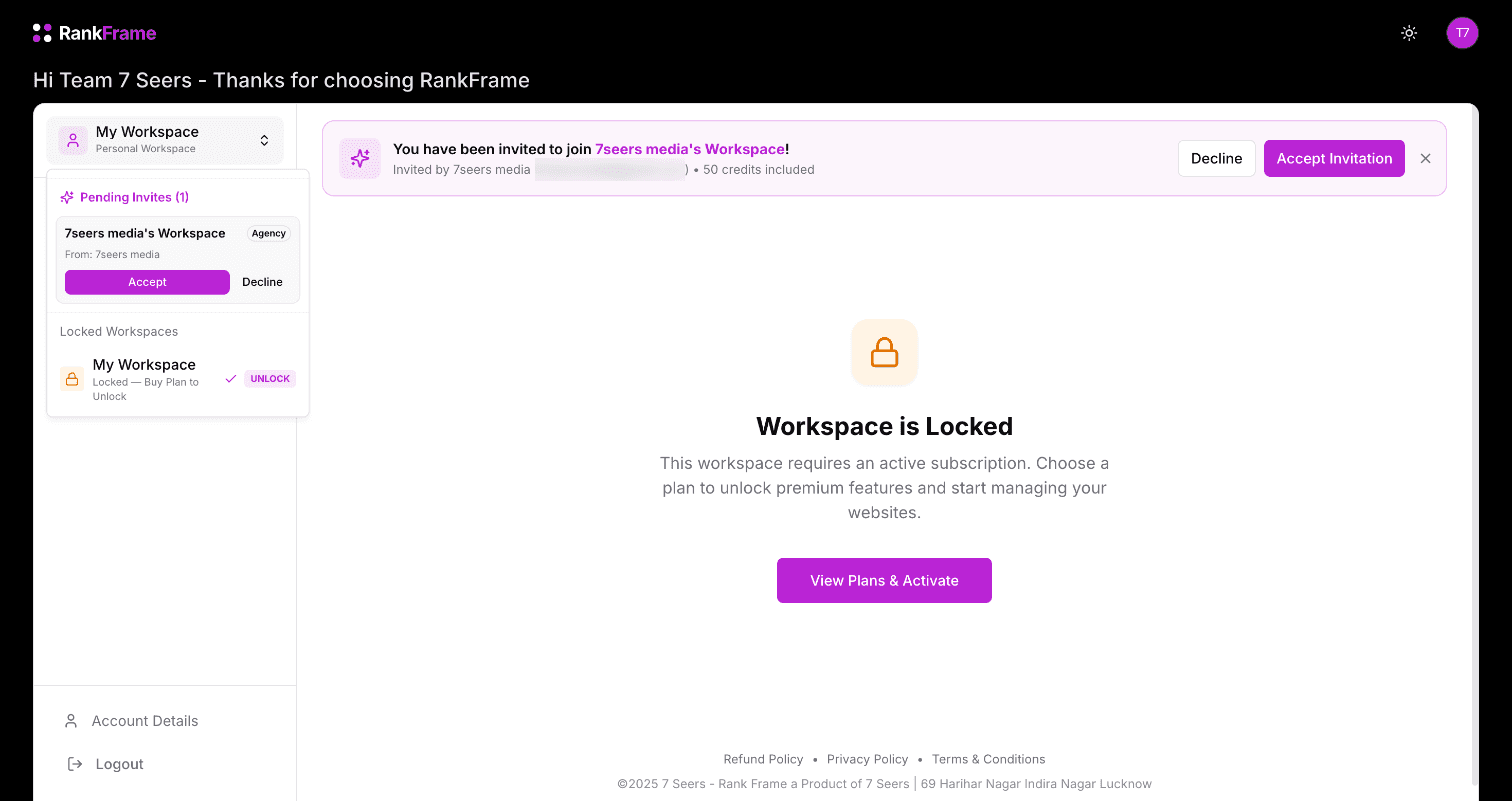
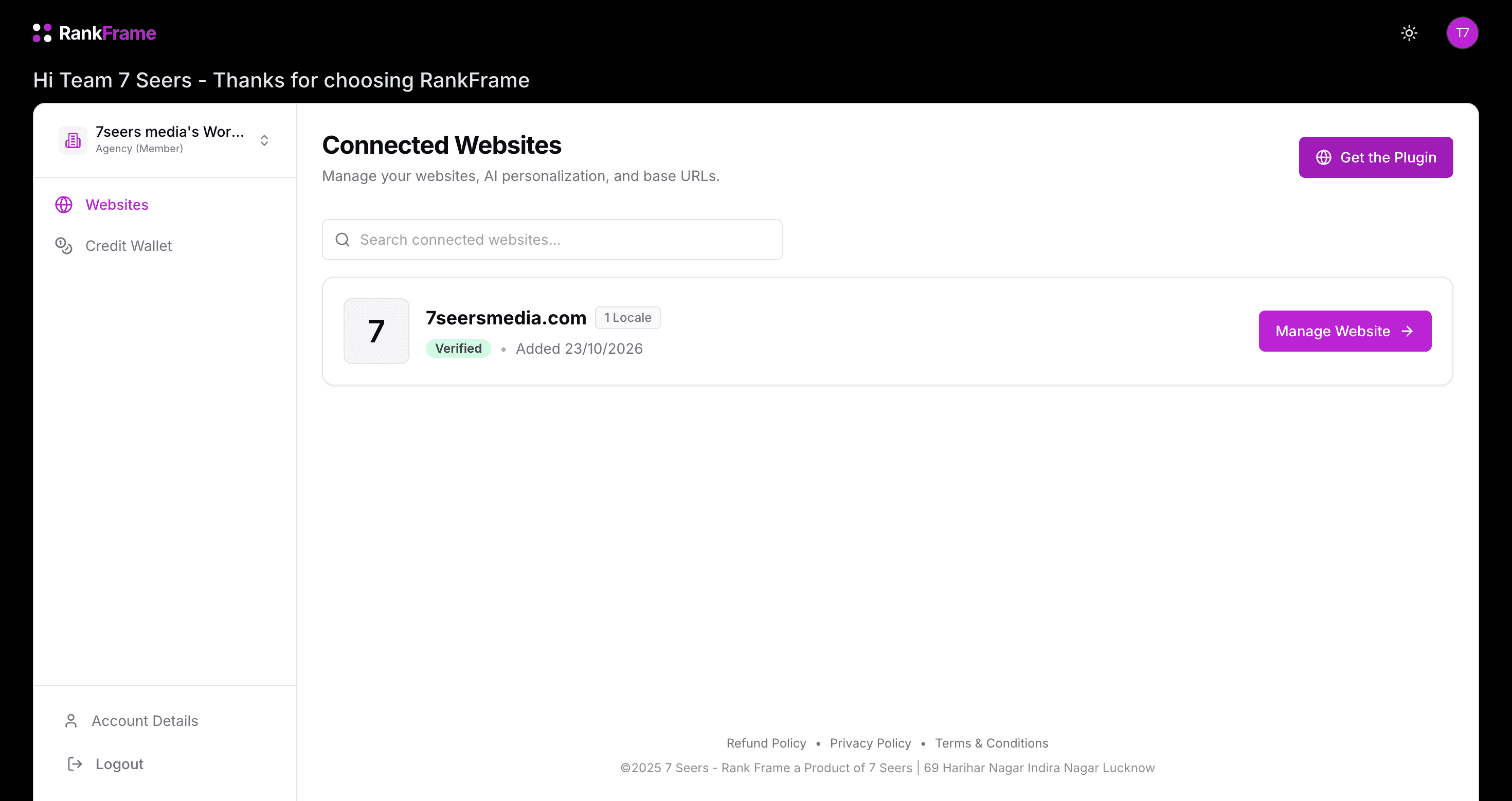
Invited colleagues accept from the email or from the banner in their dashboard, and join your workspace as Members. Members see the websites and credits they need; the Team and Subscription pages stay with the Admin. Team Roles: Admin and Member explains exactly who sees what, and Joining a Team Workspace is a good link to send new teammates.
New teammates see a Team Invitation Active notice while they set up their account, so they know they do not need to buy a plan. Then they accept from the banner or the workspace switcher:

Once accepted, they land in your workspace as a Member:
Make SEO part of how your team ships
Teams & Workspaces does not change what RankFrame checks; it changes who can act on it. Pair it with a shared routine, such as the Framer SEO checklist before every launch and the per-page analyser on every new page, and SEO stops being one person's backlog.
Ready to set up your team? Open the RankFrame dashboard, go to Team, and start with Teams & Workspaces Overview.
Related features
Teams & Workspaces: A seat for every teammate, with website access and credits per person.
SEO Analyser: Score every page out of 100 with 16 checks and a PDF report.
Frequently asked questions
Can more than one person use RankFrame on the same account?
Yes, on the Agency plan. Each Agency subscription is a team workspace where you invite colleagues, and each person signs in with their own account.