8 min read
How-To Guide
How to Track Keyword Rankings for Your Framer Site (2026 Guide)
Framer Analytics shows page views, not rankings. Three methods to track keyword positions: Search Console, RankFrame indexing, and the Keyword Tracker.

Team 7 Seers
How to Track Keyword Rankings for Your Framer Site (2026 Guide)
Why Keyword Tracking Matters for Framer Sites
Most Framer site owners publish pages, add some SEO meta tags, and then wait to see what happens in Google Analytics. Without keyword tracking, you are flying blind. You know traffic went up or down but you do not know which keywords drove the change, which pages are gaining or losing ground, or where the opportunities are.
Know what is working
Keyword tracking tells you which content is performing well in search. If a blog post you published three months ago is now ranking in position 8 for its target keyword, you know the topic and approach worked. You can replicate it. Without tracking, you might look at flat traffic numbers and incorrectly conclude the post did nothing.
Spot opportunities before competitors do
Positions 8 through 20 on page one are the richest optimization targets. You are already indexed and ranking for these keywords; Google has acknowledged your relevance. A focused optimization effort on a page sitting at position 11 or 14 has a much higher chance of generating traffic than trying to rank a new page from scratch. Keyword tracking surfaces these near-miss opportunities automatically.
Catch ranking drops early
Search rankings are not permanent. Algorithm updates, competitor content improvements, and technical issues can all cause drops. Without monitoring, you might not notice that a key page dropped from position 4 to position 18 until your traffic has already fallen significantly. Keyword tracking with position history gives you an early warning system so you can investigate and respond quickly.
Prove the value of your SEO work
If you are doing SEO for a client or reporting to a team, keyword tracking provides the evidence that your work is producing results. Moving from position 22 to position 6 for a target keyword is a concrete deliverable. Without tracked position history, you cannot prove that movement happened.
Important distinction
Keyword tracking tells you where a page ranks for a specific query. It is different from keyword research (finding keywords to target) and from traffic analytics (counting visitors). All three are part of SEO, but they answer different questions.
What Framer's Analytics Shows (and What It Does Not)
Framer includes a built-in analytics dashboard accessible from the site dashboard. It shows total page views over time, unique visitors, top pages by visits, traffic sources, geographic distribution of visitors, and device breakdown.
What Framer analytics does not show:
Which specific keywords brought visitors from organic search
Your site's ranking position for any keyword
Impressions (how many times your site appeared in Google results)
Click-through rate from search results
How positions have changed over time
Which pages are ranking but not getting clicks
For keyword-level search data you need Google Search Console, a third-party rank tracker, or both. The rest of this guide covers all three approaches, starting with the free and free-with-Framer options.
Method 1: Google Search Console Performance Report
Google Search Console (GSC) is a free tool from Google that shows how your site performs in Google Search. It is the most authoritative source of keyword ranking data available because the data comes directly from Google's search index.
Setting up GSC for your Framer site
Add your Framer site as a GSC property
Go to search.google.com/search-console and sign in with your Google account. Click "Add property" and choose the "URL prefix" method. Enter your Framer site's full URL including https://.
Verify ownership via HTML meta tag
GSC will offer several verification methods. Choose "HTML tag." GSC will give you a meta tag to copy. In Framer, go to Site Settings, then click the Custom Code tab. Paste the verification meta tag into the Head section. Publish your site. Return to GSC and click Verify.
Wait for data to accumulate
After verification, GSC begins collecting data. New properties typically start showing data within 24 to 72 hours. However, GSC data has a 2 to 4 day processing delay. For meaningful trend analysis, wait at least 28 days before drawing conclusions from Performance reports.
Reading the Performance report for keyword data
Once data is available, open the Performance report from the left menu in GSC. To see keyword-level data, scroll down to the "Queries" table below the chart. This shows every search query that generated at least one impression for your site, along with the clicks, impressions, CTR, and average position for each query.
GSC Metric | What it means | What to look for |
|---|---|---|
Impressions | Times your page appeared in Google results for this query | High impressions, low clicks = position or title/description issue |
Clicks | Times a user clicked your result for this query | Clicks with low impressions = good CTR, needs more visibility |
Average CTR | Clicks divided by impressions as a percentage | Below 2% at position 1-3 suggests title/description optimization opportunity |
Average position | Mean ranking position across all searches for this query | Positions 8-20 are optimization targets for quick wins |
Limitations of the GSC manual approach
Google Search Console is free and authoritative, but has real limitations for active SEO management:
You must log in to GSC separately from Framer, breaking your workflow
GSC shows average position over a date range, not a specific daily position snapshot
There is no way to track a specific keyword's position history with a visual chart
GSC data is limited to queries that already have impressions; it does not track keywords where you have zero visibility yet
GSC does not show keyword difficulty, search volume, or CPC data
Position data is sampled and anonymized for lower-traffic queries
GSC average position is not a rank tracker
GSC's "average position" is an average across all queries and date ranges, not a specific daily ranking. It is useful for spotting broad trends but not for precise position monitoring. For that, you need a dedicated rank tracker like RankFrame's Keyword Tracker.
Method 2: RankFrame's Submit Indexing Tab (Live GSC Data in Framer)
RankFrame connects to your Google Search Console account and surfaces your GSC Performance data directly inside the Framer editor. This is Method 2: you get the same data source (Google Search Console) but you access it without leaving Framer.
How to connect RankFrame to Google Search Console
Install RankFrame from the Framer Marketplace
In your Framer project, click Plugins in the top navigation. Search for "RankFrame" in the Marketplace. Click Install. Once installed, open the RankFrame plugin panel from the plugin icon in the left sidebar.
Connect your Google Search Console account
Inside RankFrame, you will be prompted to connect your Google account with access to Google Search Console. Follow the OAuth authentication flow. RankFrame requests read-only access to your GSC data. Select the GSC property that corresponds to your Framer site.
Open the Submit Indexing tab
Once connected, navigate to the Submit Indexing tab in RankFrame. This tab shows your pages alongside their live GSC performance data: clicks, impressions, click-through rate, and average position for each URL. You can see at a glance which pages are performing well in search and which are getting impressions but no clicks.
What the Submit Indexing tab shows
The Submit Indexing tab in RankFrame is primarily designed for requesting Google indexing of your pages, but because it is connected to GSC, it also displays live performance data alongside each page. This means you can:
See which pages have been indexed and which have not
View clicks, impressions, CTR, and average position per page
Submit unindexed pages for crawling without leaving Framer
Identify pages with high impressions and low CTR (a meta title or description optimization opportunity)
The key advantage over checking GSC directly is workflow efficiency. When you are editing a page in Framer, you can open RankFrame and immediately see how that page is performing in search without switching to a browser tab, logging into GSC, and navigating to the Performance report.
Method 3: RankFrame Keyword Tracker
RankFrame's Keyword Tracker is a dedicated tool for monitoring specific keyword positions over time. Unlike GSC (which only shows data for queries where you already have impressions) and unlike the Submit Indexing tab (which shows page-level averages), the Keyword Tracker is focused on individual keywords you proactively choose to monitor.
Important: RankFrame does not auto-discover keywords
The Keyword Tracker is a manual tool. RankFrame does not automatically suggest or import a list of keywords for you to track. You decide which keywords to monitor and add them yourself. This is a feature, not a limitation: it keeps your tracker focused on keywords that actually matter to your strategy rather than generating noise from hundreds of low-priority queries.
What the Keyword Tracker shows for each keyword
Data point | What it tells you |
|---|---|
Current position | Where your Framer site currently ranks in Google for this keyword |
Position history (sparkline) | A visual chart of position changes over time so you can see trends at a glance |
Search volume | Estimated monthly searches for this keyword, helping you prioritize by traffic potential |
Keyword difficulty | A score indicating how competitive the keyword is; higher difficulty means harder to rank |
CPC (cost per click) | The average advertiser bid for this keyword, a proxy for commercial intent |
Competition | A normalized score for how many advertisers are bidding on this keyword |
How to add keywords to track
Open the Keyword Tracker tab in RankFrame
With RankFrame installed and open in your Framer project, click the Keyword Tracker tab. If you have not added any keywords yet, you will see an empty state with an Add Keyword button.
Add your target keywords
Click Add Keyword and type the exact keyword phrase you want to track. Add one keyword per entry. Start with the keywords you are actively targeting: your homepage primary keyword, your highest-priority service or product keywords, and any keywords where you know you are ranking but want to track over time.
Good keywords to add as a starting point:
Keywords you used in your page meta titles
Keywords in your H1 headings
Keywords from GSC Performance report that already have impressions
Competitor keywords you are trying to win
Review initial position data
After adding a keyword, RankFrame will show you the current tracked position. For brand new keywords it may take a short time to populate. The sparkline history starts building from the moment you add the keyword, so the longer you track, the more useful the history becomes.
Check back weekly
Keyword tracking is most useful when you check it consistently. Make a habit of reviewing your tracked keywords weekly, especially after publishing new content, making on-page SEO changes, or after a known Google algorithm update. Compare current positions against the sparkline to understand whether you are trending up, down, or flat.
Which keywords should you track?
The Keyword Tracker is most useful when you are deliberate about what you add. Tracking 200 keywords produces noise; tracking 20 to 40 carefully chosen keywords gives you actionable signal. A good keyword list for a typical Framer marketing site includes:
3 to 5 primary product or service keywords (your core offering)
5 to 10 secondary and long-tail keywords from your blog content
2 to 3 branded keywords (your company name, product name)
Keyword opportunities identified from GSC where you rank between position 8 and 20
How to Interpret Position Data Correctly
Position data from different sources can show different numbers for the same keyword. This is not a data error; it reflects differences in how each source measures and reports position. Understanding these differences prevents you from drawing wrong conclusions.
GSC average position vs tracked position
GSC's "average position" is calculated across all searches that generated an impression within the selected date range. It is a statistical average, not a snapshot.
RankFrame's Keyword Tracker checks the actual ranking position at specific points in time and stores those snapshots to build position history. This is closer to "what position does the page hold right now" rather than a blended average.
Personalization and location affect rankings
If you manually search for your target keyword in your browser, the result you see may differ from what an anonymous user in a different location sees. Google personalizes results based on your search history, location, and other signals. This is why manual ranking checks are unreliable. Both GSC and RankFrame use de-personalized data to give you a more representative picture.
Position fluctuation is normal
Rankings fluctuate daily, sometimes significantly. A page can move 3 to 5 positions in either direction as Google continuously re-evaluates its index. A single day's data is not meaningful. Look at weekly or monthly trends in the sparkline history rather than reacting to day-to-day changes.
Reading sparklines correctly
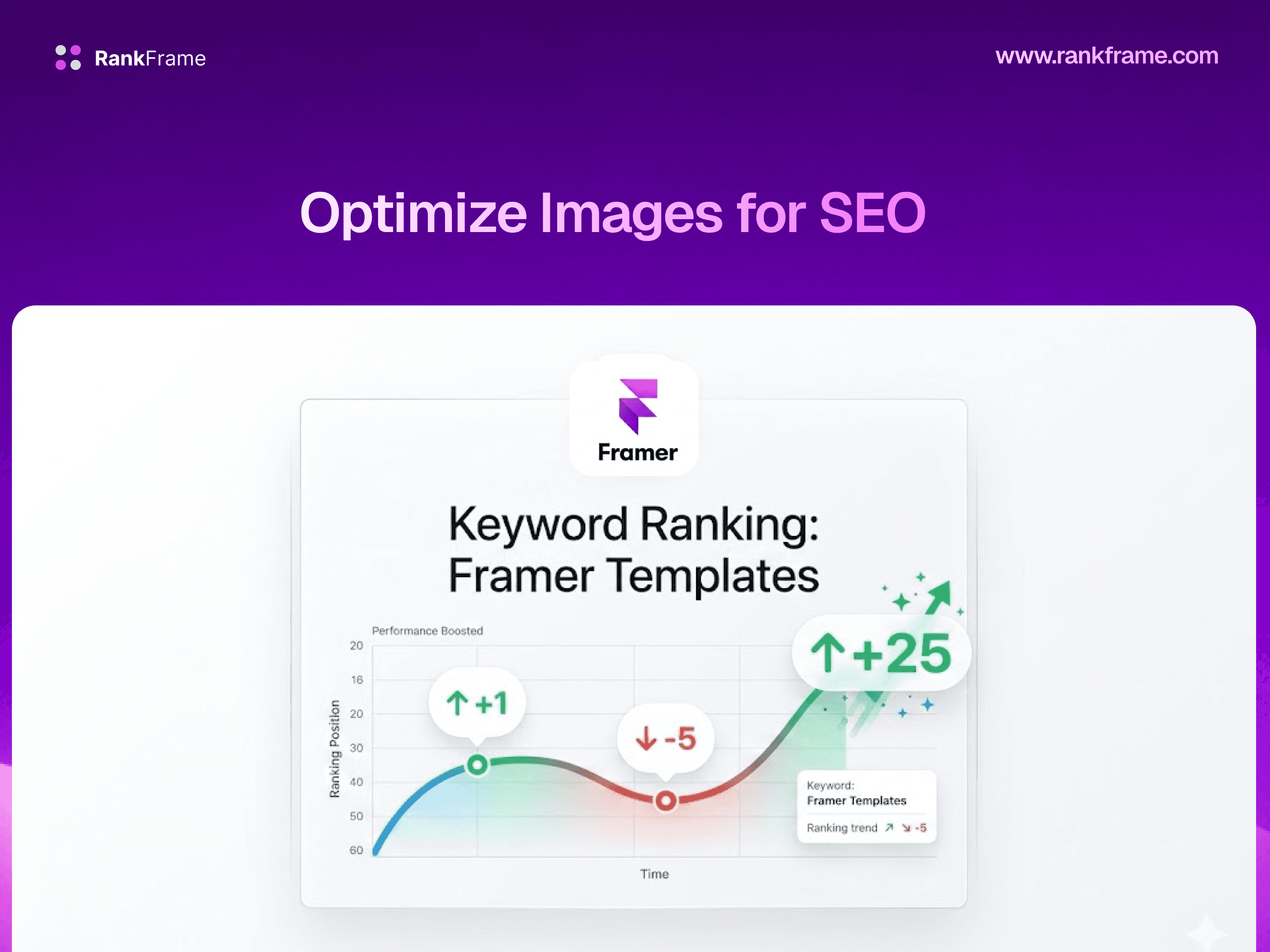
In keyword ranking charts, a lower position number is better (position 1 is the top result). This means a line trending downward on a position chart is actually good news: you are moving toward position 1. Make sure you orient yourself to this before interpreting sparkline trends in RankFrame.
How to Use Tracked Data to Improve Rankings
Tracking positions is only useful if you act on the data. Here is how to translate keyword position data into concrete optimization work on your Framer site.
Scenario 1: A keyword is stuck between positions 8 and 20
This is the most common opportunity. You are ranking on page one or close to it but not capturing significant traffic. The optimization playbook for this scenario:
Open the page ranking for this keyword in Framer
Review the meta title: does it contain the exact keyword and a compelling reason to click?
Review the meta description: is it specific and does it include the keyword?
Review the H1 and first paragraph: is the keyword present and prominent?
Check if the page has schema markup (Article, FAQ, HowTo, etc.) that could generate rich result features
Assess content depth: do competitors ranking above you have significantly more comprehensive content?
Check internal links: are there opportunities to add more internal links to this page from related content?
Scenario 2: A keyword that was ranking well has dropped
A drop in rankings usually has one of four causes: a Google algorithm update, a competitor published better content, a technical issue affected the page, or you made a change that inadvertently hurt performance. The investigation process:
Use the sparkline to identify when the drop occurred
Check if other keywords dropped at the same time (algorithm update vs page-specific issue)
Compare the page's content to competitors currently ranking above it
Check the page's Core Web Vitals in RankFrame to rule out a speed issue
Review any changes made to the page around the time of the drop
Scenario 3: A keyword is consistently improving
This is the signal you want to replicate. Identify what made the page successful:
Content format (long-form guide, comparison, FAQ-heavy)
Schema markup types used
Internal linking strategy
Keyword targeting approach in the title and H1
Apply the same approach to other pages targeting similar keywords. Successful patterns on one page often transfer to related pages.
Using RankFrame to optimize pages from inside Framer
One of RankFrame's core advantages is that it lives inside Framer. When the Keyword Tracker shows a page needs optimization, you can switch to the SEO tab to edit the meta title, meta description, H1 content, and schema markup for that page, then publish the changes, all without leaving the Framer editor.
Method Comparison: Which Approach Is Right for You
Feature | GSC (manual) | RankFrame Submit Indexing | RankFrame Keyword Tracker |
|---|---|---|---|
Cost | Free | Included with RankFrame | Included with RankFrame |
Works inside Framer | No | Yes | Yes |
Data source | Google (authoritative) | Google via GSC | Live search data |
Keyword discovery | Yes (shows all queries) | Partial (page-level) | No (you add manually) |
Position history | Limited (date range averages) | No | Yes (sparkline per keyword) |
Search volume data | No | No | Yes |
Keyword difficulty | No | No | Yes |
Best for | Discovering what queries you rank for | Quick page-level performance check | Tracking specific target keywords over time |
In practice, these three methods complement each other. Use GSC's Performance report to discover which queries are generating impressions. Use RankFrame's Submit Indexing tab for a quick page-level performance check while working in Framer. Use the Keyword Tracker to monitor your most important target keywords with position history and keyword data over the long term.
Frequently asked questions
Does Framer have keyword tracking?
No. Framer does not have any built-in keyword tracking or ranking monitoring. Framer's native analytics shows page views and visitor counts but does not show what keywords your site ranks for, what position it holds, or how positions change over time. To track keyword rankings for a Framer site you need Google Search Console, RankFrame, or another external SEO tool.