
<- Go Back
SEO Audit
SEO Audit Overview
Learn how to use the SEO Analyzer in RankFrame to run a site-wide SEO audit, interpret your score, and act on critical issues, warnings, and speed data.
Last Updated on
Read Time
5 min read
Opening the SEO Analyzer
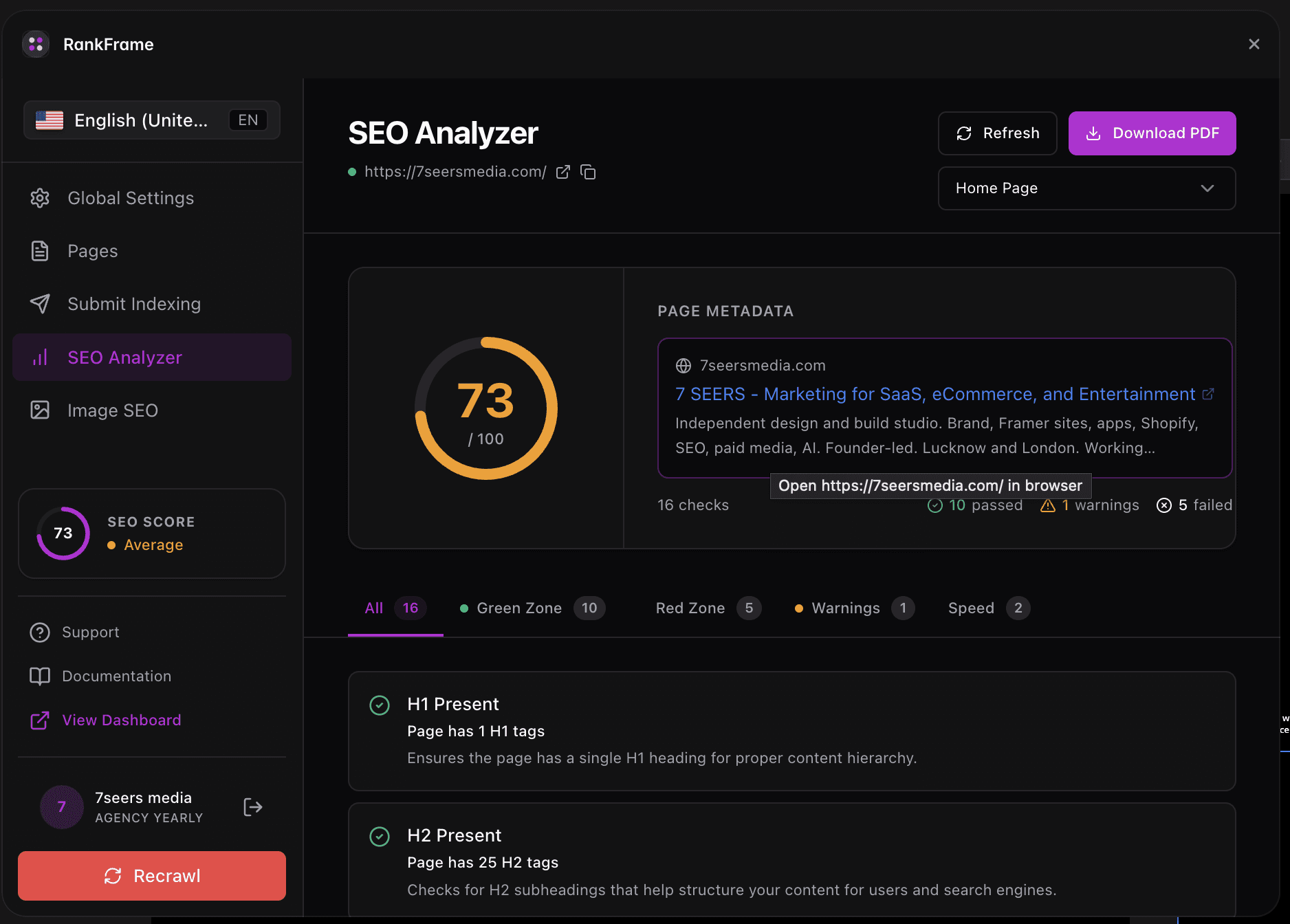
The SEO Analyzer is RankFrame’s site-wide audit tool. It lives in the left sidebar of the plugin, identified by a bar chart icon. The subtitle under the section name reads “Analyze your website SEO.”
This section is separate from the per-page audit inside the Pages section. The SEO Analyzer reviews your entire site at once and produces a single combined score.
Open RankFrame inside Framer.
Click the bar chart icon in the left sidebar.
The SEO Analyzer loads with your most recent audit results.
If you have not run an audit yet, the score panel will prompt you to click Refresh Analysis to generate your first results.
Header Controls
Three controls appear at the top of the SEO Analyzer.
Live SEO Indicator: A green dot that shows the analyzer is connected and reflecting your live published site. If the dot is not green, check that your site is published and your connection is active.
Refresh Analysis Button: Click Refresh Analysis to re-run the audit and pull the latest data from your live site. Run this after publishing any changes.
Download Audit Button: The purple Download Audit button exports a PDF of your full audit report. Use this to share findings with clients or teammates.
Your SEO Score
Below the header, the score panel shows your overall site SEO health at a glance.
A large circular score display (for example, 82/100) with a purple ring shows your current score.
The Last Checked date tells you when the audit was last run.
Your full site URL appears under the score so you know exactly which domain was analyzed.
A higher score means more checks are passing and fewer critical issues exist. Aim to resolve all Red Zone items first, then work through Warnings to push your score higher.
Click any issue in the analyzer to see detailed suggestions. Every check item is interactive and opens a deeper explanation panel.
Score Breakdown
Under the score ring, four summary counts give you a quick breakdown of how your site performed.
Red Zone: critical failures that most directly hurt your rankings and crawlability.
Warnings: issues that are not blocking but will limit your SEO potential if left unresolved.
Green Zone: checks your site is passing. More passing checks means a higher score.
Speed: your site’s measured load time in milliseconds, pulled from real performance data.
Use this breakdown to prioritize your work. Fix Red Zone items before addressing Warnings.
Filter Tabs
Five filter tabs let you narrow the audit list to the category you want to focus on. Select any tab to see only those checks.
All: Shows every check from every category in a single combined list. Use this for a full picture of your site audit.
Green Zone: Filters to checks your site is currently passing. Review these to confirm what is already working correctly.
Red Zone: Shows only critical failures. These have the largest negative impact on your score and rankings. Address these first.
Warnings: Lists issues that are not critical failures but still affect your SEO. Fix these after clearing the Red Zone.
Speed: A dedicated tab with Mobile and Desktop performance gauges plus Core Web Vitals. Separate from the pass/fail checks above.
Speed Tab Details
The Speed tab is distinct from the other filter tabs. It does not show pass/fail SEO checks. Instead, it displays performance gauges for both Mobile and Desktop, along with your Core Web Vitals scores.
Review Mobile performance separately from Desktop. Mobile scores often differ significantly.
Core Web Vitals include metrics like Largest Contentful Paint and Cumulative Layout Shift.
Poor speed scores affect how search engines rank your pages, so treat them with the same urgency as Red Zone items.
Clicking Issues for Details
Every check item in the audit list is clickable. The sidebar tip panel reminds you of this:
Pro Tip: Click any issue in the analyzer to see detailed suggestions.
When you click a check item, a detail panel opens with:
A plain-language explanation of what the check looks for.
The specific element, page, or tag that is failing or flagged.
Concrete suggestions for fixing the issue inside Framer.
Use this workflow to move through your audit efficiently. Start on the Red Zone tab, click each item, apply the fix in Framer, publish your changes, then click Refresh Analysis to confirm the item is resolved.
Some fixes require changes in your Framer project settings or CMS content rather than the RankFrame plugin itself. The detail panel will indicate where to make each change.
Auditing each language version
Audits run per locale. Switch language in the plugin sidebar and run the audit again to score that language version of the page. Each locale keeps its own score, checks and speed data.
Multi-language sites
Audits run per locale. Switch the language in the sidebar and run the analyser again to score that version. See Multi-Language SEO in Framer.
Frequently asked questions
What is the difference between the SEO Analyzer and the per-page audit inside Pages?
The SEO Analyzer runs a site-wide audit across your entire Framer project. The per-page audit inside the Pages section focuses on one page at a time. Use the SEO Analyzer to get a broad health score, then drill into individual pages for granular fixes.