
<- Go Back
SEO Audit
Audit Checks Explained: Green Zone, Red Zone, and Warnings
Understand every RankFrame audit check: what Green Zone, Red Zone, and Warnings mean, all 29 checks across Basic SEO, Advanced SEO, Performance, and Security, and how to use click-to-expand suggestions.
Last Updated on
Read Time
6 min read
Pro Tip: Click any issue in the analyzer to see detailed suggestions.
The three check zones
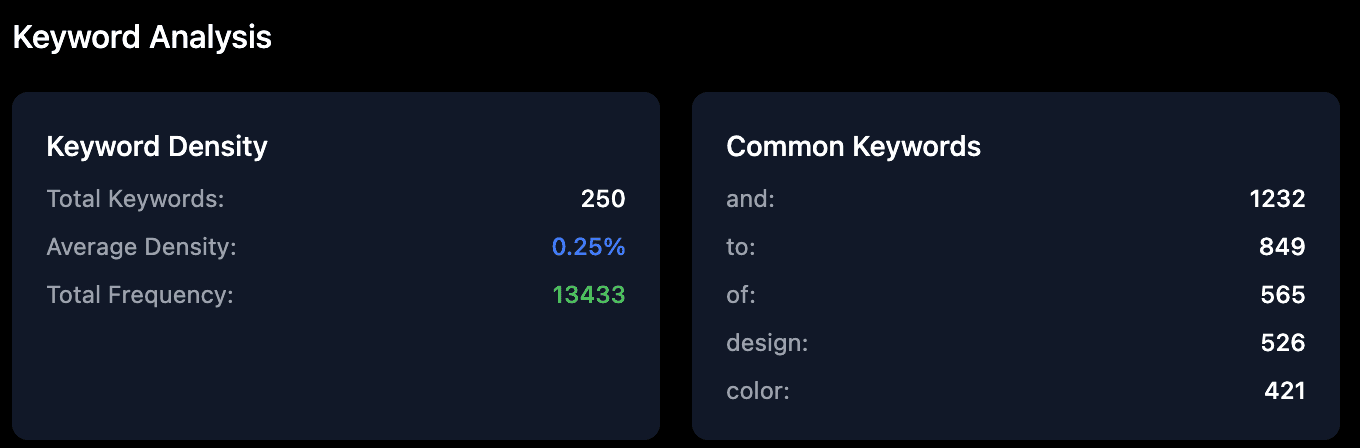
Every check that RankFrame runs is sorted into one of three zones based on its result. The zone assignment tells you immediately what action, if any, you need to take.
Green Zone means the check passed. Your site is handling this correctly and no action is needed.
Red Zone means the check failed critically. These issues have the highest negative impact on your rankings and must be fixed.
Warnings means the check found a non-critical issue. Warnings should be addressed to push your score higher, but they are not emergencies.
You can filter the check list to any single zone at any time using the filter tabs at the top of the audit results. See Understanding the Audit Score Panel for details on how the tabs work.
1. Green Zone Checks (Passing)
Green Zone checks are items your site is handling correctly. They appear with a green dot and a passing status. You do not need to do anything with these items.
Green Zone items contribute positively to your overall score.
Review these items before making large changes to your Framer project to avoid accidentally breaking something that is already working.
Use the Green Zone filter tab to see only passing checks at a glance.
2. Red Zone Checks (Critical Fails)
Red Zone checks are critical failures. They appear with a red dot and a failed status. These are the items with the highest negative impact on your search rankings, and they should be your first priority when working through audit results.
Each Red Zone item significantly lowers your overall audit score.
Click any Red Zone item to expand it and see a tailored suggestion for how to fix that specific issue.
Use the Red Zone filter tab to focus exclusively on critical fails without distraction.
Always fix Red Zone items before addressing Warnings. Resolving even one critical fail can produce a noticeable score improvement.
3. Warnings (Non-Critical Issues)
Warnings appear with a yellow or amber dot. These checks identified an issue that is not severe enough to be a critical fail, but that is still worth resolving. Addressing all warnings after clearing your Red Zone items is the fastest path to reaching a score of 90 or above.
Warnings do not cause immediate ranking drops, but they do hold your score back.
Click any Warning item to expand it and see specific guidance on what to improve.
Common warnings involve missing optional meta tags, content freshness, and image-level settings.
4. Clickable Check Items
Every item in the check list is interactive. Clicking a check item expands it to reveal a detailed suggestions panel specific to that issue. You do not need to search documentation or guess what to do next.
Expanded items show a plain-language explanation of why the issue matters.
Each expanded item includes a step-by-step suggestion for resolving that specific check.
You can expand multiple items at the same time to compare guidance side by side.
Click the item again to collapse it.
Click any issue in the analyzer to see detailed suggestions. This is the fastest way to understand exactly what needs to change on your site.
Basic SEO checks (10)

Basic SEO checks cover the foundational on-page elements that every site needs. A missing or misconfigured element in this group is almost always a Red Zone item.
Check | What it evaluates |
|---|---|
SEO Title | Verifies that the page has a title tag and that it falls within an effective length range. |
H1 | Confirms the page contains exactly one H1 heading, which signals the primary topic to search engines. |
H2 | Checks that the page uses H2 subheadings to give content proper hierarchical structure. |
Links Ratio | Evaluates the ratio of internal to external links to ensure a healthy link profile. |
Common Keywords | Checks that the most prominent keywords on the page appear consistently throughout the content. |
SEO Description | Verifies that the page has a meta description tag with an effective length for search result snippets. |
Image ALT Attributes | Checks that all images include descriptive alt text for accessibility and image search indexing. |
Homepage Reachable | Confirms that the homepage returns a successful HTTP status code and is accessible to crawlers. |
Responsive Design | Verifies that the page includes a responsive viewport meta tag required for mobile-first indexing. |
Keywords in Title and Description | Checks that your target keywords appear in both the title tag and the meta description. |
Advanced SEO checks (12)
Advanced SEO checks cover technical configuration, structured data, and social sharing signals. These items are especially important for competitive sites aiming for a score above 85.
Check | What it evaluates |
|---|---|
Sitemaps | Verifies that an XML sitemap exists and is accessible so search engines can discover all your pages. |
Broken Links | Scans the page for links that return 404 or other error responses, which hurt crawlability and user experience. |
Noindex Meta | Checks whether the page unintentionally carries a noindex directive that would prevent it from appearing in search results. |
Canonical Tag | Verifies that a canonical link element is present and points to the correct preferred URL to prevent duplicate content issues. |
OpenGraph Meta | Checks that OpenGraph tags are in place so your pages display correctly when shared on social platforms. |
Search Preview | Renders a desktop Google search snippet using your title and description so you can see exactly how your page appears in results. |
Mobile Snapshot | Captures how the page renders on a mobile viewport to help you spot layout or content issues. |
Schema Meta Data | Checks for valid JSON-LD or other structured data markup that enables rich results in search. |
WWW Canonicalization | Verifies that your site consistently redirects between the www and non-www version to avoid splitting link equity. |
Mobile Search Preview | Renders a mobile Google search snippet so you can verify how your title and description appear on smaller screens. |
Keep Content Fresh | Checks whether your content has been updated recently, since search engines give preference to regularly maintained pages. |
Performance checks (5)
Performance checks measure how fast and efficiently your site loads. These checks have a direct impact on both user experience and search engine rankings, particularly for mobile users.
Check | What it evaluates |
|---|---|
Measures the total download size of the page and flags it if the size is likely to slow load times. | |
Mobile Speed | Evaluates how quickly the page loads on a mobile connection using performance benchmarks. |
Page Objects | Counts the number of HTTP requests the page makes and flags an excessive count that adds load latency. |
Response Time | Measures server response time in milliseconds, matching the Speed value shown in the score panel. |
Image Headers Expire | Checks whether images are served with proper cache expiration headers, which lets browsers reuse assets instead of re-downloading them. |
Security checks (2)
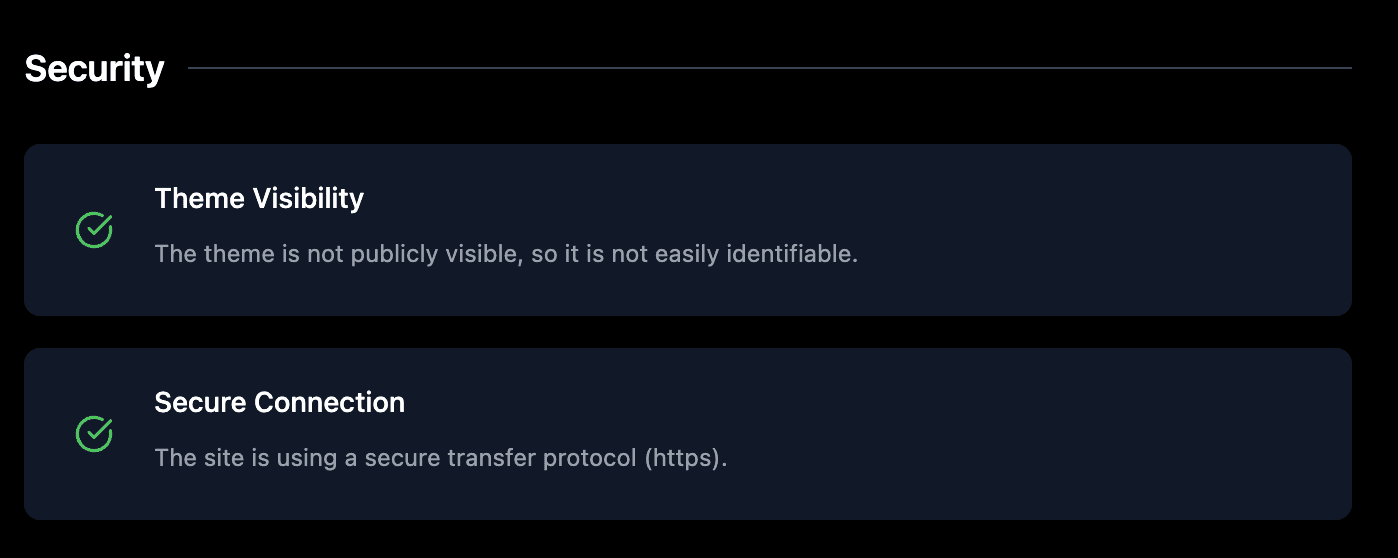
Security checks look for configurations that could put your site or its visitors at risk. A site that is compromised or flagged as insecure will lose search visibility quickly.
Check | What it evaluates |
|---|---|
Theme Visibility | Checks whether your CMS or theme name is exposed in page source, which can make it easier for attackers to target known vulnerabilities. |
Secure Connection | Verifies that your site is served over HTTPS. Sites without a valid SSL certificate are flagged by browsers and penalized in search. |
Auditing each language version
Audits run per locale. Switch language in the plugin sidebar and run the audit again to score that language version of the page. Each locale keeps its own score, checks and speed data.
Frequently asked questions
How do I see the detailed suggestion for a specific check?
Click any check item in the audit list and it expands to show a detailed suggestion panel for that specific issue. You can click multiple items and each one will display its own guidance.