
<- Go Back
SEO Audit
Speed Insights
Learn how to read Mobile and Desktop Performance gauges, interpret Core Web Vitals (FCP, LCP, CLS), and act on Speed Optimization Suggestions in RankFrame
Last Updated on
Read Time
5 min read
Overview of the Speed tab
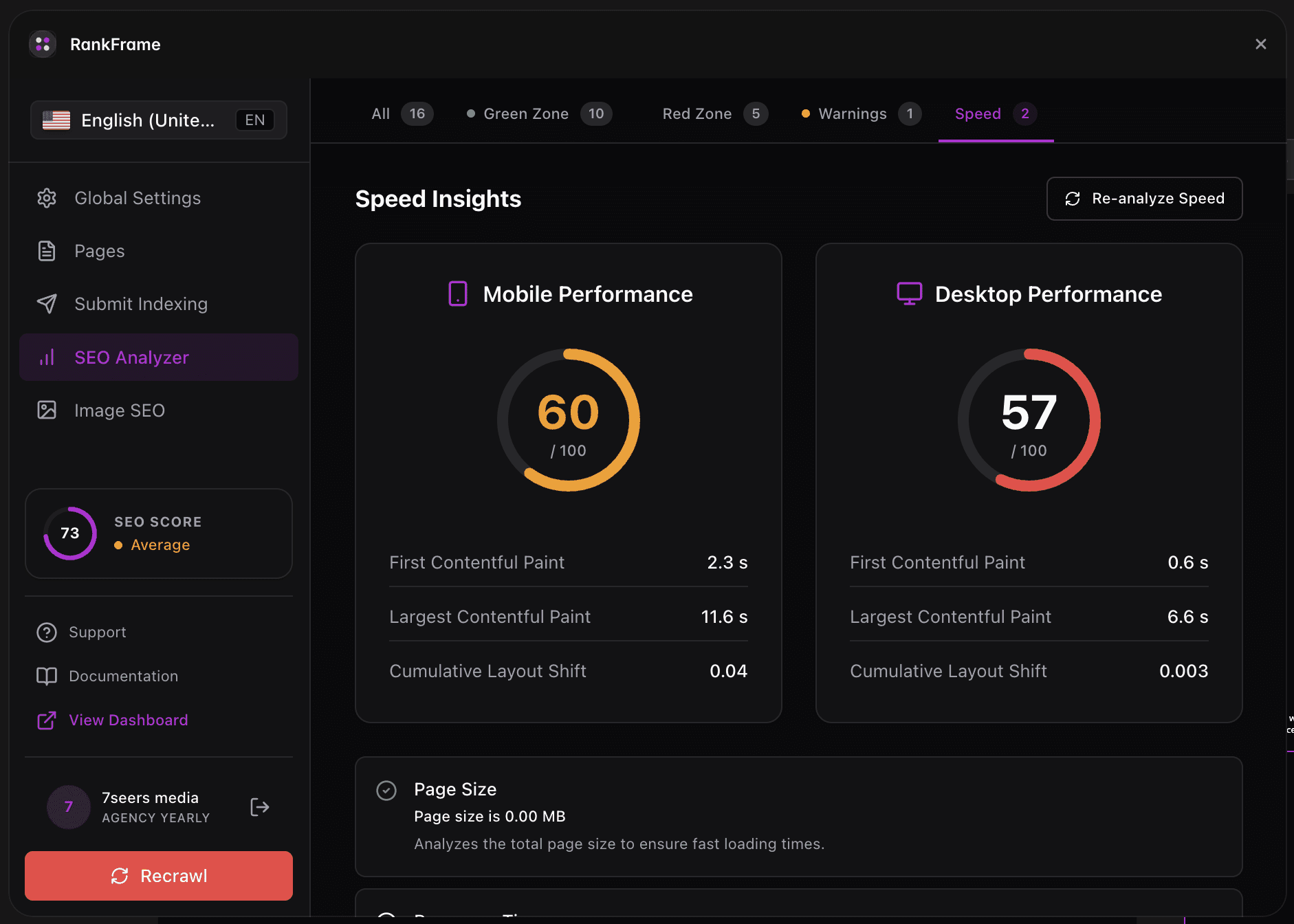
The Speed tab is a dedicated filter inside RankFrame’s SEO Analyzer. When you select it, the panel displays a Speed Insights header along with a Re-analyze Speed button. Clicking Re-analyze Speed fetches fresh measurements for your published Framer site, giving you up-to-date scores after every change.
The tab groups results into three parts: two circular performance gauges, Core Web Vitals for each device, and a list of Speed Optimization Suggestions that identify exactly what to fix.
Speed data is measured against your published site. Unpublished changes are not included in the analysis. Always publish first, then click Re-analyze Speed.
1. Mobile Performance gauge
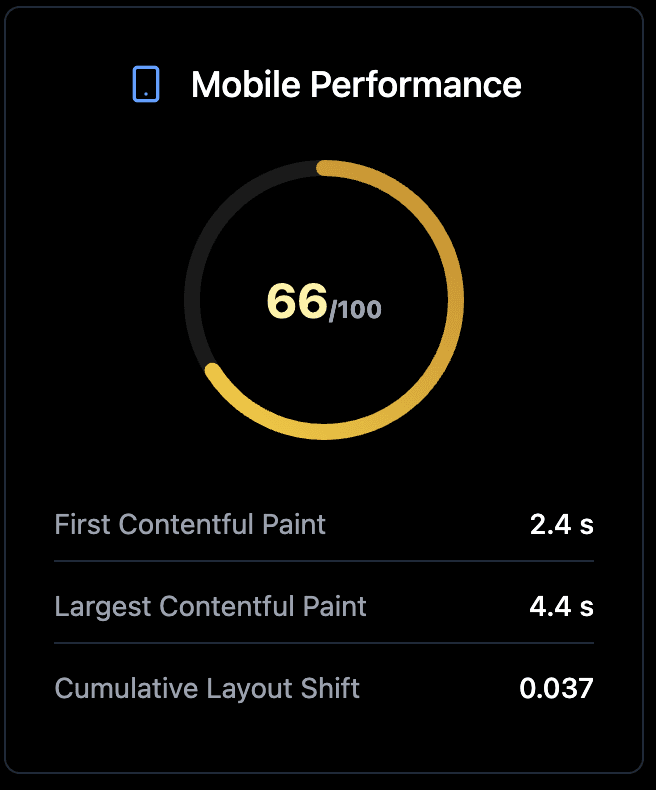
The left circular gauge shows your site’s Mobile Performance score out of 100. The score reflects how efficiently your page loads on a simulated mobile device with a throttled CPU and a mid-tier mobile network connection.
Scores display in an amber or orange color when improvement is needed. A score in the green range (90 and above) means the page loads well on mobile. The gauge fills proportionally to give you an instant visual read of performance.
Mobile scores are almost always lower than desktop scores because of network throttling. Prioritize mobile improvements first since Google uses mobile-first indexing.
2. Desktop Performance gauge
The right circular gauge shows your Desktop Performance score out of 100. Desktop measurements simulate a faster CPU and a standard broadband connection, so scores are typically higher than mobile. Both gauges sit side by side so you can compare them at a glance.
An amber or orange score on desktop is a signal that unoptimized assets, render-blocking scripts, or slow server response times are affecting load speed even under favorable conditions.
Core Web Vitals
Below each gauge, RankFrame shows three Core Web Vitals (CWV) for the respective device. These metrics are part of Google’s ranking signals and directly influence how users experience your page.
3. First Contentful Paint (FCP)
First Contentful Paint measures the time from when the page starts loading until the browser renders the first piece of visible content, such as text, an image, or a non-white canvas element. A fast FCP reassures visitors that the page is actually loading.
Rating | FCP value | What it means |
|---|---|---|
Good | Under 1.8 s | Content appears quickly; visitors stay engaged. |
Needs improvement | 1.8 s to 3.0 s | Some delay; consider eliminating render-blocking resources. |
Poor | Over 3.0 s | Visitors may abandon the page before content appears. |
To improve FCP, reduce render-blocking CSS or JavaScript, inline critical styles, and make sure your server responds quickly.
4. Largest Contentful Paint (LCP)
Largest Contentful Paint measures when the largest visible content element, usually a hero image or a large heading block, finishes rendering. LCP is one of the most important Core Web Vitals because it reflects when the main page content is usable.
Rating | LCP value | What it means |
|---|---|---|
Good | Under 2.5 s | Main content loads fast; strong user experience. |
Needs improvement | 2.5 s to 4.0 s | Large images or slow servers are slowing the main content. |
Poor | Over 4.0 s | Significant impact on bounce rate and search rankings. |
Converting large hero images to WebP format and adding explicit dimensions are the two fastest ways to improve LCP. RankFrame’s Speed Optimization Suggestions will flag this if it applies to your page.
5. Cumulative Layout Shift (CLS)
Cumulative Layout Shift measures visual stability. It scores how much page elements unexpectedly move during load. A button that shifts downward just as someone taps it is a classic CLS problem. Lower CLS values indicate a more stable, trustworthy experience.
Rating | CLS value | What it means |
|---|---|---|
Good | Under 0.1 | Layout is stable; elements do not jump around during load. |
Needs improvement | 0.1 to 0.25 | Some elements shift; check images and embeds for missing dimensions. |
Poor | Over 0.25 | Significant layout instability; high risk of accidental taps and poor UX. |
To reduce CLS, set explicit width and height on every image, avoid inserting dynamic content above existing page content, and preload web fonts to avoid invisible-text flashes.
6. Speed Optimization Suggestions
Below the gauges and Core Web Vitals, RankFrame lists specific, actionable Speed Optimization Suggestions. Each suggestion targets a real measured issue on your page. Common suggestions include:
Optimize large images using WebP format to improve Largest Contentful Paint (LCP). WebP files are significantly smaller than JPEG or PNG at comparable quality, speeding up hero images and gallery sections.
Minify CSS and JavaScript files. Removing whitespace, comments, and unused code reduces file sizes and speeds up parsing.
Consider using a CDN for static assets to reduce server response time. A content delivery network serves assets from a location closer to the visitor, cutting latency and improving both FCP and LCP.
Work through suggestions from top to bottom. RankFrame orders them by estimated impact, so the first item on the list will give you the biggest performance gain.
How to apply suggestions in Framer
Convert images to WebP: Replace large JPEG or PNG assets in your Framer project with WebP versions. You can convert images using Squoosh, ImageOptim, or your image editor before uploading to Framer.
Audit custom code blocks: Review any custom JavaScript or CSS added via Framer’s Custom Code settings. Remove unused scripts, defer non-critical scripts, and minify where possible.
Enable Framer’s built-in CDN: Framer hosts static assets on a global CDN by default. Avoid linking to external self-hosted files that bypass this CDN, as they add extra round-trip latency.
Publish and re-analyze: After making changes, publish your site and click Re-analyze Speed in RankFrame to confirm the scores have improved.
Auditing each language version
Audits run per locale. Switch language in the plugin sidebar and run the audit again to score that language version of the page. Each locale keeps its own score, checks and speed data.
Frequently asked questions
What is a good Speed Insights score in RankFrame?
Scores of 90 and above are considered good. Scores between 50 and 89 need improvement, and anything below 50 is considered poor. Aim to get both your Mobile and Desktop scores into the green range for the best search ranking impact.