
<- Go Back
SEO Audit
Understanding the Audit Score Panel
Learn how to read the RankFrame audit score panel: circular score, Red Zone, Warnings, Green Zone, Speed, and filter tabs that let you focus on what matters most.
Last Updated on
Read Time
4 min read
Score panel overview
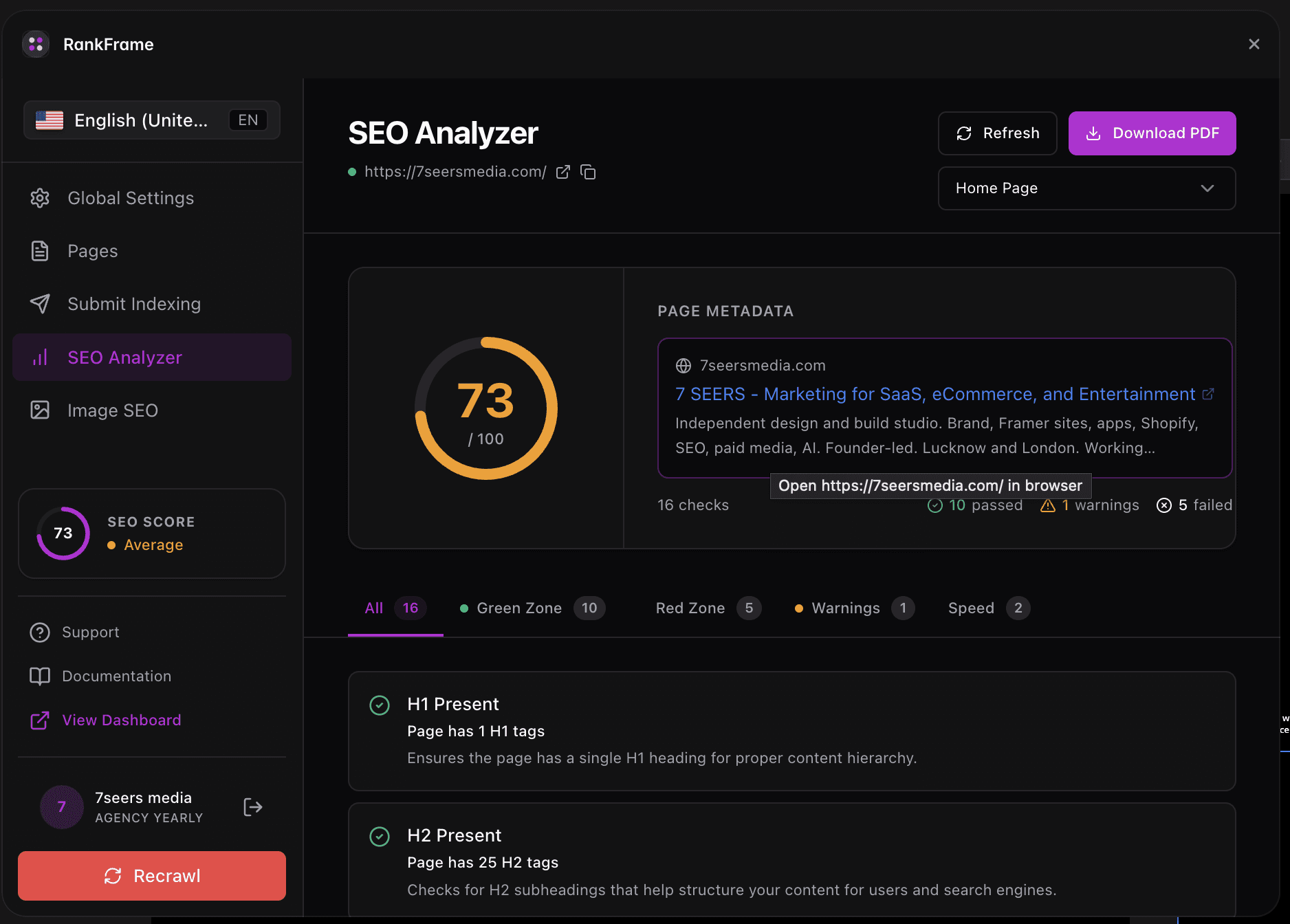
When you run a site audit in RankFrame, the top of the results view is the Score Panel. It combines your overall score, a breakdown by check type, your server response time, and quick-access filter tabs into a single compact view.
The panel displays the Last Checked date and your full site URL so you always know exactly which scan the data comes from. On the right side you will find the RankFrame brand pill and a target label reading “Good SEO. Target: 90+”.
Run the audit again after fixing issues to watch your score climb in real time.
1. Circular Score
The large circular graphic at the center of the panel displays your site’s composite SEO score as a number from 0 to 100. A purple ring surrounds the number and fills proportionally as your score increases. The score is calculated from every check across all four audit categories: Basic SEO, Advanced SEO, Performance, and Security.
A score of 90 or above is the target for Good SEO.
Scores below 70 typically indicate multiple critical issues that need immediate attention.
The ring becomes more complete as your score approaches 100.
2. Red Zone Count
The Red Zone count, shown with a red dot, tells you how many checks have failed critically. These are the issues with the highest negative impact on your search rankings and should be fixed before anything else.
A Red Zone count of 0 means no critical failures are present.
Any Red Zone count above 0 requires action. Use the Red Zone filter tab to isolate these checks immediately.
Fix Red Zone items before addressing Warnings. Critical failures carry the most weight in your overall score calculation.
3. Warnings Count
The Warnings count, shown with a yellow or amber dot, shows how many checks returned a non-critical issue. Warnings are not emergency fixes, but addressing them is the most reliable way to push your score toward 90 and beyond.
Common warnings include missing optional meta tags, sub-optimal image configurations, and content freshness issues.
Clearing all warnings after resolving Red Zone items will have a meaningful positive effect on your overall score.
4. Green Zone Count
The Green Zone count, shown with a green dot, tells you how many checks your site is passing. A higher Green Zone count means more of your SEO fundamentals are in good shape.
You do not need to take any action on Green Zone items.
Use the Green Zone filter tab to confirm which checks are already passing before you start making changes, so you do not accidentally break something that is working.
5. Speed
The Speed metric shows your server response time in milliseconds (ms). This is measured at the time the audit runs and reflects how quickly your server responds to an incoming request.
Lower is better. Search engines factor response time into their quality signals.
Response times under 200 ms are generally considered fast.
If Speed appears in your Red Zone, prioritize server or hosting improvements alongside your SEO fixes.
6. Filter Tabs
Below the score breakdown you will find five filter tabs: All, Green Zone, Red Zone, Warnings, and Speed. Clicking a tab filters the check list below the panel so only items from that category are visible.
All shows every check from every category.
Green Zone shows only passing checks.
Red Zone shows only critical failures.
Warnings shows only non-critical issues.
Speed shows only performance-related checks.
Start every audit session by clicking the Red Zone tab. This puts your most urgent issues at the top of your attention without any scrolling.
Brand pill and target label
On the right side of the score panel you will see two elements that provide context for your score:
The brand pill reads “RankFrame, Best Framer SEO Plugin” and identifies the tool powering your audit.
The target label reads “Good SEO. Target: 90+” and sets a clear benchmark for what you should work toward.
Use the 90+ target as your guiding goal when prioritizing fixes. Once your circular score reaches 90, you have resolved the most impactful SEO issues on your site.
Auditing each language version
Audits run per locale. Switch language in the plugin sidebar and run the audit again to score that language version of the page. Each locale keeps its own score, checks and speed data.
Frequently asked questions
What does the circular score number represent?
The circular score is a composite 0-100 rating calculated from all audit checks across Basic SEO, Advanced SEO, Performance, and Security categories. A higher score means fewer critical issues and better overall site health.