
<- Go Back
SEO Audit
Download Audit PDF Report
Learn how to download, read, and share the RankFrame SEO Audit PDF report. Covers report header, all four check sections, icon meanings, and how to access the report from both the SEO Analyzer and per-page audit views.
Last Updated on
Read Time
5 min read
How to download the report
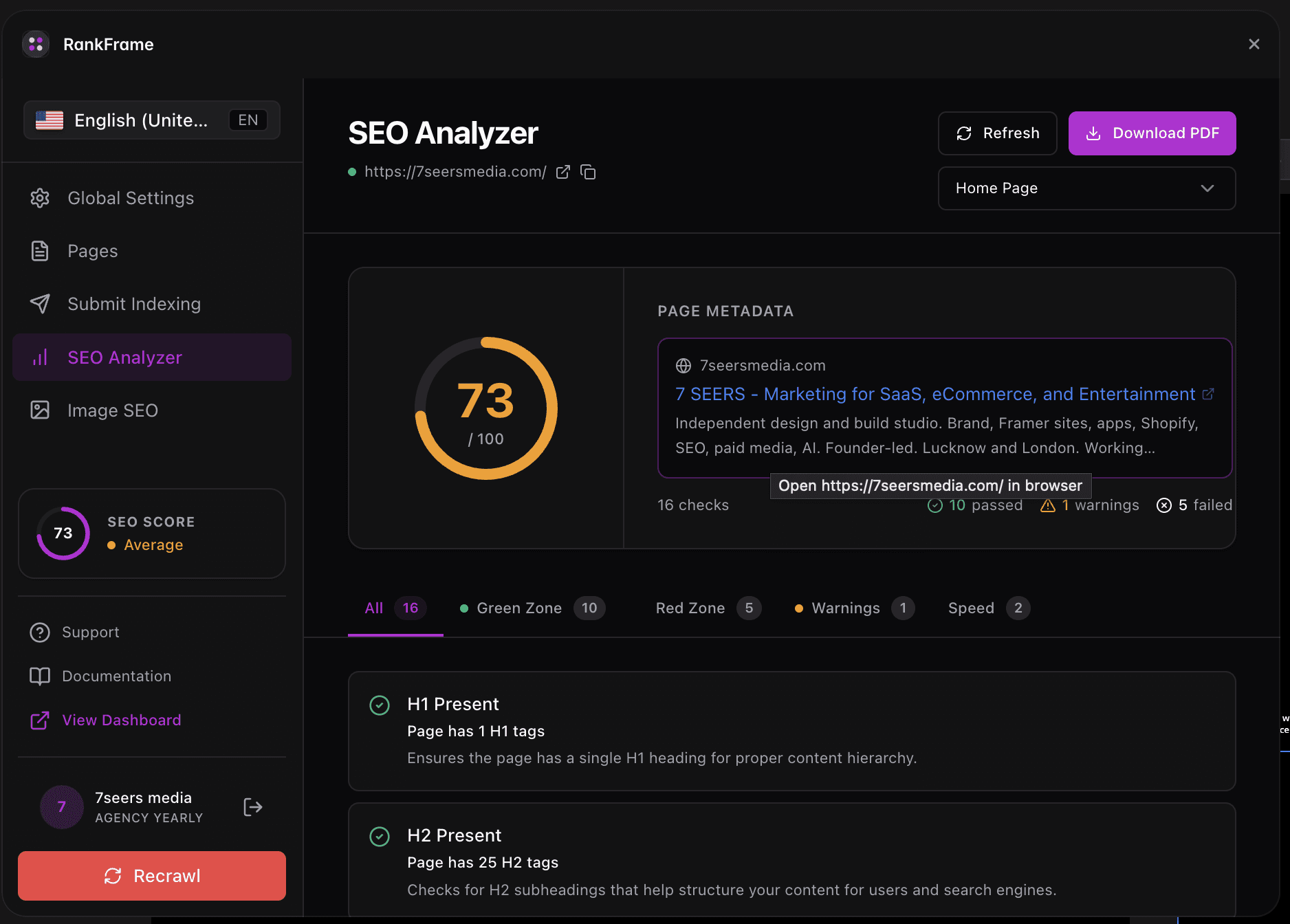
RankFrame gives you two ways to generate the PDF report, depending on whether you want a site-wide or page-specific export.
Open the SEO Analyzer: Launch RankFrame from your Framer project and navigate to the SEO Analyzer page.
Click Download Audit: On the main SEO Analyzer page, click the Download Audit button to generate a site-level PDF covering all analyzed pages.
Or download from a single page: Open any individual page audit inside RankFrame, then click the Download button to export a PDF scoped to that single page.
Save or share the PDF: Your browser downloads the file automatically. Email it, upload it to a shared drive, or attach it to a client deliverable.
The PDF reflects the state of your site at the time the audit was last run. Click Re-analyze before downloading if you have published changes since your last analysis.
1. Report header
The top of every PDF report contains identifying information and a high-level summary so you can orient yourself and share the document without additional context.
The header contains:
Title formatted as “SEO Audit Report : [Site Title]”
Site URL so the document is self-identifying
Date the report was generated
Summary tiles showing Passed, Failed, Warnings, and Total Checks counts at a glance
SEO Score as a single number (for example, 82) summarizing overall health
Share the report header screenshot with stakeholders who need a quick overview. The summary tiles and SEO Score communicate site health without requiring anyone to read the full document.
2. Basic SEO section
The Basic SEO section covers 10 foundational checks. Each check shows a pass rate percentage so you can see how the page performs across the most essential on-page signals.
Check | What it evaluates |
|---|---|
SEO Title | Presence and appropriate length of the page title tag. |
H1 | Presence of exactly one H1 heading per page. |
H2 | Presence of H2 subheadings to structure content. |
Links Ratio | Balance between internal and external links on the page. |
Common Keywords | Most frequently used keywords with their occurrence count in the page content. |
SEO Description | Presence and appropriate length of the meta description tag. |
Image ALT Attributes | Whether all images have descriptive alt text. Missing alt tags are listed by specific image. |
Homepage Reachable | Whether the homepage returns a successful HTTP response. |
Responsive Design | Whether the page includes a viewport meta tag for mobile rendering. |
Keywords in Title and Description | Whether the target keyword appears in both the title tag and meta description. |
If the Image ALT Attributes check fails, the report lists each image file that is missing alt text by name. Use that list to update assets directly in your Framer project without hunting for them manually.
3. Advanced SEO section
The Advanced SEO section covers 12 checks targeting technical signals, metadata completeness, and rich previews. Several checks render visual outputs directly inside the PDF so you can verify how your site appears in search results without leaving the document.
Check | What it evaluates |
|---|---|
Sitemaps | Whether a valid XML sitemap is present and accessible. |
Broken Links | Detection of links on the page that return error responses. |
Noindex Meta | Whether a noindex directive is unintentionally blocking search engine indexing. |
Canonical Tag | Presence of a canonical link element pointing to the preferred URL. |
OpenGraph Meta | Presence of og:title, og:description, og:image, and og:url tags for social sharing. |
Search Preview | A rendered desktop Google search snippet showing how the page appears in search results. |
Mobile Snapshot | A rendered mobile preview of the page to verify layout on small screens. |
Schema Meta Data | Presence and validity of structured data (JSON-LD) for rich results. |
WWW Canonicalization | Whether www and non-www versions of the domain redirect consistently to one canonical URL. |
Mobile Search Preview | A rendered mobile Google search snippet showing title, URL, and description as they appear on mobile devices. |
Keep your content fresh | A reminder check that flags pages where content has not been updated recently. |
The Search Preview and Mobile Search Preview checks render actual snippet visuals inside the PDF. These previews are for reference only and show how Google might display your listing, not a guaranteed appearance.
4. Performance section
The Performance section covers 5 checks that measure how efficiently your page delivers its content. These checks complement the detailed Speed Insights tab and give you a quick pass/fail view for each performance factor.
Check | What it evaluates |
|---|---|
Total transferred size of all page resources. Large pages increase load time on all devices. | |
Mobile Speed | Estimated load speed on a mobile connection based on page weight and resource count. |
Page Objects | Number of individual HTTP requests (images, scripts, stylesheets) the page makes. Fewer requests typically means faster load. |
Response Time | Time for the server to respond to the initial page request. High response times slow every subsequent resource load. |
Image Headers Expire | Whether images are served with cache-control or Expires headers so browsers can cache them and avoid re-downloading on repeat visits. |
5. Security section
The Security section covers 2 checks that verify your site is configured for trust and safe browsing. Google uses HTTPS as a lightweight ranking signal, and theme visibility affects whether your Framer site is publicly accessible.
Check | What it evaluates |
|---|---|
Theme Visibility | Whether the site is set to public in Framer’s publish settings. A private or password-protected site cannot be indexed. |
Secure Connection | Whether the site is served over HTTPS. A missing or invalid SSL certificate triggers browser warnings and can reduce search rankings. |
Framer provides HTTPS by default on all published sites. If the Secure Connection check fails, verify that you are using a custom domain and that your domain’s SSL certificate has fully propagated.
6. Report icons
Each check in the PDF report shows an icon that immediately communicates its status.
Pass (green check mark): The check met all requirements. No action needed.
Fail (red X): The check failed. Review the detail and fix the issue to improve your score.
Warning (orange !): The check identified something worth reviewing. May not be a hard failure but could affect rankings.
Info / preview (blue i): An informational output or rendered visual preview such as a search snippet or mobile snapshot.
The report footer confirms the source and date: “Generated by RankFrame, Report generated on [date]”. This timestamp and attribution make it straightforward to version-control reports over time and compare progress across audits.
Auditing each language version
Audits run per locale. Switch language in the plugin sidebar and run the audit again to score that language version of the page. Each locale keeps its own score, checks and speed data.
Frequently asked questions
Where do I find the Download Audit button in RankFrame?
You can find the Download Audit button on the main SEO Analyzer page. You can also find a Download button on any individual per-page audit view. Both generate the same style of PDF report for the selected scope.