8 min read
How-To Guide
How to Optimize Images for SEO in Framer (Complete Guide)
Images are the most overlooked area of Framer SEO. Here's how to add alt text, prepare files correctly, and audit your entire site at scale.

Team 7 Seers
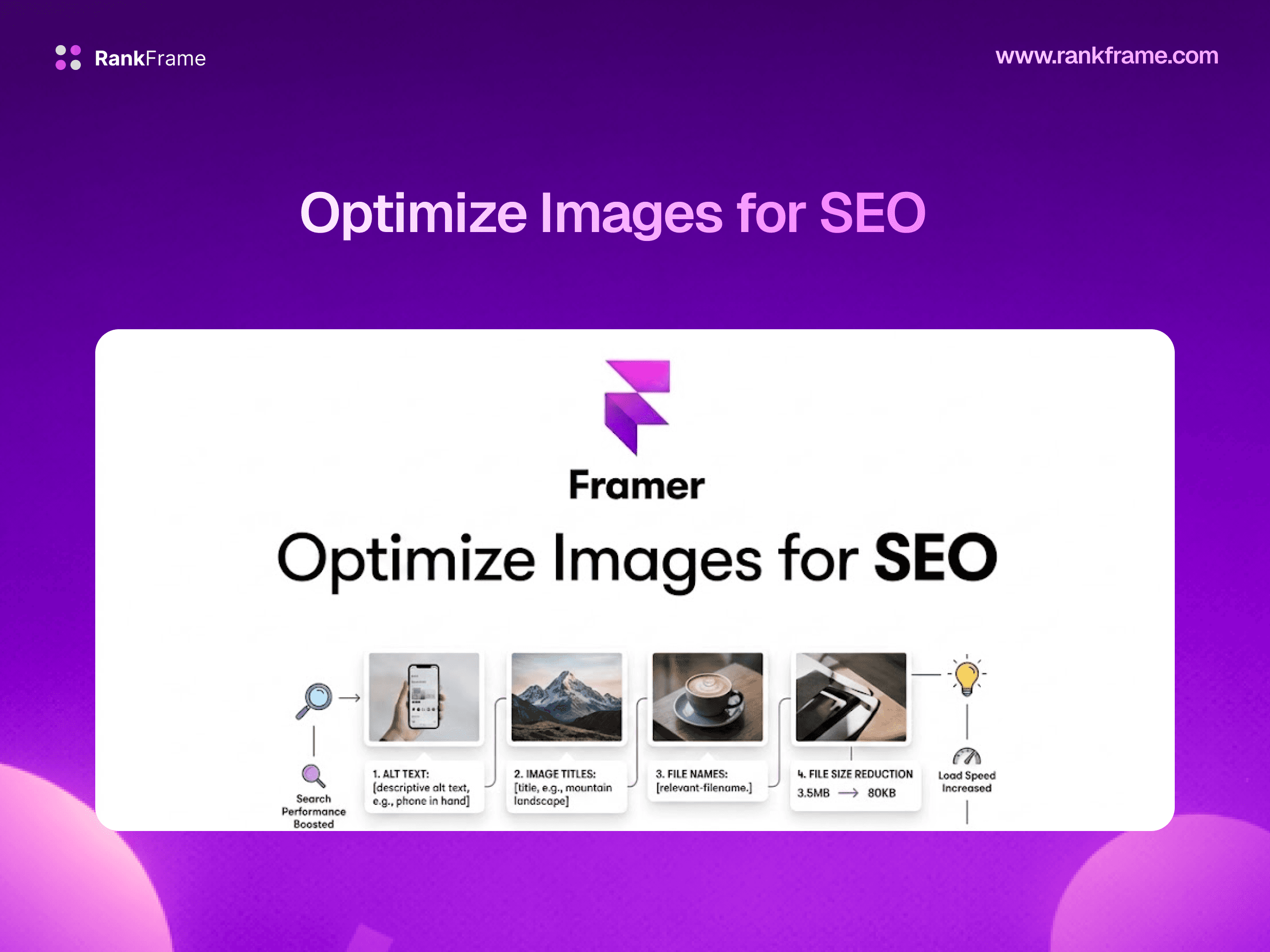
How to Optimize Images for SEO in Framer (Complete Guide)
Why Image SEO Matters for Framer Sites
Images make up a significant portion of the bytes that load on most web pages. On a typical Framer site with a hero image, feature screenshots, team photos, and blog thumbnails, images can easily account for 60 to 80 percent of total page weight. That alone is a reason to take image SEO seriously. But there are four distinct reasons image optimization directly affects your search rankings and organic traffic.
Page speed is a Google ranking factor
Google has confirmed that page speed is a ranking signal, and images are the single largest contributor to slow load times. Large, uncompressed images fail Core Web Vitals metrics like Largest Contentful Paint (LCP) and push your page down in the rankings compared to faster competitors. Framer addresses some of this automatically with WebP conversion and CDN delivery, but there are still decisions you control, including source file size, image dimensions, and whether lazy loading is applied correctly.
Google Images is a real traffic source
Google Images generates meaningful traffic for sites that publish original visual content: product photography, infographics, diagrams, illustrations, and screenshots. For images to appear in Google Images results, Google needs to understand what they show. Alt text is the primary signal. An image without alt text is essentially invisible to search engines beyond the context of the surrounding text.
Accessibility and alt text overlap directly
Alt text was originally an accessibility feature. Screen readers use it to describe images to users with visual impairments. Writing descriptive, accurate alt text fulfills a legal accessibility obligation in many jurisdictions and, because Google’s crawlers process pages similarly to screen readers, it simultaneously improves your SEO.
Images can support rich results and structured data
When you use schema markup (Article, Product, Recipe, etc.) and reference a properly described image within that schema, Google can use it in rich results. A blog post article schema with a high-quality representative image is more likely to appear with a visual thumbnail in search results than one without.
Key point
Image SEO is not just about alt text. It spans file preparation, naming, dimensions, format choice, compression, and how Google discovers and indexes images on your site. This guide covers all of it.
How Framer Handles Images: WebP, CDN, and Lazy Loading
Before optimizing images, it helps to understand what Framer already does for you automatically and what it does not handle.
Automatic WebP conversion
When you upload an image to Framer, whether JPEG, PNG, or another raster format, Framer serves it as WebP to browsers that support the format. WebP files are typically 25 to 35 percent smaller than equivalent JPEG files at the same visual quality, and 25 to 50 percent smaller than PNG. This happens at the CDN delivery layer without any action required from you. You do not need to manually convert images to WebP before uploading.
Global CDN delivery
Framer hosts images on a global content delivery network. When a visitor loads your page, images are served from the CDN node closest to their location rather than a single origin server. This reduces latency and improves perceived load speed across geographic regions.
Lazy loading
Framer applies lazy loading to images below the fold by default. This means the browser only loads images when they are about to enter the viewport, rather than loading all images on page load. This improves initial page load time and reduces wasted bandwidth for users who never scroll far enough to see a given image.
What Framer does not handle
Framer does not add alt text automatically. It does not enforce file naming conventions. It does not warn you when images are missing alt text. It does not provide a site-wide image audit. These are the gaps that RankFrame’s Image SEO feature is built to fill.
Good news for Framer users
Framer handles the hardest parts of technical image optimization automatically: WebP conversion, CDN delivery, and lazy loading. The remaining work is mostly content and metadata, which is where this guide focuses.
Alt Text Explained: What It Is and Why It Matters
Alt text (alternative text) is an HTML attribute on image elements that provides a text description of the image. The alt attribute serves three functions simultaneously. For users: if the image fails to load, the alt text displays in its place. For screen reader users: the software reads the alt text aloud to describe what the image shows. For search engines: the alt text is the primary text signal Google uses to understand what the image depicts and whether it is relevant to a given search query.
What makes good alt text
Good alt text is specific and descriptive. It describes what is actually in the image without being generic. It uses natural language rather than keyword-stuffed strings. Here is how the quality spectrum looks in practice:
Quality | Example alt text | Problem |
|---|---|---|
Empty | (blank) | Google cannot understand the image at all |
Generic | image1.jpg | Filename, not a description |
Vague | Screenshot of a dashboard | Too generic to help rankings |
Keyword-stuffed | framer seo framer image seo framer plugin seo | Spam signal, may hurt rankings |
Good | RankFrame keyword tracker showing position history for “framer seo” with a sparkline chart | None. Descriptive, specific, natural |
Decorative images
Not every image needs a descriptive alt text. Decorative images, those that are purely visual and add no informational value (background patterns, dividers, abstract shapes), should use an empty alt attribute: alt=””. This signals to screen readers to skip the image and tells Google it is decorative. Do not leave alt blank by accident and do not write “decorative image” as the alt text. An intentionally empty alt attribute is the correct approach.
How to Add Alt Text Manually in Framer
Select the image on your canvas
Click on an Image component on your Framer canvas. Make sure you have selected the image element itself and not a wrapper frame. The properties panel on the right side of the Framer editor will update to show the image’s settings.
Find the Alt Text field
In the right-hand properties panel, scroll down until you see the section labeled “Image” or look for the “Alt Text” input field. In current versions of Framer, this field appears below the image source and object-fit controls. It is a plain text input.
Write a descriptive alt text string
Click into the Alt Text field and type a description of the image. Be specific about what the image shows. If the image is a product shot, describe the product and its context. If it is a screenshot of a UI, describe what the UI is showing. Aim for one to two sentences of plain natural language. Avoid repeating the same string across multiple images.
Publish your site to apply the change
Alt text changes made in the Framer editor are not live until you publish. Click the Publish button in the top-right of Framer to deploy your changes. After publishing, you can inspect the live HTML to verify the alt attribute is present using your browser’s developer tools.
CMS images need special handling
If your Framer site uses CMS collections with images, the Alt Text field in your design applies as a template default. To set unique alt text per CMS item, you need to add an alt text field to your CMS collection and bind it to the image component. RankFrame’s Image SEO explorer surfaces CMS images alongside static images so you can see the full picture.
Why Manual Alt Text Does Not Scale
For a five-page Framer site with a dozen images total, the manual approach works. You click each image, write the alt text, and you are done. But consider what happens when your site grows.
A typical Framer marketing site after twelve months of active development might have: a homepage with eight or more hero and feature images, a blog with 30 posts each containing two to five images (60 to 150 images), a case studies section with screenshots and before/after images, a pricing page, team page, and product docs. That is potentially 200 to 400 images, each of which needs a unique, descriptive alt text.
There is also no way in native Framer to get a list of all images missing alt text. You cannot search for “images with empty alt” or generate a report. This is the core problem RankFrame solves with its Image SEO tab.
The 50-image threshold
In practice, manual alt text management becomes unworkable around 50 images. Below that, doing it by hand is reasonable. Above it, you need a tool that can show you the full inventory and let you act on multiple images at once.
File Naming Best Practices for Framer Images
When you upload a file named IMG_4823.jpg to Framer, the platform renames it to a hash-based filename for CDN delivery. The original filename you used before upload is not preserved in the public URL. So does file naming matter for Framer SEO?
The answer is: it matters less than it once did, but it is still worth doing correctly for two reasons.
Google can sometimes read original filenames from image metadata
While Framer’s CDN renames files, the original filename may persist in image EXIF data or be referenced in your sitemap. Google’s image crawlers are sophisticated and look at all available signals. Using descriptive filenames before upload is low-effort hygiene that costs nothing.
Good filenames help your own workflow
When you look at your image audit in RankFrame or review your site’s assets, descriptive filenames make it immediately clear what each image is.
File naming rules to follow
Use hyphens to separate words (not underscores, not spaces)
Use lowercase letters only
Describe the image content specifically: what is shown, not where it lives
Keep names under 60 characters
Avoid generic names like image, photo, screenshot without further context
Bad filename | Good filename |
|---|---|
IMG_9274.jpg | rankframe-bulk-alt-text-generator.jpg |
screenshot1.png | framer-image-seo-explorer-view.png |
hero image final v3.jpg | framer-seo-plugin-dashboard-hero.jpg |
photo.webp | framer-site-google-search-console-connected.webp |
Image Dimensions and Responsive Sizing in Framer
Image dimensions affect SEO in two ways: they influence page load performance, and they impact Core Web Vitals metrics (particularly Cumulative Layout Shift and Largest Contentful Paint).
Set explicit width and height
When a browser loads a page, it needs to know the dimensions of each image before the image has fully downloaded in order to reserve the right amount of space in the layout. If width and height are not specified, the browser cannot reserve space and the layout shifts as images load. This layout shift is measured by the CLS (Cumulative Layout Shift) Core Web Vitals metric, and a high CLS score hurts your Google rankings.
In Framer, set explicit pixel dimensions for images in the design panel. Do not leave width or height set to “auto” for above-the-fold images.
Match image resolution to display size
Uploading a 4000x3000 pixel image when it displays at 400x300 pixels on the page wastes bandwidth even after WebP conversion. Before uploading to Framer, resize images to approximately twice their maximum display size (for retina/HiDPI screens) but not beyond that.
Use Framer’s responsive image controls
Framer supports responsive image settings through its design panel. You can set images to scale with their container, maintain aspect ratios, and behave differently at different breakpoints. Make sure your images do not overflow their containers at mobile breakpoints, as oversized images on mobile degrade mobile page speed scores, which Google measures separately.
Practical sizing guidance
For a full-width hero image on a 1440px wide site, upload a source image no wider than 2880px (2x for retina). For a blog post inline image displayed at 820px wide, upload at 1640px. For thumbnails displayed at 300x200px, upload at 600x400px.
RankFrame Image SEO: Bulk Optimization and Auditing
RankFrame is a Framer plugin that adds a suite of SEO tools directly inside the Framer editor. Its Image SEO tab is purpose-built to solve the problem of managing image alt text and auditing image optimization across an entire Framer site, not page by page.
The explorer view
When you open RankFrame’s Image SEO tab, you see an explorer view of every image across your site. Each row shows the image preview, the page it lives on, the current alt text (or a “missing” indicator), and the image URL. You can filter by page, sort by missing alt text first, and search for specific images. This gives you an immediate inventory of your image SEO status without clicking through every page in the editor.
AI bulk alt text generation
RankFrame can analyze your images and generate descriptive alt text using AI. The process works like this: you select one or multiple images that are missing alt text in the explorer view, trigger the AI generation, and RankFrame produces contextually accurate alt text based on what it can determine about the image and its surrounding page context. You can review and edit the generated text before applying it. For a site with 200 images missing alt text, this workflow reduces hours of manual writing to a review-and-approve process.
Global suffix
RankFrame’s Image SEO tab includes a global suffix feature. This lets you append a consistent brand or context string to all alt text across your site. For example, you might append “ | RankFrame” to all images on your marketing site. This is useful for brand consistency and for reinforcing topical relevance signals across a large image library.
CSV export
Once your image audit is complete, RankFrame lets you export the full image SEO report as a CSV file. The export includes image URLs, page locations, current alt text values, and flags for missing or empty alt text. This is useful for keeping records, sharing with a content team, or providing to clients as part of an SEO deliverable.
How to Audit Which Images Are Missing Alt Text
There are two ways to audit missing alt text on a Framer site: a manual browser-based method and the RankFrame method.
Manual audit with browser developer tools
You can open your published Framer site in Chrome, open DevTools (F12), and run a JavaScript query in the Console to find images with empty or missing alt text. This gives you a list for the current page only. You would need to run it on every page of your site and manually compile the results.
Using RankFrame’s Image SEO tab for the audit
Install RankFrame from the Framer Marketplace
Open your Framer project and go to Plugins in the top menu. Search for RankFrame in the Marketplace and install it. Once installed, open the plugin panel.
Navigate to the Image SEO tab
Inside the RankFrame plugin, click the Image SEO tab. RankFrame will scan your Framer project and populate the explorer view with every image it finds across all pages.
Filter for images with missing alt text
Use the filter controls at the top of the explorer view to show only images with missing or empty alt text. This immediately surfaces the images that need attention without scrolling through your entire image library.
Fix alt text individually or in bulk
Click into any image row to edit its alt text directly, or select multiple images and use the AI generation feature to produce alt text for all selected images at once. Review the generated text, make any edits, and save. Changes are applied directly to your Framer project and take effect when you publish.
Export your audit report
Once you have completed the audit and applied fixes, export the report as a CSV for your records. The export shows before and after states and can be used to demonstrate the scope of the optimization work to stakeholders or clients.
Page Speed, WebP, and What RankFrame Shows
Image optimization and page speed are closely linked. Google’s Core Web Vitals score, which is a ranking signal, is directly affected by how fast your images load and how they affect visual stability during load.
What Framer handles automatically
Framer’s WebP conversion and CDN delivery provide a strong performance baseline out of the box. Most Framer sites start with better image delivery performance than comparable WordPress sites, where you typically need plugins for CDN delivery and WebP conversion.
What you still control
Even with Framer’s automatic optimizations, several image-related performance factors remain in your hands:
Source file dimensions: Uploading a 6000px wide image when it displays at 600px forces the browser to decode a much larger image than necessary, consuming more CPU and memory
Source file compression: Compressing JPEG images to 80-85 quality before uploading reduces the source from which Framer creates its WebP version
Above-the-fold image priority: Your hero image is almost always the Largest Contentful Paint element. Make sure it is not lazy-loaded and that its dimensions are set explicitly
Total image count: Even small WebP images add up. Pages with 30+ images will load slower than pages with 10, all else being equal
Using RankFrame’s page speed data
RankFrame includes page speed data derived from Google’s Lighthouse and Core Web Vitals reporting. Within the plugin, you can see speed scores per page and identify which pages are underperforming. If a page has a poor LCP score and it has a large hero image, that is usually the starting point for investigation. Combined with the Image SEO tab, RankFrame gives you the data to connect image optimization work to measurable speed improvements.
Core Web Vitals checklist for Framer images
Hero image: explicit dimensions set, not lazy-loaded, source file under 200KB before WebP conversion
All images: width and height attributes present to prevent CLS
Below-fold images: lazy loading applied (Framer default)
Source files: resized to 2x display size maximum before upload
All non-decorative images: alt text present and descriptive
Image SEO on multi-language sites
Alt text is generated in English first, then translated into every locale you have added to your Framer site. Switch locale in the plugin, then use the copy button on the image card to paste the translated alt text into Framer for that language version.
Frequently asked questions
Does Framer automatically add alt text to images?
No. Framer does not automatically generate or add alt text to images. Every image you upload starts with an empty alt attribute. You need to add alt text manually in the Image component properties panel, or use a plugin like RankFrame to generate and manage alt text in bulk across your entire site.