
<- Go Back
Keyword Tracker
Keyword Tracker vs Keyword Research: What to Use When in RankFrame
Understand the difference between the RankFrame Keyword Tracker (Submit Indexing) and the Global Keywords tab (Global Settings). Learn which tool is for research and which is for ranking monitoring, and how to use both together.
Last Updated on
Read Time
3 min read
At a Glance: Two Features, Two Jobs
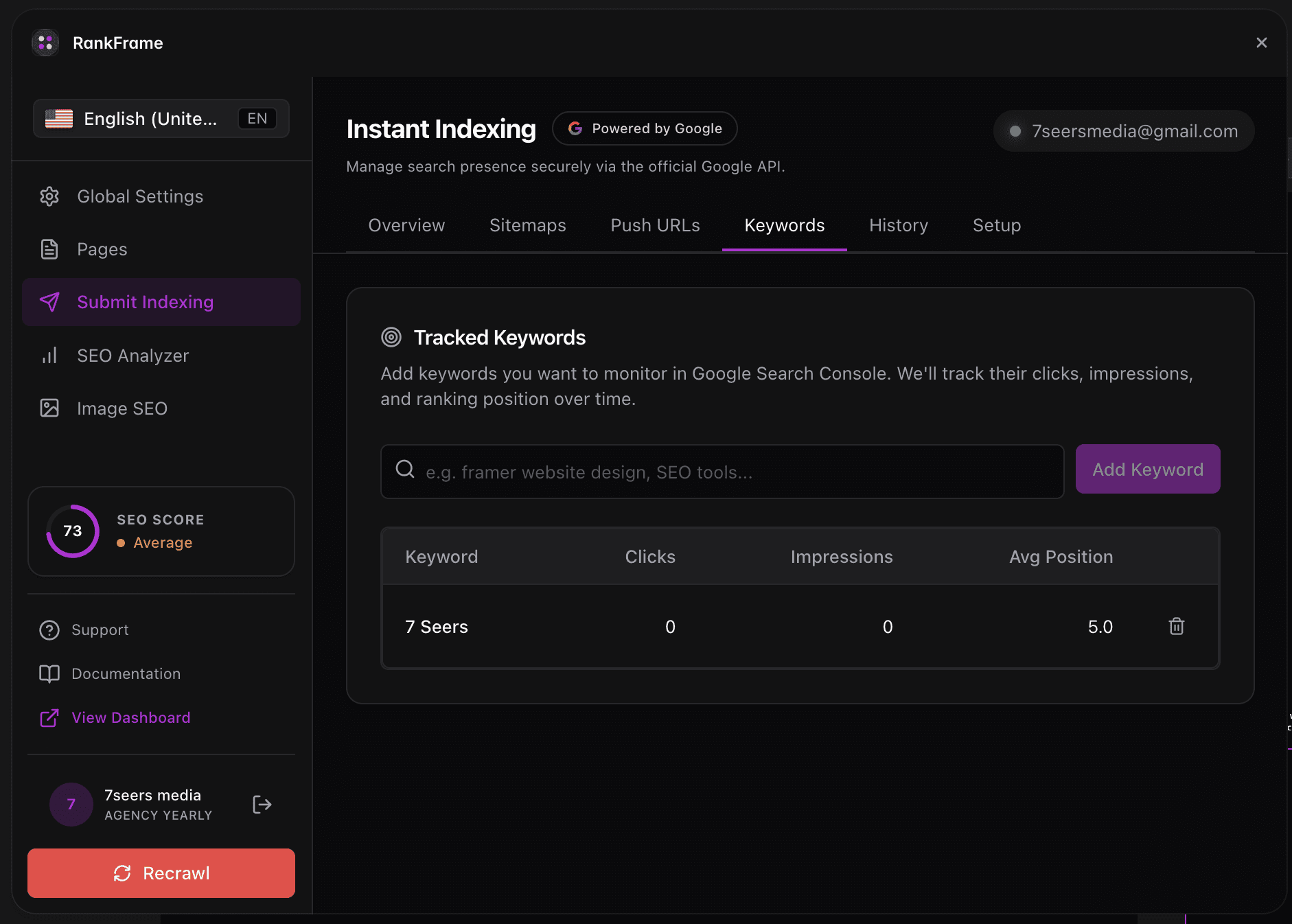
These two tools are intentionally separate. One helps you decide what to target before publishing. The other tells you how you are performing after you publish.
Global Settings: Global Keywords tab: Research Tool
Check search volume, keyword difficulty, competition, and CPC
Assign focus keywords to individual pages
Enable meta keyword injection via Focus Keyword Script toggle
Use before you optimize or publish a page
No Google Search Console connection required
Submit Indexing: Keyword Tracker: Monitoring Tool
Watch how tracked keywords perform over time in Search Console
See impressions, clicks, and average position
View sparkline charts for position history trends
Use after your pages are live and indexed
Requires an active Google Search Console connection
1. The Global Keywords tab (Global Settings) is for Research
When you are deciding which keyword to target on a page, the Global Keywords tab is where you go first. Enter a term, click Check, and get Search Vol, KD (keyword difficulty), Competition, and CPC. This tells you whether the keyword is worth targeting before you spend time optimizing. Once you decide to pursue a term, click Save to assign it to the selected page. The focus keyword can also be injected into a meta keywords tag via the Focus Keyword Script toggle, which adds the term to your published page's head automatically.
2. The Keyword Tracker (Submit Indexing) is for Monitoring
Once your pages are live and indexed, the Keyword Tracker shows you how those pages are actually performing on Google. It reads from Search Console, so it reflects real user searches, real clicks, and real positions. This is where you go to answer: "Is my SEO working? Is my position improving or declining?" Add the keywords you are actively targeting here and check the sparkline history weekly. The Keyword Tracker does not give you research data (volume, difficulty): it gives you performance data from Google's own index.
3. The Recommended Workflow
These two tools are designed to work in sequence. Research first, then optimize, then monitor. Here is the full loop:
Research in the Global Keywords tab. Find a keyword with manageable difficulty and reasonable volume for your domain authority.
Optimize the target page for that keyword: update the title, meta description, headings, and body content to address the query intent.
Add the keyword to the Keyword Tracker so you can watch its position over time.
Monitor position history week over week using the sparkline chart. Look for the trend direction, not individual data points.
Return to the Global Keywords tab if you decide to target a different or additional keyword, then restart the loop.
4. They Do Not Share Data
The Global Keywords tab and the Keyword Tracker are independent lists. A keyword saved in the Global Keywords tab is not automatically added to the Keyword Tracker, and vice versa. You manage each list separately. This separation is intentional: research and monitoring serve different use cases and different audiences. A client-facing ranking report comes from the Keyword Tracker. A page optimization decision comes from the Global Keywords tab. Keeping them separate means each tool stays focused on its job.
5. When to Use the Global Keywords tab Alone
Some workflows only require the Global Keywords tab, with no need to open the Keyword Tracker at all. Use the Global Keywords tab alone when you are in early-stage research before launching a new page, exploring whether a niche has any search demand at all, checking competitor-branded terms to see their difficulty, or finding long-tail keywords to weave into existing content. You do not need a live Google Search Console connection for any of this. The Global Keywords tab works on third-party search data and is available from the moment you open RankFrame.
6. When to Use the Keyword Tracker Alone
Once your strategy is defined and pages are live, you may spend most of your time in the Keyword Tracker without revisiting the Global Keywords tab at all. Use the Keyword Tracker alone for ongoing monitoring of an established site, checking the impact of a content update on position, reviewing which pages are gaining or losing ranking, or generating weekly ranking reports for clients by reviewing sparkline trends. You need the Google Search Console connection configured in RankFrame for this feature to function. If the connection is not set up, the Keyword Tracker will show no data.
A Practical Scenario
Here is what using both tools together looks like in a real project.
Practical Example: Framer Design Studio
You run a Framer design studio. You open the Global Keywords tab and research "Framer website designer." The result: KD 38, Vol 480/mo. Worth targeting. You optimize your about page for that term: update the title, rewrite the meta description, and add a heading that matches the query. You save the focus keyword in the Global Keywords tab. You then add "Framer website designer" to the Keyword Tracker. Three weeks later the sparkline shows your position moved from 22 to 14. Solid progress. You update the page copy to go deeper on the topic and run another SEO audit. The next week you are at position 9. One more push and you are on page one. This is the research-to-monitoring loop working as designed: each tool does one job well, and together they cover your full SEO workflow from strategy to results.
Frequently asked questions
Should I add every keyword from the Global Keywords tab to the Keyword Tracker?
Only add keywords you have actually optimized a page for. Tracking keywords you are not actively targeting clutters the list and makes trend data harder to read. A focused Keyword Tracker with 10 to 20 well-chosen keywords is more useful than one with 100 unrelated terms.