
<- Go Back
Keyword Tracker
How to Add Keywords to the RankFrame Keyword Tracker
Step-by-step guide to adding single and multiple keywords to the RankFrame Keyword Tracker. Learn how to use comma-separated entry, verify keywords were saved, and build a focused keyword tracking list for your Framer site.
Last Updated on
Read Time
3 min read
Step-by-Step: Adding Keywords
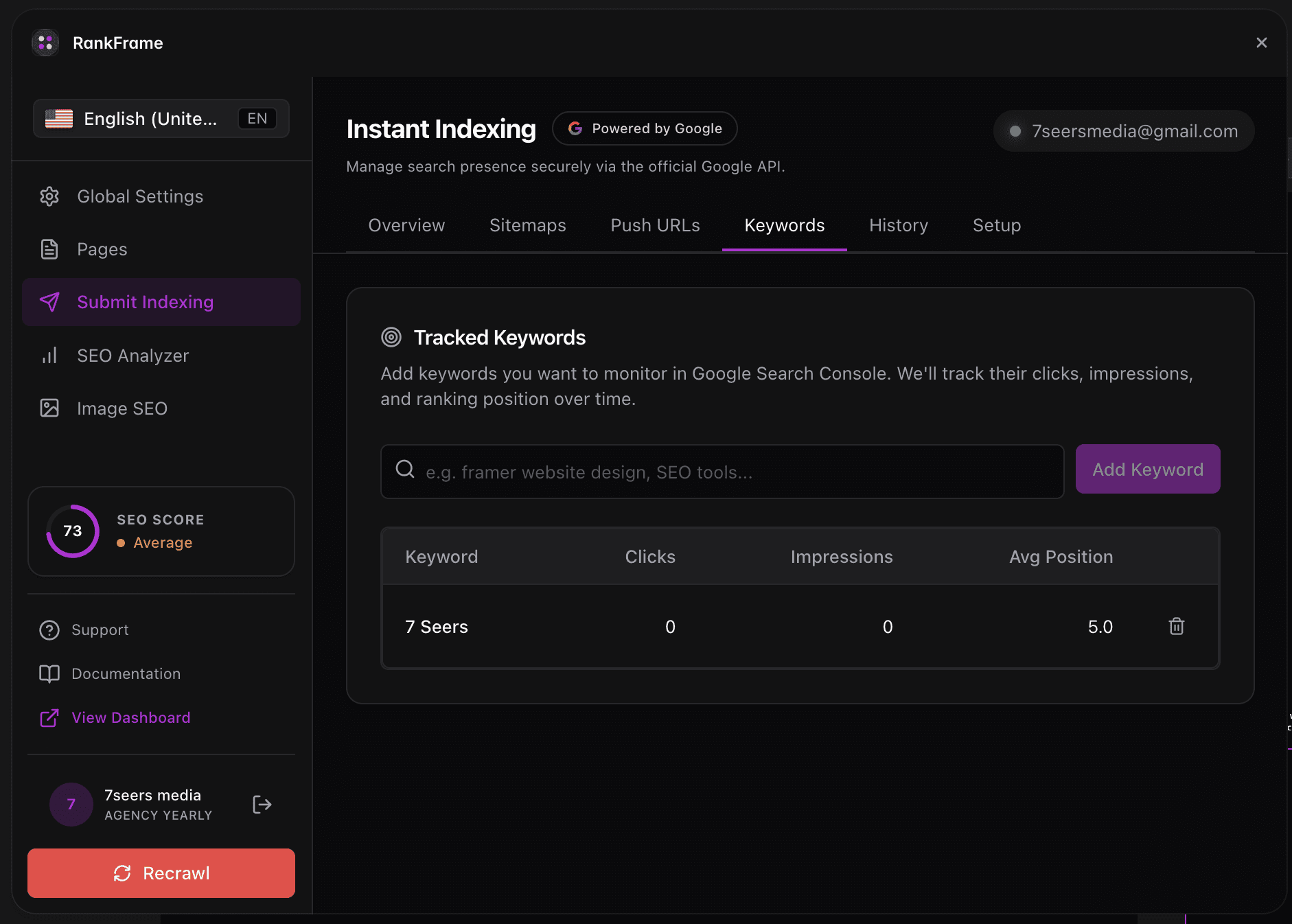
Open Submit Indexing and navigate to the Keyword Tracker tab.
Click the lightning bolt icon in the left sidebar of RankFrame to open Submit Indexing. Then click the Keyword Tracker tab across the top of the panel.
Click the keyword input field.
The input field sits at the top of the tab, above the Keyword Manager table. Click anywhere in the field to activate it.
Type your keyword or keywords.
To add a single keyword, type it and proceed. To add multiple keywords at once, separate them with commas. Example:
Framer SEO plugin, best Framer plugin, Framer schema markup.Click Save.
Each comma-separated term becomes its own row in the Keyword Manager table immediately.
Wait 48 to 72 hours for data to populate.
Google Search Console data has a built-in lag. Impressions, Clicks, and Search Position cells fill in automatically as Search Console data becomes available.
1. The Keyword Input Field
The input field spans the full width of the tab, above the Keyword Manager. It has placeholder text suggesting example keywords in the expected format.
You can add multiple keywords at a time by separating them with commas.
2. Adding Multiple Keywords at Once
Separate keywords with commas. Example: Framer SEO, SEO plugin Framer, best Framer tools. After clicking Save, each term becomes an individual tracked keyword row in the table.
3. What Happens After Clicking Save
Your keywords appear immediately in the Keyword Manager table. At first, the Impressions, Clicks, Search Position, and Position History cells are empty. These fill in automatically as Google Search Console data becomes available for each term.
4. Keyword Manager Search
Use the search field in the Keyword Manager header to filter the table in real time. Type part of any keyword to show only matching rows.
Tips for Building a Useful Tracking List
Track your primary target keywords from day one to build baseline history from the start.
Include branded terms to monitor branded search growth over time.
Include competitor comparison terms if your content targets that intent.
Keep the list under 50 keywords to keep the table readable.
Frequently asked questions
Can I add the same keyword twice?
If you type a keyword that is already in the tracker, it is added as a duplicate row. Check the Keyword Manager before adding terms to avoid duplicates.