8 min read
How-To Guide
Framer Sitemap: Everything You Need to Know
Framer auto-generates a sitemap at yourdomain.com/sitemap.xml. Here's what's in it, what gets left out, and how to submit it to Google Search Console.

Team 7 Seers
Framer Sitemap: Everything You Need to Know
What Is an XML Sitemap and Why Does It Matter?
An XML sitemap is a file that lives on your website and lists the URLs you want search engines to know about. Think of it as a map you hand directly to Googlebot so it does not have to discover every page by following links alone.
For a Framer site, having a working sitemap matters for three reasons. First, it speeds up discovery. Second, it signals completeness. Third, it gives you a feedback mechanism: Google Search Console uses your sitemap submission to report back which URLs it discovered, which it successfully indexed, and which had errors.
Quick context: sitemaps vs. robots.txt
A sitemap tells crawlers which pages exist and you want crawled. A robots.txt file tells crawlers which pages they should not crawl. The two work together. If you have not checked your Framer robots.txt, it lives at yourdomain.com/robots.txt and should reference your sitemap URL.
Where to Find Your Framer Sitemap URL
Your Framer sitemap URL is always in the same place: yourdomain.com/sitemap.xml. Framer generates this file automatically when you publish your site, and it updates automatically every time you publish changes.
If your site is on a Framer subdomain before a custom domain is connected, the sitemap lives at yoursite.framer.website/sitemap.xml. Once you connect a custom domain, the sitemap URL switches to your custom domain. Always use the custom domain URL when submitting to Google Search Console, not the Framer subdomain.
How to verify your sitemap is live
Open a browser and go to yourdomain.com/sitemap.xml. A working Framer sitemap will render as an XML file. If you see a 404 error, it means your site has not been published yet, or you are accessing the wrong URL.
What Pages Are Included in the Framer Sitemap?
What gets included
Published canvas pages: Every page you have built in the Framer canvas editor and published will appear in the sitemap.
Published CMS collection pages: Individual CMS items are included as long as they are published and not set to noindex.
CMS collection list pages: The top-level collection page (e.g., /blog or /projects) is included alongside the individual item pages.
What gets excluded
Pages set to "Hide from search engines": Any page with the noindex toggle enabled in its SEO settings is excluded from the sitemap.
Draft or unpublished pages: Pages that exist in your Framer project but have not been published do not appear in the sitemap.
Password-protected pages: Pages behind a password are excluded automatically.
Redirect URLs: If a URL redirects to another URL, the redirect source is not included in the sitemap.
Watch out: the "Hide from search engines" toggle affects the sitemap too
Many Framer users turn on "Hide from search engines" on pages they want to keep private, not realizing it also removes that page from the sitemap. If you are wondering why a page is missing from your sitemap, this toggle is the first place to check.
Page Type | Included in Sitemap? | Condition |
|---|---|---|
Published canvas pages | Yes | Not set to noindex |
CMS collection list pages | Yes | Not set to noindex |
CMS individual item pages | Yes | Published and not set to noindex |
Draft pages | No | Must be published first |
Noindex pages | No | "Hide from search engines" is on |
Password-protected pages | No | Always excluded |
Redirect sources | No | Destination URL is included instead |
CMS Collection Pages and the Sitemap
CMS pages deserve special attention because they are the most common source of sitemap confusion for Framer users. When you publish a new blog post or case study in a CMS collection, Framer updates the sitemap automatically the next time you publish the overall site. The key phrase is "next time you publish."
Framer does not update the sitemap in real time when you create a new CMS item. The sitemap only regenerates when you trigger a publish action from the Framer editor.
Noindex on CMS items
You can set individual CMS items to noindex via a CMS field connected to the page SEO settings. If you have a "Draft" or "Hidden" toggle in your CMS schema that maps to the noindex setting, any item with that toggle enabled will be excluded from the sitemap.
How to Submit Your Framer Sitemap to Google Search Console
1. Verify your site in Google Search Console
Before you can submit a sitemap, Google needs to verify you own the site. Go to search.google.com/search-console and add a new property for your domain. The easiest verification method for Framer sites is the HTML meta tag method: copy the verification tag from Search Console, paste it into the Custom Code section of your Framer site settings (in the Head section), then publish and click Verify.
2. Open the Sitemaps report
Once your property is verified, look at the left navigation panel in Search Console. Click on "Indexing" to expand that section, then click "Sitemaps." This opens the sitemap management panel where you can submit new sitemaps and review previously submitted ones.
3. Submit your Framer sitemap URL
In the "Add a new sitemap" input field, Google pre-fills your domain. You only need to type the path: sitemap.xml. Click Submit. Google will immediately attempt to fetch your sitemap. If the fetch is successful, the sitemap appears in the list with a "Success" status and shows the number of discovered URLs.
4. Monitor indexing over the following days
After submission, return to the Sitemaps report periodically to check the "Discovered URLs" count. Cross-reference this with the Pages report under Indexing to see how many of those discovered URLs have actually been indexed. For brand new Framer sites, expect indexing to take anywhere from a few days to a few weeks.
Tip: resubmit your sitemap after major content updates
Google recrawls your sitemap automatically, but if you publish a large batch of new CMS content, manually resubmitting the sitemap in Search Console signals Google to prioritize recrawling. Delete the existing submission and submit it fresh.
What to Do When Pages Are Missing from the Sitemap
If you open your sitemap and a page you expect to see is missing, work through this checklist in order.
Check 1: Is the page published?
In the Framer editor, unpublished pages do not appear in the sitemap. Open the Pages panel, look for any pages marked as drafts or not yet published, and hit Publish if you want them included.
Check 2: Is "Hide from search engines" toggled on?
Select the page in the Framer editor, open the right-side panel, and navigate to the SEO tab. Check whether "Hide from search engines" (noindex) is enabled. If it is, disable it and republish.
Check 3: Is the page on a password-protected plan?
Framer's password protection feature excludes pages from the sitemap. If you have protected pages that you want indexed, you need to remove the password protection first.
Check 4: For CMS items, have you published after creating them?
Creating a CMS item in Framer does not automatically update the sitemap. You need to publish the site after adding new CMS content.
Check 5: Is the CMS item set to noindex via a field?
If your CMS schema has a field mapped to the page's noindex setting, verify that the specific item does not have that field enabled.
Check 6: Did you recently add the domain?
If you connected a custom domain very recently, the sitemap may temporarily serve from the old Framer subdomain URL. Give it a few minutes and try again.
A common trap: submitting the sitemap from the staging domain
Some Framer users submit yoursitename.framer.website/sitemap.xml to Google Search Console instead of the custom domain sitemap. This causes Google to index the wrong URLs. Always use your custom domain when submitting.
Framer Sitemap Limitations You Should Know
No lastmod timestamps
Framer does not include <lastmod> in its sitemap entries. Google uses lastmod as a hint for recrawl scheduling. Without it, Google decides independently when to recrawl your pages.
No per-page priority or changefreq
All pages in the Framer sitemap are treated equally with no priority or changefreq fields. Google officially states it ignores changefreq and priority in most cases anyway.
No sitemap index for large sites
Standard XML sitemaps have a limit of 50,000 URLs per file. Framer generates a single sitemap file with no sitemap index.
No image or video sitemap extensions
Google supports sitemap extensions for images and videos. Framer does not generate these extensions. If image or video search traffic is important for your site, this is worth noting.
No way to manually add URLs
The Framer sitemap is entirely auto-generated. You cannot add custom URLs, remove specific pages without noindexing them, or reorder entries.
Sitemap Feature | Framer Native | Notes |
|---|---|---|
Auto-generation | Yes | Updates on every publish |
CMS page inclusion | Yes | Published, non-noindex items only |
lastmod timestamps | No | Not included in sitemap entries |
Priority / changefreq | No | Google largely ignores these anyway |
Image sitemap | No | Requires custom implementation |
Sitemap index | No | Single file, 50K URL limit |
Manual URL additions | No | Sitemap mirrors published pages only |
How RankFrame Connects to Framer Indexing
The Framer sitemap tells Google which pages to crawl. What happens after Google arrives at those pages is a separate SEO challenge, and this is where RankFrame fits in.
Sitemap discovery vs. indexing quality
Submitting your sitemap is discovery. It solves the "does Google know this page exists?" question. But Google indexes pages based on quality signals, not just their presence in a sitemap. A page with thin content, missing meta tags, or no schema markup may be discovered through the sitemap but still rank poorly.
The indexing dashboard
RankFrame includes an indexing monitor that shows which of your Framer pages are indexed in Google and which are not. When a page shows up in the sitemap but has not been indexed, RankFrame surfaces that gap so you can act on it.
Schema markup injection
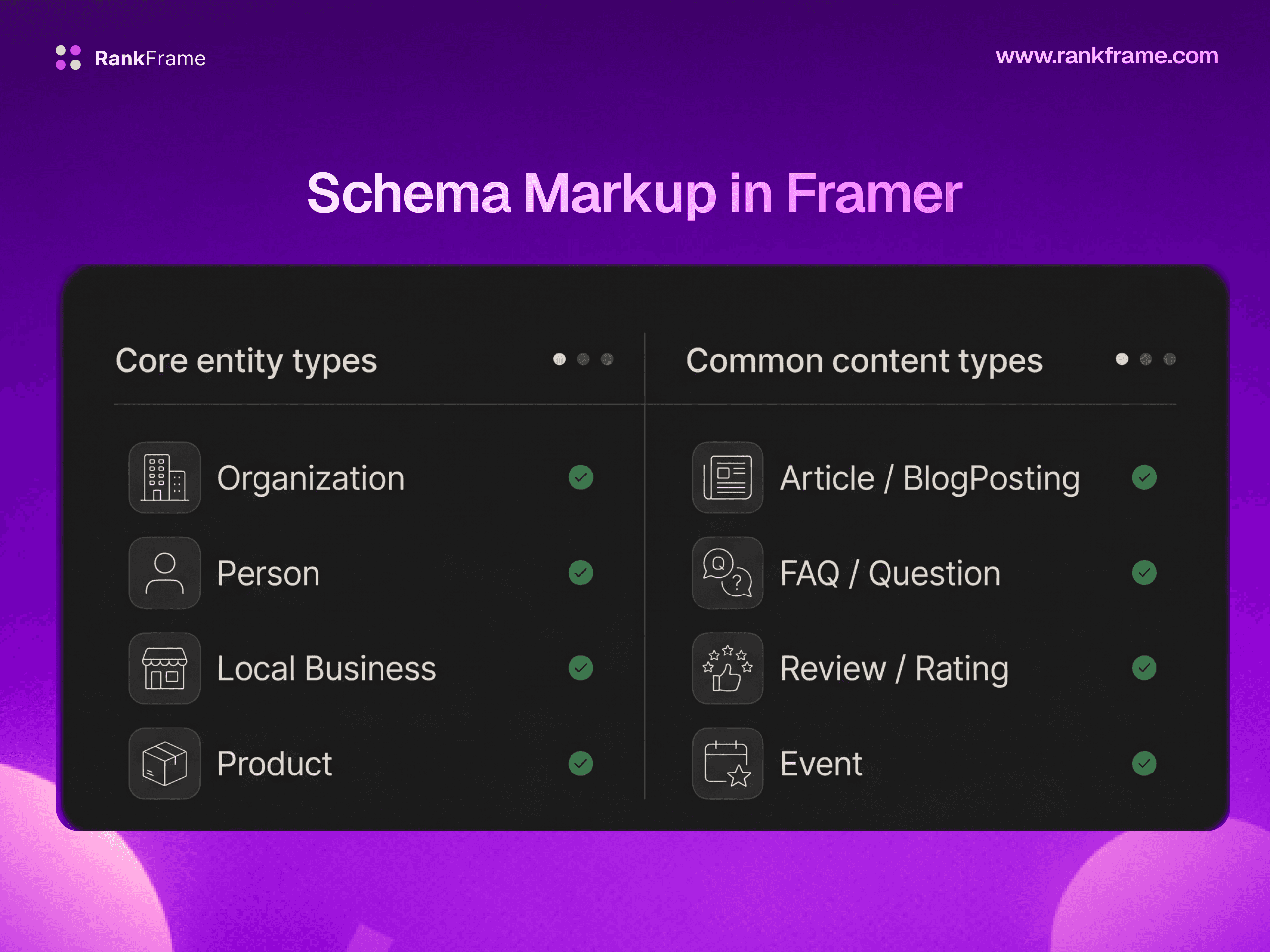
One reason pages fail to earn rich results despite being in the sitemap and indexed is the absence of structured data. RankFrame injects JSON-LD schema markup into your Framer pages automatically, covering schema types like Article, Organization, BreadcrumbList, LocalBusiness, FAQPage, and HowTo.
Meta tag completeness
RankFrame audits meta tags across all your Framer pages and flags any that are missing, too short, too long, or duplicated.
Keyword tracking per page
RankFrame's keyword tracker connects your Framer pages to target keywords and monitors their position in Google search results over time. This creates a direct feedback loop between your sitemap submission, indexing, and actual ranking performance.
The complete picture
Think of it this way: the sitemap is the invitation to Google. On-page SEO signals, schema markup, and meta tags are what make Google want to rank your pages once it accepts the invitation. Framer handles the sitemap automatically. RankFrame handles everything that comes after.
Frequently asked questions
Does Framer automatically generate a sitemap?
Yes. Framer automatically generates an XML sitemap for every published site. You do not need to install any plugin or write any code. The sitemap is created and maintained automatically whenever you publish changes.