
<- Go Back
Troubleshooting
Fixing Indexing Issues
RankFrame's Submit Indexing feature uses the official Google Indexing API to push URLs directly to Google. When a submission appears to fail or nothing happens, the cause usually falls into one of five categories. This article covers each one and how to resolve it.
Last Updated on
Read Time
4 min read
Five Causes of Indexing Failures
Trial Limit Reached
Symptom: The Push URLs button is greyed out or disabled. You cannot select any URLs to submit.
Cause: Trial accounts are limited to 2 total URL submissions. Once you have submitted 2 Framer page URLs, the Push URLs feature is locked until you upgrade.
Fix: Click the See Billing button in the Submit Indexing panel to view upgrade options. The Personal plan and Agency plan both remove the trial submission limit and provide full daily quota access.
Domain Not Verified
Symptom: Submissions appear to go through but URLs do not appear in Indexing History, or the Setup tab shows an error on the Domain Verification step.
Cause: RankFrame verifies your domain automatically during Google account connection. If the connected account does not have Owner or Full User access in Search Console, verification fails and submissions are rejected.
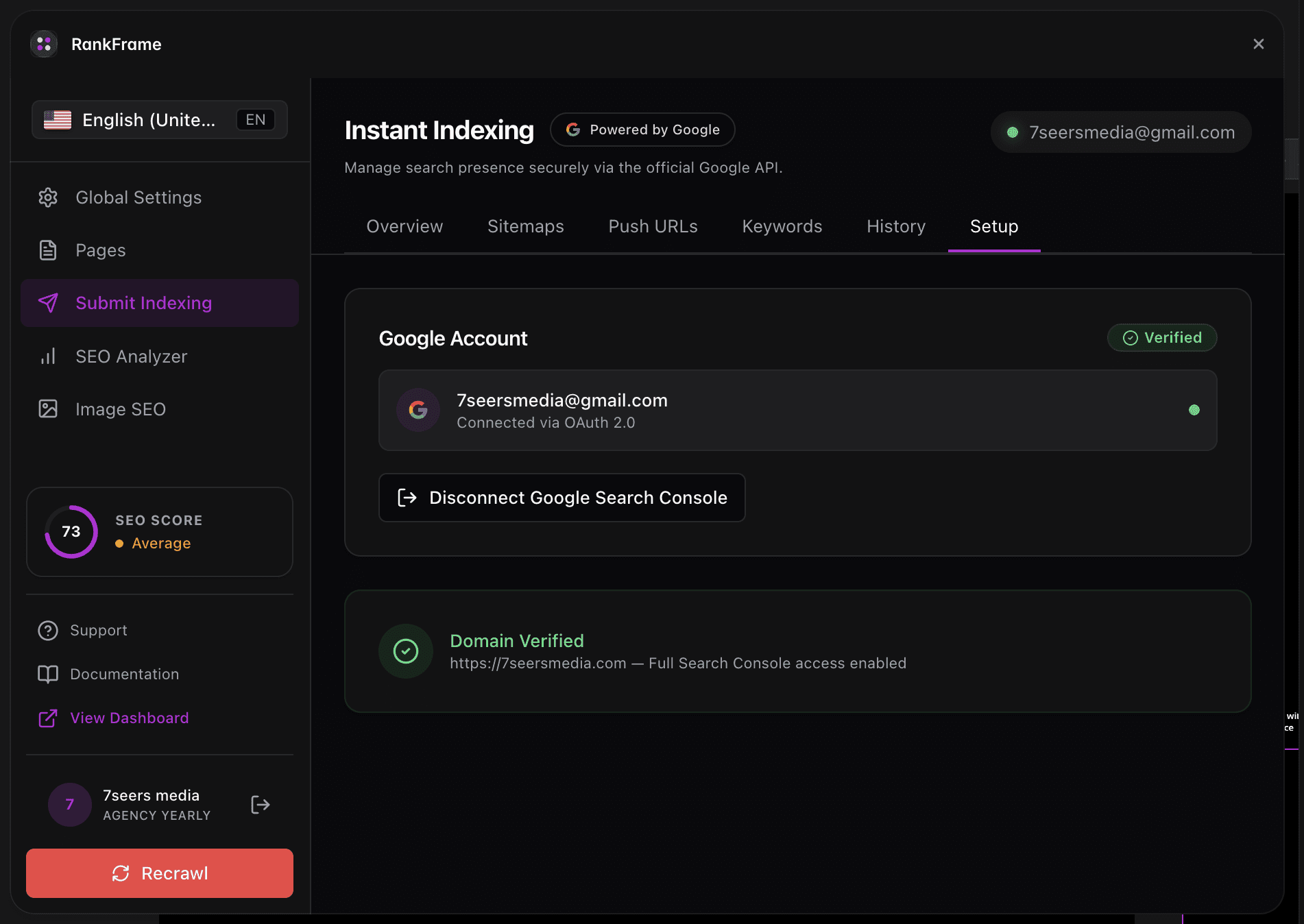
Fix: Open Submit Indexing > Setup tab. Check the Domain Verification step for an error indicator. If verification failed, disconnect your Google account, confirm the account has Owner or Full User access in Google Search Console, then reconnect.
Google Indexing API Quota Exceeded
Symptom: Some submissions succeed but then new submissions begin returning errors, often in the middle of a batch submission.
Cause: Google's Indexing API allows a maximum of 200 requests per day. Submitting a large sitemap at once can exhaust this quota in seconds.
Fix: Wait 24 hours for the daily quota to reset. Submit in small daily batches of 20 to 50 URLs rather than your entire sitemap at once.
Quota Strategy: Google's 200-request daily quota resets at midnight Pacific Time. Build a habit of submitting new and updated pages only, not your full URL list, each time you publish changes.
URL Not in Sitemap
Symptom: A URL was submitted but remains unindexed after several days even though the page is live.
Cause: Google's Indexing API works best with URLs already discoverable via your sitemap. If a page was recently added and the sitemap has not been updated, Google may not be able to fully validate the URL.
Fix: In the Submit Indexing panel, click Push Sitemap first to notify Google of your updated sitemap. Then resubmit the specific URL using Push URLs.
Wrong URL Format
Symptom: Manually entered URLs show errors or are not found even though the page is live.
Cause: The Google Indexing API requires fully qualified absolute URLs. Relative paths such as /about are not accepted. Typos in the domain or missing https:// also cause silent failures.
Fix: Verify every manually entered URL starts with https:// and includes the full domain. For example, use https://yourdomain.com/about instead of /about. URLs pulled from the sitemap inside RankFrame are auto-formatted correctly.
How to Check If a URL Was Successfully Indexed
After submitting a URL, use these methods to confirm whether Google has indexed it.
Using the Check Live Button in Indexing History
Open Submit Indexing > Indexing History. Find the URL you submitted and click the Check Live button. RankFrame queries Google's URL Inspection API and returns the current index status.
Status | What It Means | What to Do |
|---|---|---|
Submitted and Indexed | Google has the page in its index. | No action needed. |
Submitted | API call was accepted. Google has not yet processed the page. | Wait 24 to 72 hours, then check again. |
Not Indexed | Google is aware of the URL but has chosen not to index it. | Review the page for noindex tags, thin content, or canonical issues using SEO Analyzer. |
Error | The API call failed. | Review and resolve the applicable issue from the five categories above. |
Using Google Search to Verify Indexing
Open a browser and go to google.com.
In the search bar, type
site:yourdomain.com/your-page-slugreplacing the URL with your actual page URL.If Google returns a result showing that exact URL, the page is indexed. If Google returns zero results, the page is not yet in the index.
Note on Indexing Guarantees: The Google Indexing API increases the speed at which Google discovers your pages, but it does not guarantee indexing. If a page has a noindex directive, a canonical tag pointing elsewhere, or very thin content, it may not be indexed even after a successful API submission. Use RankFrame's SEO Analyzer to check for on-page issues that could block indexing.
Frequently asked questions
How long does it take for Google to index a submitted URL?
After you submit a URL through RankFrame's Submit Indexing, Google typically processes it within 24 to 72 hours. High-priority pages on established sites are often indexed within hours.