
<- Go Back
Troubleshooting
Fixing Google Connection Issues
RankFrame connects to Google via OAuth to enable Submit Indexing, Analytics, and Keyword Tracker. When the connection breaks or uses the wrong account, these features stop working. This article covers every Google connection symptom and how to fix it.
Last Updated on
Read Time
4 min read
Connection Symptoms and Fixes
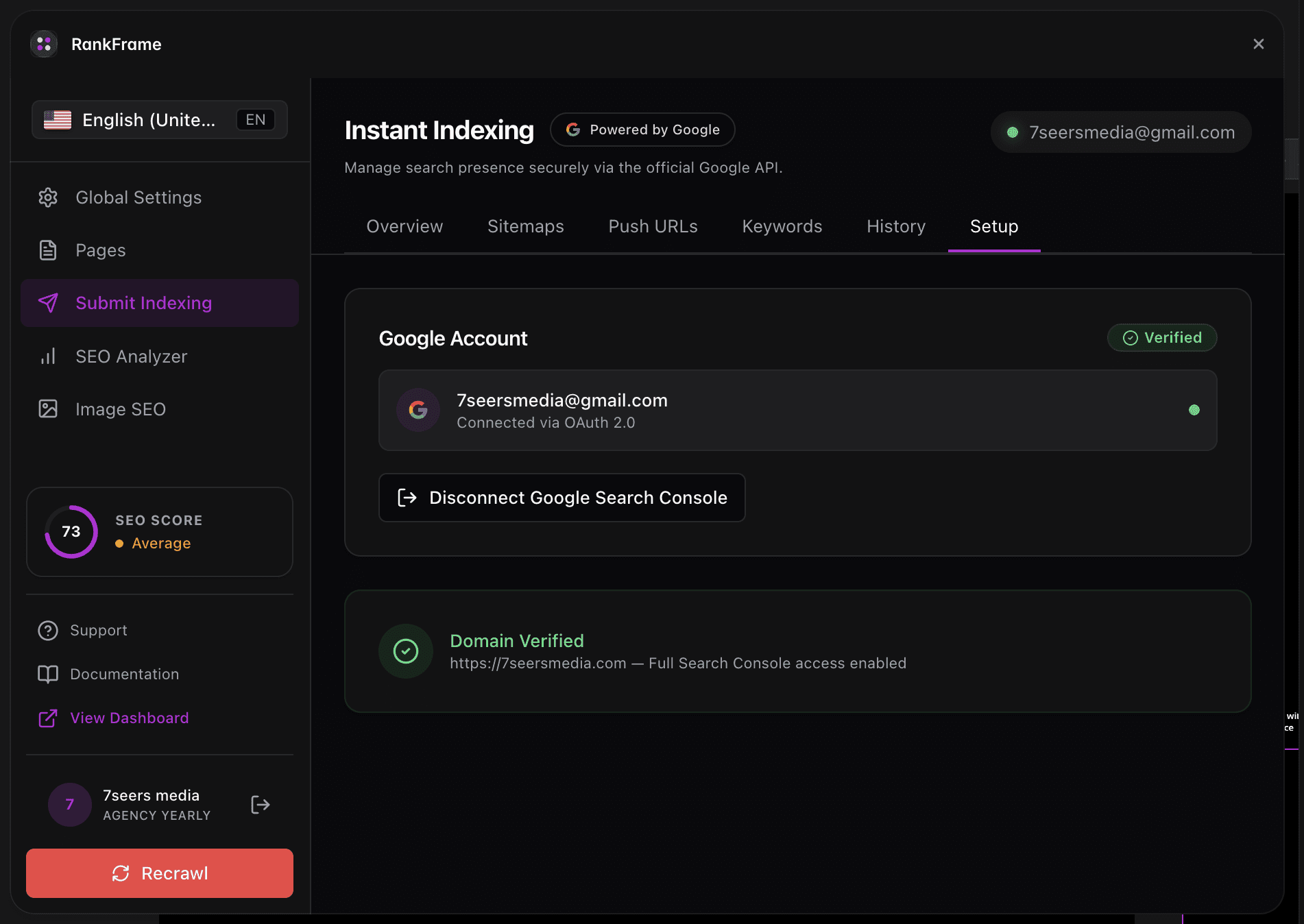
Submit Indexing Shows "Not Connected" or Fails to Load Data
Symptom: Submit Indexing displays "Not Connected", the panel spins indefinitely, or all data fields are blank.
Cause: Your OAuth token has expired or was revoked through Google Account security settings. This can happen after extended Framer sessions or a Google Account security event.
Fix: Open Submit Indexing, go to the Setup tab, click the red Disconnect link to clear the expired token, then click Connect Google Account and sign in again.
Wrong Google Account Connected
Symptom: The plugin shows a connected account, but Analytics shows zeros, keyword data is empty, and domain verification fails.
Cause: You signed in with a personal Gmail account instead of the Google account that owns the Search Console property for your domain.
Fix: Go to Submit Indexing > Setup tab, click Disconnect, then reconnect using the exact Google account that has Owner or Full User access to your domain in Search Console.
Domain Verification Shows Failed or Pending
Symptom: The Domain Verification step in the Setup tab shows a failed or pending status even after connecting a Google account.
Cause: The connected Google account does not have Search Console access to the domain RankFrame is trying to verify.
Fix: Go to Google Search Console, open your property, go to Settings > Users and permissions, and confirm your connected account is listed as Owner or Full User. Then return to RankFrame, disconnect, and reconnect that account.
Analytics Data Shows Zeros or "No Data"
Symptom: The Analytics tab in Submit Indexing shows all zeros or a "No data available" message immediately after connecting.
Cause: A new OAuth connection needs 48 to 72 hours to pull historical data from Search Console. The property may also not have accumulated enough impressions or clicks yet.
Fix: Wait 48 to 72 hours after connecting, then reload the Analytics tab. If data still does not appear after 72 hours, disconnect and reconnect, then wait again.
Indexing History Shows Errors on Every Submission
Symptom: Every URL in the Indexing History shows an error status, even URLs that were previously submitted successfully.
Cause: Google's Indexing API quota was exceeded (typically 200 requests per day). Batch-submitting a large sitemap at once is the most common way this happens.
Fix: Wait 24 hours for the daily quota to reset. When you resubmit, prioritize your most important or recently updated pages rather than submitting every URL at once.
Quota Tip Google's Indexing API allows approximately 200 URL submissions per day. If you have a large site, spread submissions across multiple days and prioritize your most important or recently updated pages first.
Frequently asked questions
Why does my Google OAuth connection expire in RankFrame?
Google OAuth tokens expire after a period of inactivity or when access is revoked through Google Account security settings. When this happens, Submit Indexing loses its connection and must be reconnected.