8 min read
How-To Guide
Framer Site Not Showing on Google? 8 Fixes That Work (2026)
You published your Framer site and Google still can't find it. There are eight common reasons, all fixable. Here they are, in order of likelihood.

Team 7 Seers
Framer Site Not Showing on Google? 8 Fixes That Work (2026)
How to Diagnose the Problem First
Before you try any fix, you need to understand what Google actually knows about your site right now. There are two fast ways to check.
Step 1: Run a site: search in Google
Open Google and type the following into the search bar, replacing the domain with your own:
site:yourdomain.com
If Google returns zero results, either your site has never been indexed or all pages were removed from the index at some point. If Google returns some pages but not others, the issue is selective, meaning specific pages have a problem rather than the entire site.
Step 2: Use Google Search Console URL Inspection
Google Search Console (GSC) is the most detailed source of information about why a page is or is not indexed. If you have not connected your Framer site to GSC yet, that is itself part of the problem (see Fix 3). If you have:
Open Google Search Console and select your property.
Click the URL Inspection tool in the left sidebar.
Paste your homepage URL (or any specific page URL) and press Enter.
Read the coverage status. It will tell you whether the page is indexed, discovered but not indexed, excluded, or blocked by robots.txt.
The status message GSC gives you is your best lead. The fixes below map to the specific statuses you might see.
Useful GSC coverage statuses to understand:
"Crawled, currently not indexed" means Google visited your page but chose not to index it (often a quality or noindex signal). "Blocked by robots.txt" means Fix 1 applies. "Submitted URL marked noindex" means Fix 2 applies. "Discovered, currently not indexed" usually means Google found the URL but has not crawled it yet, which is common on new domains.
Summary: Diagnosis Quick-Reference Table
What You See | What It Means | Fix to Apply |
|---|---|---|
site: query returns 0 results, no GSC data | Google has never found your site | Fix 3, Fix 4, Fix 5, Fix 6 |
GSC: "Blocked by robots.txt" | robots.txt is disallowing Googlebot | Fix 1 |
GSC: "Submitted URL marked noindex" | A noindex tag is on the page | Fix 2 |
GSC: "Discovered, currently not indexed" | Domain/page is new, low crawl priority | Fix 4, Fix 6, Fix 8 |
Only some CMS pages missing | Crawl budget issue on large collections | Fix 7, Fix 8 |
Fix 1: robots.txt Is Blocking Googlebot
A robots.txt file tells search engine crawlers which parts of your site they are allowed to access. If yours contains a broad disallow rule, Googlebot will not crawl any of your pages and they will never be indexed, regardless of how good your content is.
How to check
Open a new browser tab and navigate directly to your robots.txt file. A healthy Framer site robots.txt allows all crawlers. A blocking robots.txt uses a Disallow: / rule.
Warning: robots.txt blocks are site-wide.
A single Disallow: / rule prevents Googlebot from crawling every page on your site, not just one. If this is your issue, fixing it is urgent.
How to fix it in Framer
Framer does not expose a built-in robots.txt editor. If a custom robots.txt has been injected, it was likely added via a third-party integration or custom code in Site Settings. Check the following places:
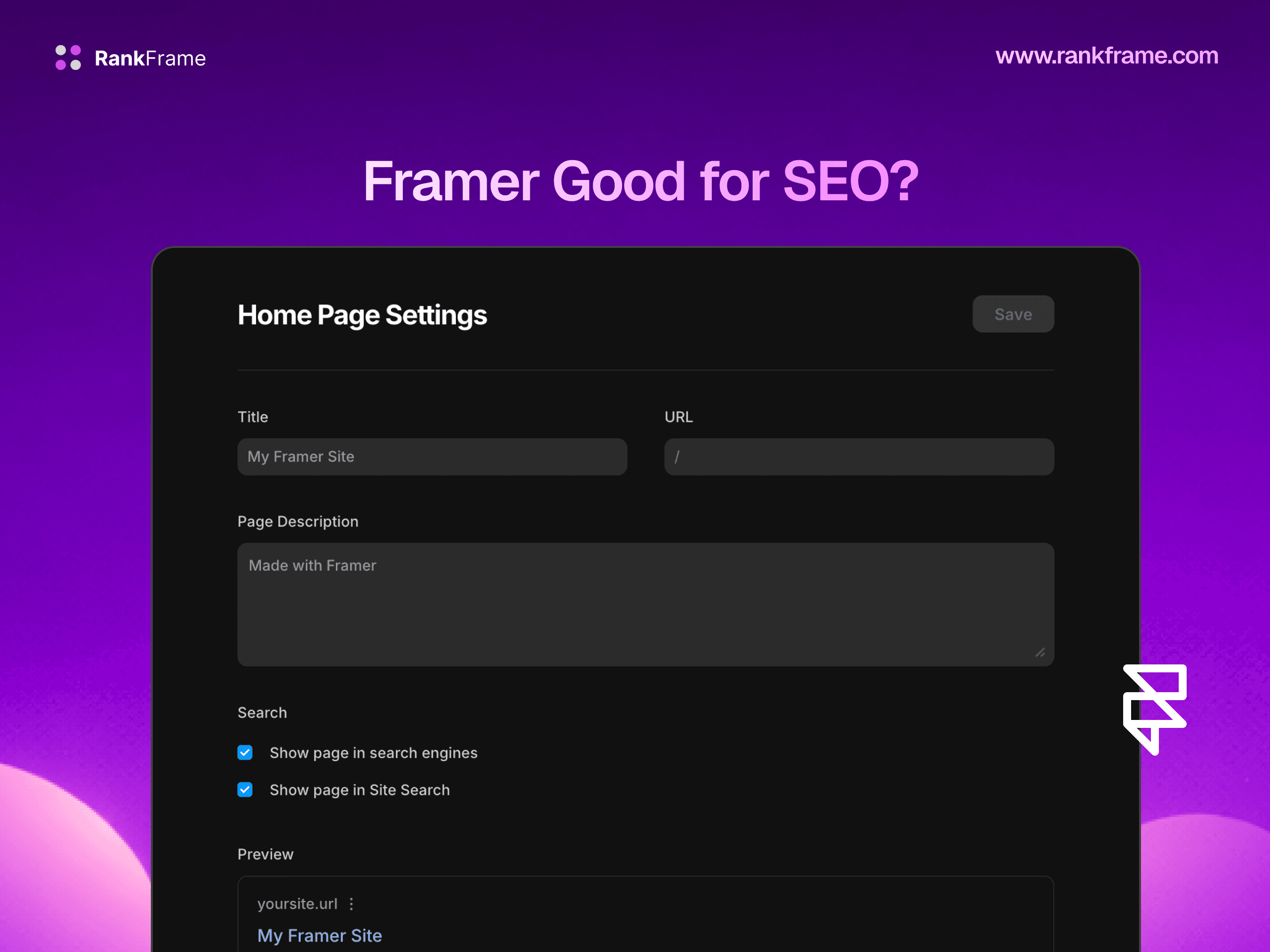
Go to Framer Site Settings and look for any "Indexing" or "SEO" toggle that might say something like "Prevent search engines from indexing this site." Turn it off.
Check Site Settings under Custom Code for any robots meta tag or robots.txt override.
If you use a CDN or hosting proxy in front of your Framer site, check whether that layer is serving a custom robots.txt.
After making the change, publish your site and wait a few minutes before re-checking the robots.txt URL in your browser. Then use the GSC URL Inspection tool and click "Request Indexing" to nudge Googlebot to revisit.
Fix 2: A noindex Tag Is on Your Page
Even if Googlebot can reach your page, a noindex directive in the page's HTML head tells Google to crawl it but not include it in search results. This is one of the most common causes of individual Framer pages disappearing from Google, often set accidentally during development and never removed.
How to check
There are two ways to verify this. The first is to right-click your page in a browser and select "View Page Source." Then search for "noindex". If you find a meta robots tag with noindex content, the page is excluded from Google's index.
The second way is through Google Search Console. In the URL Inspection tool, if the page status is "Submitted URL marked noindex," a noindex tag is confirmed.
How to fix it in Framer
In your Framer project, select the page in the left panel. Open Page Settings (the gear icon). Look for the SEO section and find the "Search Engine Indexing" or "Allow indexing" option. Make sure it is enabled (not set to noindex).
For CMS collection template pages, check the template page settings, not individual CMS items. The template-level noindex setting applies to all items in that collection.
Double-check your published pages, not just your Framer editor settings.
Framer sometimes preserves old settings from before a plan upgrade. After changing any noindex setting, publish your site and verify the live page source no longer contains the noindex tag.
Fix 3: Site Not in Search Console or Sitemap Not Submitted
Google can technically discover your site without Search Console, but it relies on finding links to your site from other indexed pages. If your site is brand new and has few or no external links, Google may simply never find it. Submitting your site to Google Search Console and providing a sitemap is the most direct way to tell Google your site exists.
Step 1: Verify your Framer site in Google Search Console
Go to search.google.com/search-console and sign in.
Click "Add property" and choose "URL prefix" (easier for Framer sites).
Enter your full domain, e.g. https://yourdomain.com.
Choose the HTML tag verification method. Copy the meta tag Google provides.
In Framer, go to Site Settings, scroll to Custom Code, and paste the meta tag in the Head section.
Publish your Framer site.
Return to GSC and click "Verify."
Step 2: Submit your Framer sitemap
Framer automatically generates a sitemap at your domain's /sitemap.xml path. Open that URL in your browser to confirm it exists and lists your pages. Then, in Google Search Console, click "Sitemaps" in the left sidebar, enter sitemap.xml in the field and click Submit.
Framer's sitemap updates automatically on every publish.
You do not need to resubmit the sitemap URL after each publish. Google reads the sitemap file directly, and Framer updates it every time you publish changes.
Fix 4: Your Domain Is Too New
Google does not index sites instantly. A brand new domain, even one with a perfect technical setup, often takes time to earn Google's trust and move through the crawl queue. This is sometimes called the "Google Sandbox" effect, though Google has never officially confirmed it as a formal system.
What is definitively true is this: new domains with no crawl history, no backlinks, and no Search Console data simply have a lower crawl priority than established sites. Google allocates crawl budget across the entire web, and a zero-history domain naturally sits lower in that queue.
Realistic timelines for new Framer sites
Action Taken | Expected Time to First Indexing |
|---|---|
No sitemap, no GSC, no backlinks | 2-8 weeks (if ever) |
GSC verified + sitemap submitted | 5-14 days |
GSC + sitemap + a few backlinks | 3-7 days |
GSC + sitemap + Indexing API via RankFrame | Hours to 2 days |
If your domain is under two weeks old and you have already completed Fixes 3, 5, and 6, the most productive thing you can do is use the Google Indexing API (Fix 8) and then wait.
Tip: Check your domain registration date.
If you recently transferred a domain from a previous owner or reactivated an expired domain, previous crawl history may or may not carry over. Check whether Google previously indexed the old site by running site:yourdomain.com before you started using it.
Fix 5: You Are Using the .framer.app Subdomain
Every Framer project gets a free preview URL on the .framer.app subdomain. These URLs are technically accessible to Google, but they have significant indexing drawbacks. The .framer.app domain is shared across thousands of Framer sites. Framer may apply noindex headers to .framer.app preview URLs to prevent duplicate content issues with your custom domain. You cannot submit a .framer.app URL as a Google Search Console property using domain verification.
How to connect a custom domain in Framer
Purchase a domain from any registrar (Namecheap, Google Domains, Cloudflare, etc.).
In Framer, go to Site Settings and click "Custom Domain."
Enter your domain and follow the DNS configuration instructions Framer provides.
Once DNS propagates (usually within a few hours), your Framer site will be live on your custom domain.
Add the custom domain as a new property in Google Search Console and re-verify.
Custom domains require a paid Framer plan.
The free Framer plan does not support custom domains. If you are on the free plan, upgrade to at least the Mini plan before attempting to connect a domain.
Fix 6: No Backlinks Pointing to Your Site
Google discovers new pages by following links from pages it already knows about. If no external site links to your Framer site, Google's crawler may never organically find it, regardless of how good your sitemap and technical setup are.
Minimum viable backlink strategy for a new Framer site
You do not need hundreds of backlinks to get indexed. A handful of real, relevant links from pages Google already crawls is usually enough to accelerate discovery. Start with these:
Social profiles: Add your URL to your LinkedIn, Twitter/X, GitHub, or other social media profiles. These pages are crawled frequently.
Directory listings: Submit your business to Google Business Profile, Bing Places, and a few relevant niche directories.
Product Hunt or similar: If you are launching a product or SaaS, launch it on Product Hunt, Indie Hackers, or Hacker News. These sites are crawled heavily.
A mention from a related site: Ask a colleague, partner, or client to link to your site from their own website or blog.
You only need one good link to get started.
A single backlink from a site Google already crawls is often enough to trigger discovery of your Framer site within days. The link does not need to be from a high-authority domain. It just needs to exist somewhere Google visits.
Fix 7: Crawl Budget Issues on Large CMS Sites
Crawl budget refers to the number of pages Google is willing to crawl on your site within a given time period. For small Framer sites (under 100 pages), crawl budget is rarely a problem. For larger Framer sites using CMS collections with hundreds or thousands of items, it can be significant.
The symptoms of a crawl budget problem look like this: your homepage and top-level pages are indexed, but many CMS collection item pages are stuck in "Discovered, currently not indexed" status in GSC for weeks or months.
What causes crawl budget waste on Framer CMS sites
Duplicate or near-duplicate CMS pages with thin content
Faceted navigation or filter URLs generating large numbers of low-value pages
CMS pages with very similar content across items (e.g., template-style pages with only a name and date changing)
Slow page load times increasing Googlebot's per-page crawl cost
How to address crawl budget issues
Prioritize your most important CMS pages. Use the Google Indexing API via RankFrame to specifically push your highest-value CMS items rather than waiting for Google to discover them organically.
Noindex low-value pages. If you have CMS items that are duplicates, placeholders, or very thin content, add noindex to those items to concentrate crawl budget on your best content.
Improve page speed. Check Framer Core Web Vitals in Google Search Console and use Framer's built-in optimization settings to reduce page size.
Review your sitemap. Make sure your Framer sitemap only includes pages you want indexed. Framer includes all published CMS items by default.
Fix 8: Use the Google Indexing API via RankFrame
The Google Indexing API is Google's direct channel for notifying Googlebot about specific URLs that need priority crawling. Unlike submitting a sitemap (which invites Google to crawl when it gets around to it), the Indexing API tells Google a specific page needs attention now. The result is that targeted pages are typically crawled within hours rather than days or weeks.
The Indexing API requires authentication setup that is technically complex. RankFrame handles all of that complexity for you inside Framer, with a simple interface for selecting and pushing URLs.
How to use RankFrame's Indexing API submission
Install RankFrame from the Framer Marketplace.
Open RankFrame inside your Framer project and connect your Google Search Console account.
Navigate to the "Submit Indexing" section.
Your full sitemap of Framer pages will appear. Select the specific pages you want to push, or use "Select All" for your entire site.
Click "Push URLs." RankFrame submits each URL to the Google Indexing API.
Check the Indexing History tab to monitor submission status and live index status for each URL.
Best use of the Indexing API: new content and updated content.
Push URLs via the Indexing API immediately after publishing new pages or making significant updates to existing pages. This is especially valuable for time-sensitive content (blog posts, product launches, announcements) where waiting a week for organic crawling is not acceptable.
The Indexing API is the most powerful tool available for accelerating Framer indexing. When combined with the technical fixes in this article (no robots blocks, no noindex, GSC connected, sitemap submitted), it closes the gap between publishing a page and seeing it appear in Google search results.
How to Monitor After Fixing
Applying the fixes above is only half the job. You need to confirm they worked and track progress over time. Here is the monitoring workflow to follow after making any of the changes in this article.
Immediate checks (within 24 hours)
Verify robots.txt: Re-check yourdomain.com/robots.txt in your browser to confirm the blocking rule is gone.
Verify page source: On any pages where you removed noindex, view the source and confirm the meta robots tag is no longer present.
Re-run GSC URL Inspection: For your most important pages, use the URL Inspection tool in GSC and click "Request Indexing." This puts the page in Google's priority crawl queue.
Check RankFrame Indexing History: If you pushed URLs via RankFrame, the Indexing History tab shows submission status and a "Check Live" button to verify real-time index status.
Ongoing monitoring (weekly and monthly)
Google Search Console Coverage: Review the Coverage report weekly. The counts in "Valid," "Valid with warnings," "Error," and "Excluded" sections tell you whether your indexed page count is growing or falling.
Google Search Console Performance: Once pages are indexed, the Performance report shows impressions and clicks. Impressions appearing before clicks is normal for new pages still climbing in rankings.
RankFrame Indexing History: Keep the Indexing History visible to track the index status of all pages you have pushed.
site: search: Run site:yourdomain.com in Google once a week. Watch the number of results grow as more pages enter the index.
Patience matters for new sites.
Even with the Indexing API and a perfect technical setup, a brand new domain typically takes 2-4 weeks before pages start ranking for competitive queries. Indexing (being in the index at all) is a prerequisite for ranking, but it is only the first step.
What good looks like: a realistic 30-day timeline
Day Range | Expected State |
|---|---|
Day 1-3 | GSC verified, sitemap submitted, Indexing API pushes sent via RankFrame |
Day 1-5 | Homepage and key pages crawled and indexed (confirmed in GSC) |
Day 7-14 | Most static pages indexed, CMS pages beginning to appear |
Day 14-30 | First impressions appearing in GSC Performance; some pages starting to rank for long-tail queries |
30+ days | Ranking data accumulating; focus shifts from indexing to content and backlink strategy |
Frequently asked questions
How long does it take for a Framer site to appear on Google?
For a brand new Framer site with no backlinks and no sitemap submission, Google discovery can take anywhere from a few days to several weeks. Submitting a sitemap through Google Search Console typically speeds this up to 3-14 days. Using the Google Indexing API via RankFrame can trigger priority crawling within hours for specific URLs. The domain's age and the volume of inbound links are the biggest variables in how quickly Google prioritizes your site.