
<- Go Back
Keyword Research
Keyword Research Overview: RankFrame Global Keywords tab
Learn how to use the RankFrame Global Keywords tab to assign focus keywords to pages, check search metrics, and analyze keyword density across your Framer site.
Last Updated on
Read Time
3 min read
Inside the Global Keywords tab
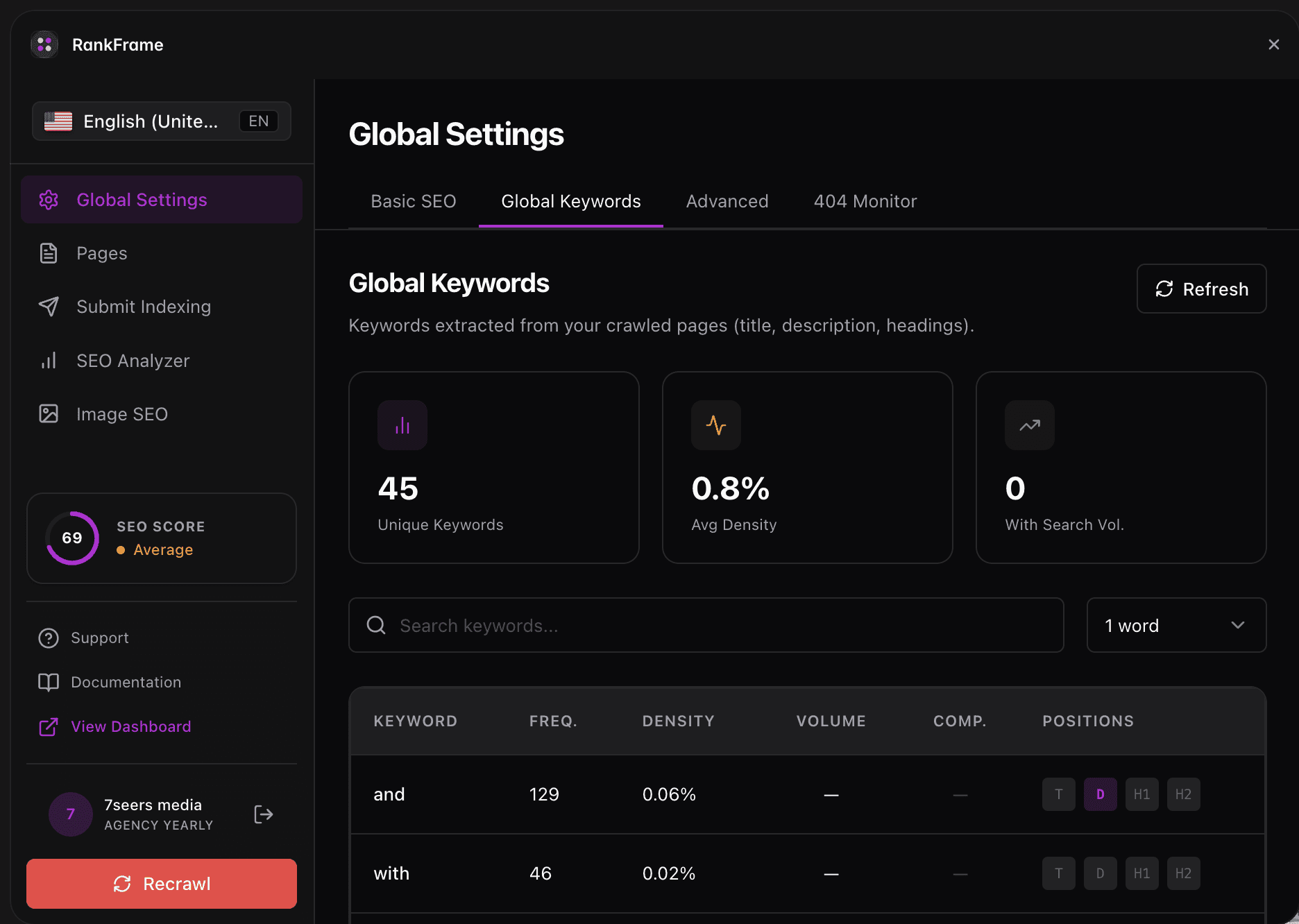
Each control in the Global Keywords tab serves a distinct purpose. The sections below walk through every element from top to bottom so you know exactly what to click and when.
1. How to Open the Global Keywords tab
Click the gear icon in the RankFrame left sidebar to open Global Settings. At the top of the panel you will see four tabs: Basic, Keywords, Advanced, and 404 Monitor. Click Keywords to switch to the keyword research view. This tab is available on all plan levels that include keyword features.
2. Focus Keyword Script Toggle
The toggle at the top of the Global Keywords tab controls meta keyword injection. When turned on, RankFrame inserts the keywords you have saved into a meta keywords tag on each assigned page the next time you publish the Framer site. When turned off, no meta keywords tag is added to the published output, regardless of what is saved in the list below.
Good to know: The meta keywords tag carries little direct ranking weight in modern search engines. Its value is organizational: it keeps your keyword strategy visible and consistent across pages so every publish reflects your current plan.
3. Target Page Selector
The Target Page dropdown lists every page RankFrame has detected in your sitemap. Examples include / (homepage), /thoughts, /projects/rkg, and /projects/ember-and-bloom. Select the page you want to assign a keyword to before you check or save. Switching pages reloads the Saved Keywords list to show only the keywords assigned to the newly selected page.
4. Keyword Input and Check
Type a focus keyword into the input field below the Target Page selector. When you click Check, RankFrame queries its search data provider and returns four metric cards within a few seconds: Search Vol, Difficulty (KD), Competition, and CPC. You can check as many keywords as you like before committing to one. No credits are consumed by the Check action.
5. Saved Keywords List
Keywords you have saved appear in the Saved Keywords section, which shows a count in parentheses, for example "Saved Keywords (3)". Each row displays the keyword text alongside its Vol and KD scores. Keywords with a high difficulty score display a red KD badge as a visual warning. Each row also includes a trash icon to remove that keyword from the page assignment permanently.
6. Keyword Analysis
Below the saved list, a collapsible Keyword Analysis section summarizes how your saved keywords appear across the selected page's content. Click Show details to expand the view, or Hide details to collapse it. The expanded view shows three aggregate values: Total Keywords, Avg Density, and Total Frequency. Below those figures, a full Keyword Details table lists every detected term with a word-count filter and a search field so you can isolate specific words quickly.
Frequently asked questions
What does the Focus Keyword Script toggle do?
When enabled, RankFrame injects saved keywords into a meta keywords tag on each assigned page during the next Framer publish. This signals the page topic to search crawlers.