
<- Go Back
Keyword Research
How to Add and Check Keywords in RankFrame
Step-by-step guide to adding focus keywords in RankFrame, checking search volume and keyword difficulty, and saving keywords to specific pages on your Framer site.
Last Updated on
Read Time
3 min read
Step-by-Step: Adding a Focus Keyword
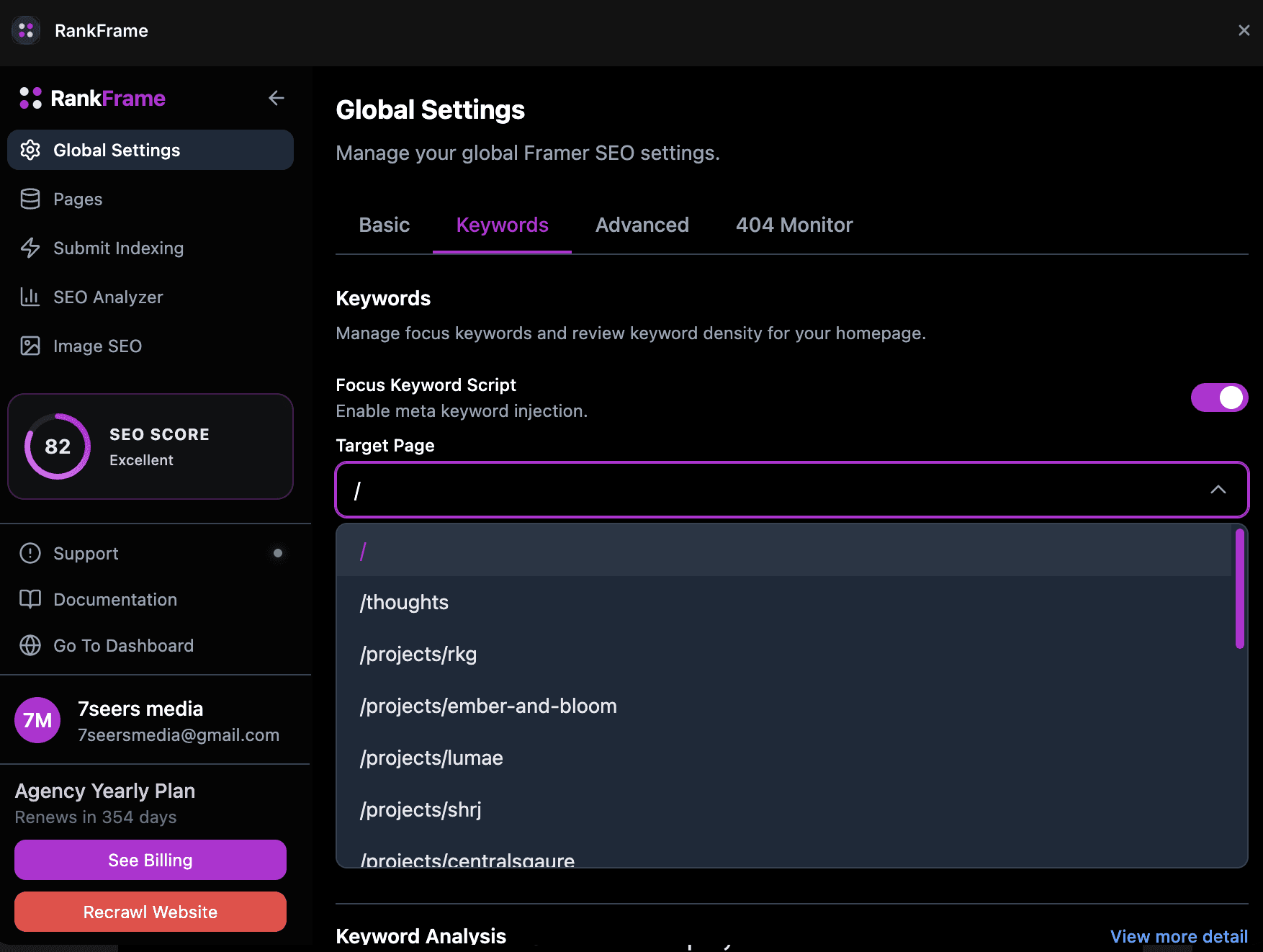
Follow these steps in order. Each step builds on the previous one.
Open Global Settings: Click the gear icon in the RankFrame left sidebar. When the panel opens, click the Global Keywords tab at the top. You will see the tab row: Basic, Keywords, Advanced, and 404 Monitor.
Select the Target Page: Open the Target Page dropdown and click the page you want to assign the keyword to. Use
/for the homepage,/thoughtsfor a blog section, or the specific path for any inner page. The Saved Keywords list updates to show existing keywords for the page you selected.Type the keyword: Click the keyword input field and type your focus keyword, for example "Framer SEO plugin". Keep it specific and directly relevant to the page content. Phrase-length keywords (two to four words) tend to have more focused intent than single words.
Click Check: Click the Check button next to the input field. RankFrame queries search data and within a few seconds the four metric cards populate below the input: Search Vol, Difficulty (KD), Competition, and CPC. No credits are used for this action.
Review the metrics: Read each card carefully. A keyword with reasonable search volume and low-to-medium difficulty (KD under 50) is often the best starting point for a newer site. High CPC can signal strong commercial value even for organic traffic.
Click Save: If the metrics look right for your goals, click Save. The keyword appears in the Saved Keywords list below the input, showing its Vol and KD values at a glance. Repeat the process to add more keywords to the same page or switch to a different page.
Tip: You can check several keywords back to back before saving any of them. Type a new keyword and click Check again to replace the displayed metrics. Compare options freely before committing.
Understanding the Four Metric Cards
Each card that appears after you click Check provides a different lens on that keyword's viability. Here is what each one measures.
1. Search Vol
Estimated monthly search volume for the keyword globally. Higher volume means more potential traffic, but also usually means more competition. Use this number to confirm people are actually looking for the term before investing in content around it.
2. Difficulty (KD)
Keyword Difficulty score on a scale of 0 to 100. The higher the number, the harder it is to reach page one of Google for that keyword. For a new or mid-sized Framer site, target KD under 40 to start. Saved keywords with high KD display a red badge in the Saved Keywords list as a reminder that these will require more effort to rank.
3. Competition
Reflects how many advertisers are bidding on this keyword in paid search, on a scale from 0 (no advertisers) to 1 (maximum competition). High competition often signals strong commercial intent: people searching for the term are buyers or decision-makers. That makes organic ranking for high-competition keywords especially valuable.
4. CPC
Cost Per Click in USD. This is the average amount advertisers pay for one click on a Google Ad targeting this keyword. A high CPC is a strong indicator that searchers convert into leads or customers, making each organic click more valuable. Compare CPC across keyword options to prioritize terms where a ranking actually moves your business forward.
Putting it together: The best single keyword to target is usually one with moderate volume (500 to 5,000 monthly searches), a KD under 40, and a CPC above $1. This combination means real people search for the term, you have a real shot at ranking, and each visit has real commercial value.
Frequently asked questions
What happens if I click Check without selecting a Target Page?
A target page must be selected before saving. The Check action will still return metrics, but you need to select a page in the dropdown before clicking Save.