
<- Go Back
Keyword Research
Managing Saved Keywords in RankFrame
Learn how to view, organize, and delete saved focus keywords in RankFrame. Understand keyword-to-page assignments and how deletion affects meta keyword injection on your Framer site.
Last Updated on
Read Time
3 min read
1. Saved Keywords List
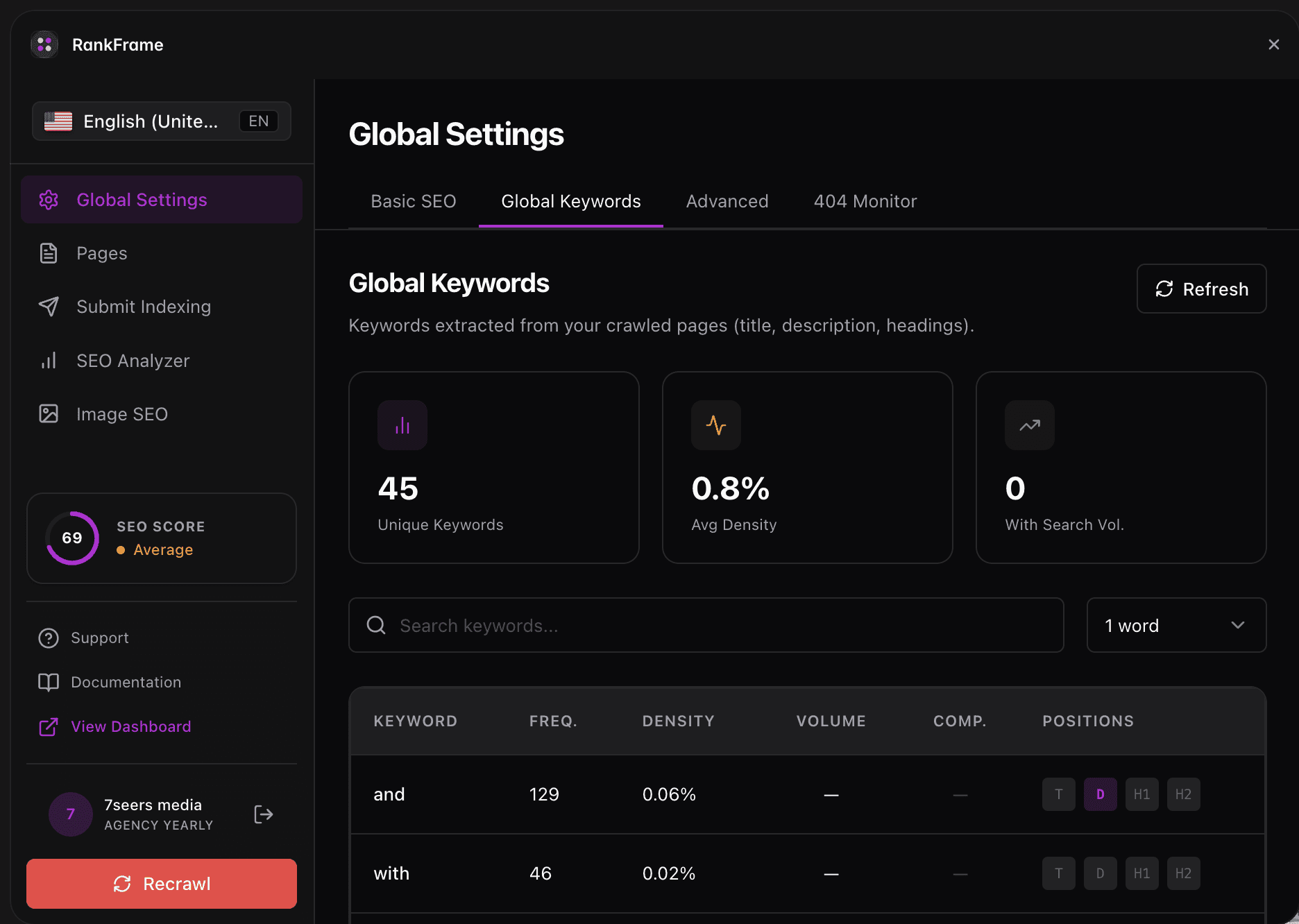
After saving at least one keyword, the header updates to show Saved Keywords (N), where N is the current count. Each row in the list displays three pieces of information: the keyword text, the Vol (search volume), and the KD (keyword difficulty) score. Keywords with a high difficulty score show a red KD badge as a visual warning that those terms require more effort to rank.
2. Hide / Show Toggle
A small Hide link appears at the right side of the Saved Keywords header. Click it to collapse the list out of view. The header changes to Show so you can expand it again later. This toggle only affects the panel display and has no effect on keyword injection, keyword assignments, or the focus keyword script.
3. Trash Icon (Delete)
Each keyword row includes a trash icon on the right. Click the trash icon to permanently remove that keyword from the assigned page. The deletion is immediate and cannot be undone from the plugin. If you delete a keyword by mistake, you can re-add it using the Check flow again.
Important: Deleting a keyword in the plugin does not update your live Framer site until you publish. If the Focus Keyword Script is still enabled, the deleted keyword will remain in the live meta keywords tag until your next Framer publish.
4. Keyword-to-Page Assignment
Each saved keyword is tied to the page that was active in the Target Page dropdown at the moment you clicked Save. The Saved Keywords list does not currently display a page column, so the visible list does not tell you which keyword belongs to which page. To keep your assignments accurate, always confirm the correct Target Page is selected before saving a new keyword. If you need to audit assignments, switch the Target Page dropdown to each page and check which keywords appear in the list.
Keeping Your Saved Keywords Organized
A clean keyword list makes it easier to understand your SEO strategy at a glance. Here are a few practical habits that help:
Save 2 to 5 keywords per page. More than that dilutes your focus and makes it harder to write content that genuinely targets a specific phrase.
Before saving a keyword, check the KD badge. If it is red, decide whether to keep it, find a lower-competition alternative, or accept a longer ranking timeline.
Use the Hide control when you are working on other plugin sections. It keeps the interface clean without affecting any data.
Review and prune your saved keywords after major site restructures. Deleted pages may still have keywords assigned: remove those orphaned keywords to keep the list current.
Tip: Switch the Target Page dropdown through each of your main pages once a month and confirm the saved keywords still match the page's current content focus. Sites evolve, and keyword assignments should evolve with them.
Frequently asked questions
Can I assign the same keyword to multiple pages?
You can save the same keyword while each page is selected in the Target Page dropdown, which assigns it to both. However targeting the same keyword on multiple pages can cause keyword cannibalization, where pages compete with each other in search results.